
Isingeniso kanye Phezuview
The Trueque KM22 Ultra Wireless Keyboard and Mouse Combo offers a full-size, backlit typing experience with a comfortable wrist rest and convenient phone holder. Designed for versatility, it connects wirelessly via a 2.4G USB-A/Type-C receiver, making it compatible with various devices including PCs, laptops, Windows, and Chrome OS. Its quiet keys and long-lasting rechargeable battery ensure an efficient and undisturbed work or gaming environment.

Image: Trueque KM22 Ultra Wireless Keyboard and Mouse Combo, showcasing its full-size design and integrated wrist rest.
Okuqukethwe Kwephakheji
Qinisekisa ukuthi zonke izinto zikhona kuphakheji yakho:
- Trueque KM22 Ultra Wireless Keyboard
- Trueque Wireless Mouse
- 2-in-1 USB-A/Type-C Receiver
- Ikhebula lokushaja le-USB
- Imaniwali yosebenzisayo
Video: Unboxing the Trueque Wireless Keyboard and Mouse Combo, showing all included components.
Setha
- Thola i-USB Receiver: The 2-in-1 USB-A/Type-C receiver is stored in a compartment on the underside of the mouse. Gently remove it.
- Xhuma Isamukeli: Plug the USB receiver into an available USB-A or USB-C port on your computer or laptop. The system should automatically detect the devices.
- Vula: Ensure both the keyboard and mouse are switched to the 'ON' position. The power switch for the mouse is located on its underside. The keyboard has a power switch near the top right.
- Ukukhokhiswa kokuqala: For optimal performance, it is recommended to fully charge both the keyboard and mouse before first use. Use the provided USB charging cable.
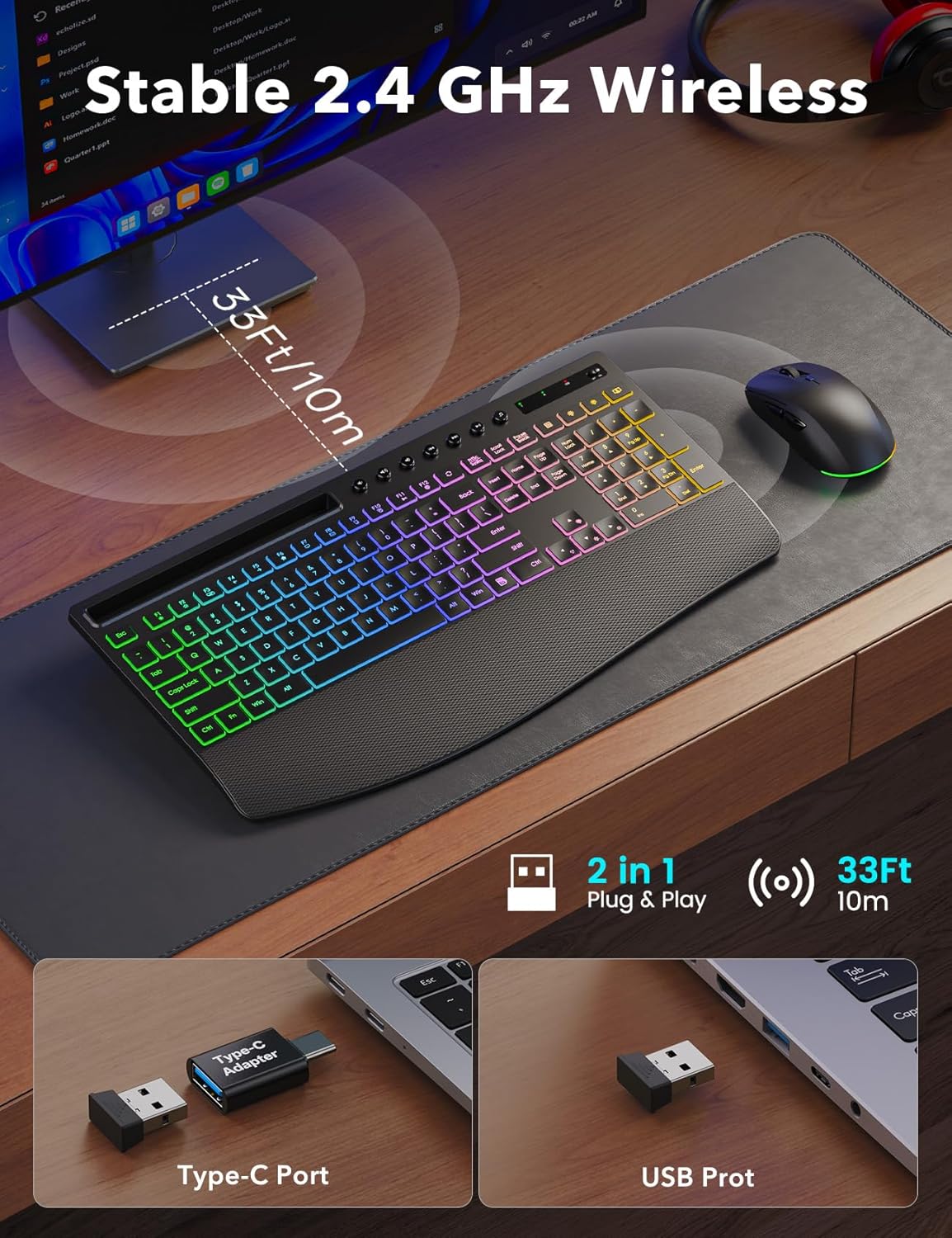
Image: The 2.4G wireless receiver with both USB-A and Type-C adapter options for versatile connectivity.
Imiyalelo yokusebenza
Imisebenzi yekhibhodi
- Ukulawula Ukukhanya Kwasemuva: The keyboard features 5 lighting effects and 10 backlight colors. Use the dedicated backlight keys (often marked with a lightbulb icon) to cycle through modes and colors. Adjust brightness levels using the Fn key combined with specific arrow keys (refer to the keyboard's keycap legends for exact combinations).
- Okhiye be-Multimedia: Dedicated multimedia keys are located at the top of the keyboard for quick access to volume control, play/pause, and other media functions.
- Wrist Rest & Tilt: The integrated wide wrist support is designed for comfort during long typing sessions. Foldable 7° tilt legs on the underside of the keyboard can be extended for a more ergonomic typing angle.
- Isikhala Sesibambi Sefoni: A built-in slot at the top of the keyboard accommodates mobile devices, allowing for easy viewing during multitasking or video calls.
Video: Demonstration of keyboard backlight control, showing various modes and brightness adjustments.
Imisebenzi Yegundane
- Ukulungiswa kwe-DPI: The mouse supports multiple DPI settings (800, 1200, 1600 DPI) for adjustable cursor sensitivity. Use the dedicated DPI button, usually located near the scroll wheel, to cycle through settings.
- Izinkinobho Eziseceleni: The mouse includes side buttons for convenient forward and backward navigation in web iziphequluli noma ezinye izinhlelo zokusebenza.
- Ukulawula Ukukhanya Kwasemuva: To turn the mouse backlight on or off, press and hold the scroll wheel for approximately 5 seconds.

Image: The Trueque wireless mouse, highlighting its backlit feature, DPI settings, and quiet click design.
Isondlo
- Ukuhlanza: Use a soft, dry cloth to clean the surfaces of the keyboard and mouse. For deeper cleaning, a slightly damp Indwangu enensipho ethambile ingasetshenziswa, ukuqinisekisa ukuthi akukho uketshezi olungena ocingweni.
- Ukunakekelwa kwebhethri: To prolong battery life, avoid fully discharging the devices frequently. Recharge when the low battery indicator appears. Store in a cool, dry place when not in use for extended periods.
- Isitoreji: When transporting or storing, ensure the USB receiver is securely placed in its compartment within the mouse to prevent loss.
Ukuxazulula inkinga
- Alukho Uxhumo: Ensure the USB receiver is firmly plugged into a working USB port. Check that both the keyboard and mouse are powered on. Try plugging the receiver into a different USB port.
- Ukukhanya Kwasemuva Akusebenzi: Verify that the backlight is enabled using the dedicated keys. Adjust brightness levels. Ensure the device has sufficient battery charge.
- Igundane aliphenduli: Check the mouse's power switch. Ensure the USB receiver is connected. If the mouse has a backlight, check if it's on, indicating power.
- Mouse Scrolling Issues: If the mouse scroll wheel is unresponsive, try turning the mouse off and on again. Ensure the mouse is fully charged.
- Ukuxhumana Okubambezelekile Noma Okungahleliwe: Move the keyboard and mouse closer to the USB receiver. Avoid placing the receiver near other wireless devices that might cause interference.
Imininingwane
| Ubukhulu bomkhiqizo | 16.8 x 9 x 0.9 amayintshi |
| Isisindo sento | 2.59 amakhilogremu |
| Keyboard Battery Capacity | 4000mAh (Ishajwa kabusha) |
| Amandla ebhethri legundane | 800mAh (Ishajwa kabusha) |
| Ubuchwepheshe bokuxhumana | 2.4Ghz Ukuxhuma Okungenantambo |
| Uhlobo olungenantambo | Kufika ku-33 ft (10 amamitha) |
| Ukukhanya kwangemuva | 5 Lighting Effects, 10 Backlight Colors, 5 Brightness Levels |
| I-DPI yegundane | Kufika ku-1600 DPI (Okushintshekayo) |
| Izici ezikhethekile | Backlit, Light Up Keys, Ergonomic, Rechargeable, Spillproof, Wrist Rest, Phone Holder |
| Amadivayisi Ahambisanayo | Chromebook, Laptop, Notebook, MacBook Air, MacBook Pro, iMac, Tablet, Smartphone, Personal Computer, Television (Some shortcut keys may have limited function on macOS) |

Image: Detailed dimensions of the Trueque KM22 Ultra Keyboard and Mouse.
Iwaranti kanye Nokusekela
Trueque offers a 12-month warranty and 360 days of brand care for this product. For any inquiries, technical support, or warranty claims, please contact our customer service team.
I-imeyili Yokusekela Amakhasimende: truequeservice@outlook.com

Image: Trueque customer support details, including contact information and warranty period.