
1. Isingeniso
This manual provides detailed instructions for the setup, operation, maintenance, and troubleshooting of the RGBlink NDI PTZ Camera Controller (RGBBKT). This device is designed for professional video production environments, offering comprehensive control over various PTZ cameras using multiple protocols.
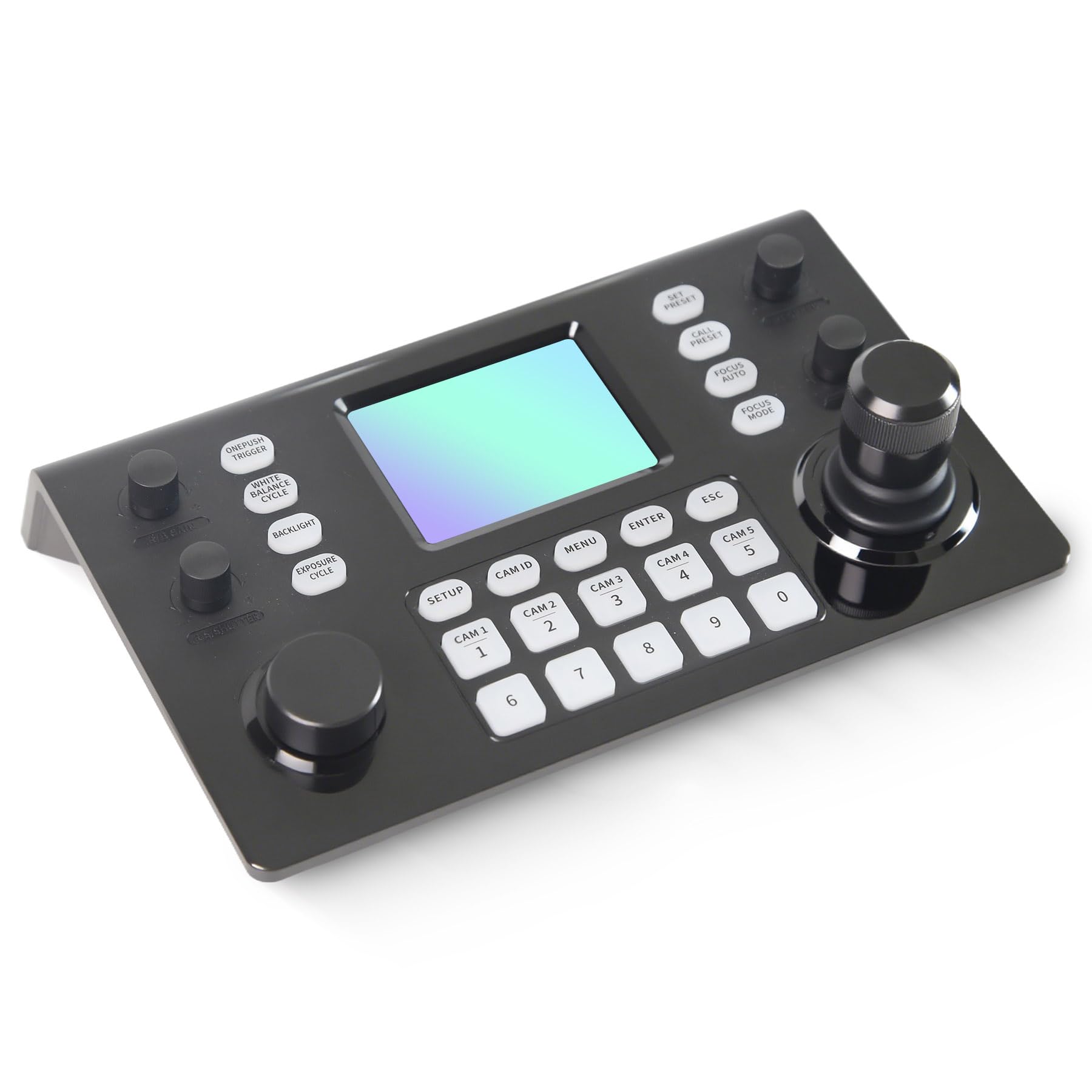
Image 1.1: RGBlink NDI PTZ Camera Controller (RGBBKT).
2. Setha
Follow these steps to set up your RGBlink NDI PTZ Camera Controller.
2.1 Ukuqaqa kanye Nokuhlola Kokuqala
- Susa ngokucophelela zonke izingxenye ephaketheni.
- Verify that all items listed in the packing list are present.
- Inspect the controller for any signs of physical damage. If damage is found, contact your dealer immediately.
2.2 Ukuxhuma Isilawuli
The RGBlink NDI PTZ Camera Controller supports various connection methods for power and camera control.
- Amandla phezu kwe-Ethernet (PoE): Connect a single RJ45 Ethernet cable from a PoE-enabled network switch to the controller's LAN port. This provides both power and network connectivity.
- I-adaptha Yamandla Yangaphandle: If PoE is not available, connect the provided power adapter to the DC 12V input port and to a power outlet.
- Ukuxhumana Kwekhamera:
- Ethernet (IP Control): Connect PTZ cameras to the same network as the controller via RJ45 Ethernet cables. The controller supports VISCA over IP, ONVIF v2.42, and NDI v5.5 protocols.
- Serial Control: For cameras supporting serial communication, use RS232, RS422, or RS485 interfaces. Connect the appropriate cables from the controller's serial ports to the cameras.

Image 2.1: Rear panel connections including RS-232, RS-422, LAN (PoE), and Power Input.

Isithombe 2.2: Eksample connection diagram showing PTZ Controller, PoE Switch, PTZ Cameras, Audio Mixer, and Computer.

Image 2.3: Diagram illustrating IP camera connections via a network switch.
Ukucushwa Kwenethiwekhi
For IP-based camera control, ensure the controller and cameras are on the same network segment. The controller supports automatic detection of NDI-enabled PTZ cameras.
- Access the controller's web interface ngokufaka ikheli layo le-IP ku-a web browser. (Refer to the device's display or network tools to find the IP address).
- The default login credentials are typically 'admin' with a blank password. It is recommended to set a strong password immediately.
- Ngaphakathi kwe web interface, configure camera protocols (e.g., ONVIF, VISCA over IP) and enter camera-specific user credentials if required.

Image 2.4: NDI|HX camera search and control interface on the controller.
3. Ukusebenza
This section details the operational functions of the RGBlink NDI PTZ Camera Controller.
3.1 Ngaphezuluview Yezilawuli
The controller features a 3.49" LCD display, a 3D joystick, various knobs, and a numeric keypad for intuitive control.

Image 3.1: The controller's 3.49-inch LCD display.

Isithombe 3.2: Okuningiliziwe view of the 3D joystick and multi-function knobs.

Image 3.3: Layout of the controller's buttons and numeric keypad area.
3.2 Ukukhethwa kwekhamera
- Izinkinobho Zokukhetha Okusheshayo: Use the dedicated CAM 1-5 buttons for quick selection of up to 5 cameras.
- Ikhiphedi Yezinombolo: For cameras beyond the quick select buttons (up to 255), press the I-CAM ID button, then enter the camera number using the numeric keypad, and press NGENA.

Image 3.4: The controller's ability to manage multiple cameras.
3.3 Ukulawulwa kwe-PTZ
- Induku yokudlala: The 3D joystick controls pan (left/right), tilt (up/down), and zoom (rotate the joystick).
- I-PT Speed Knob: Adjusts the gimbal movement speed for pan and tilt.
- Zoom Knob: Provides precise zoom control, especially useful in preview imodi.
3.4 Image Parameter Adjustment
- IRIS/SHUTTER Knob: Rotate to adjust aperture and shutter speed. Press to switch control modes.
- R/B GAIN Knob: Rotate to adjust red and blue gain. Press to switch control modes.
- FOCUS Button: Cindezela inkinobho I-AUTO FOCUS button to switch the camera to auto focus mode.
- EXPOSURE Button: Cycles through exposure modes (Aperture Priority, Shutter Priority, Gain Priority, Manual Exposure, Auto Exposure).
- Inkinobho Yokukhanya Kwangemuva: Toggles the camera's backlight mode.
- WHITE BALANCE CYCLE Button: Cycles through white balance modes (Indoor, Outdoor, Manual, Auto).
- ONE PUSH TRIGGER Button: When white balance is set to "One-Push White Balance", press this button to initiate a one-push white balance calibration.

Image 3.5: Functions of buttons and knobs on the left side of the controller.

Image 3.6: Functions of buttons and knobs on the right side of the controller, including preset controls.
3.5 Ukuhlelwa kabusha
- SET PRESET Button: Press to enter preset position mode. Use the numeric keys to enter the preset number (0-9) and press NGENA zokonga. Cindezela ESC ukuphuma.
- CALL PRESET Button: Press to enter preset recall mode. Use the numeric keys to enter the preset number (0-9) and press NGENA to recall. Press ESC ukuphuma.
- The controller supports saving and recalling up to 255 presets per camera.
3.6 Ukuzulazula kwemenyu
- Inkinobho yeMENU: Press to open or close the camera settings menu. In menu control mode, the joystick controls navigation (up, down, left, right), NGENA confirms selections, and ESC acts as a back button.
4. Isondlo
Proper maintenance ensures the longevity and optimal performance of your RGBlink NDI PTZ Camera Controller.
4.1 Ukuhlanza
- Use a soft, dry cloth to clean the exterior of the controller.
- Ngokungcola okunenkani, kancane dampfaka indwangu ngamanzi noma isisombululo sokuhlanza esithambile, esingagugi.
- Avoid using harsh chemicals, solvents, or abrasive materials, as these can damage the surface and display.
- Ensure no liquids enter the device through openings or ports.
4.2 Isitoreji
- When not in use for extended periods, store the controller in a cool, dry place away from direct sunlight and extreme temperatures.
- Vikela idivayisi othulini nasemswakeni.
5. Ukuxazulula izinkinga
Lesi sigaba sihlinzeka ngezixazululo ezinkingeni ezivamile ongahlangabezana nazo.
5.1 Amandla Awekho
- Hlola Umthombo Wamandla: Ensure the power adapter is securely connected to both the controller and a working power outlet.
- PoE Check: If using PoE, verify that the Ethernet cable is connected to a PoE-enabled port on your network switch and that the switch is powered on.
- Ubuqotho bekhebula: Inspect the power cable and Ethernet cable for any damage.
5.2 Cannot Control Camera
- Ukuxhumana Kwenethiwekhi: For IP cameras, ensure the controller and cameras are on the same network and can communicate. Check network cables and IP addresses.
- Ukungafani Kwephrothokholi: Verify that the correct control protocol (e.g., VISCA over IP, ONVIF, NDI, Pelco-D/P) is selected on both the controller and the camera.
- I-ID yekhamera: Ensure the correct camera ID is selected on the controller.
- Ukuqinisekisa kokungena: If the camera requires authentication, confirm that the correct username and password are configured in the controller's web esibonakalayo.
- Uxhumano Lwe-serial: For serial control, check RS232/RS422/RS485 cable connections and ensure baud rates and addresses match between the controller and camera.
- I-Firmware: Ensure both the controller and cameras have the latest firmware installed. Visit the RGBlink support webisayithi ukuze uthole izibuyekezo.
5.3 LCD Display Issues
- Akukho Ukuboniswa: Qinisekisa ukuthi isilawuli sivuliwe.
- Dim Isibonisi: Check if there are any brightness settings on the controller that can be adjusted.
6. Imininingwane
| Isici | Imininingwane |
|---|---|
| Imodeli | RGBBKT |
| Ubukhulu (L x W x H) | 11.4 x 7.8 x 5.9 amayintshi (cishe 290 x 200 x 150 mm) |
| Isisindo | 2.2 pounds (approx. 1 kg) |
| Bonisa | 3.49" LCD |
| Izivumelwano Zokulawula | VISCA over IP, ONVIF v2.42, NDI v5.5, Pelco-D/P |
| Izixhumi ezibonakalayo | RS232, RS422, RS485, RJ45 Ethernet (PoE) |
| Camera Capacity | Up to 255 PTZ cameras |
| Okokufaka Amandla | PoE or DC 12V (external adapter) |
| Induku yokudlala | High-precision Hall sensor 3D joystick |

Image 6.1: Controller dimensions and typical usage environments.

Image 6.2: Visual representation of supported protocols including RJ45, RS485, RS422, RS232, ONVIF, NDI, Pelco-D, Pelco-P, and Visca.
7. Ukuboniswa Kwevidiyo Yomkhiqizo
Watch the official product video for a visual demonstration of the RGBlink NDI PTZ Camera Controller's features and operation.
Video 7.1: Official demonstration of the RGBlink PTZ Camera Controller Joystick, showcasing multi-camera control and key features.
8. Iwaranti kanye Nokusekela
For warranty information, technical support, or service inquiries, please contact RGBlink customer service or visit their official webindawo.
- Umkhiqizi: Xiamen RGBlink Science & Technology Co.,Ltd.
- Esemthethweni Webindawo: www.rgblink.com (Qaphela: Lesi isimeli URL, please refer to your product packaging or official documentation for the correct support webindawo.)
- Ulwazi lokuxhumana: Refer to the RGBlink official website for the most current contact details for technical support and warranty claims.