
1. Isingeniso
The Qiilu Industrial Grade Isolated USB to 4-Channel RS232 Converter provides a robust solution for connecting multiple RS232 serial devices to a computer via a single USB port. Designed for industrial environments, it features advanced isolation and protection mechanisms to ensure stable and reliable data communication. This manual provides detailed instructions for the proper setup, operation, and maintenance of your device.
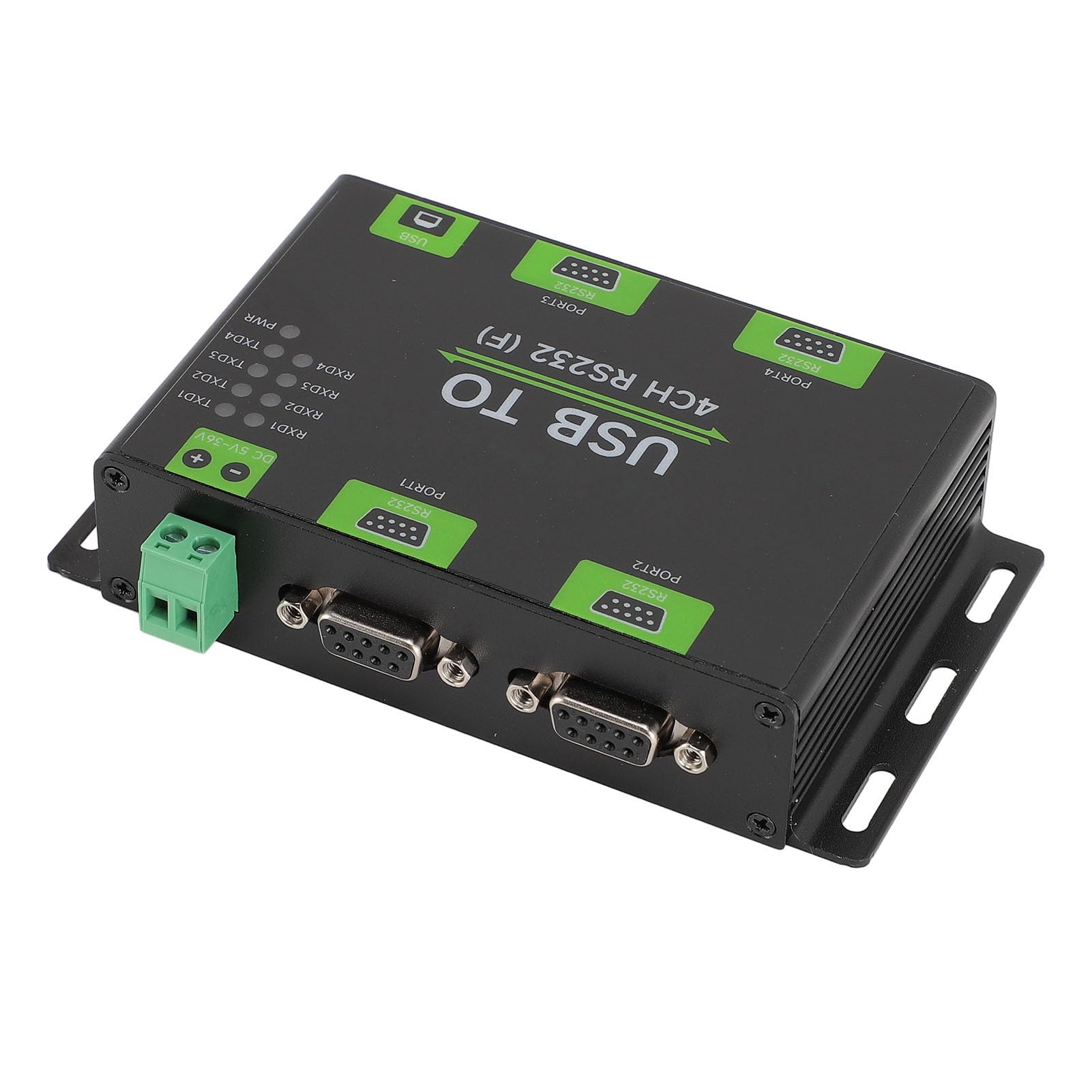
Umfanekiso 1: Phezulu-phansi view of the Qiilu USB to 4-Channel RS232 Converter, showing USB, power, and RS232 ports with LED indicators.
2. Izici zomkhiqizo
- Ukusebenza Kwesivinini esikhulu: Utilizes the original FT4232HL chip for stable and high-speed telecommunication, ensuring compatibility with various RS232 industrial devices.
- Advanced Isolation: Incorporates digital and power isolation mechanisms, offering low power consumption and strong anti-interference capabilities.
- Surge Voltage Ukuvikelwa: Equipped with Transient Voltage Suppression (TVS) design to effectively mitigate surge and transient spike voltages, providing superior thunder and static protection.
- Yamanje kanye noMqtage Guard: Features a self-resetting fuse and diode to maintain stable output current and voltage, safeguarding the device from overcurrent and overvoltage izimo.
- Izinkomba Ezilungele Umsebenzisi: Includes external LED indicators for power supply and data transmission statuses (TXD/RXD), simplifying operation and monitoring.
3. Okuqukethwe Kwephakheji
Iphakheji ihlanganisa izinto ezilandelayo:
- 1 x USB to RS232 Converter
- 1 x Power Adapter (for DC 5-36V input)
- 1 x Ikhebula le-USB
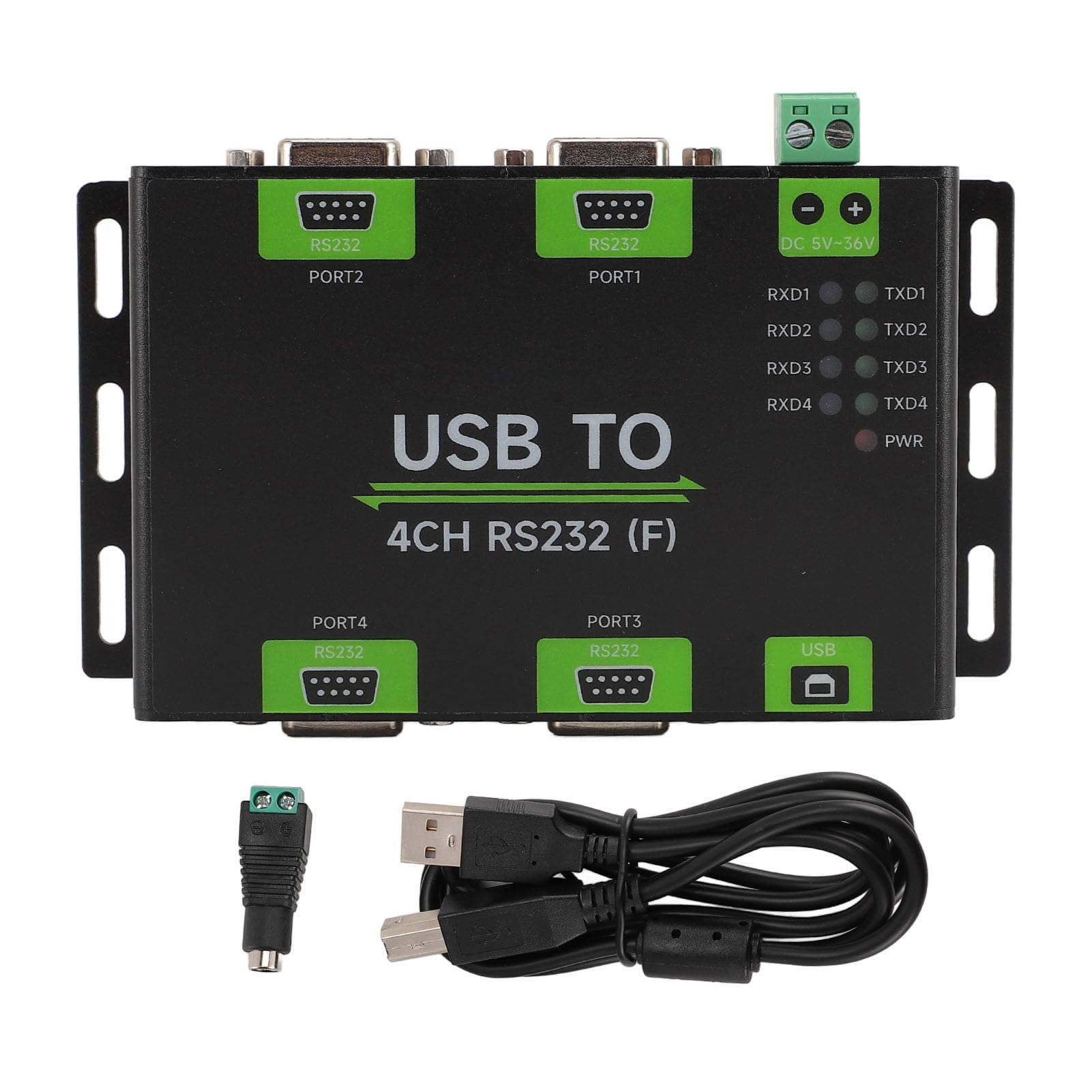
Figure 2: The converter unit shown with its accompanying power adapter and USB cable.
4. Imininingwane
| Isici | Incazelo |
|---|---|
| Uhlobo Lwento | Industrial Grade Isolated USB to RS232 Converter |
| Okubalulekile | I-aluminium Alloy |
| Isikhungo Sokubamba | I-USB |
| Isixhumi esibonakalayo sedivayisi | RS232 (4-channel) |
| Telecommunication Range | 300bps ~ 921600bps |
| USB Interface Working Level | 5V |
| Uhlobo Lwesixhumi se-USB | Imbobo ye-USB B |
| USB Interface Guard | 200mA Self-Restoring Fuse, Isolated Output |
| USB Output Distance | Cishe amamitha angu-5 (16.4ft) |
| Amandla Wokunikezela Voltage | 5 kuya ku-36V DC |
| Power Supply Terminals Interface Guard | Ukuhlehlisa Ukuvikela Ukuxhumana |
| RS232 Interface Form | DB9 Female Head |
| RS232 Interface Guard | TVS Tube Guard, Static Protection |
| RS232 Distance | Cishe amamitha angu-15 (49.2ft) |
| I-Operating Temperature Range | -40 ℃ ~ 85 ℃ |
| Ibanga Lokuswakama Okusebenzayo | 5% ~ 95%RH |
| Ukuhambisana Kwesistimu Esebenzayo | For OS X, for Linux, for Android |
| Ibhrendi | Qilu |
| Inombolo Yemodeli | Qiilu4a27tudq0n |
| Isisindo sento | 293 amagremu |
5. Sethaphu Imiyalelo
- Xhuma Amandla: Connect the provided power adapter to the DC 5-36V power input terminal on the converter. Ensure the power source matches the specified voltagibanga.
- Connect USB Host: Connect one end of the USB cable to the USB B port on the converter and the other end to an available USB port on your computer (host device).
- Faka Abashayeli: Your operating system may automatically install necessary drivers. If not, please refer to the manufacturer's website for driver downloads specific to the FT4232HL chip.
- Connect RS232 Devices: Connect your RS232 serial devices to the DB9 female head ports (PORT1, PORT2, PORT3, PORT4) on the converter.
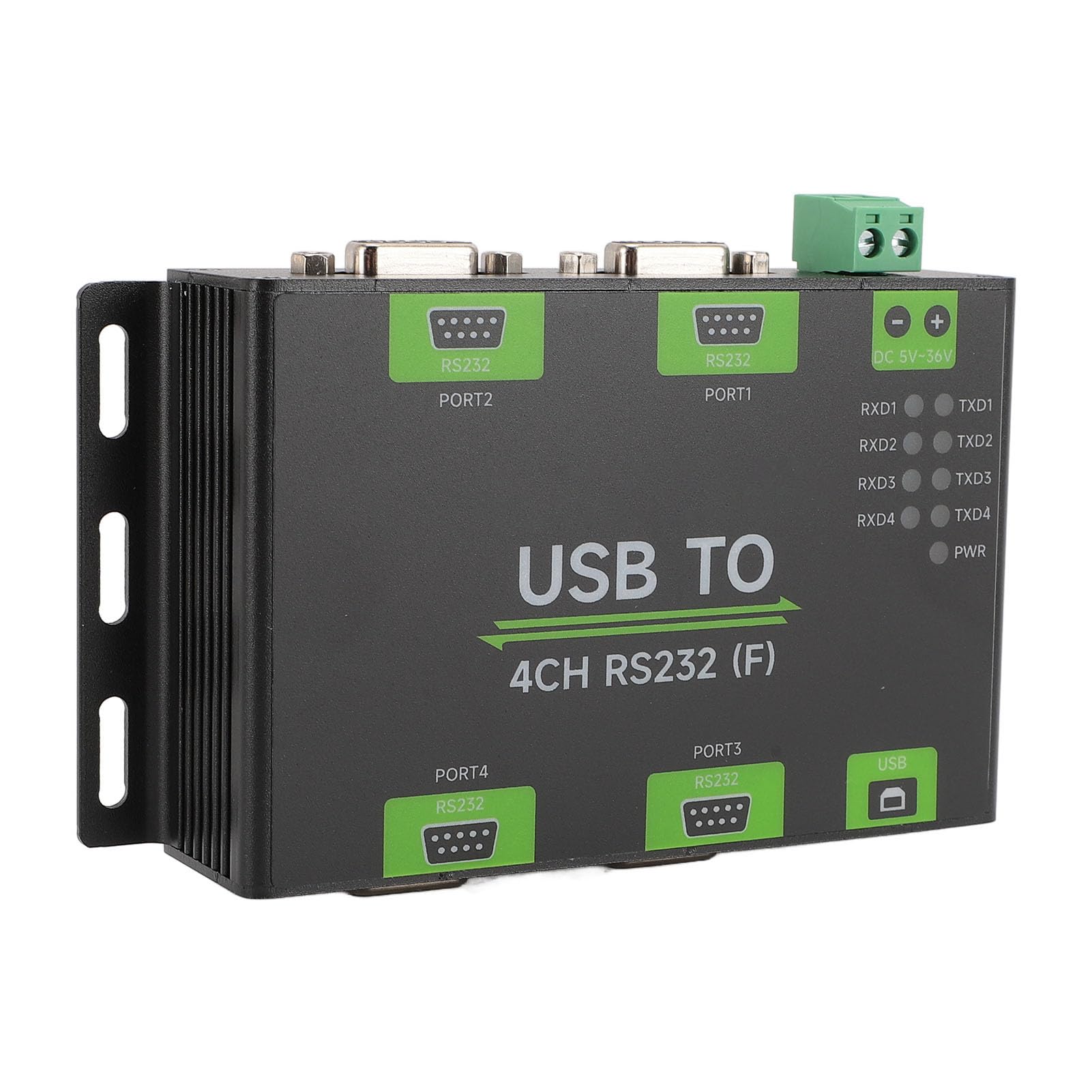
Umfanekiso 3: I-engeli view highlighting the USB, power input, and RS232 ports for connection.
6. Iziqondiso Zokusebenza
Once connected and powered, the converter will begin operation. Monitor the LED indicators for status:
- PWR (Power Indicator): This LED turns red when the USB is connected and voltage is detected, indicating the device is powered on.
- TXD (Send Indicator): This LED turns green when data is being sent from the RS232 interface.
- RXD (Receiving Indicator): This LED turns blue when data is being received by the RS232 interface.
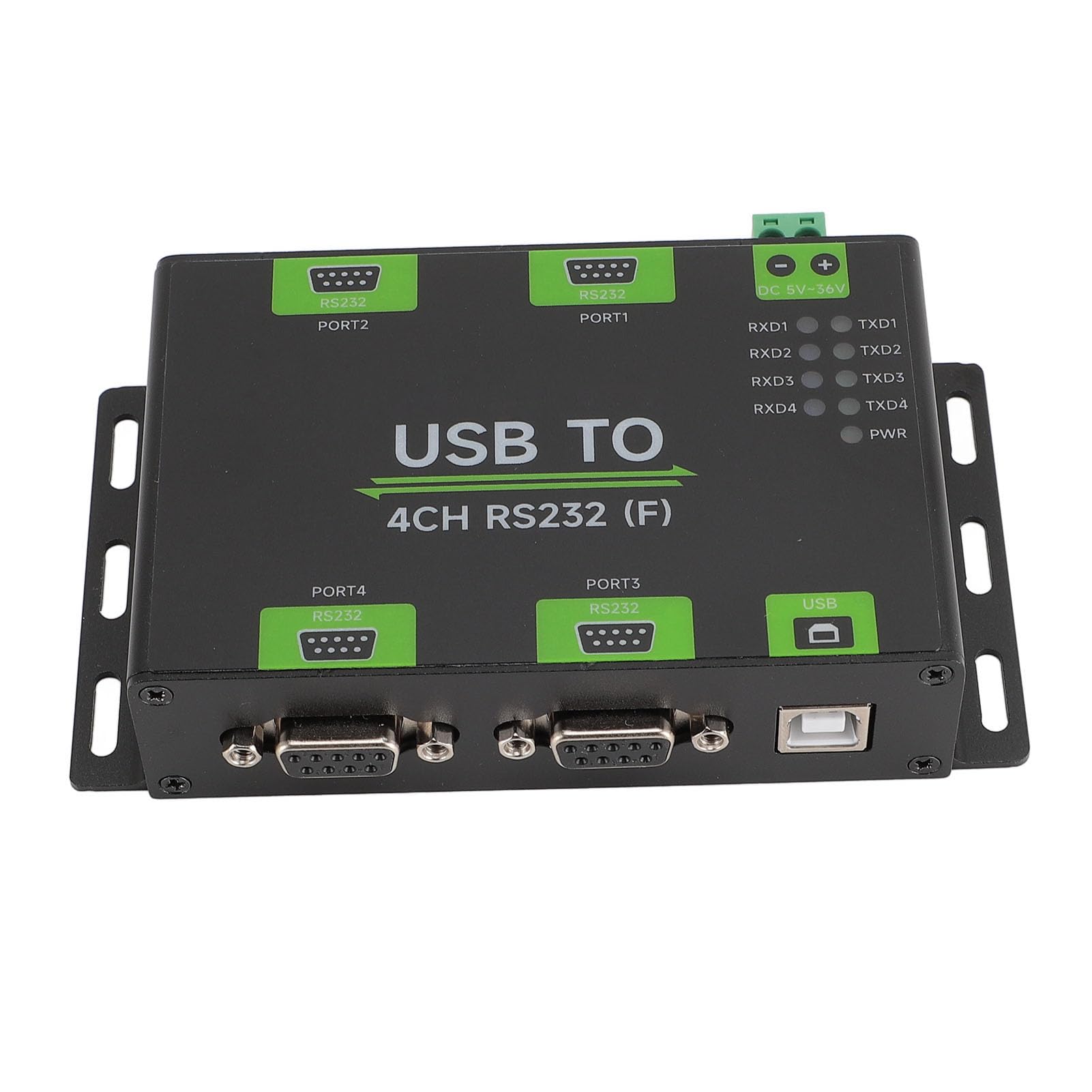
Umfanekiso 4: Vala-up view of the PWR, TXD, and RXD LED indicators on the converter.
7. Isondlo
- Keep the converter in a clean, dry environment.
- Avoid exposing the device to extreme temperatures or humidity outside the specified operating range.
- Ungazami ukuvula i-casing or modify the internal components, as this will void the warranty and may damage the device.
- Hlanza ingaphandle ngendwangu ethambile, eyomile. Ungasebenzisi izinto zokuhlanza uketshezi.
8. Ukuxazulula izinkinga
- No Power (PWR LED off):
- Check if the USB cable is securely connected to both the converter and the host device.
- Verify that the host device's USB port is functional.
- Ensure the power adapter is correctly connected and providing power within the 5-36V range.
- No Data Transmission (TXD/RXD LEDs off during communication):
- Confirm that the RS232 devices are properly connected to the converter's DB9 ports.
- Verify that the RS232 devices are powered on and configured correctly.
- Check your software settings on the host computer to ensure the correct COM port is selected and communication parameters (baud rate, data bits, parity, stop bits) match those of the RS232 device.
- Ensure the drivers for the FT4232HL chip are correctly installed.
- Ukuxhumana Kwesikhashana:
- Hlola zonke izintambo ezixhunywe kuzo ukuze zibukeke zikhululekile.
- Ensure the USB and RS232 cable lengths do not exceed the recommended distances (5m for USB, 15m for RS232).
- Minimize electromagnetic interference from other electronic devices.
9. Ulwazi Lwewaranti
This product comes with a manufacturer's warranty for 90 days from the date of purchase. Please retain your proof of purchase for warranty claims. The warranty covers defects in materials and workmanship under normal use. It does not cover damage caused by misuse, accident, unauthorized modification, or improper installation.
10. Ukusekela
For further assistance or technical support, please contact Qiilu customer service. When seeking support, please refer to the product model number Qiilu4a27tudq0n.