
Isingeniso
Thank you for choosing the SENGBIRCH Keyboard Case for your Lenovo Tab M11 11" 2024. This manual provides essential information for the proper setup, operation, and maintenance of your new keyboard case. Please read it thoroughly before use to ensure optimal performance and longevity of the product.
Okuqukethwe Kwephakheji
- 1 x Protective Case with Bluetooth Keyboard
- 1 x Ikhebula lokushaja le-USB-C
- 1 x Incwadi Yomsebenzisi
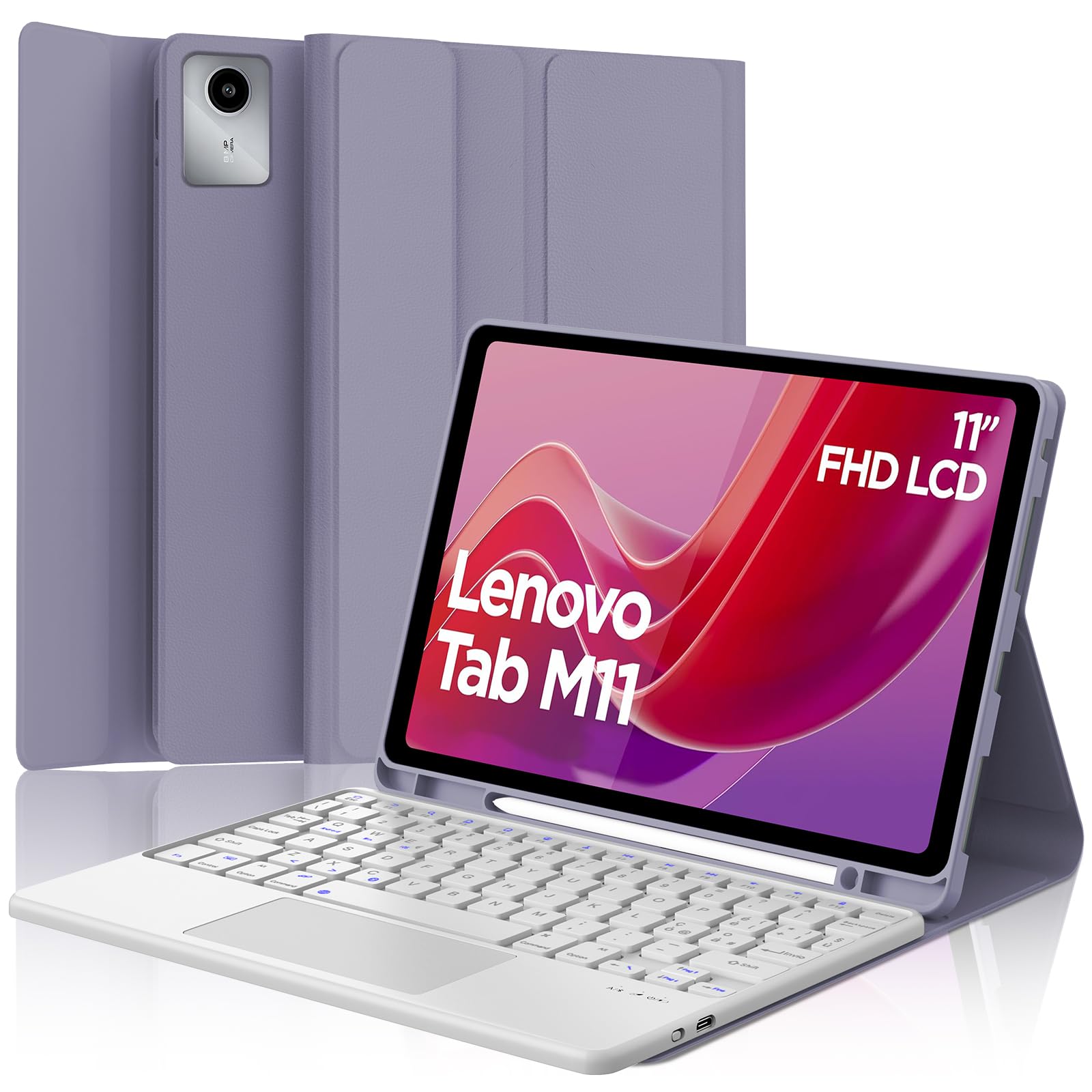
Image: The SENGBIRCH Keyboard Case for Lenovo Tab M11 11" 2024, showcasing the keyboard and protective cover.
Setha Imiyalelo
1. Ukuhlola Ukuhambisana
This keyboard case is specifically designed for the Lenovo Tab M11 11" 2024 (Models TB330FU/TB330XU). Please verify your tablet model before proceeding.

Image: A visual guide illustrating compatibility with the Lenovo Tab M11 11" 2024 and incompatibility with other models like Lenovo Tab M10 Plus Gen 3 and Lenovo Tab M10.
2. Ukushaja Ikhibhodi
- Connect the provided USB-C charging cable to the keyboard's charging port.
- Xhuma enye ingxenye yentambo ku-adaptha yamandla ye-USB (ayifakiwe) noma imbobo ye-USB yekhompyutha.
- The charging indicator light will illuminate. Allow 2-3 hours for a full charge.

Image: Close-up of the keyboard showing the USB-C charging port and a charging cable connected, indicating battery life and silent scissor keys.
3. Ukubhanqa kwe-Bluetooth
- Ensure the keyboard is charged. Turn on the keyboard by sliding the power switch.
- Cindezela inkinobho Xhuma button on the keyboard (usually indicated by a Bluetooth icon). The Bluetooth indicator light will start blinking.
- On your Lenovo Tab M11, go to Izilungiselelo > I-Bluetooth bese uvula i-Bluetooth.
- Your tablet will search for available devices. Select "Bluetooth Keyboard" or a similar name from the list.
- Uma sekubhangqiwe, isibani se-Bluetooth esikwikhibhodi sizoyeka ukucwayiza.

Image: A diagram illustrating the wireless Bluetooth connection of the keyboard to various devices, including smartphones, tablets, and laptops, supporting iOS, Android, and Windows operating systems.
4. Inserting the Tablet into the Case
Carefully align your Lenovo Tab M11 with the protective case. Ensure all ports, buttons, and the camera are correctly aligned with the case's precise cutouts. The magnetic design will help secure the tablet and keyboard in place.
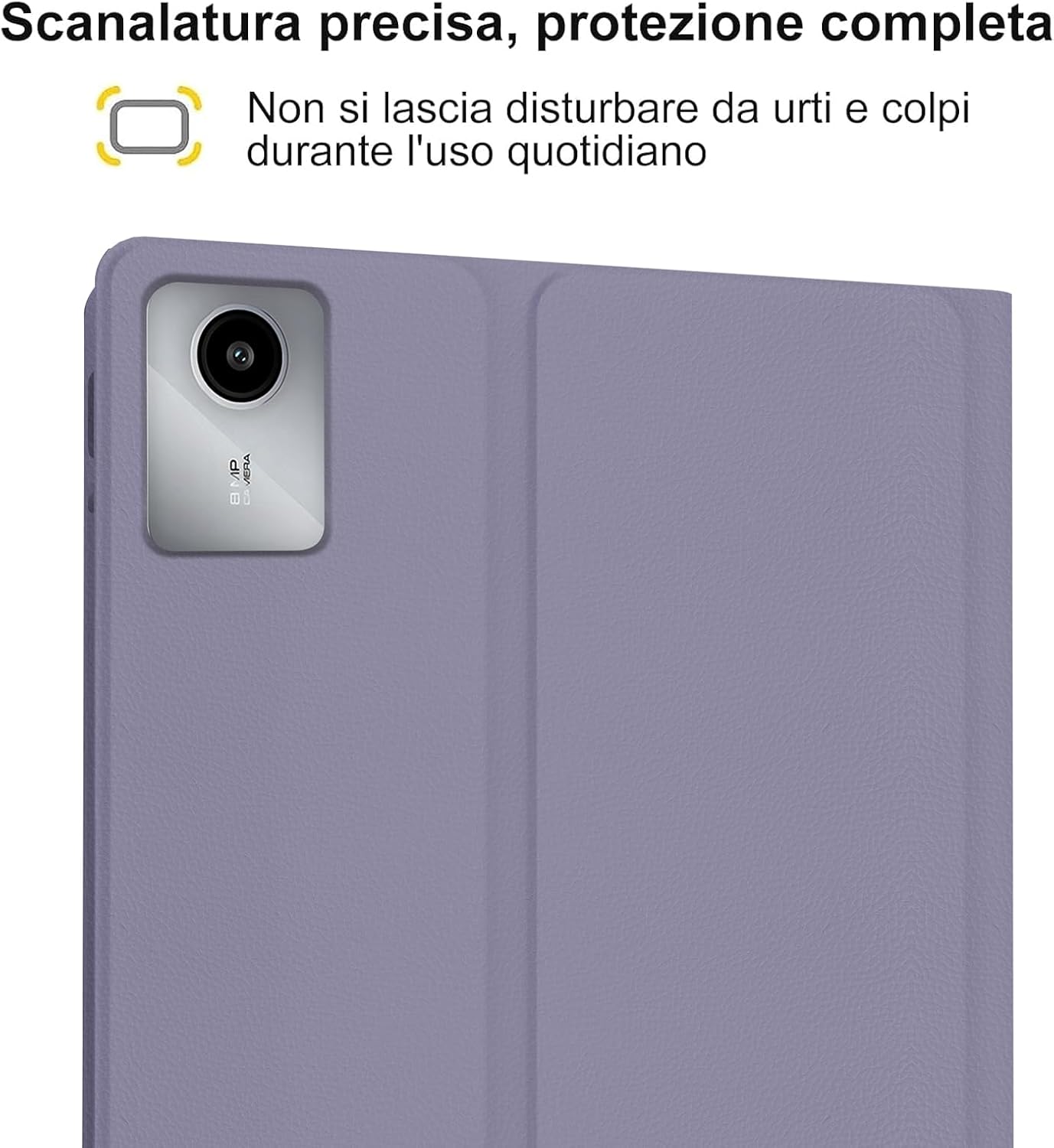
Image: A close-up of the tablet's camera module perfectly aligned with the precise cutout in the protective case, emphasizing full protection against daily impacts.
Imiyalelo yokusebenza
1. Using the Keyboard
The keyboard features an Italian QWERTY layout. It provides a tactile typing experience with scissor-key mechanisms for comfortable and efficient input. Familiarize yourself with the function keys (Fn) for shortcuts.

Isithombe: A enemininingwane view of the Italian QWERTY keyboard layout, highlighting its magnetic attachment, over 100 hours of battery life, and USB-C charging capability.
2. Using the Trackpad
The integrated trackpad allows for precise navigation and control, similar to a laptop. It supports multi-touch gestures (e.g., two-finger scroll, pinch-to-zoom) depending on your tablet's operating system settings.
3. Ukulungisa Ukukhanya Kwangemuva
The keyboard features 7-color backlighting with 3 adjustable brightness levels. Use the dedicated backlight key (often indicated by a light bulb icon or Fn + a specific key) to cycle through colors and brightness settings.
4. Automatic Wake/Sleep Function
The case supports automatic wake/sleep functionality. Opening the case will wake your tablet, and closing it will put your tablet to sleep, conserving battery life.

Image: Two illustrations demonstrating the automatic wake-up function when the case is opened and the automatic sleep function when the case is closed.
5. Adjustable Viewama-engeli
The case allows you to adjust the tablet's viewing angle for comfortable use, whether typing, watching videos, or browsing. The non-slip grooves ensure stability at various angles.
Image: A diagram showing the tablet case propped up at different viewing angles (120°, 125°, 130°) with non-slip grooves for stability, illustrating ergonomic viewizikhundla.
Isondlo
Cleaning the Case and Keyboard
- Sula ingaphandle lekesi ngomshini othambile, damp indwangu. Gwema amakhemikhali anokhahlo noma izihlanzi ezilumayo.
- For the keyboard, use a soft, dry cloth or a can of compressed air to remove dust and debris from between the keys.
- Ensure the keyboard is powered off before cleaning.
Ukunakekela Ibhethri
- Charge the keyboard regularly to maintain battery health.
- Gwema ukukhipha ibhethri ngokugcwele njalo.
- Uma ugcina ikhibhodi isikhathi eside, yishaje cishe ku-50% bese uyigcina endaweni epholile, eyomile.
Ukuxazulula inkinga
Ikhibhodi Ayixhumeki nge-Bluetooth
- Hlola Ibhethri: Qinisekisa ukuthi ikhibhodi ishajwe ngokugcwele.
- Umjikelezo Wamandla: Cima ikhibhodi bese uyivula futhi.
- Lungisa kabusha: Delete the keyboard from your tablet's Bluetooth device list and attempt to pair it again.
- Tablet Bluetooth: Ensure your tablet's Bluetooth is enabled and functioning correctly.
I-Backlight Ayisebenzi
- Hlola Amandla: Qinisekisa ukuthi ikhibhodi inebhethri eyanele yokushajwa.
- Backlight Key: Press the backlight key (or Fn + backlight key) to cycle through brightness levels and colors.
Trackpad Not Responding
- Ukuxhumeka kwe-Bluetooth: Qinisekisa ukuthi ikhibhodi ixhunywe kahle nge-Bluetooth.
- Qala kabusha: Vala futhi uvule ikhibhodi.
- Tablet Settings: Check your tablet's settings for trackpad or mouse options to ensure it's enabled.
Izinkinga zokushaja
- Ukuhlola Ikhebula: Qinisekisa ukuthi ikhebula le-USB-C lixhunywe ngokuphephile kokubili kukhibhodi kanye nomthombo wamandla.
- Umthombo wamandla: Try a different USB power adapter or computer USB port.
- Ukulimala Kwekhebula: Inspect the charging cable for any signs of damage.
Imininingwane
| Isici | Imininingwane |
|---|---|
| Ibhrendi | SENGBIRCH |
| Amadivayisi Ahambisanayo | Lenovo Tab M11 11" 2024 (TB330FU/TB330XU) |
| Ubuchwepheshe bokuxhumana | I-Bluetooth |
| Incazelo Yekhibhodi | Accessible (Italian QWERTY Layout) |
| Isici Esikhethekile | Trackpad, Backlit Keyboard (7 colors, 3 brightness levels) |
| Umthombo wamandla | Battery Powered (Lithium Polymer) |
| Impilo yebhethri (Ukusetshenziswa Okuqhubekayo) | Up to 24 hours (3 days) |
| Isikhathi sokulinda | Izinyanga ezingu-3 |
| Isikhathi sokushaja | 2-3 hours (via USB-C) |
| Okubalulekile | TPU, ABS, Synthetic Leather |
| Isisindo sento | 700 g |
| Ubukhulu bephakheji | 26 x 18 x 3 cm |
Ulwazi Lwewaranti
This SENGBIRCH product comes with a iwaranti yeminyaka emibili from the date of purchase. This warranty covers manufacturing defects and issues arising from normal use. It does not cover damage caused by misuse, accidents, unauthorized modifications, or normal wear and tear.
Sicela ugcine ubufakazi bakho bokuthenga izimangalo zewaranti.
Ukusekela
If you encounter any problems or have questions regarding your SENGBIRCH Keyboard Case, please do not hesitate to contact our customer support team. We are committed to providing satisfactory service and assistance.
For support, please refer to the contact information provided on the product packaging or the official SENGBIRCH webindawo.