
1. Isingeniso
This manual provides detailed instructions for the installation, configuration, and operation of the Intelbras iNVD 5232 32-Channel IP Digital Video Recorder. Please read this manual thoroughly before using the device to ensure proper functionality and to prevent damage.
The Intelbras iNVD 5232 is designed for professional surveillance applications, offering advanced features for recording, monitoring, and managing IP camera feeds.
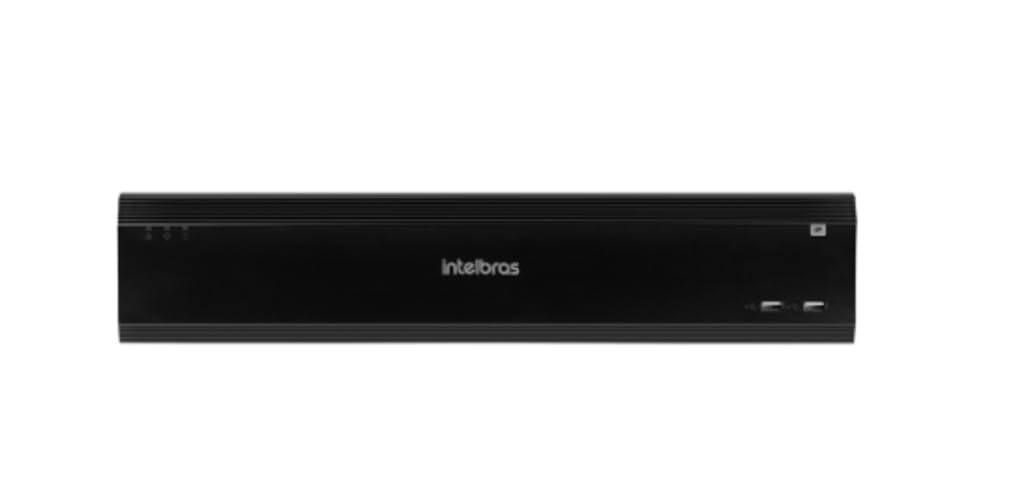
Figure 1: Intelbras iNVD 5232 Digital Video Recorder. This image shows the front panel of the iNVD 5232 unit, featuring a sleek black design with the Intelbras logo and USB ports.
2. Ulwazi Lokuphepha
Observe the following safety precautions to prevent injury and damage to the device:
- Qinisekisa ukuthi unikezwa amandla ngevolthitagi-e ifanelana nezidingo zedivayisi.
- Ungabeki idivayisi emswakama, emvuleni, noma emazingeni okushisa aphezulu.
- Gwema ukubeka idivayisi elangeni eliqondile noma eduze nemithombo yokushisa.
- Ungaluvuli ucingo casing. Thumela zonke izinsiza kubasebenzi abaqeqeshiwe.
- Sebenzisa izesekeli ezishiwo umenzi kuphela.
- Gaya kahle idivayisi ukuze uvimbele ukushaqeka kukagesi.
3. Okuqukethwe Kwephakheji
Qinisekisa ukuthi zonke izinto zikhona kuphakheji:
- Intelbras iNVD 5232 Digital Video Recorder Unit
- I-adaptha yamandla
- Igundane le-USB
- Izikulufo Zokufaka i-HDD
- Quick Start Guide
- I-CD-ROM (equkethe isofthiwe kanye nencwadi ephelele)
4. Umkhiqizo Uphelileview
4.1 Iphaneli langaphambili
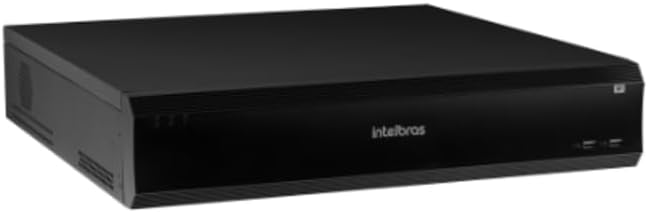
Figure 2: Front Panel of the iNVD 5232. This image displays the front of the DVR, showing LED indicators for power and status, along with two USB ports for peripheral connections.
- I-LED yamandla: Ikhombisa isimo samandla.
- Isimo se-LED: Indicates system operational status.
- Izimbobo ze-USB: For connecting a mouse, USB drive, or other peripherals.
4.2 Iphaneli yangemuva

Figure 3: Rear Panel of the iNVD 5232. This image details the rear connections, including power input, network ports, video outputs (HDMI, VGA), audio inputs/outputs, and alarm terminals.
- Okokufaka kwamandla: Xhuma i-adaptha yamandla enikeziwe.
- Okukhiphayo kwe-HDMI: Connect to an HDMI-compatible monitor.
- Ukukhishwa kwe-VGA: Connect to a VGA-compatible monitor.
- Amapayipi e-LAN: Connect to your network for IP camera communication and remote access.
- Umsindo Phakathi/Uphuma: Okokuxhuma amadivaysi omsindo angaphandle.
- Alarm In/Out: For connecting external alarm sensors and actuators.
- Izimbobo ze-USB: Izimbobo ze-USB ezengeziwe zama-peripherals.
5. Setha
5.1 Ukufakwa kwe-Hardware
- Install Hard Drive (if not pre-installed): Open the DVR casing, mount the hard drive using the provided screws, and connect the SATA power and data cables.
- Xhuma I-Monitor: Xhuma i-monitor echwebeni lokukhipha le-HDMI noma le-VGA.
- Xhuma Igundane: Plug the USB mouse into one of the USB ports.
- Xhuma Inethiwekhi: Connect an Ethernet cable from the LAN port to your network router or switch.
- Xhuma Amandla: Plug the power adapter into the DVR's power input and then into a power outlet. The device will power on automatically.
5.2 Ukucushwa Kwasekuqaleni
Upon first boot, the system will guide you through an initial setup wizard:
- Ukukhetha Ulimi: Khetha ulimi oluthandayo.
- Ukusethwa Kwephasiwedi: Create a strong administrator password.
- Izilungiselelo Zenethiwekhi: Configure IP address, subnet mask, gateway, and DNS. DHCP is usually enabled by default.
- Idethi nesikhathi: Setha idethi efanele, isikhathi, nendawo yesikhathi.
- Ukuqaliswa kwe-HDD: Format the installed hard drive for recording.
- IP Camera Search and Add: The system will scan for available IP cameras on the network. Select and add your cameras.
6. Ukusebenza
6.1 Bukhoma View
After initial setup, the system will display the live view yamakhamera axhunyiwe. Ungashintsha phakathi kwekhamera eyodwa view, multi-camera grids, and sequence views usebenzisa izilawuli ezikusikrini noma igundane.
6.2 Ukuphatha Ukuqopha
- Ukuqopha Uhlelo: Lungiselela amashejuli okurekhoda acushwe yi-alamu aqhubekayo, okuthola ukunyakaza, noma ikhamera ngayinye.
- Ukuqopha Mathupha: Initiate recording manually from the live view esibonakalayo.
- Ukudlala: Finyelela i-foo erekhodiwetage by date, time, and event type. Use the playback controls to navigate through recordings.
- Isipele: Export recorded video clips to a USB drive or network storage.
6.3 Ukufinyelela kude
The iNVD 5232 supports remote access via a web browser or dedicated mobile application. Ensure your network is configured for remote access (e.g., port forwarding or P2P cloud service activation).
- Web Isiphequluli: Enter the DVR's IP address into a web isiphequluli kukhompuyutha exhunywe kunethiwekhi efanayo.
- Uhlelo lokusebenza lweselula: Download the official Intelbras surveillance app from your device's app store. Scan the QR code on the DVR (if available) or manually enter the device ID for connection.
7. Isondlo
7.1 Ukuhlanza
Regularly clean the exterior of the DVR with a soft, dry cloth. Do not use liquid cleaners or aerosols. Ensure ventilation openings are free from dust and obstructions.
7.2 Ukuvuselelwa kweFirmware
Periodically check the Intelbras webisayithi lezibuyekezo ze-firmware. Izibuyekezo ze-firmware zinganikeza izici ezintsha, ukuthuthukiswa kokusebenza, kanye nokuthuthukiswa kokuphepha. Landela imiyalelo enikezwe ngephakheji yokuvuselelwa kwe-firmware ngokucophelela.
7.3 Ukuphathwa kweHard Drive
Monitor the health of your hard drives through the system's HDD management menu. Replace failing drives promptly to avoid data loss. Configure automatic overwriting of old footage ukuqinisekisa ukuqoshwa okuqhubekayo.
8. Ukuxazulula izinkinga
| Inkinga | Imbangela Engenzeka | Isixazululo |
|---|---|---|
| Awekho amandla | Power cable disconnected; faulty power adapter; power outlet issue. | Check power connections; test power adapter; try a different outlet. |
| Akukho okukhipha ividiyo | Monitor off/disconnected; incorrect video output settings; faulty cable. | Ensure monitor is on and connected; check video cable; try a different output port or cable. |
| Cannot connect IP cameras | Network issue; incorrect camera IP address/credentials; camera not powered. | Verify network connectivity; ensure cameras are powered and configured correctly; check camera credentials. |
| Akukho okuqoshiwe | HDD not initialized/full; recording schedule not set; camera disconnected. | Initialize HDD; check recording schedule; verify camera connection and status. |
9. Imininingwane
| Isici | Incazelo |
|---|---|
| Imodeli | iNVD 5232 |
| Okokufaka kwevidiyo | 32 Iziteshi ze-IP |
| Okukhipha ividiyo | I-1 HDMI, 1 VGA |
| Okokufaka komsindo/Okukhiphayo | Specific ports (e.g., RCA) |
| Ukulungiswa kokuqopha | Up to 8MP (depending on camera) |
| Playback Capability | Multi-channel synchronous playback |
| Isitoreji | Multiple SATA HDD bays (HDDs not included) |
| Isizinda Senethiwekhi | Izimbobo ze-Gigabit Ethernet |
| Isixhumi esibonakalayo se-USB | Izimbobo ze-USB 2.0/3.0 |
| Ukunikezwa kwamandla kagesi | DC 12V (adapter included) |
| Izinga Lokushisa Lokusebenza | 0°C ukuya ku-50°C (32°F ukuya ku-122°F) |
10. Iwaranti kanye Nokusekela
For warranty information, please refer to the warranty card included with your product or visit the official Intelbras website. Technical support is available through Intelbras authorized service centers and online resources.
Intelbras Official Webindawo: www.intelbras.com.br
Sicela ube nomodeli womkhiqizo wakho kanye nenombolo yochungechunge uma uxhumana nosekelo.