
1. Isingeniso
This manual provides essential information for setting up, operating, and maintaining your TCL 98Q7K 98-inch QLED 4K Google TV. This television features a stunning QLED 4K display with a 144 Hz panel for smooth motion, integrated Google TV for smart functionality, and advanced audio with Dolby Atmos. It also includes Google Assistant and Alexa compatibility for hands-free voice control, VisionHDR10+, and AiPQ™ processing for optimized picture quality.

2. Setha
2.1 Ukuvula ibhokisi kanye nokuhlolwa kokuqala
Carefully remove the television from its packaging. Inspect the TV and all included accessories for any signs of damage. Keep the packaging materials for future transport or service needs.
2.2 Ukufakwa kwesitendi
If you plan to use the TV with its included stand, follow these steps:
- Beka isikrini se-TV phansi endaweni ethambile, eyisicaba ukuze uvimbele imihuzuko.
- Qondanisa izingxenye zesitendi nezikhala ezimisiwe phansi kwe-TV.
- Secure the stand using the screws provided in the accessory kit. Ensure all screws are tightened firmly.

2.3 Ukukhweza Udonga (Ongakukhetha)
For wall mounting, a compatible VESA wall mount (not included) is required. Due to the size and weight of the 98-inch television, professional installation is highly recommended to ensure safety and proper mounting. Refer to the wall mount manufacturer's instructions for specific installation details.
2.4 Ukuxhumanisa amaPheripheral
Connect your external devices such as Blu-ray players, gaming consoles, sound systems, and cable/satellite boxes to the appropriate ports on the TV. The TCL 98Q7K features 4 HDMI ports and 2 USB ports for versatile connectivity.
3. Iziqondiso Zokusebenza
3.1 Vula/Vala amandla
Connect the power cord to the TV and a power outlet. Press the power button on the remote control or on the TV itself to turn the television on or off.
3.2 Initial Setup with Google TV
Upon first power-on, the TV will guide you through the initial setup process for Google TV. This includes selecting your language, connecting to a Wi-Fi network, signing in with your Google account, and configuring basic settings. Follow the on-screen prompts.

3.3 Imisebenzi yokulawula kude
The included remote control allows you to navigate the TV's interface, adjust volume, change channels, and access smart features. It supports voice control via Google Assistant and Alexa. Insert the provided batteries into the remote control before use.
3.4 Izici Ezihlakaniphile Nokulawulwa Kwezwi
- I-Google TV: Access a wide range of streaming apps, movies, and shows.
- Umsizi we-Google kanye ne-Alexa: Use voice commands for hands-free control of your TV, search for content, get information, and control smart home devices.
- I-Chromecast eyakhelwe ngaphakathi: Sakaza okuqukethwe kusuka kumadivayisi akho eselula ahambisanayo ngqo ku-TV.
3.5 Izici Zokudlala
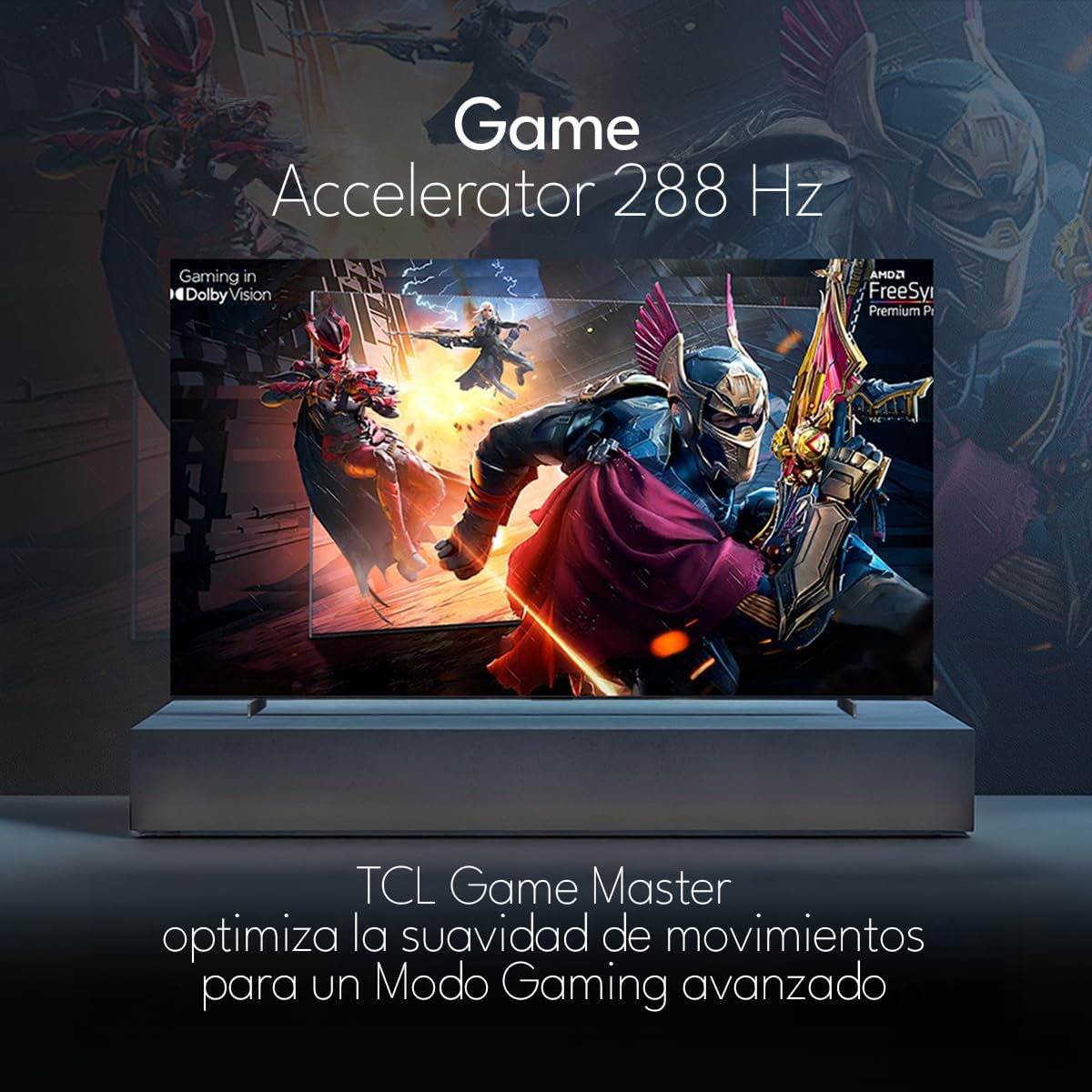
The TCL 98Q7K features a 144 Hz panel and Game Accelerator technology for an enhanced gaming experience with reduced latency and smoother motion.

3.6 Izici Zomsindo
Experience immersive sound with Dolby Atmos and the integrated ONKYO Hi-Fi System 2.1 Channels, providing clear vocals and deep bass.

3.7 Umkhiqizo Uphelileview Ividiyo
4. Isondlo
4.1 Ukuhlanza isikrini
Ukuze uhlanze isikrini, sisule ngobumnene ngendwangu ethambile, engenantambo. Ukuze uthole amamaki anenkani, kancane dampfaka indwangu ngamanzi noma isihlanzi sesikrini esikhethekile. Gwema ukusebenzisa amakhemikhali anamandla, izinto ezihudulayo, noma ukufafaza uketshezi ngqo esikrinini.
4.2 Ukuhlanza umzimba we-TV
Wipe the TV body with a soft, dry cloth. Do not use liquid cleaners directly on the TV body.
4.3 Ukuvuselelwa Kwesoftware
Your TCL Google TV may receive automatic software updates. To manually check for updates, navigate to the settings menu, then select System > About > System update. Ensure your TV is connected to the internet for updates.
5. Ukuxazulula izinkinga
Uma uhlangabezana nezinkinga nge-TV yakho, bheka izixazululo ezilandelayo ezivamile:
- Awekho Amandla:
Ensure the power cord is securely plugged into both the TV and a working electrical outlet. Try plugging another device into the same outlet to confirm it has power. - Akukho Isithombe noma Umsindo:
Verify that the correct input source is selected (e.g., HDMI 1, AV). Check all cable connections between the TV and external devices. Ensure the volume is not muted or set to minimum. - Isilawuli kude asisebenzi:
Shintsha amabhethri kusilawuli kude. Qinisekisa ukuthi azikho izithiyo phakathi kwesilawuli kude kanye nenzwa ye-IR ye-TV. - Izinkinga Zokuxhumaniseka Kwenethiwekhi:
Check your Wi-Fi router and ensure it is powered on and functioning correctly. Restart the TV and your router. In the TV settings, verify the Wi-Fi connection status. - Picture Quality Issues (e.g., blurry, distorted):
Check the resolution settings of your input source. Ensure the cables are not damaged. Adjust picture settings (brightness, contrast, sharpness) in the TV menu.
For persistent issues, consult the full electronic manual available through the TV's help menu or contact TCL customer support.
6. Imininingwane
| Isici | Ukucaciswa |
|---|---|
| Usayizi Wesikrini | 98 amayintshi |
| Bonisa Ubuchwepheshe | QLED |
| Isixazululo | 4K (3840 x 2160) |
| Isilinganiso Sokuvuselela | 144 Hz |
| Ukusekelwa Kwefomethi ye-HDR | I-Dolby Vision, i-HDR10, i-HDR10+, i-HLG |
| Ukukhanya Okuphakeme | I-450 NITS |
| Uhlelo Lomsindo | Dolby Atmos, Dolby Digital, ONKYO Hi-Fi System 2.1 Channels |
| Isistimu esebenzayo | I-Google TV |
| Ukulawulwa Kwezwi | Umsizi weGoogle, i-Alexa |
| Ukuxhumana | Wi-Fi, Ethernet, 4x HDMI, 2x USB |
| Ubukhulu (ngesitendi) | 217.8 x 128.5 x 42 cm |
| Ubukhulu (ngaphandle kokuma) | 0.06prof. x 2.18an. x 1.25alt. Meters (approx. 6 cm depth) |
| Unyaka Wemodeli | 2025 |
| Izingxenye Ezihlanganisiwe | Manual, Remote Control, Batteries |
7. Iwaranti kanye Nokusekela
7.1 Iwaranti Yomkhiqizo
The TCL 98Q7K television comes with a Iwaranti ekhawulelwe yeminyaka engu-2 kusukela ngedethi yokuthenga. Lesi siqinisekiso sifaka amaphutha okukhiqiza kanye nokungasebenzi kahle ngaphansi kokusetshenziswa okuvamile. Sicela ugcine ubufakazi bakho bokuthenga izimangalo zewaranti.
7.2 Ukwesekwa Kwamakhasimende
For technical assistance, troubleshooting beyond this manual, or warranty inquiries, please contact TCL customer support. Refer to the contact information provided in the separate warranty card or visit the official TCL webindawo yesifunda sakho.