
Idatha ye-P150
Tera P150 Android 12 Barcode Scanner PDA Incwadi Yomsebenzisi
Imodeli: P150
1. Isingeniso
This manual provides essential information for the proper setup, operation, and maintenance of your Tera P150 Android 12 Barcode Scanner PDA. Please read this manual thoroughly before using the device to ensure optimal performance and longevity.

Image 1.1: The Tera P150 Android Barcode Scanner PDA, showcasing its sleek design and user interface.
2. Setha
2.1 Okuqukethwe Kwephakheji
Qinisekisa ukuthi zonke izinto zikhona kuphakheji:
- Tera P150 Android Barcode Scanner PDA
- Ikesi Lokuvikela
- Umvikeli Wesikrini
- Ibhande Lesandla
- Ikhebula le-USB
- I-adaptha yeshaja
- Incwadi Yomsebenzisi (Umhlahlandlela Wokuqala Osheshayo)

Image 2.1: All components included in the Tera P150 product package.
2.2 Ukufakwa nokushajwa kwebhethri
- Locate the battery compartment on the rear of the device.
- Insert the 5000 mAh removable battery, ensuring proper alignment of the contacts.
- Vikela ikhava yebhethri.
- Connect the USB cable to the device and the charger adapter, then plug into a power outlet.
- Vumela cishe amahora angu-3 ukushaja okuphelele.

Image 2.2: The removable 5000 mAh battery, designed for extended use.
2.3 Ukuvula / Ukuvula
Press and hold the power button located on the side of the device until the screen illuminates (for power on) or a power-off menu appears (for power off).
3. Iziqondiso Zokusebenza
3.1 Uhlelo lokusebenza lwe-Android 12
The Tera P150 operates on Android 12, offering an intuitive user interface, enhanced performance, and improved privacy controls. Navigate using touch gestures similar to other Android devices.

Image 3.1: The Tera P150 displaying multiple applications, demonstrating seamless multitasking capabilities with Android 12.
3.2 Barcode Scanning with Zebra SE4710
The device integrates a Zebra SE4710 scanner engine for efficient barcode reading. To scan:
- Open the scanning application on the device.
- Point the scanner window at the barcode.
- Press the dedicated scan button (if available) or trigger the scan via the on-screen interface.
- Ensure the red laser or illumination covers the entire barcode for accurate capture.

Image 3.2: A user operating the Tera P150 to scan barcodes in a warehouse environment, highlighting the integrated Zebra SE4710 scanner.
3.3 Ukusebenza kwesikrini sokuthinta
The 5.5-inch full touch screen supports operation with gloves and wet hands, enhancing usability in various work conditions. The display offers a resolution of 1440 x 720 pixels.
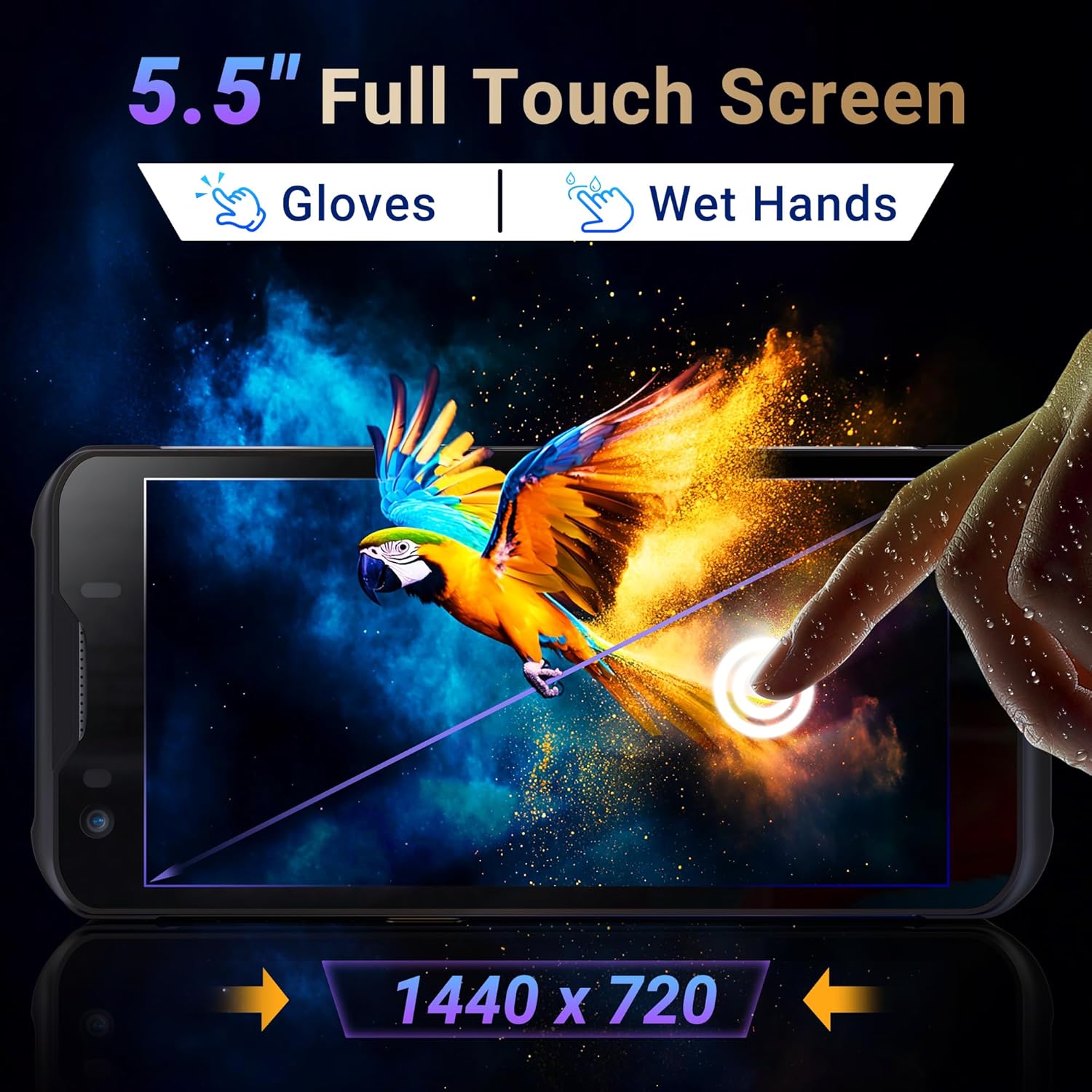
Image 3.3: The Tera P150's 5.5-inch full touch screen, illustrating its responsiveness and clarity.
3.4 Ukusebenza Kwekhamera
The device is equipped with a 13.0 MP rear camera and a 5.0 MP front camera for documentation and communication purposes.

Isithombe 3.4: Ukuvala view of the Tera P150, highlighting the 13.0 MP rear camera and 5.0 MP front camera.
4. Isondlo
4.1 Rugged Design and IP67 Rating
The Tera P150 features an IP67 rating, indicating resistance to dust and water ingress. It is also designed to withstand drops from up to 4.9 feet (1.5 meters), making it suitable for demanding environments.
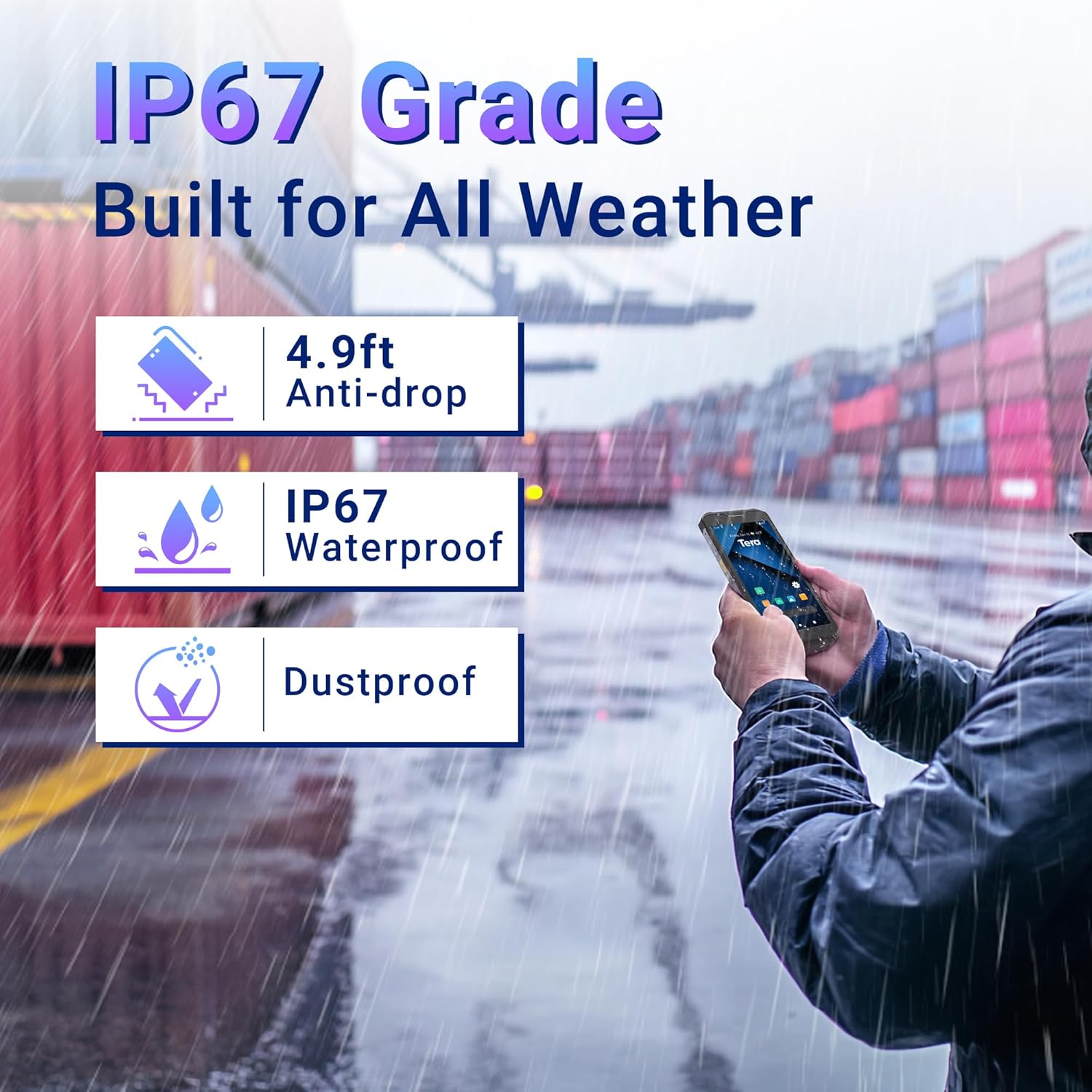
Image 4.1: Visual representation of the Tera P150's IP67 water and dust resistance, and its 4.9ft drop resistance.
Video 4.1: Demonstration of the Tera P150's IP67-rated protection, showcasing its durability against water and drops.
4.2 Ukuhlanza
Sebenzisa okuthambile, damp cloth to clean the device. Avoid harsh chemicals or abrasive materials that could damage the screen or casing.
5. Ukuxazulula izinkinga
5.1 Idivayisi Ayivuliwe
- Qinisekisa ukuthi ibhethri ifakwe kahle futhi ishajwe ngokugcwele.
- Connect the device to the charger and attempt to power on.
5.2 Scanning Issues
- Verify the barcode is clean and undamaged.
- Qinisekisa ukuthi kunezimo zokukhanya ezanele.
- Check the scanning application settings.
5.3 Ukulibala Kokusebenza
- Vala izinhlelo zokusebenza ezingemuva ezingadingekile.
- Sula inqolobane futhi okwesikhashana files.
- Qala kabusha idivayisi.
6. Imininingwane
| Isici | Imininingwane |
|---|---|
| Inombolo Yemodeli | P150 |
| Isistimu esebenzayo | I-Android 12 |
| Iphrosesa | MTK CPU |
| RAM | 4GB |
| I-ROM (Isitoreji) | 64GB |
| Iskena sebhakhodi | I-Zebra SE4710 |
| Bonisa | 5.5-inch Full Touch Screen |
| Isilinganiso Sokuqina | IP67, 4.9 ft Drop Resistant |
| Ibhethri | 5000 mAh Removable |
| Ikhamera yangemuva | 13.0 MP |
| Ikhamera yangaphambili | 5.0 MP |
| Ukuxhumana | 4G, GPS, USB |
| Isisindo sento | 1.3 amakhilogremu |
| Ubukhulu bephakheji | 7.6 x 4.2 x 2.9 amayintshi |
Ividiyo 6.1: I-overview of the Tera P150's key features, including its IP67 rating, 4GB RAM, 64GB storage, Android 12 OS, and 5.5-inch touch screen.
7. Ulwazi Lwewaranti
Sicela ubheke ikhadi lewaranti elifakwe nomkhiqizo wakho ukuze uthole imigomo nemibandela yewaranti eningiliziwe. Gcina ubufakazi bakho bokuthenga kunoma yiziphi izimangalo zewaranti.
8. Ukusekela
For technical assistance, troubleshooting, or further inquiries, please contact Tera customer support. Contact information can be found on the official Tera webisayithi noma kumhlahlandlela wokuqala osheshayo.
Ask a question about this manual
Ask about setup, troubleshooting, compatibility, parts, safety, or missing instructions. Manuals+ will review the question and use this page’s manual context to help answer it.