
1. Isingeniso
This manual provides detailed instructions for the installation, operation, and maintenance of your Fuers 8-Channel 5MP H.265+ Hybrid Security DVR Recorder. This DVR system is designed to support various camera types, including TVI, AHD, CVBS, CVI, XVI, and IP cameras, offering a versatile surveillance solution. It features advanced H.265+ video compression, AI human detection, and remote access capabilities.
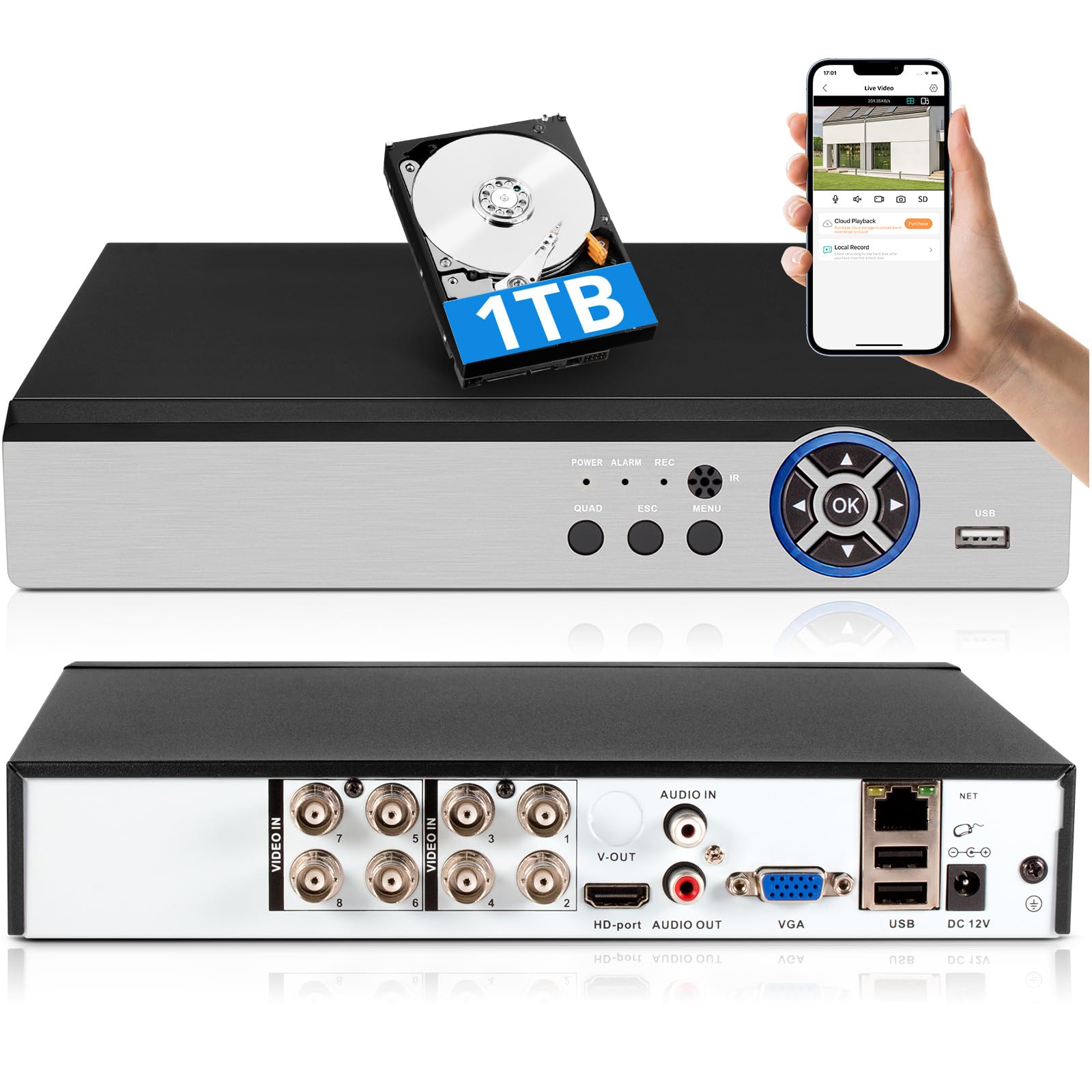
Image: The Fuers 8-Channel 5MP H.265+ Hybrid Security DVR Recorder unit.
2. Yini EseBhokisini
Sicela uqinisekise ukuthi zonke izinto ezibalwe ngezansi zifakiwe kuphakheji yakho:
- 1x 5MP 8CH DVR
- 1x 1TB Hard Drive (Pre-installed on DVR)
- 1x DVR Power Supply
- 1 x Igundane le-USB
- 1x Incwadi Yomsebenzisi

Image: The DVR unit and its included accessories: 1TB HDD, power supply, USB mouse, and user manual.
3. Izici zomkhiqizo
- 5MP 6-in-1 Hybrid DVR: Supports up to 8 TVI, AHD, CVBS, CVI, XVI, Analog cameras and IP cameras.
- Advanced H.265+ Video Format: Offers longer recording times and up to 50% storage space savings compared to H.264 systems.
- Ukutholwa Komuntu kwe-AI: Advanced algorithms detect human presence, reducing false alarms.
- Ukufinyelela kude: Lawula futhi view footage remotely via the iCSee App on smartphones, tablets, and PCs (Google Chrome, Microsoft Edge, Internet Explorer).
- Ukusebenza okungaxhunyiwe ku-inthanethi: The DVR can function without an internet connection for local recording and viewing. Internet is only required for remote access features.
- Pre-installed 1TB Hard Drive: Ready for immediate recording, expandable up to 14TB via SATA.
- Simultaneous VGA/HDMI Output: Connects to PC monitors and TVs concurrently.

Isithombe: Kuphelileview of the DVR's key features including AI Human Detection and remote access.
4. Umhlahlandlela wokusetha
4.1 Ukuxhumana ngokomzimba
- Xhuma I-Monitor: Plug the HDMI or VGA cable from your monitor into the corresponding port on the DVR.
- Xhuma i-USB Mouse: Insert the USB mouse into one of the USB ports on the DVR.
- Xhuma Amakhamera: Connect your analog cameras (TVI, AHD, CVBS, CVI, XVI) to the BNC 'VIDEO IN' ports. For IP cameras, connect them to your network and ensure the DVR is also connected to the same network.
- Connect Network (Optional for Remote Access): Connect an Ethernet cable from the DVR's 'NET' port to your router for remote viewamakhono.
- Xhuma Amandla: Plug the DVR power supply into the DC 12V input port on the DVR, then plug the adapter into a power outlet.

Isithombe: Ngemininingwane view of the DVR's rear panel showing video input, audio input/output, VGA, HDMI, USB, and network ports.
4.2 Ukusethwa kohlelo lokusebenza lweselula (iCSee)
To access your DVR remotely, download and configure the iCSee mobile application:
- Landa uhlelo lokusebenza: Scan the QR code displayed on your monitor or search for "iCSee" in your device's app store.
- I-Android: I-Google Play Isitolo
- I-iOS: Apple App Store
- Bhalisa/Ngena: Open the iCSee app and create a new account or log in if you already have one.
- Engeza Idivayisi: In the app, select the option to add a new device. You can typically scan the QR code found in the DVR's menu (Main Menu > Info > Version) to bind the device.
- View Okuphakelayo Okubukhoma: Once the device is added, you can view your camera feeds live from anywhere with an internet connection.

Image: Visual guide for connecting the DVR to a network and setting up the iCSee mobile application for remote viewing.
5. Iziqondiso Zokusebenza
5.1 Ukudlala ividiyo
Ukwenza kabushaview i-foo eqoshiwetage:
- Chofoza kwesokudla kokubukhoma view screen to open the main menu.
- Select "Record" then "Playback".
- Choose the desired channel(s) and date from the calendar.
- Click "Start Playback" to view okuqoshiwe.
Video: Demonstration of DVR video playback settings and navigation.
5.2 Ukuqapha Okukude
After completing the mobile app setup (Section 4.2), you can monitor your surveillance system from any location with internet access. The iCSee app allows for live viewing, playback of recorded footage, and receiving alerts.
Ividiyo: Kuphelileview of the H.265+ 5MP 8 Channel CCTV DVR Recorder with 1TB HDD, demonstrating its features and remote access capabilities.
5.3 Ukutholwa kokunyakaza kanye Nezaziso
The DVR supports customizable motion detection zones and AI human detection to minimize false alarms. When motion is detected, the system can send real-time app notifications and email alerts with snapshots.

Image: Illustration of AI human detection and the alert notification system.
6. Isondlo
- Ukuhlanza Okuvamile: Keep the DVR unit free from dust and debris to ensure proper ventilation. Use a soft, dry cloth for cleaning.
- Ukuvuselelwa kwe-Firmware: Hlola okomkhiqizi ngezikhathi ezithile webisayithi lezibuyekezo ze-firmware ukuze kuqinisekiswe ukusebenza kahle nokuphepha.
- Ukuphathwa kwe-Hard Drive: The DVR features automatic overwrite functionality, ensuring continuous recording by replacing older footage with new. Regularly back up important footage to external storage if needed.
- Ukuphepha Kwephasiwedi: Use strong, unique passwords for your DVR and mobile app accounts. Change passwords regularly.
7. Ukuxazulula izinkinga
| Inkinga | Imbangela Engenzeka | Isixazululo |
|---|---|---|
| Akukho ukuboniswa kwevidiyo kusikrini | Loose cable connection, incorrect input source on monitor, DVR not powered on. | Check HDMI/VGA cable connections. Ensure monitor input source matches. Verify DVR power. |
| Ayikwazi ukufinyelela i-DVR ukude | No internet connection, incorrect app settings, firewall issues. | Ensure DVR is connected to the internet. Verify app login details and device binding. Check router/firewall settings. |
| Akukho okuqoshiwe | Hard drive full, recording schedule not set, hard drive malfunction. | Check hard drive status and capacity. Configure recording schedule. If HDD is faulty, replace it. |
| Frequent false motion alerts | Sensitive motion detection settings, environmental factors (e.g., moving branches). | Adjust motion detection sensitivity. Configure AI human detection. Define specific detection zones to exclude irrelevant areas. |
If you encounter issues not covered here, please refer to the comprehensive user manual included in your package or contact Fuers customer support.
8. Imininingwane
- Inombolo Yemodeli: A6908-1TB
- Ubukhulu bomkhiqizo: 9.84 x 8.26 x 1.57 amayintshi
- Isisindo Sento: 3.72 amakhilogremu
- Ubuchwepheshe bokuxhuma: HDMI, USB, VGA, Ethernet
- Amadivayisi Ahambisanayo: Analog Cameras (TVI, AHD, CVBS, CVI, XVI), IP Cameras, Smartphone, Tablet, Computer
- Amandla Wesitoreji Senkumbulo: 1 TB (pre-installed), expandable up to 14 TB
- Ukucindezelwa kwevidiyo: H.265 +
- Iziteshi: 8-Channel Analog, expandable with IP channels
- Umkhiqizi: Amafutha
9. Iwaranti kanye Nokusekela
For warranty information and technical support, please refer to the warranty card included in your product packaging or visit the official Fuers website. You may also contact the seller, MBANGDE-COM, for assistance with your purchase.