
typecase KB201T109
typecase Touch Keyboard Case with Trackpad User Manual
Model: KB201T109
For iPad Air 11-inch (M3 2025 / M2 2024) & iPad Air 5th & 4th Gen (10.9-inch)
1. Isingeniso
Thank you for choosing the typecase Touch Keyboard Case with Trackpad. This manual provides detailed instructions for setting up, operating, and maintaining your new keyboard case. Please read this manual thoroughly before use to ensure optimal performance and longevity of your device.
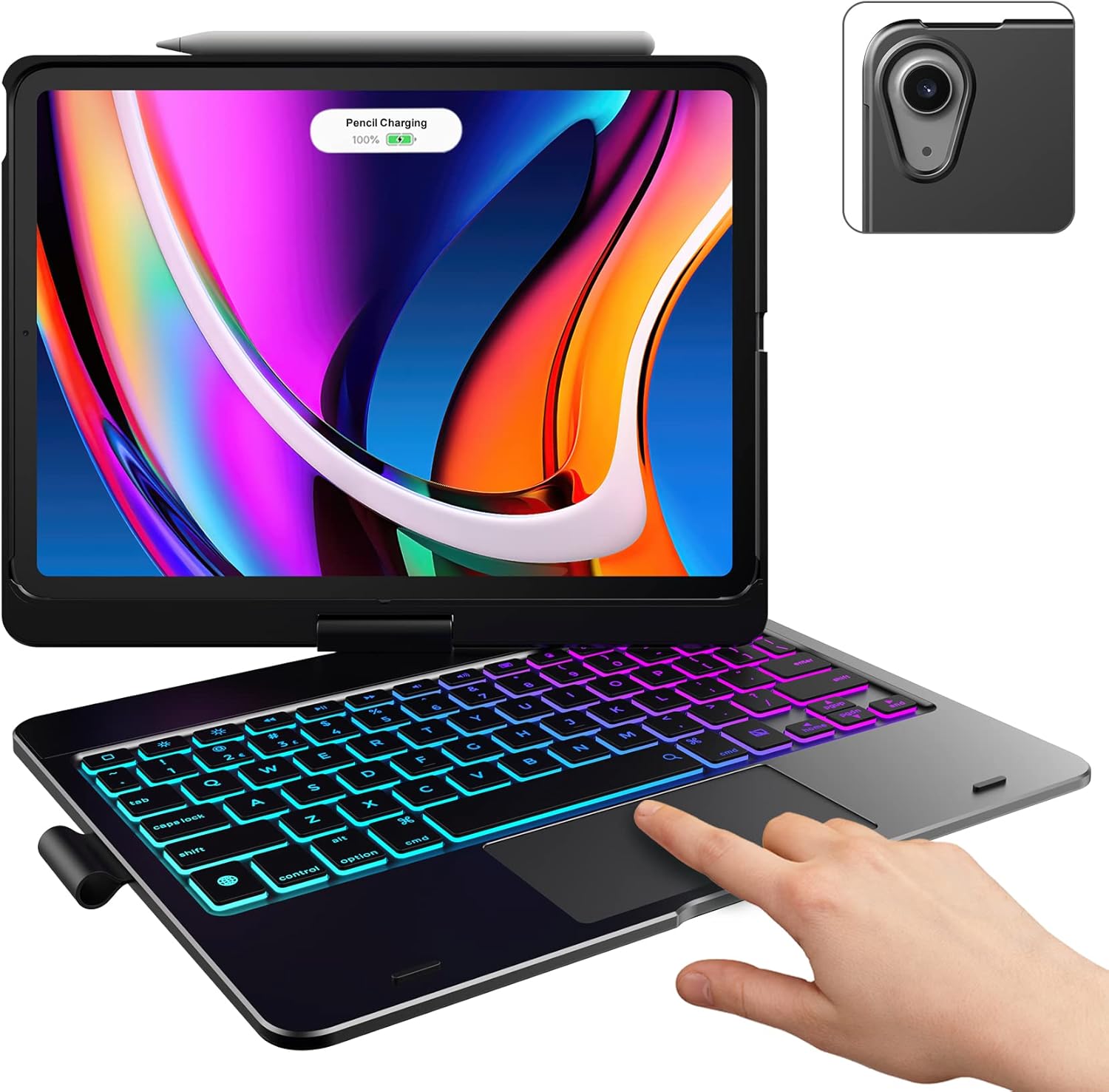
Image: The typecase Touch Keyboard Case with Trackpad, featuring an iPad Air securely placed in the case, demonstrating the illuminated keyboard and trackpad.
2. Setha
2.1. Okuqukethwe Kwephakheji
- 1 x typecase Touch Keyboard Case for iPad Air 5th/4th Gen (10.9 inch) & Air 11 (M3 / 2025) (M2 / 2024)
- 1 x Ikhebuli yokushaja ye-USB
- 1 x Incwadi Yomsebenzisi (le dokhumenti)
2.2. Ukuhlola Ukuhambisana
This keyboard case is specifically designed for the following iPad Air models:
- iPad Air 11-inch (M3 2025): Models A3266, A3267, A3270
- iPad Air 11-inch (M2 2024): Models A2902, A2903, A2904
- iPad Air 5th Gen (2022, 10.9"): Models A2588, A2589, A2591
- iPad Air 4th Gen (2020, 10.9"): Models A2072, A2316, A2324, A2325
To verify your iPad model, please check the model number (starting with "A") printed on the back of your iPad. This keyboard case is not compatible with other iPad models due to variations in size and thickness.

Image: A visual guide illustrating the compatible iPad Air models (M3 2025, M2 2024, 5th Gen, 4th Gen) and highlighting how to check the model number on the back of your iPad.
2.3. Installing Your iPad
- Gently align your iPad with the protective case frame.
- Press the iPad firmly into the case until it is securely seated. Ensure all edges are properly enclosed by the case for full protection.
2.4. Ukushaja Ikhibhodi
Before first use, fully charge the keyboard. Connect the provided USB charging cable to the keyboard's charging port and to a USB power source (e.g., computer USB port, wall adapter). The charging indicator light will show the charging status.
2.5. Ukubhanqa kwe-Bluetooth
- Turn on the keyboard by sliding the power switch to the 'ON' position. The indicator light will flash.
- Cindezela inkinobho Xhuma button on the keyboard (usually indicated by a Bluetooth symbol). The Bluetooth indicator light will start blinking rapidly, indicating it's in pairing mode.
- Ku-iPad yakho, yiya ku Izilungiselelo > I-Bluetooth.
- Ensure Bluetooth is turned 'ON'. Your iPad will search for available devices.
- Select "typecase Keyboard" (or similar name) from the list of 'Other Devices'.
- Follow any on-screen prompts to complete the pairing process. Once paired, the Bluetooth indicator light on the keyboard will turn solid or turn off, and your iPad will show the keyboard as 'Connected'.
3. Iziqondiso Zokusebenza
3.1. Imisebenzi yekhibhodi
The keyboard features a standard layout with 78 comfortably spaced keys and a dedicated row of iPadOS shortcut keys for enhanced productivity. These shortcuts allow quick access to common functions like Home, Search, Brightness, Media Controls, and Volume.

Isithombe: A enemininingwane view of the backlit keyboard, showing the laser-etched characters that allow the backlight to shine through, and the row of iPadOS shortcut keys.
3.2. Ukusetshenziswa kwe-Trackpad
The integrated multi-touch trackpad allows for precise navigation and multi-gesture controls, similar to a laptop. Refer to your iPad's iPadOS settings for specific trackpad gestures and customization options.

Image: A hand interacting with the built-in trackpad of the keyboard case, illustrating its functionality.
3.3. Ukulawula I-Backlight
The keyboard features an adjustable 11-color RGB LED backlight with 3 levels of brightness. Use the dedicated backlight key (often a light bulb icon) to cycle through colors and adjust brightness. This feature enhances typing in dimly lit environments.

Image: A person using the keyboard case in a dimly lit room, demonstrating the vibrant 11-color backlight feature of the keys.
3.4. 7 Use Modes
The 360° rotatable hinge allows for versatile usage across 7 unique modes:
- Imodi ye-laptop: Traditional laptop setup for typing and trackpad use.
- Imodi yokuma: Fold the keyboard back to prop up the iPad for viewing.
- Imodi yetende: Invert the case to create a stable tent-like stand, ideal for watching videos.
- Imodi yethebhulethi: Fold the keyboard completely behind the iPad for a pure tablet experience. Keys are protected in this mode.
- Corner Mode: A specific angle for comfortable viewing or drawing.
- Yabelana ngemodi: Position the iPad to easily share your screen with others.
- Protect Mode: Close the case to fully protect your iPad's screen and body.
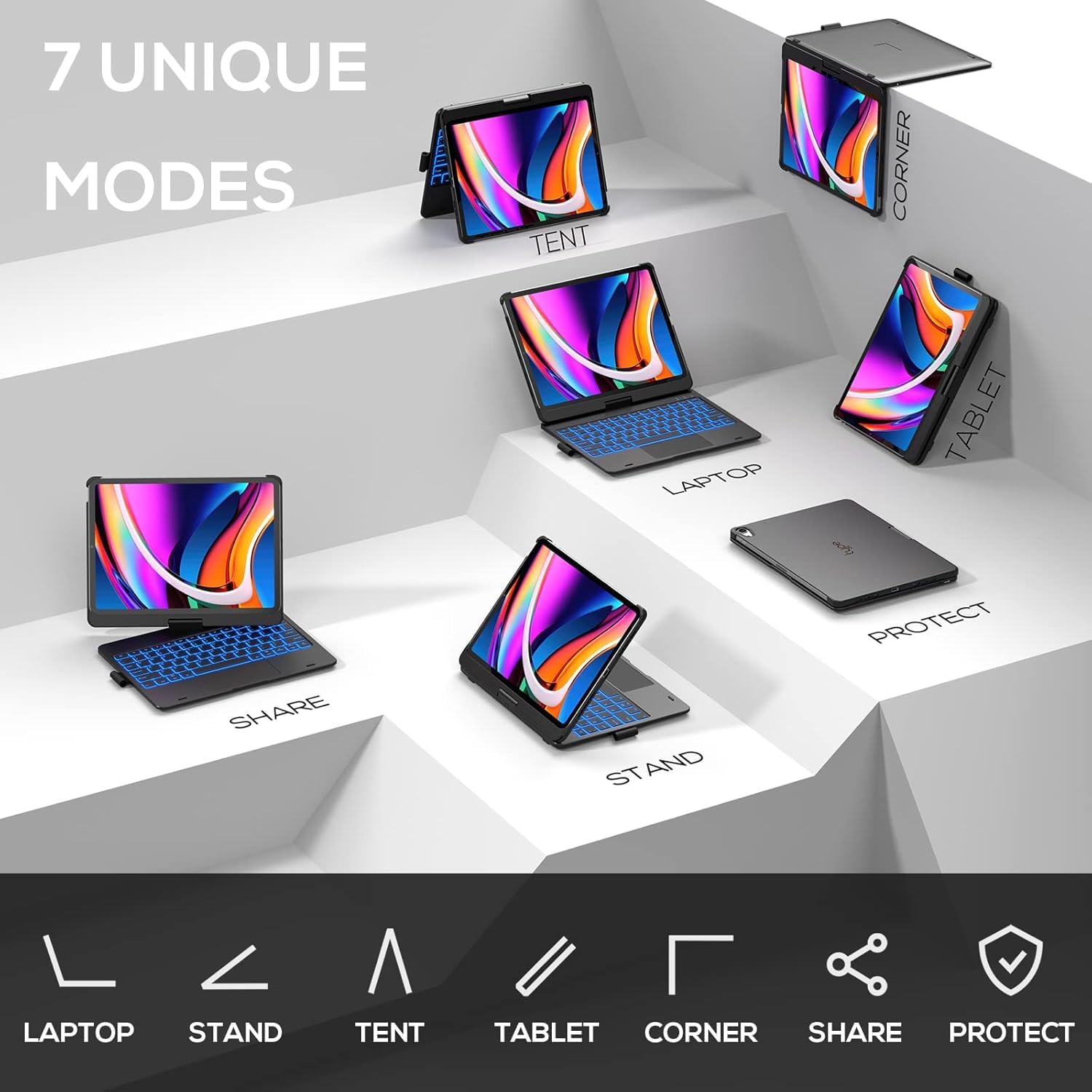
Image: A graphic representation of the seven distinct modes (Laptop, Stand, Tent, Tablet, Corner, Share, Protect) that the keyboard case can be configured into.
3.5. Apple Pencil Holder
The case includes an integrated holder for your Apple Pencil, ensuring it is secure and readily accessible when needed.

Image: An iPad secured in the keyboard case, with an Apple Pencil magnetically attached and charging on the top edge, demonstrating the convenient pencil holder.
3.6. Auto Sleep/Wake Feature
The keyboard case supports auto sleep/wake functionality. Opening the case will automatically wake your iPad, and closing it will put your iPad to sleep, helping to conserve battery life for both devices.
4. Isondlo
4.1. Ukuhlanza
- Sula ingaphandle lekesi ngomshini othambile, damp indwangu. Gwema amakhemikhali anokhahlo noma izihlanzi ezilumayo.
- For the keyboard keys, use a soft, lint-free cloth. A can of compressed air can be used to remove debris from between the keys.
4.2. Isitoreji
When not in use for extended periods, store the keyboard case in a cool, dry place away from direct sunlight and extreme temperatures. Ensure the case is closed to protect the iPad and keyboard.
4.3. Ukunakekelwa Kwebhethri
- Charge the keyboard regularly, even if not in frequent use, to maintain battery health.
- Gwema ukukhipha ibhethri ngokugcwele njalo.
- If the keyboard will not be used for a long time, charge it to about 50% before storing.
5. Ukuxazulula izinkinga
5.1. Ikhibhodi Ayixhumani/Ayibhangqi
- Qinisekisa ukuthi ikhibhodi ivuliwe futhi ishajwe ngokugcwele.
- Make sure Bluetooth is enabled on your iPad.
- Try turning the keyboard off and on again.
- Khohlwa idivayisi kuzilungiselelo ze-Bluetooth ze-iPad yakho bese uzama ukubhanqa kabusha.
- Qala kabusha i-iPad yakho.
5.2. Keys Not Responding
- Hlola ukuthi ikhibhodi ixhumeke kahle yini nge-Bluetooth.
- Qinisekisa ukuthi ibhethri lekhibhodi aliphansi.
- Restart the keyboard and your iPad.
5.3. Trackpad Issues
- Ensure the trackpad is enabled (if there's a dedicated toggle).
- Check iPadOS settings for trackpad sensitivity and gesture configurations.
- Clean the trackpad surface.
5.4. I-Backlight Ayisebenzi
- Press the backlight key multiple times to cycle through settings.
- Qinisekisa ukuthi ikhibhodi inebhethri eyanele yokushajwa.
6. Imininingwane
| Isici | Incazelo |
|---|---|
| Ibhrendi | uhlobo lwekhesi |
| Inombolo Yemodeli | KB201T109 |
| Amadivayisi Ahambisanayo | iPad Air 11-inch (M3 2025 / M2 2024) & iPad Air 10.9-inch 4th/5th Generation |
| Ubuchwepheshe bokuxhumana | I-Bluetooth |
| Incazelo Yekhibhodi | Okusebenzayo Okuningi |
| Izici ezikhethekile | Backlit, Foldable, Portable, Rechargeable, Trackpad, 360° Rotatable Hinge, Auto Sleep/Wake, Pencil Holder |
| Ukukhanyisa kwangemuva kwekhibhodi | RGB, 11 Colors, 3 Brightness Levels |
| Isisindo sento | 1.9 amakhilogremu |
| Ubukhulu bephakheji | 11.54 x 8.19 x 1.14 amayintshi |
| Amabhethri | 1 Amabhethri e-Lithium Polymer adingekayo (afakiwe) |
| Umbala | Mnyama |
7. Iwaranti kanye Nokusekela
7.1. Ulwazi Lwewaranti
- Replace Service: Eligible for replacement service within 1 year from the date of purchase.
- Imbuyiselo: Eligible for a refund within 30 days of purchase.
Sicela ugcine ubufakazi bakho bokuthenga izimangalo zewaranti.
7.2. Ukwesekwa Kwamakhasimende
For any questions, issues, or feedback regarding your typecase product, please contact our customer support team. We are committed to providing quick feedback and resolving any problems you may encounter.
For support, please visit the official typecase store on Amazon or refer to the contact information provided with your product packaging.
Ask a question about this manual
Ask about setup, troubleshooting, compatibility, parts, safety, or missing instructions. Manuals+ will review the question and use this page’s manual context to help answer it.