
1. Isingeniso
This manual provides detailed instructions for the HOU Keyboard Case designed for the iPad Pro 13-inch M5/M4 models. Please read this manual carefully before use to ensure proper operation and to maximize the product's lifespan.
1.1 Ukuhambisana
This keyboard case is specifically designed for the iPad Pro 13-inch M5/M4 (2025 models). Compatible iPad models include: I-A2925, A2926, A3007.
Important: This case is NOT compatible with iPad Air 13 (M2) 2024 (models A2898, A2899, A2900) or iPad Pro 12.9-inch (2017-2022) (6th/5th/4th/3rd/2nd/1st generation).
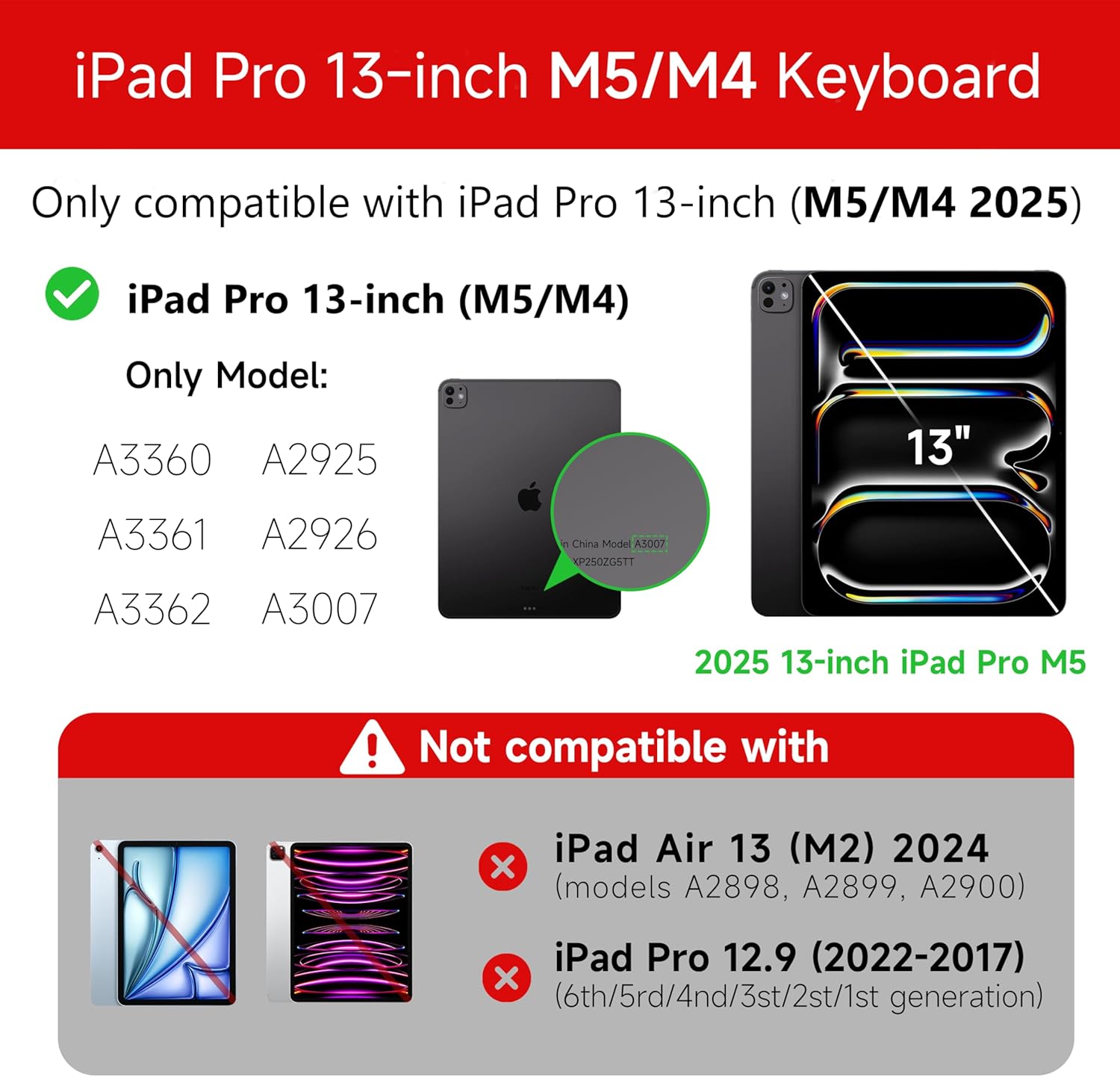
Figure 1: Compatibility details for the HOU iPad Pro 13-inch Keyboard Case.
2. Setha
2.1 Ukushaja ikhibhodi
Before initial use, fully charge the keyboard. Connect the provided USB-C cable to the charging port on the keyboard and to a power source. The charging indicator light will show the charging status.
- Imbobo yokushaja: Uhlobo C
- Isikhathi sokushaja: Approximately <2 hours
- Amandla ebhethri: 500mAh
2.2 Attaching Your iPad Pro
The keyboard case features a magnetic design for secure attachment. Align your iPad Pro 13-inch with the magnetic back panel of the case. The strong magnets will securely hold your iPad in place, providing stability.

Figure 2: Magnetic attachment for secure iPad placement.
2.3 Ukuxhumana kwe-Bluetooth
To connect the keyboard to your iPad Pro via Bluetooth:
- Qinisekisa ukuthi ikhibhodi ishajiwe futhi ivuliwe.
- Ku-iPad yakho, yiya ku Izilungiselelo > I-Bluetooth bese uvula i-Bluetooth.
- Kukhibhodi, cindezela bese ubamba Fn + Control + R for 3 seconds until the indicator light flashes, indicating pairing mode.
- On your iPad, select the keyboard from the list of available devices (e.g., "HOU Keyboard").
- Once connected, the indicator light on the keyboard will stop flashing.
After the initial connection, the keyboard should automatically reconnect to your iPad when both devices are powered on and Bluetooth is enabled.
3. Iziqondiso Zokusebenza
3.1 Kuyalungiseka Viewama-engeli
The keyboard case features a floating design that allows for angle adjustment up to 135 degrees. The keyboard base opens at a 45-degree angle, providing enhanced stability for various viewing and typing positions.
Umfanekiso 3: Okulungisekayo viewing angle up to 135 degrees.
3.2 Umsebenzi we-Backlight
The keyboard features an adaptive backlight with 7 different colors and 3 adjustable brightness levels. This allows for comfortable typing in various lighting conditions, including low-light environments.

Figure 4: Keyboard backlight in use for typing at night.
3.3 I-Trackpad Yokuthinta Okuningi
The integrated multi-touch trackpad supports full-area press and various swipe gestures, transforming your iPad into a laptop-like experience. It provides responsive controls for scrolling, dragging, input, and media control.
Adjusting Trackpad Sensitivity: You can adjust the trackpad sensitivity directly from your iPad's settings to match your personal preference.
- Iya ku Izilungiselelo ku-iPad yakho.
- Zulazulela ku Ukufinyeleleka.
- Find and adjust Ukulandelela Ukuzwela.

Figure 5: Multi-touch trackpad functionality and sensitivity adjustment.
3.4 Izinkinobho Ezinqamulelayo
The keyboard includes a series of shortcut keys to boost productivity. Refer to the keyboard layout for specific functions.
4. Isondlo
The exterior of the keyboard case is made from a semi-silicone material, which is wear-resistant and designed to resist fingerprints and stains, making it easy to clean.
- To clean, gently wipe the surface with a soft, damp indwangu.
- Gwema ukusebenzisa amakhemikhali anokhahlo noma izinto ezihuquzelayo, njengoba lokhu kungalimaza isiphetho.
- Ensure the charging port and keys are free from dust and debris.
5. Ukuxazulula izinkinga
5.1 Ikhibhodi Ayixhumi nge-Bluetooth
- Qinisekisa ukuthi ikhibhodi ishajwe ngokugcwele.
- Make sure Bluetooth is enabled on your iPad.
- Re-enter pairing mode on the keyboard by pressing and holding Fn + Control + R imizuzwana emi-3.
- Forget the device in your iPad's Bluetooth settings and attempt to pair again.
- Qala kabusha i-iPad yakho kanye nekhibhodi.
5.2 Trackpad Lag or Unresponsiveness
- This can sometimes occur due to Bluetooth connectivity. Try turning the keyboard off and then back on.
- Ensure there are no obstructions between the keyboard and the iPad that might interfere with the Bluetooth signal.
- Check for any available iPadOS updates, as software improvements can sometimes resolve connectivity issues.
5.3 Backlight Not Working
- Qinisekisa ukuthi ikhibhodi inebhethri eyanele yokushajwa.
- Check the keyboard's function keys for backlight control (usually a dedicated key or Fn combination).
6. Imininingwane
| Isici | Imininingwane |
|---|---|
| Ibhrendi | I-HOU |
| Amadivayisi Ahambisanayo | 2025 (M4/M5) iPad Pro 13-inch (A2925/A2926/A3007) |
| Ubuchwepheshe bokuxhumana | I-Bluetooth 5.2 |
| Incazelo Yekhibhodi | Multi-functional with Trackpad |
| Ukusetshenziswa Okunconyiwe | Okomuntu siqu |
| Izici ezikhethekile | Trackpad, Backlit, Hot Keys & Media Keys, Rechargeable, Lightweight |
| Umbala | Emhlophe |
| Imibala Ekhanyayo | 7 RGB Imibala |
| Ubukhulu bomkhiqizo (L x W x H) | 32 x 24.2 x 2.7 cm |
| Okubalulekile | Aluminum, Metal, ABS, Polyurethane (PU), Semi-silicone |
| Isisindo sento | 1.1 kg |
| Umthombo wamandla | Isebenza Ibhethri |
| Amandla ebhethri | ~ 500mAh |
| Ukusebenza Kwamanje | <10mA |
| Isikhathi sokulinda | ≥ izinsuku eziyi-30 |
| Ibanga lokusebenza | ≤10m |
7. Ukusekela
For any questions or further assistance, please contact the seller directly through your Amazon account:
- Ngena ngemvume ku-akhawunti yakho ye-Amazon.
- Go to "Order History".
- Locate your order for the HOU iPad Pro 13-inch Keyboard Case.
- Click on "Contact Seller".