
1. Umkhiqizo Uphelileview
The AZIJYV M2 Heads Up Display (HUD) is a digital speedometer designed to project essential driving information directly onto your vehicle's windshield. Utilizing a GPS+Beidou dual-mode chip, it provides real-time speed data with rapid refresh rates. Its design prioritizes clarity and ease of use, featuring a large font display and automatic brightness adjustment for optimal visibility in various lighting conditions. The M2 HUD is compatible with all vehicle types, including new energy, hybrid, fuel vehicles, motorcycles, buses, and trucks.

Image 1: The AZIJYV M2 Heads Up Display unit.
2. Izici Eziyinhloko
- GPS+Beidou Dual-Mode Chip: Ensures fast and accurate speed data refresh.
- Large Font Display: Provides clear and easily readable speed information.
- Automatic Light Sensing: Adapts display brightness to ambient light, ensuring clarity during the day and preventing glare at night.
- Integrated Shading Design: Reduces glare from the display during night driving.
- Idizayini ye-Premium: Features metal wire drawing technology, a circular groove design, and fine polishing.
- Uhlobo lwe-C Interface: Uxhumano lwamandla lwesimanje futhi olulula.
- Ukusebenza okuzenzakalelayo: Turns on and off automatically with your vehicle's ignition.
- Ukuvumelana kwe-Universal: Suitable for all vehicle types.
- Mile Speed Unit: Displays speed exclusively in miles per hour (MPH).

Image 2: The M2 HUD projecting speed onto the windshield.
3. Ukusetha nokufakwa
The M2 HUD offers a non-destructive, plug-and-play installation process.
- Ukuxhuma kwamandla: Insert the provided USB cable into your vehicle's cigarette lighter interface (using the included adapter if necessary) or an on-board USB (5V) port.
- Umzila wekhebula: Carefully route the USB cable into the A-pillar sealing strip to conceal it and prevent interference with driving.
- HUD Placement: Connect the other end of the USB cable to the M2 HUD. Place the HUD unit in a suitable position on your dashboard where the projected display is clearly visible on the windshield without obstructing your view yomgwaqo.
- Reflective Film (Optional): If the projection on your windshield is not clear or appears as a double image, apply the included reflective film to the desired area of the windshield. Clean the area thoroughly before application.

Image 3: Visual guide for M2 HUD installation steps.
Video 1: Demonstration of the AZIJYV M2 Heads Up Display installation and operation in a vehicle.
4. Iziqondiso Zokusebenza
Once installed and powered, the M2 HUD will automatically turn on and off with your vehicle. It will begin searching for satellite signals to acquire speed data.
- Satellite Signal Acquisition: When the small icon on the product flashes continuously, it indicates that the device is collecting satellite signals. Speed will only be displayed once the device successfully locks onto satellites.
- Isibonisi Sesivinini: Your current speed will be projected onto the windshield in large, clear digits.
- Ukukhanya Okuzenzakalelayo: The display brightness will automatically adjust based on ambient light conditions for optimal visibility.
- Iyunithi Yesivinini: The M2 HUD displays speed exclusively in miles per hour (MPH). It does not support kilometer units.

Image 4: Comparison of M2 HUD display clarity during day and night with automatic light sensing.
5. Ukuxazulula izinkinga
- No Speed Display / Flashing Icon: If the small icon on the product is flashing continuously and no speed is displayed, the device is still searching for satellite signals. Speed will appear once a stable satellite connection is established.
- Slow Satellite Acquisition / Inaccurate Speed:
- Izici Zemvelo: Satellite signal acquisition and accuracy may be affected in areas such as garages, underpasses, dense urban environments with tall buildings, or areas with heavy tree cover.
- Multiple GPS Devices: Having another GPS device installed in your car close to the M2 HUD can interfere with its signal acquisition. Ensure adequate separation.
- Metal Film on Windshield: Certain metallic window films can block or weaken GPS signals, impacting the HUD's performance.
- Display Not Clear / Double Image: Ensure the HUD is placed correctly. If issues persist, apply the included reflective film to the windshield where the display is projected.
- Incorrect Speed Unit: The M2 HUD is designed to display speed only in miles per hour (MPH). It does not have an option to switch to kilometers per hour (KM/H).
- Awekho Amandla: Check the USB cable connection to both the HUD and the vehicle's power source (USB port or cigarette lighter adapter). Ensure the vehicle's ignition is on.
6. Isondlo
- Ukuhlanza: Wipe the exterior of the HUD unit with a soft, dry cloth. Avoid using abrasive cleaners or solvents, as these may damage the surface.
- Isitoreji: When not in use for extended periods, disconnect the HUD from power and store it in a cool, dry place away from direct sunlight and extreme temperatures.
- Ukunakekelwa Kwekhebula: Ensure the USB cable is not kinked, pinched, or subjected to excessive tension, which could damage the wiring.
7. Imininingwane
| Isici | Ukucaciswa |
|---|---|
| Inombolo Yemodeli | M2 |
| Ubukhulu bomkhiqizo (L x W x H) | 3.5 x 1.77 x 1.4 amayintshi (9.0 x 4.5 x 3.5 cm) |
| Isisindo sento | 1.06 ama-ounces (30 Amagremu) |
| Ukunikezwa kwamandla kagesi | On-board USB (5V) or cigarette lighter to USB |
| Iyunithi Yesivinini | Miles per hour (MPH) only |
| Ukuhambisana | Universal for all vehicle models |
8. Yini EseBhokisini
- M2 Host Unit
- Ifilimu Ebonisayo
- 2.5M Ikhebula le-USB
- 3M Yesigcilikisha Pad
- Incwadi Yeziqondiso
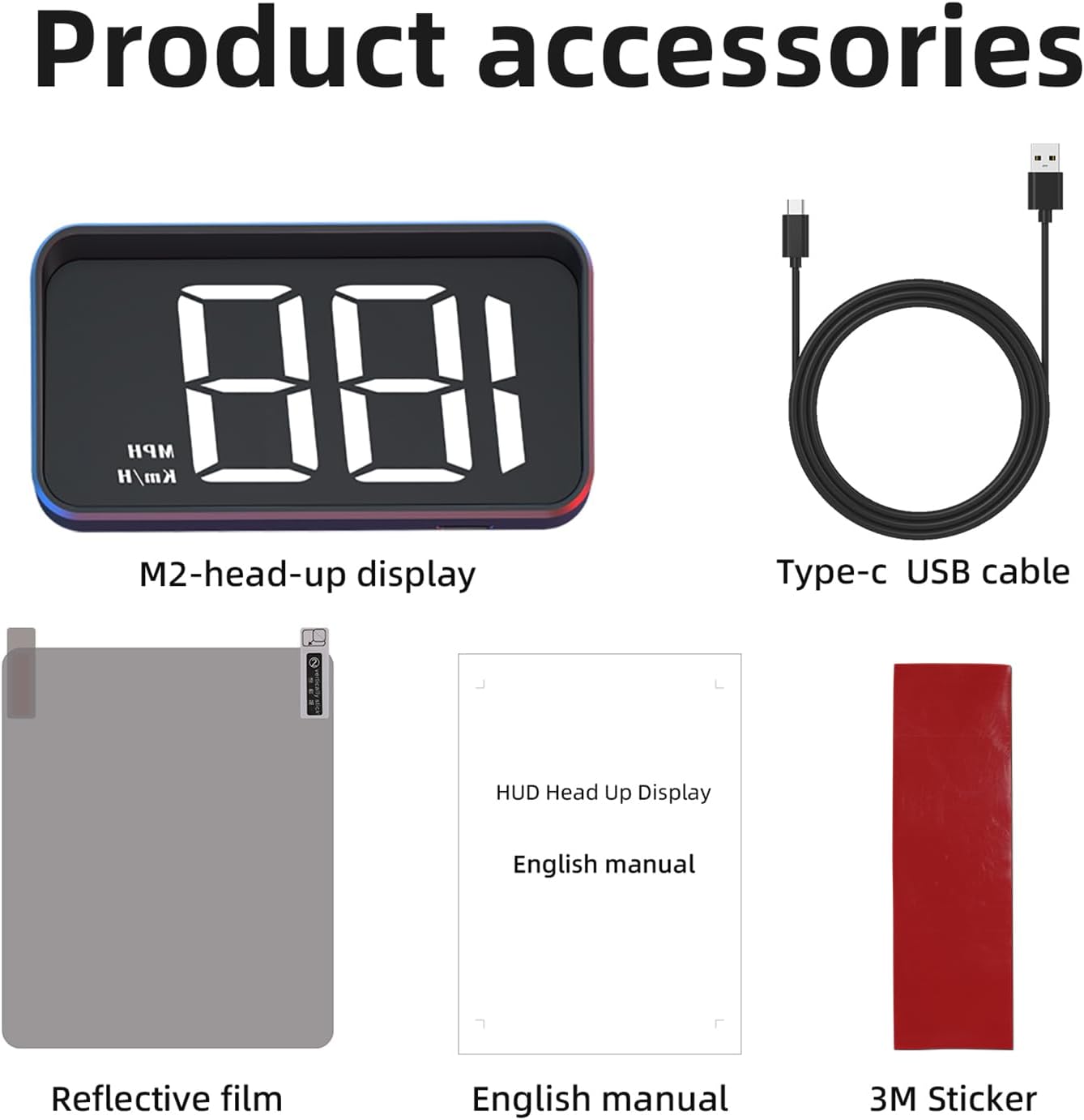
Image 5: All items included in the M2 HUD package.
9. Iwaranti kanye Nokusekela
The AZIJYV M2 Digital Heads Up Display comes with a standard manufacturer's warranty. For specific warranty details, please refer to the warranty card included in your product packaging or contact AZIJYV customer support.
For technical assistance, troubleshooting, or any product-related inquiries, please contact our customer support team through the retailer's platform or the contact information provided on the product packaging.