
1. Isingeniso
The MAXHUB UC P30 SC802A 12X VHD Camera is a high-definition video capture device designed for professional use. Featuring 12x optical zoom and 1080p video resolution, it is ideal for various applications including video conferencing, live streaming, and educational environments. This manual provides detailed instructions to help you set up, operate, and maintain your camera for optimal performance.
2. Yini EseBhokisini
Sicela uqinisekise ukuthi zonke izingxenye zikhona kuphakheji:
- 1 x MAXHUB UC P30 SC802A 12X VHD Camera
- (Additional accessories such as power adapter, USB cable, remote control, etc., would typically be listed here if provided in the product data. Based on "Included Components: 1 product", only the camera is explicitly mentioned.)
3. Umkhiqizo Uphelileview
Familiarize yourself with the key components and features of your MAXHUB UC P30 SC802A camera.
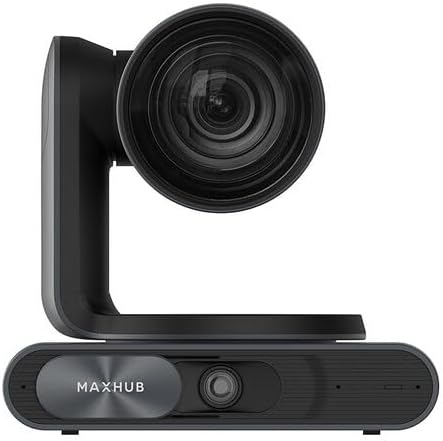
Umfanekiso 3.1: Ngaphambili view of the MAXHUB UC P30 SC802A camera, showing the main lens and the MAXHUB branding on the base.

Umfanekiso 3.2: I-engeli view of the MAXHUB UC P30 SC802A camera, highlighting its compact design and the rotating camera head.
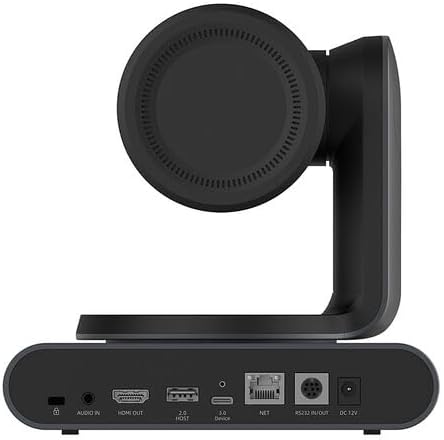
Umfanekiso 3.3: Ngemuva view of the MAXHUB UC P30 SC802A camera, displaying various connectivity ports including Audio In, HDMI Out, USB 2.0 Host, USB 3.0 Device, NET (Ethernet), RS232 In/Out, and DC 12V power input.
4. Setha
Follow these steps to set up your MAXHUB UC P30 SC802A camera:
- Ukubekwa: Place the camera on a stable, flat surface or mount it securely using compatible mounting hardware (not included, unless specified). Ensure it has a clear line of sight to the area you wish to capture.
- Ukuxhuma kwamandla: Connect the provided power adapter to the DC 12V input port on the rear of the camera (refer to Figure 3.3) and plug the adapter into a power outlet.
- Uxhumano lwe-USB: Connect the camera to your computer using a USB cable (USB 3.0 Device port, refer to Figure 3.3). The camera is designed for plug-and-play operation with most operating systems.
- Okukhipha ividiyo (Uma uthanda): For direct video monitoring, connect an HDMI cable from the HDMI Out port on the camera to an HDMI input on a display device (refer to Figure 3.3).
- Audio Input (Optional): If using an external microphone, connect it to the Audio In port on the camera (refer to Figure 3.3).
- Uxhumano Lwenethiwekhi (Ongakukhetha): For network control or streaming, connect an Ethernet cable to the NET port (refer to Figure 3.3).
- Ukufakwa komshayeli: In most cases, the camera will be recognized automatically by your operating system. If prompted, allow the system to install necessary drivers. For advanced features or specific software, refer to the manufacturer's webindawo yokulanda abashayeli.
5. Iziqondiso Zokusebenza
Once the camera is set up, you can begin operation:
- Vula: The camera will power on automatically once connected to power. An indicator light (if present) will illuminate.
- Ukuqashelwa Kwesofthiwe: Open your preferred video conferencing, streaming, or recording software on your computer. Select the MAXHUB UC P30 camera as your video input device.
- Pan, Tilt, Zoom (PTZ) Control:
- Ukulawulwa Kwezandla: The camera head can be manually adjusted for initial positioning.
- Ukulawula Isofthiwe: Utilize the PTZ controls within your video software or a dedicated MAXHUB control application (if available) to remotely adjust pan, tilt, and zoom.
- Isilawuli kude (uma sikhona): If a remote control was included, use it to precisely adjust the camera's position and zoom level.
- Ukulungisa Ukugxila: The camera typically features auto-focus. If manual focus is required, it can usually be adjusted via software controls.
- Izilungiselelo zevidiyo: Adjust video settings such as resolution (up to 1080p), frame rate, brightness, contrast, and white balance through your software's camera settings.
- Cisha ugesi: Disconnect the power adapter from the camera or the power outlet to turn off the device.
6. Isondlo
Ukunakekelwa okufanele kuqinisekisa ukuphila isikhathi eside nokusebenza kahle kwekhamera yakho:
- Ukuhlanza Ilensi: Use a soft, lint-free cloth specifically designed for optical lenses to gently wipe the camera lens. Avoid abrasive materials or harsh chemicals.
- Ukuhlanza Umzimba: Wipe the camera body with a soft, dry cloth. For stubborn dirt, a slightly damp cloth can be used, but ensure no moisture enters the ports or internal components.
- Isitoreji: When not in use for extended periods, store the camera in a cool, dry place, away from direct sunlight and extreme temperatures. Use the original packaging or a protective case if available.
- Gwema Izithiyo: Ensure the camera's ventilation openings (if any) are not blocked to prevent overheating.
7. Ukuxazulula izinkinga
Bheka lesi sigaba ngezinkinga ezivamile nezisombululo zazo:
| Inkinga | Imbangela Engenzeka | Isixazululo |
|---|---|---|
| Akukho okukhipha isithombe/ividiyo |
|
|
| Ikhwalithi yesithombe esibi |
|
|
| Camera not recognized by computer |
|
|
8. Imininingwane
Key technical specifications for the MAXHUB UC P30 SC802A 12X VHD Camera:
| Isici | Imininingwane |
|---|---|
| Igama Lemodeli | UCP30 |
| Ibhrendi | MAXHUB |
| Uhlobo lwe-Camcorder | Action Camera (Note: This might be a misclassification in the source data, as it's a PTZ camera. Describing it as a "Professional Video Conferencing Camera" would be more accurate based on its features.) |
| I-Optical Zoom | 12 x |
| Ukulungiswa kokuthwebula ividiyo | 1080p |
| Ifomethi yokuthwebula ividiyo | MP4 |
| Ubuchwepheshe bokuxhumana | I-USB |
| Umbala | Mnyama |
| Isisindo sento | 2.2 amakhilogremu |
| Ubukhulu bephakheji | 3.94 x 0.79 x 0.39 amayintshi |
| ASIN | B0DF5RFM3J |
| Usuku Lokuqala Olutholakalayo | Agasti 25, 2024 |
9. Ulwazi Lwewaranti
MAXHUB products are typically covered by a manufacturer's warranty. For specific warranty terms, conditions, and duration, please refer to the warranty card included with your product or visit the official MAXHUB webindawo. Gcina ubufakazi bakho bokuthenga ngezimangalo zewaranti.
10. Ukusekela
If you encounter any issues not covered in this manual or require further assistance, please contact MAXHUB customer support. You can usually find contact information on the official MAXHUB webindawo noma ngomdayisi lapho othenge khona umkhiqizo.
For online resources, visit the MAXHUB Store on Amazon.