
1. Isingeniso
Thank you for choosing the LAMA 4K UHD 75MP Digital Camera, Model LM249A. This camera is designed to capture high-quality photos and videos with ease, featuring a 75-megapixel sensor, 4K Ultra HD video recording, 18X digital zoom, autofocus, anti-shake technology, and a convenient 180° flip screen. This manual provides detailed instructions to help you get started and make the most of your new camera.
2. Umkhiqizo Uphelileview
Familiarize yourself with the main components and controls of your LAMA digital camera.

Umfanekiso 2.1: Ngaphambili view of the LAMA 4K UHD 75MP Digital Camera, showing the lens and flash.

Umdwebo 2.2: Ngaphezuluview of the camera's key features including 64MP resolution, 4K video, 18X zoom, autofocus, and fill light.
2.1 Izingxenye Zekhamera
- Ilensi: Captures images and videos. Features 18X digital zoom.
- Isikrini se-LCD: Isibonisi esingu-3.0 intshi se viewing, menu navigation, and playback. It can flip 180 degrees for selfies.
- Inkinobho yokuvala: Press halfway to focus, fully to capture a photo or start/stop video recording.
- Inkinobho yamandla: Ivula noma ivale ikhamera.
- Ukudayela kwemodi: Selects different shooting modes (e.g., Photo, Video, Timed).
- Zoom Lever (T/W): Adjusts the digital zoom (Telephoto/Wide).
- Navigation Buttons (OK, Up, Down, Left, Right): Used for menu navigation and setting adjustments.
- Inkinobho Yemenyu: Ifinyelela izilungiselelo zekhamera.
- Inkinobho ye-DISP: Changes display information on the LCD screen.
- Isibani Sokugcwalisa Esakhelwe Ngaphakathi: Inikeza ukukhanya okwengeziwe ezimweni ezinokukhanya okuphansi.
- Igumbi Lebhethri: Igcina ibhethri elishajekayo.
- Isikhala Sekhadi Lememori: For inserting a Micro SD (TF) card.
- Imbobo ye-USB-C: For charging and data transfer to a computer.
3. Setha
3.1 Ukufaka Ibhethri Nekhadi Lememori
Before using the camera, ensure the battery is charged and a memory card is inserted.
- Vula Ikhava: Slide to open the battery/memory card compartment cover located on the side or bottom of the camera.
- Faka Ibhethri: Insert the provided battery into the battery compartment, ensuring the correct orientation.
- Faka Imemori Yekhadi: Gently pull out the "USB/TF" silicone cover. Insert a Micro SD (TF) card (up to 64GB supported) into the memory card slot until it clicks into place. Ensure the card is facing the correct direction.
- Vala Ikhava: Vala ikhava yegumbi ngokuphephile.

Figure 3.1: Visual guide for installing the battery and Micro SD card into the camera.
3.2 Ukushaja Ibhethri
Connect the camera to a power source using the provided Type-C USB cable. The charging indicator will illuminate. Once fully charged, the indicator will change or turn off.
4. Ukusebenza Okuyisisekelo
4.1 Ukuvula / Ukuvula
Cindezela bese ubamba inkinobho ethi Power ukuze uvule noma uvale ikhamera.
4.2 Ukuthatha izithombe
- Khetha Imodi Yesithombe: Turn the mode dial to the photo icon.
- Yenza uhlaka lweshothi yakho: Use the LCD screen to compose your image.
- Ukugxila ngokuzenzakalela: Press the shutter button halfway down. The camera will automatically focus. A green frame indicates successful focus.
- Thatha Isithombe: Cindezela inkinobho yokucisha ngokuphelele ukuze uthathe isithombe.
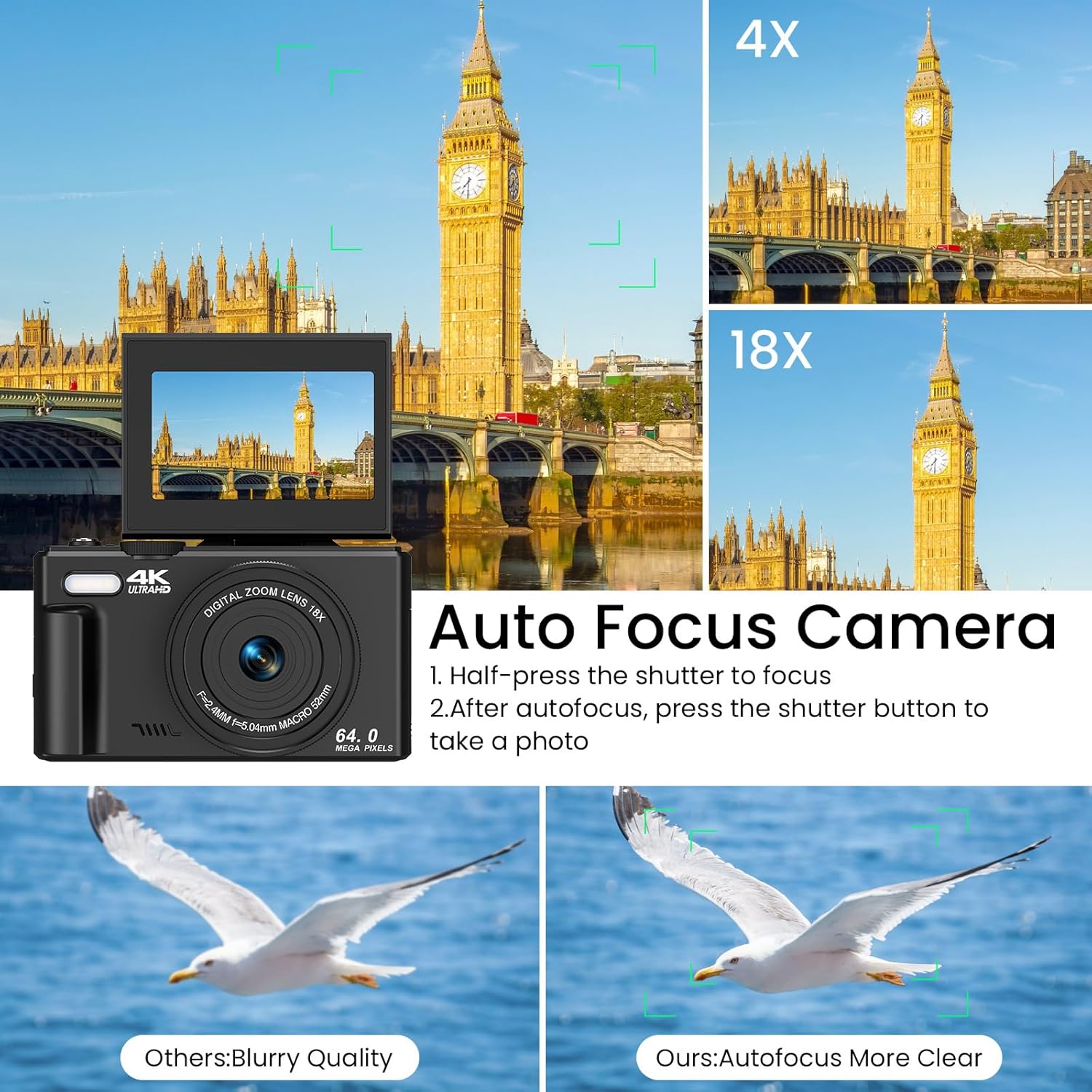
Figure 4.1: Illustration of the autofocus function, showing how to achieve clear images.
4.3 Ukuqopha amavidiyo
- Khetha Imodi yevidiyo: Turn the mode dial to the video icon.
- Qala Ukuqopha: Press the shutter button to begin recording. A red indicator on the screen will show recording is active.
- Misa Ukuqopha: Cindezela inkinobho yokuvala futhi ukuze uyeke ukurekhoda.
4.4 Using the Zoom
Use the T (Telephoto) and W (Wide) buttons on the zoom lever to adjust the 18X digital zoom. Press T to zoom in and W to zoom out.

Figure 4.2: Demonstration of the 18X digital zoom capability, showing different levels of magnification.
4.5 Umsebenzi Wokulwa Nokunyakazisa
The camera features an anti-shake function to help reduce blur in photos and videos, especially when shooting handheld or in motion. This feature is automatically enabled.

Figure 4.3: Comparison showing the effectiveness of the anti-shake feature in capturing clear action shots.
5. Izici Ezithuthukile
5.1 180° Flip Screen
The LCD screen can be flipped 180 degrees, allowing you to easily frame yourself for selfies and vlogging. Simply pull the screen up and rotate it forward.
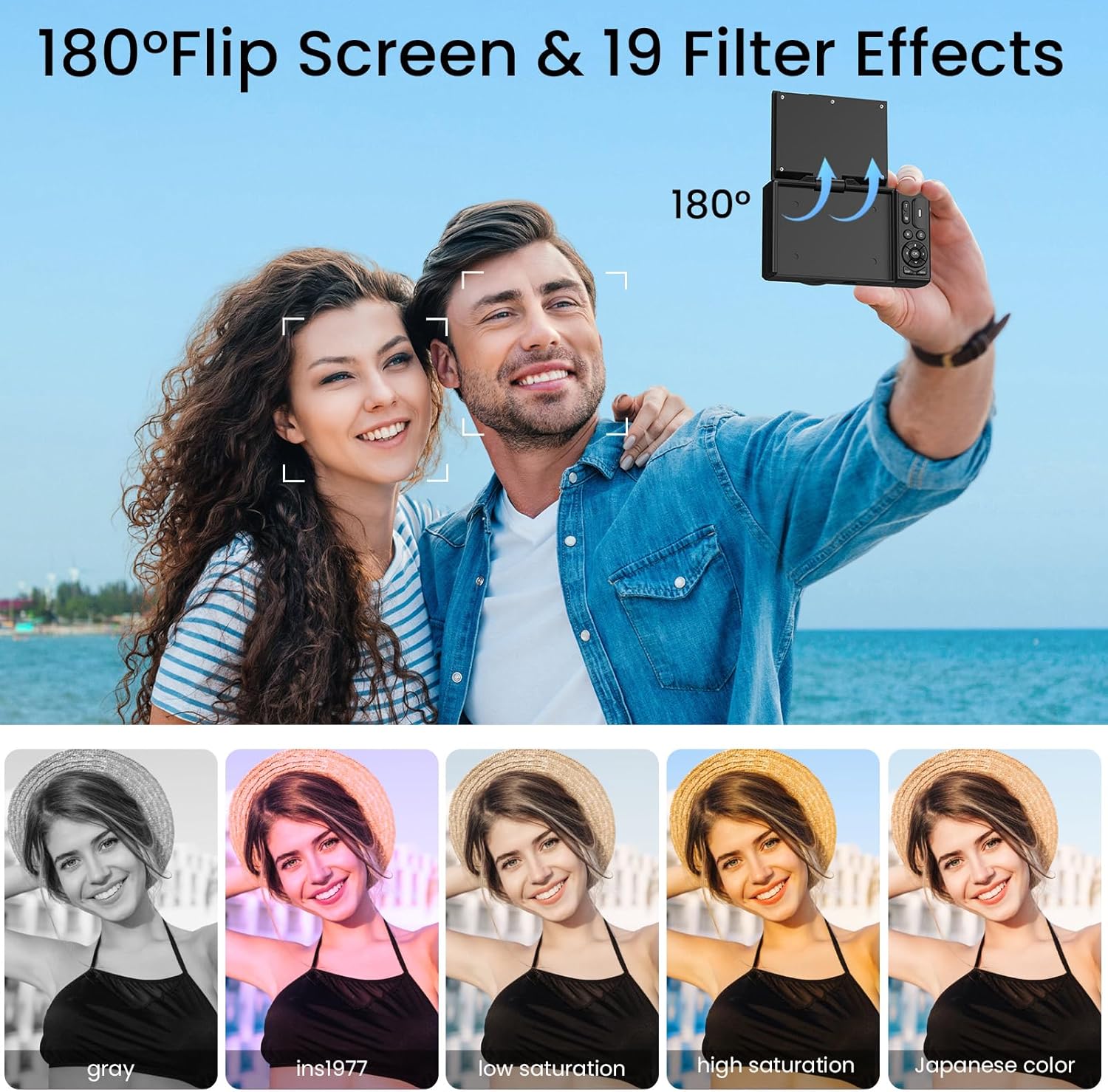
Figure 5.1: The camera's 180° flip screen, ideal for self-portraits and vlogging.

Figure 5.2: The flip screen in action, making it convenient for selfies and group shots.
5.2 Built-in Fill Light
Activate the built-in fill light to brighten your subjects in dimly lit environments, ensuring clearer photos and videos.
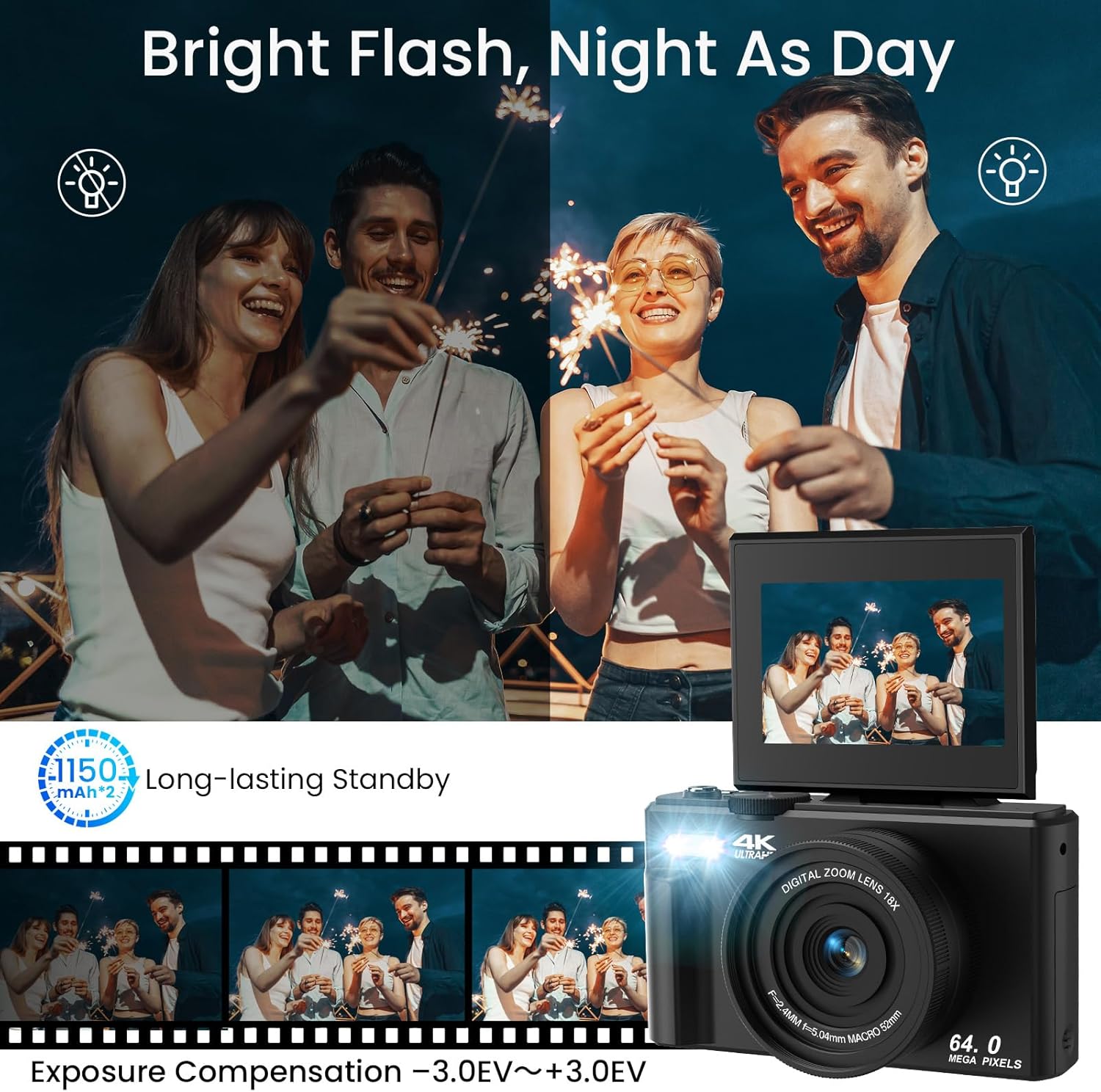
Figure 5.3: The camera's built-in fill light, enhancing visibility in low-light conditions.

Figure 5.4: Before and after comparison demonstrating the effectiveness of the fill light.
5.3 Special Shooting Modes and Effects
Your camera offers various modes and effects to enhance your creativity:
- Ukudubula Okunesikhathi: Set a timer (2s, 5s, 10s, 15s, 30s) for self-portraits or group photos.
- Imodi yokuqhuma: Capture a rapid sequence of photos for action shots.
- Slowly Shooting: Record videos in slow motion.
- Lapse Effects: Create time-lapse videos by compressing time.
- Face Detection & Smile Capture: Automatically detects faces and captures smiles.
- Beauty Function: Enhances facial features for more flattering portraits.
- 19 Filter Effects: Apply various artistic filters (e.g., Gray, Ins1977, Low Saturation, High Saturation, Japanese Color) to your photos.

Umdwebo 5.5: Ngaphezuluview of creative shooting modes available on the camera.

Umfanekiso 5.6: Eksamples of the 19 built-in filter effects that can be applied to photos.

Figure 5.7: The Beauty Effect and Smile Face Detection features for enhanced portraits.
5.4 WiFi Transfer
Transfer photos and videos wirelessly to your smartphone or computer using the camera's built-in Wi-Fi function. Refer to the camera's on-screen menu for specific instructions on connecting to a Wi-Fi network and transferring files.
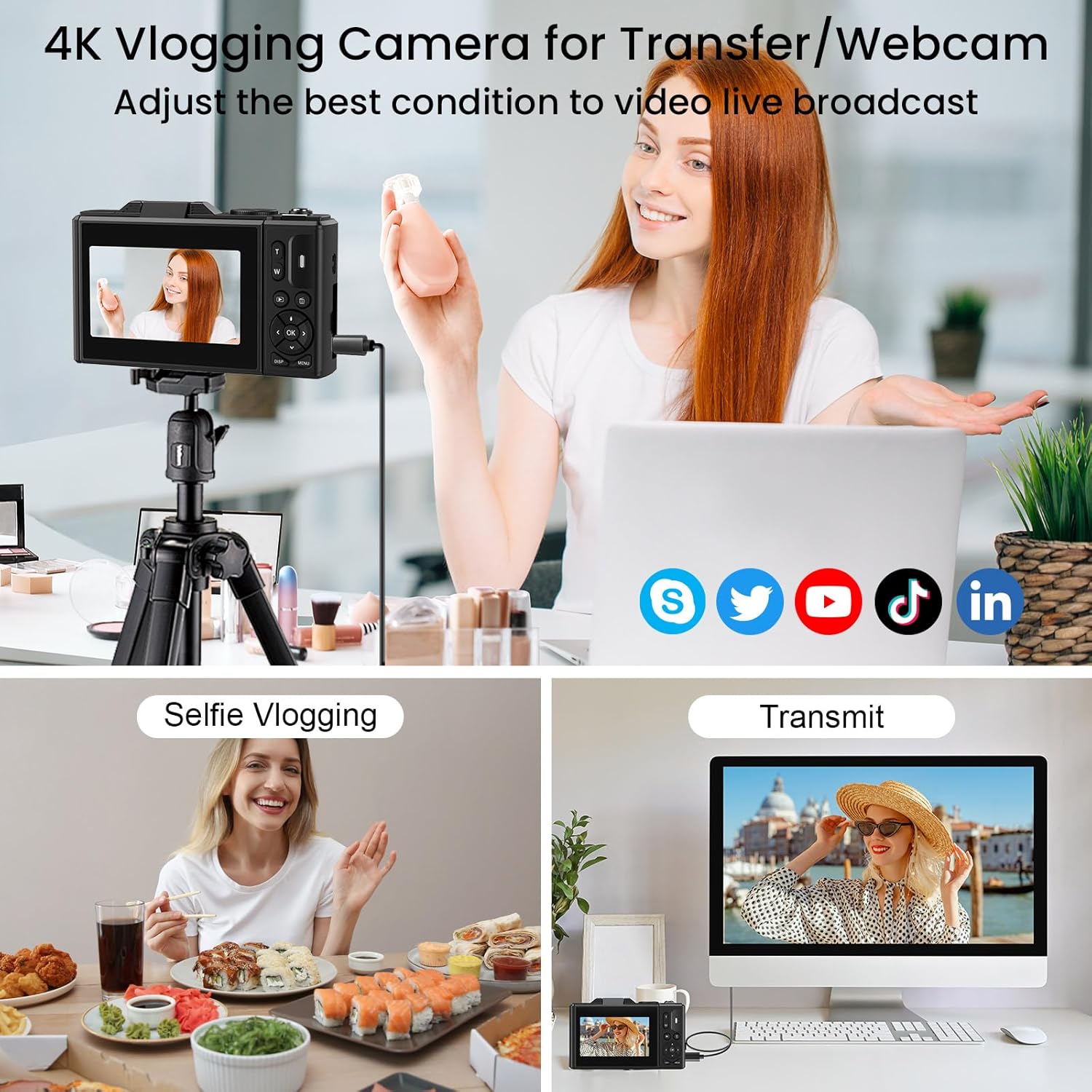
Figure 5.8: The camera supports WiFi transfer for easy sharing of content.

Figure 5.9: Visual representation of wireless file transfer from camera to smartphone.
5.5 Webcam Ukusebenza
Connect your LAMA camera to a computer via the USB-C cable to use it as a webcam for video calls or live streaming. Select the "Webcam" option on the camera's screen when prompted after connecting.

Figure 5.10: The camera can be used as a webcam for video conferencing or streaming.
5.6 Amavidiyo Omkhiqizo Asemthethweni
Watch these official videos for a visual guide on using your LAMA 4K UHD Digital Camera.
Ividiyo 5.1: I-overview of the LAMA 4K UHD 64MP Digital Camera's features and functions.
Video 5.2: A demonstration of the LAMA 4K Digital Camera's capabilities in various scenarios.
6. Isondlo
- Ukuhlanza: Use a soft, dry cloth to clean the camera body. For the lens, use a specialized lens cleaning cloth and solution. Avoid harsh chemicals.
- Isitoreji: Gcina ikhamera endaweni epholile, eyomile kude nokukhanya kwelanga okuqondile kanye namazinga okushisa aphezulu. Susa ibhethri uma uligcina isikhathi eside.
- Ukunakekelwa kwebhethri: Fully charge the battery before first use. Avoid overcharging or completely draining the battery.
- Imemori khadi: Regularly back up your photos and videos to a computer or external storage device. Format the memory card periodically within the camera to maintain optimal performance.
7. Ukuxazulula izinkinga
| Inkinga | Isixazululo Esingenzeka |
|---|---|
| Ikhamera ayivuli amandla. | Ensure the battery is fully charged and correctly inserted. Try charging the camera for at least 30 minutes. |
| Awukwazi ukuthatha izithombe/ukurekhoda amavidiyo. | Check if a memory card is inserted and has sufficient free space. Ensure the mode dial is set to the correct mode (Photo/Video). |
| Izithombe zifiphele. | Ensure the autofocus has locked onto the subject (green frame). Check for smudges on the lens and clean if necessary. Ensure sufficient lighting. |
| Wi-Fi transfer not working. | Ensure Wi-Fi is enabled on both the camera and your smart device. Follow the specific connection instructions in the camera's menu. |
| Ikhamera iyama noma ayiphenduli. | Remove the battery, wait a few seconds, and reinsert it to perform a soft reset. |
8. Imininingwane
| Isici | Imininingwane |
|---|---|
| Igama Lemodeli | I-LM249A |
| Ukulungiswa Kwenzwa Yesithombe | I-75 MP (Isixazululo Esisebenzayo Sokunamathela) |
| Ukulungiswa kwevidiyo | I-4K UHD |
| Ukusondeza kwedijithali | 18x |
| Usayizi Wesikrini | 3.0 inches (Tilting LCD) |
| Ukuzinzisa Isithombe | Digital (Anti-Shake) |
| Ukuxhumana | I-Wi-Fi, i-USB-C |
| Imidiya Yesitoreji | Micro SD (TF) Card, up to 64GB |
| Uhlobo Lwebhethri | I-Lithium Polymer |
| Izici ezikhethekile | 180° Flip Screen, Built-in Fill Light, Autofocus, Face Detection, Smile Capture, Timed Shooting, Burst Mode, Slow Motion, Time-Lapse, 19 Filter Effects, Webcam Umsebenzi |
| Isisindo sento | 8.8 amakhilogremu |
9. Iwaranti kanye Nokusekela
The LAMA 4K UHD 75MP Digital Camera comes with a 1-year warranty from the date of purchase. For technical support, warranty claims, or any questions regarding your product, please contact LAMA customer service through the retailer's platform or visit the official LAMA brand store online. Please retain your proof of purchase for warranty validation.
10. Izesekeli ezifakiwe
The following items are included with your LAMA 4K UHD 75MP Digital Camera:
- LAMA 4K UHD 75MP Digital Camera Body
- 64GB Micro SD (TF) Card
- 2 x Amabhethri Aphinde Ashajwe
- I-Lens Cap
- Uhlobo C lwekhebula le-USB
- Lanyard
- Isikhwama Sokugcina
- Incwadi Yomsebenzisi (le dokhumenti)

Figure 10.1: All accessories included with the camera package.