
Isingeniso
The KEYCOOL K19 Wireless Numeric Keyboard is a versatile and ergonomic peripheral designed for enhanced productivity across various operating systems. Featuring triple mode connectivity, hot-swappable switches, and a multi-function knob, this keypad offers a customizable and efficient user experience. This manual provides detailed instructions for setup, operation, maintenance, and troubleshooting to ensure optimal performance of your K19 numeric keyboard.
Izici Eziyinhloko
- Triple Mode Connectivity: Seamlessly switch between wired (USB-C), Bluetooth 5.0, and 2.4GHz wireless connections for maximum flexibility.
- Ukushintsha Okushisayo Okushintshayo: Customize your typing experience by easily changing 3-pin or 5-pin mechanical switches without soldering.
- I-Multi-Function Knob: Control RGB lighting effects, adjust volume, and manage media functions with a versatile rotary knob.
- I-RGB Backlighting: Enjoy dynamic and customizable RGB lighting modes to personalize your setup.
- Isakhiwo Esifakwe I-Gasket: Designed with imported PORON foam tape for a pleasant and satisfying typing sound.
- Idizayini ye-Ergonomic: Features a sloped keyboard and durable PBT keycaps for comfortable and long-lasting use.
- Ukuhambisana Okubanzi: Compatible with Windows, Mac, Linux, Android, and iOS systems.

Isithombe: Kuphelileview of the K19 Mechanical Numeric Keypad's core features.
Okuqukethwe Kwephakheji
Upon opening your KEYCOOL K19 package, please verify that all the following items are included:
- Ikhibhodi Yezinombolo Ye-K19 Engenantambo
- Ikhebula le-USB-C
- I-Keycap Puller
- Shintsha i-Puller
- Additional Keycaps (e.g., Esc, Fan icon)
- Amaswishi Engeziwe
- Incwadi Yomsebenzisi / Umhlahlandlela Wokuqalisa Ngokushesha
Video: Unboxing the Keycool K19 numeric keyboard and its included accessories.
Setha
Ukushaja Ikhibhodi
Before initial use, ensure the K19 numeric keyboard is fully charged. Connect the provided USB-C cable to the keyboard's USB-C port and the other end to a power source (e.g., computer USB port, wall adapter). The charging indicator light will show the charging status.
Amamodi Okuxhumana
The K19 supports three connection modes: Wired, 2.4GHz Wireless, and Bluetooth. Use the switch located on the keyboard to select your desired mode.
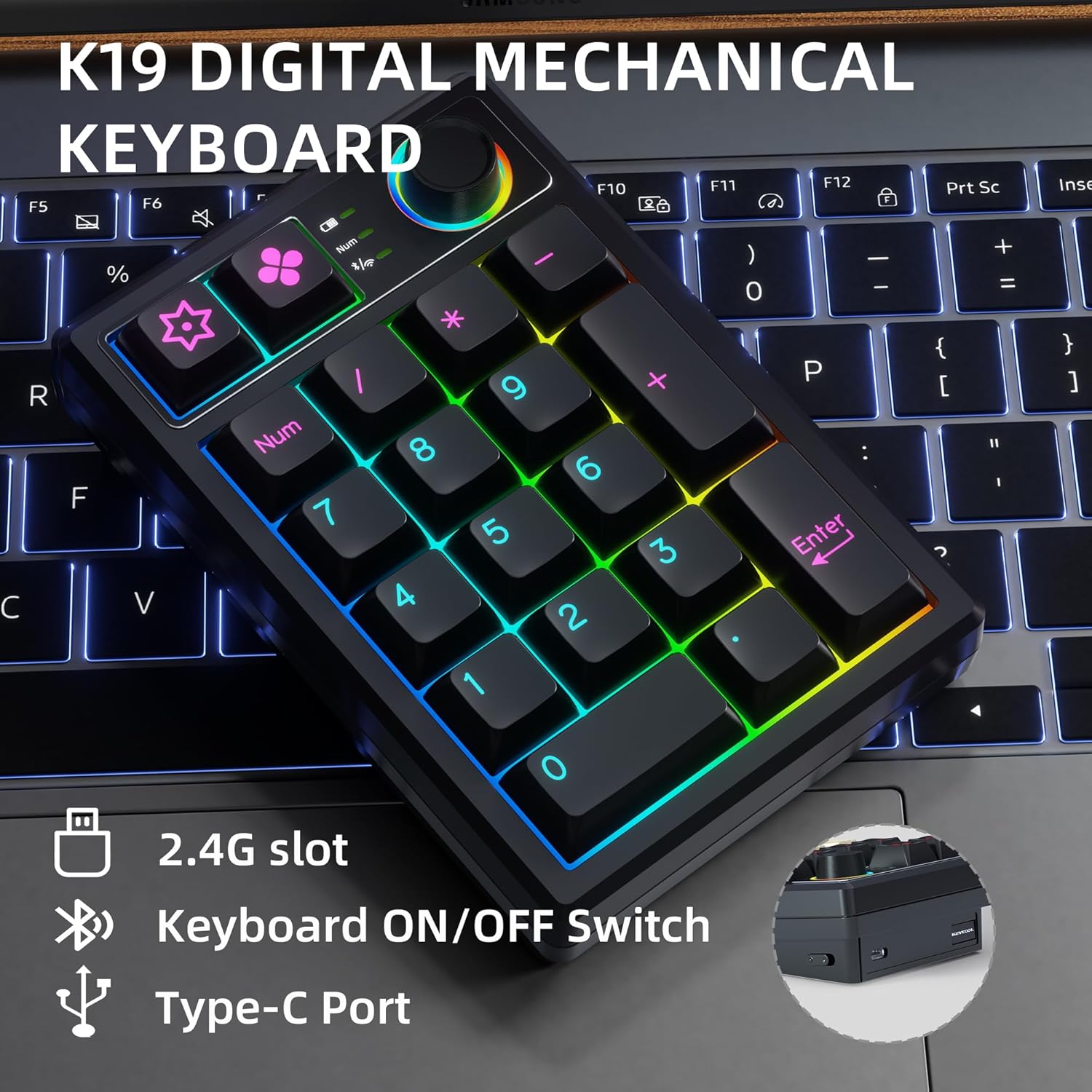
Image: Key connection points on the K19 numeric keyboard.
1. Uxhumano Lwezintambo
- Ensure the keyboard's mode switch is set to the wired (USB) position.
- Xhuma ikhebula le-USB-C ukusuka kukhibhodi uye embobeni ye-USB yekhompyutha yakho.
- Ikhibhodi izobonwa ngokuzenzakalela futhi ilungele ukusetshenziswa.
2. 2.4GHz Ukuxhuma Okungenantambo
- Locate the 2.4G USB receiver, usually stored in a slot on the keyboard.
- Xhuma isamukeli se-USB embotsheni ye-USB etholakalayo kukhompuyutha yakho.
- Set the keyboard's mode switch to the 2.4G wireless position.
- Ikhibhodi kufanele ixhume ngokuzenzakalelayo.
3. Ukuxhumeka kwe-Bluetooth
- Set the keyboard's mode switch to the Bluetooth position.
- Kudivayisi yakho (ikhompyutha, ithebhulethi, i-smartphone), vumela i-Bluetooth bese usesha amadivayisi amasha.
- Select "KEYCOOL K19" from the list of available devices to pair.
- Landela noma yikuphi ukwaziswa okusesikrinini ukuze uqedele inqubo yokumatanisa.
Ukufakwa komshayeli nesofthiwe
For advanced customization, including key remapping and macro settings, you may download the official driver software from the KEYCOOL webindawo: www.kc-keycool.com. Install the software according to the instructions provided on the webindawo.

Image: Driver download site for KEYCOOL products.
Imiyalelo yokusebenza
I-Multi-Function Knob
The rotary knob on the K19 numeric keyboard provides quick access to various functions:
- RGB Lighting Adjustment: Rotate the knob to cycle through different RGB lighting effects or adjust brightness. Press the knob to switch between lighting modes or turn lighting on/off.
- Ukulawula Imidiya: The knob can also be configured via software to control media functions such as volume adjustment (rotate) or play/pause (press).
Ukukhanyisa kwe-RGB
The K19 features vibrant RGB backlighting with multiple effects. Use the multi-function knob or specific key combinations (refer to the Quick Start Guide or software) to customize the lighting to your preference.
Video: Demonstration of the RGB backlit effects on the K19 numeric keyboard.

Image: The K19 numeric keyboard showcasing its RGB lighting.
Ukushintsha Okushisayo Okushintshwayo
The K19 allows you to easily change mechanical switches without soldering. This feature enables you to customize the feel and sound of your keypad. Use the included switch puller to carefully remove existing switches and insert new 3-pin or 5-pin compatible switches.

Isithombe: Eduze view of the K19's hot-swappable switch sockets.
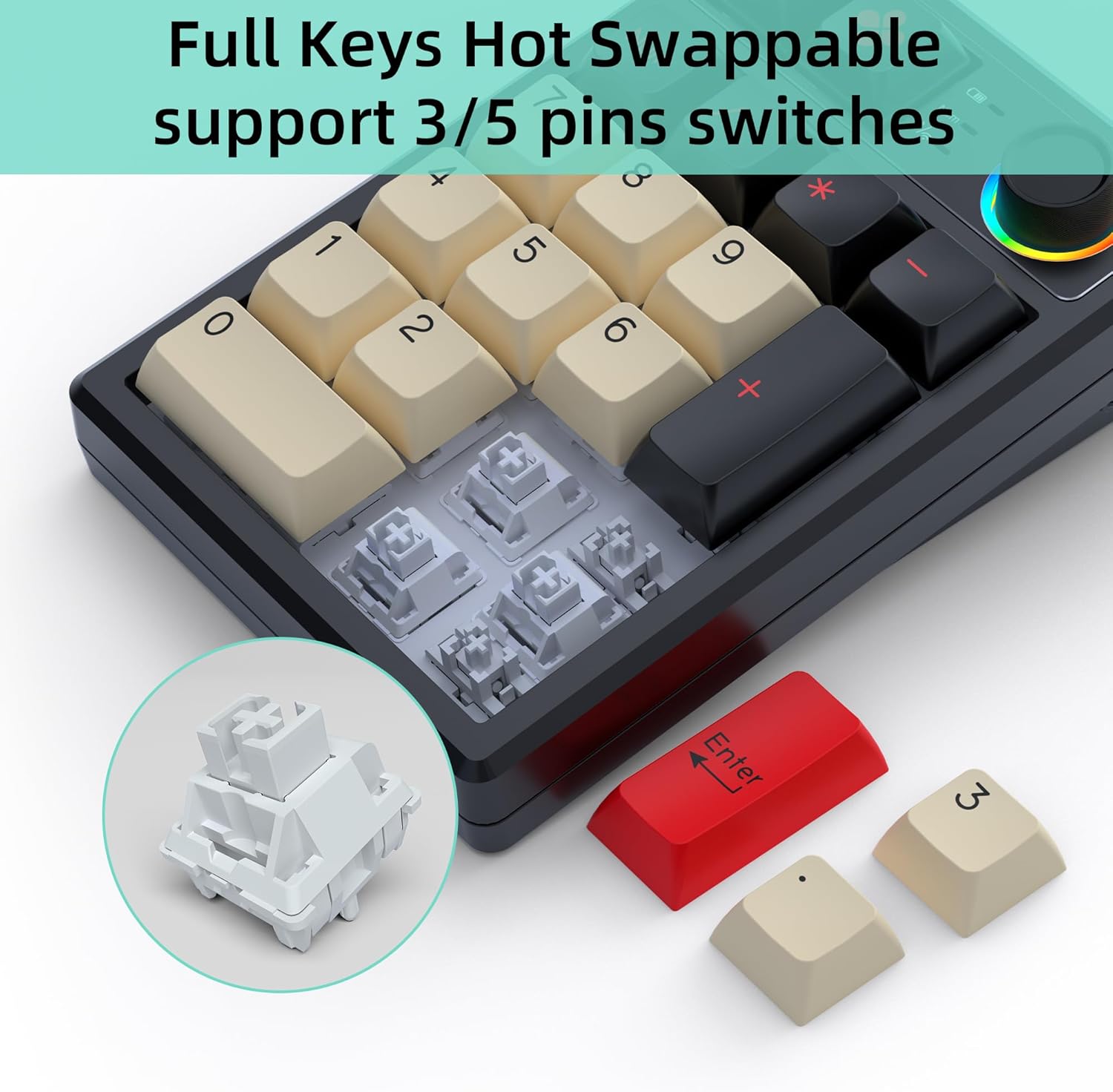
Image: Illustration of replacing keycaps and switches on the K19.
Personalized Programmable Keys
Utilize the dedicated software (downloadable from www.kc-keycool.com) to customize key functions, create macros, and fine-tune lighting effects according to your workflow and preferences. The custom settings are stored directly on the keypad, allowing you to use your personalized layout across different devices without needing the software running in the background.

Image: Software interface for customizing the K19 numeric keyboard.
Isondlo
- Ukuhlanza: Use a soft, dry cloth to wipe the surface of the keyboard. For deeper cleaning, gently remove keycaps with the provided keycap puller and use compressed air to clear dust and debris from between the switches.
- Gwema Uketshezi: Ungabeki ikhibhodi oketshezini. Uma kwenzeka kuchitheka, nqamula ikhibhodi ngokushesha bese uyivumela yome ngokuphelele ngaphambi kokuxhuma kabusha.
- Isitoreji: Gcina ikhibhodi endaweni epholile, neyomile ekude nelanga eliqondile namazinga okushisa aphezulu.
Ukuxazulula inkinga
| Inkinga | Isixazululo Esingenzeka |
|---|---|
| Ikhibhodi ayiphenduli kumodi engenantambo. | Ensure the keyboard is charged, the mode switch is set correctly (2.4G or Bluetooth), and the receiver is properly plugged in (for 2.4G) or Bluetooth is paired (for Bluetooth). Try re-pairing or reconnecting. |
| Keys not registering or double-typing. | This may indicate a loose or faulty switch. Use the switch puller to remove the affected switch and re-insert it firmly. If the issue persists, try replacing the switch with one of the spares. |
| Ukukhanya kwe-RGB akusebenzi noma akubambeki. | Check the multi-function knob settings. Ensure the keyboard is not in power-saving mode. Refer to the user manual or software for specific lighting control key combinations. |
| Ukuxhumeka kwe-Bluetooth akuzinzile. | Ensure no strong interference sources are nearby. Try moving the keyboard closer to your device. Disconnect and re-pair the Bluetooth connection. |
| Software not recognizing the keyboard. | Ensure the keyboard is connected via wired mode when using the software. Reinstall the software if necessary. |
Imininingwane
| Isibaluli | Imininingwane |
|---|---|
| Inombolo Yemodeli | K19+1Knob |
| Ubukhulu bomkhiqizo | 5.2 x 3.5 x 1.25 amayintshi (13.2 x 8.9 x 3.2 cm) |
| Isisindo sento | 11.7 ama-ounces (331.7 g) |
| Ubuchwepheshe bokuxhumana | Bluetooth, Wi-Fi 2.4G, USB-C (Triple Mode) |
| Incazelo Yekhibhodi | Omakhenikha |
| Inombolo Yokhiye | 21 (19 keys + 1 knob) |
| Izici ezikhethekile | Portable, Volume Roller, Backlit, Hot-Swappable |
| Amadivayisi Ahambisanayo | Laptop, PC, Gaming Console, Tablet, Smartphone |
| Umbala | Mnyama |
| Amandla ebhethri | 1500mAh (as per feature bullets) |
| Izwe azalelwe kulo | China |
Iwaranti kanye Nokusekela
KEYCOOL products are manufactured to high-quality standards. For warranty information, technical support, or any inquiries regarding your K19 Wireless Numeric Keyboard, please refer to the contact details provided on the official KEYCOOL webisiza (www.kc-keycool.com) noma uxhumane nomthengisi wakho.