
1. Isingeniso
Thank you for choosing the Trueque Wireless RGB Backlit Keyboard and Mouse Combo. This full-size set is designed for comfort, efficiency, and style, featuring vibrant RGB backlighting, quiet typing, and broad compatibility. This manual provides essential information for setup, operation, and maintenance to ensure optimal performance of your new wireless peripherals.
2. Yini EseBhokisini
- Wireless RGB Backlit Keyboard
- Wireless RGB Backlit Mouse
- 2.4GHz USB Receiver (stored inside the mouse)
- Ikhebuli yokushaja ye-USB-C
- I-USB-A ukuya ku-adaptha yohlobo C
- Imaniwali yosebenzisayo

Image: The Trueque Wireless RGB Backlit Keyboard and Mouse Combo, showcasing the purple keyboard and mouse with vibrant backlighting.
3. Setha
- Shaja Amadivayisi: Before first use, fully charge both the keyboard and mouse using the provided USB-C charging cable. The charging port for the keyboard is on the side, and for the mouse, it's at the front.
- Thola i-USB Receiver: The 2.4GHz USB receiver is conveniently stored in a compartment on the underside of the mouse. Gently slide open the cover to retrieve it.
- Xhuma Isamukeli: Plug the USB receiver into an available USB-A port on your computer. If your computer only has USB-C ports, use the included USB-A to Type-C adapter.
- Vula: Turn on the keyboard using the ON/OFF switch located on its side. Turn on the mouse using the ON/OFF switch on its underside.
- System Layout (Optional): For Mac users, press the 'OS' key on the keyboard to activate the Mac layout. For Windows users, press the 'WIN' key. The corresponding indicator light (MAC/Caps or WIN/Num) will turn green.

Image: Illustration demonstrating how to connect the 2.4GHz USB receiver to a computer, showing both USB-A and USB-C (with adapter) port options.

Isithombe: Ngemininingwane view of the wireless mouse's underside, highlighting the USB receiver compartment, ON/OFF switch, and the Type-C charging port.
Video: An official seller video demonstrating the Trueque Backlit Keyboard, including how to set it up and its features for easier typing in the dark.
4. Iziqondiso Zokusebenza
Isibani sangemuva se-RGB esingu-4.1
- Ikhibhodi: The keyboard features a rainbow color backlight with 3 adjustable brightness levels. Press Fn+Shift to turn the backlight ON/OFF or adjust its brightness.
- Igundane: The mouse offers 15 switchable lighting effects, adding a dynamic visual element to your setup.
Image: The keyboard displaying three different brightness levels of its RGB backlight, from dim to bright, with instructions for adjustment.
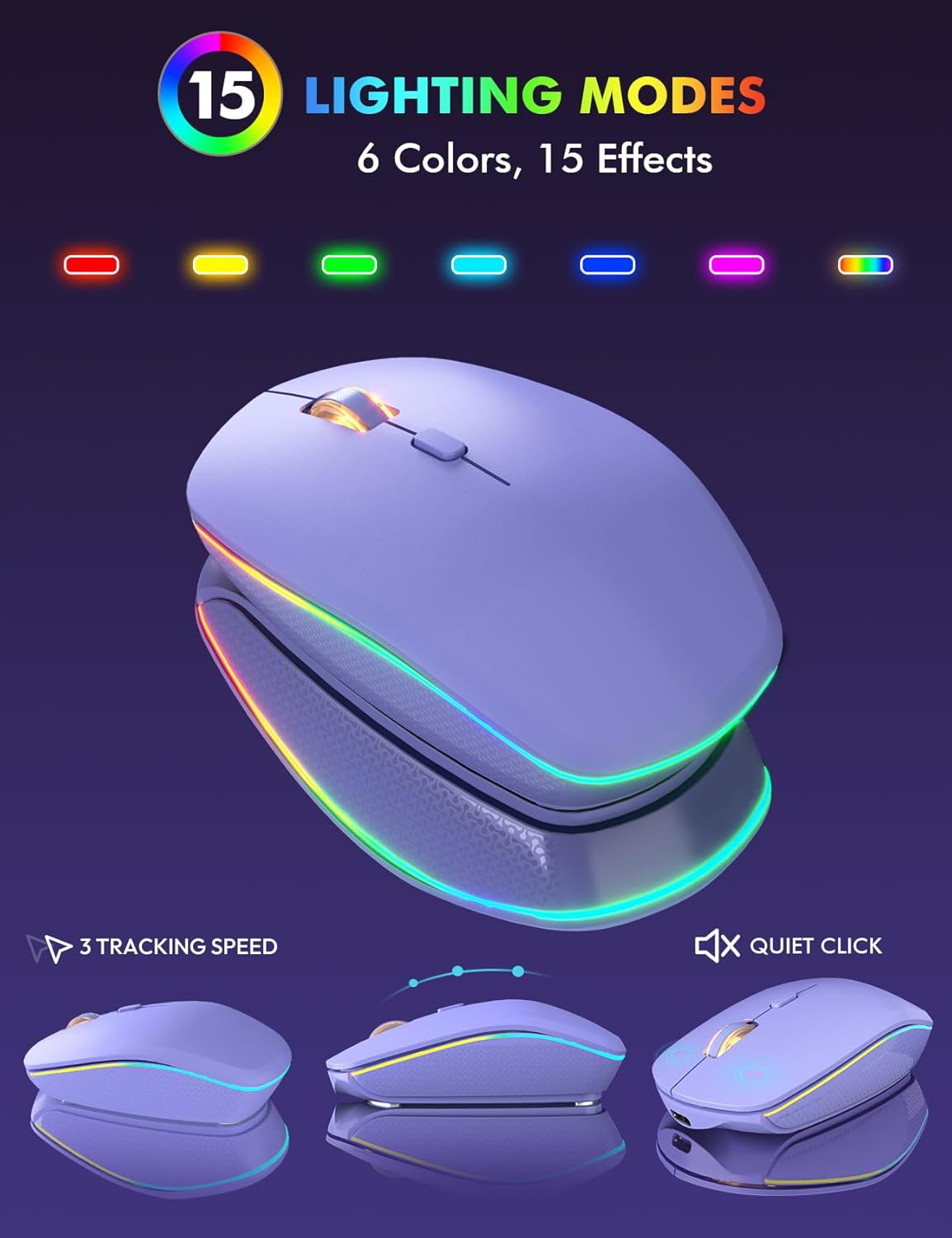
Image: The wireless mouse highlighting its 15 distinct lighting modes, demonstrating the variety of RGB effects available.
4.2 Ukonga Amandla
Both the keyboard and mouse are designed with smart power-saving features to extend battery life:
- Ukulala Okuzenzakalelayo: The keyboard enters sleep mode after 30 minutes of inactivity. The mouse will sleep after 90 seconds of inactivity. Simply type or click any key to wake them up.
- Ukuvula/UKUVALA Ukushintsha: Utilize the dedicated ON/OFF switches on both devices to conserve power when not in use for extended periods.
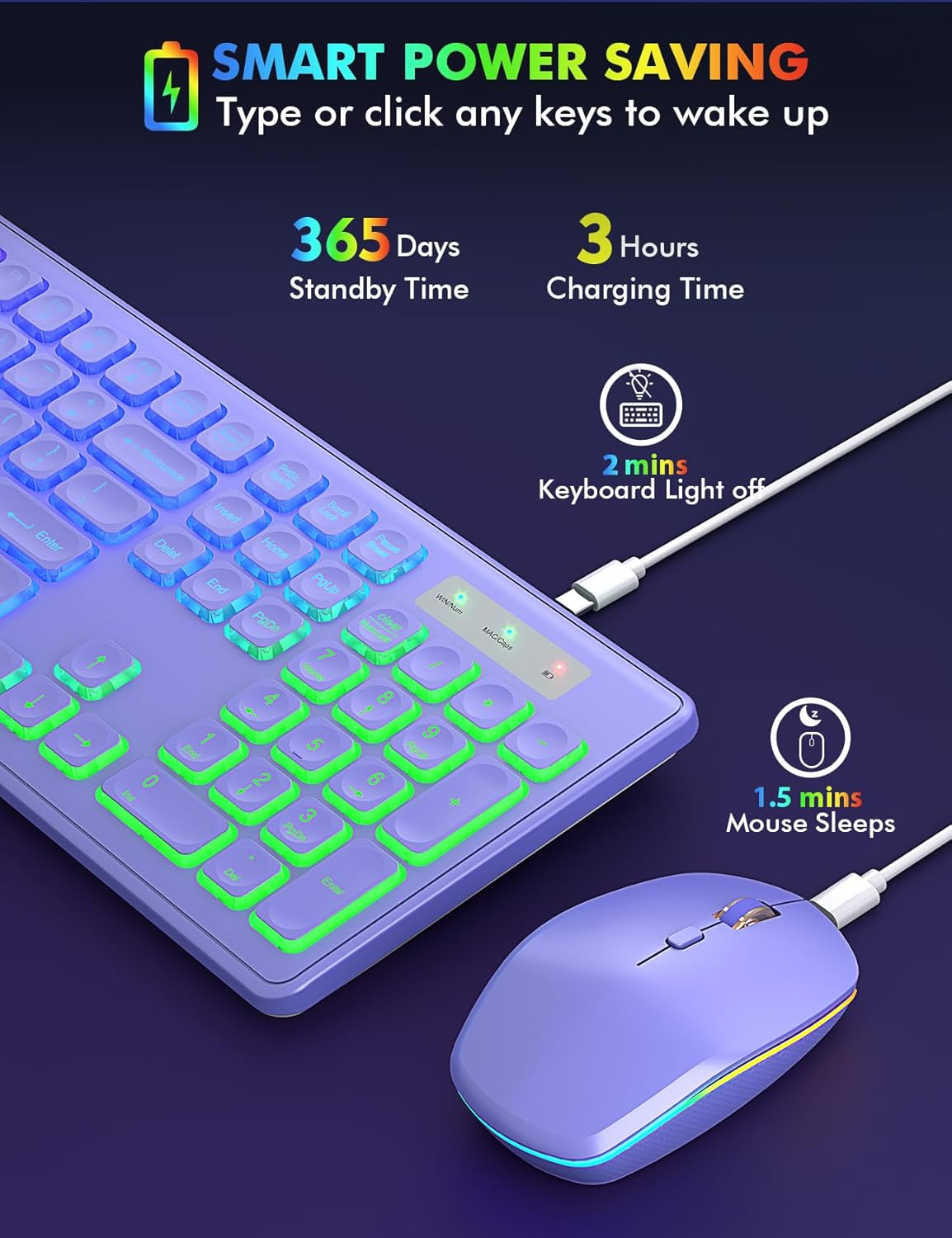
Image: The keyboard and mouse demonstrating their smart power-saving capabilities, including standby time and auto-sleep functions for both devices.
Ukuxhumana okungenantambo okungu-4.3
The combo utilizes a stable 2.4GHz wireless connection, ensuring no delays or dropouts. The single USB receiver allows for a wireless connection range of up to 10 meters (33 ft) without requiring any additional drivers.
4.4 Isakhiwo Sohlelo
The keyboard supports dual-system layouts for Mac and Windows. Easily switch between layouts with a single touch:
- IWindows: Cindezela inkinobho WIN key. The WIN/Num indicator light will turn green.
- IMac OS: Cindezela inkinobho OS key. The MAC/Caps indicator light will turn green.

Image: The keyboard illustrating its dual-system layout, showing how to switch between Windows and Mac OS modes with dedicated keys and indicator lights.
4.5 Comfortable Typing & Silent Click
- Idizayini ye-Ergonomic: The keyboard features foldable stands that offer a tilt angle for a more comfortable typing position.
- Okhiye Abathambile: The effortless crater mechanism under each key provides a soft and comfortable typing experience.
- Ukusebenza okuthulile: Both the mouse and keyboard are designed for quiet operation, minimizing disturbance to others.

Image: A close-up of the keyboard keys, highlighting the comfortable typing experience provided by their design and crater mechanism.
5. Isondlo
- Iyashaja: Recharge the keyboard and mouse using the supplied USB-C charging cable when their battery indicators show low power.
- Ukuhlanza: Use a soft, dry cloth to clean the surfaces of the keyboard and mouse. Avoid using harsh chemicals or abrasive materials.
- Isitoreji: When not in use for extended periods, turn off both devices using their ON/OFF switches and store them in a cool, dry place.
6. Ukuxazulula izinkinga
- Alukho Uxhumo: Ensure the USB receiver is securely plugged into your computer and both the keyboard and mouse are turned on. Try plugging the receiver into a different USB port.
- Lagging/Disconnection: Check that the devices are within the 10-meter wireless range and there are no significant obstructions. Ensure both devices are sufficiently charged.
- Ukukhanya Kwasemuva Akusebenzi: Recharge the device. For the keyboard, press Fn + Shift to toggle the backlight or adjust brightness.
- Multimedia Keys Not Functioning (Mac OS): Note that multimedia keys may not be fully compatible with all Mac OS systems.
7. Imininingwane
| Isici | Imininingwane |
|---|---|
| Ibhrendi | Ukushintshanisa |
| Imodeli | B0D4M41DXV |
| Umbala | Okunsomi |
| Ubuchwepheshe bokuxhumana | 2.4GHz USB Wireless |
| Isici Esikhethekile | Rechargeable, RGB Backlit, Dual-System Layout (Mac/Windows), Quiet Typing |
| Amadivayisi Ahambisanayo | Chromebook, Laptop, Macbook Pro, Macbook Air, iMac, Dell XPS 13/15, Inspiron, HP ENVY, Pavilion, Personal Computer, Television |
| Isisindo sento | 1.91 amakhilogremu |
| Amabhethri | Kudingeka ibhethri ye-Lithium Ion engu-1 (ifakiwe) |
| Umkhiqizi | Ukushintshanisa |
8. Iwaranti kanye Nokusekela
Your Trueque Wireless RGB Backlit Keyboard and Mouse Combo is manufactured by Trueque. For any product-related inquiries, technical support, or warranty claims, please contact the manufacturer directly or reach out to the seller, Trueq Tech, through your purchase platform.
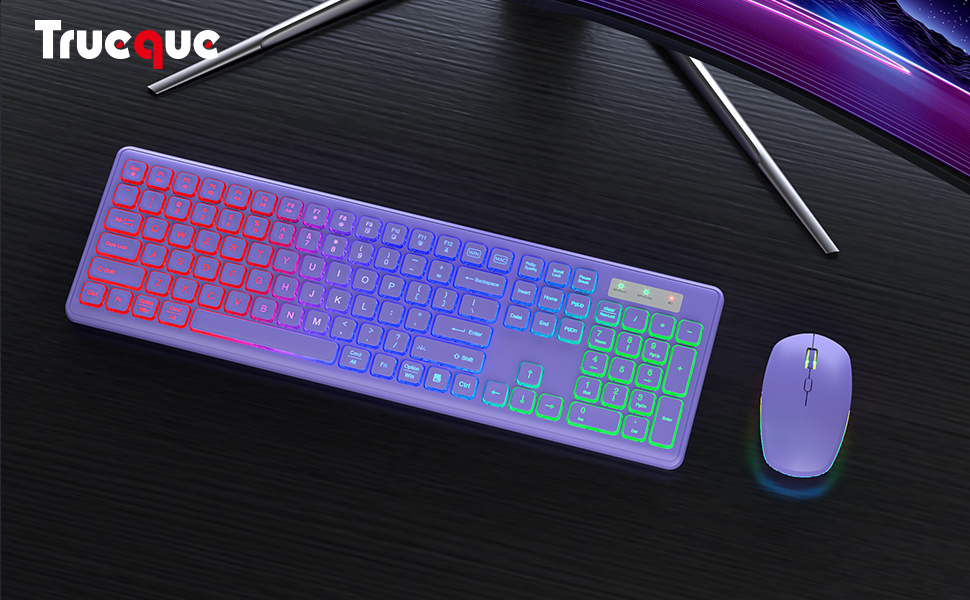
Image: Customer support contact information, indicating various support durations (24 hours, 30 days, 90 days, 360 days) and encouraging users to reach out for any problems.