
MACALLY BTZKEY
MACALLY BTZKEY Bluetooth Full-size Keyboard User Manual
Model: BTZKEY
1. Isingeniso
This manual provides detailed instructions for the MACALLY BTZKEY Bluetooth Full-size Keyboard, designed for seamless integration with Apple devices. It features a Japanese layout, a numeric keypad, and multi-pairing capabilities for up to three devices. Please read this manual thoroughly before using the product to ensure proper operation and longevity.

Figure 1: MACALLY BTZKEY Bluetooth Full-size Keyboard
2. Okuqukethwe Kwephakheji
Sicela uhlole okuqukethwe kwephakheji ukuze uqinisekise ukuthi zonke izinto zikhona:
- MACALLY BTZKEY Bluetooth Full-size Keyboard
- Ikhebuli yokushaja ye-USB-C
- Imaniwali yosebenzisayo
3. Setha
3.1 Ukushaja ikhibhodi
The keyboard comes with a built-in 780mAh rechargeable battery. Before initial use, it is recommended to fully charge the keyboard.
- Connect the included USB-C cable to the charging port on the keyboard.
- Connect the other end of the USB-C cable to a USB power adapter (not included) or a powered USB port on your computer.
- Isibani senkomba yokushaja sizokhanyisa ngesikhathi sokushaja futhi sicishe lapho sishajwe ngokugcwele.
Qaphela: The USB-C cable provided is for charging only and does not support data transfer.

Figure 2: Charging the MACALLY BTZKEY Keyboard
3.2 Ukumatanisa namadivayisi
The MACALLY BTZKEY keyboard supports pairing with up to three Bluetooth-enabled devices (MacBook, iMac, iPhone, iPad). You can easily switch between these devices.
- Qinisekisa ukuthi ikhibhodi ishajiwe futhi ivuliwe.
- Enable Bluetooth on your device (Mac, iPad, iPhone).
- On the keyboard, press and hold one of the dedicated device keys (B1, B2, or B3) for 3-5 seconds until the corresponding indicator light above the key flashes rapidly. This indicates the keyboard is in pairing mode.
- On your device, go to Bluetooth settings and select "BTZKEY" from the list of available devices.
- Once connected, the indicator light will stop flashing and remain solid for a few seconds, then turn off.
- To switch between paired devices, simply press the corresponding device key (B1, B2, or B3). The keyboard will automatically connect to the last paired device on that channel.
Ithiphu yokuxazulula inkinga: If pairing fails, it is recommended to delete all existing pairing records for the keyboard on your device and attempt to reconnect.

Figure 3: Multi-Sync Bluetooth Functionality
4. Iziqondiso Zokusebenza
4.1 Mac-Specific Layout and Shortcut Keys
This keyboard is designed with a 111-key macOS-specific layout, providing a familiar and efficient typing experience for Apple users. It includes 14 dedicated shortcut keys for quick access to common Mac functions.
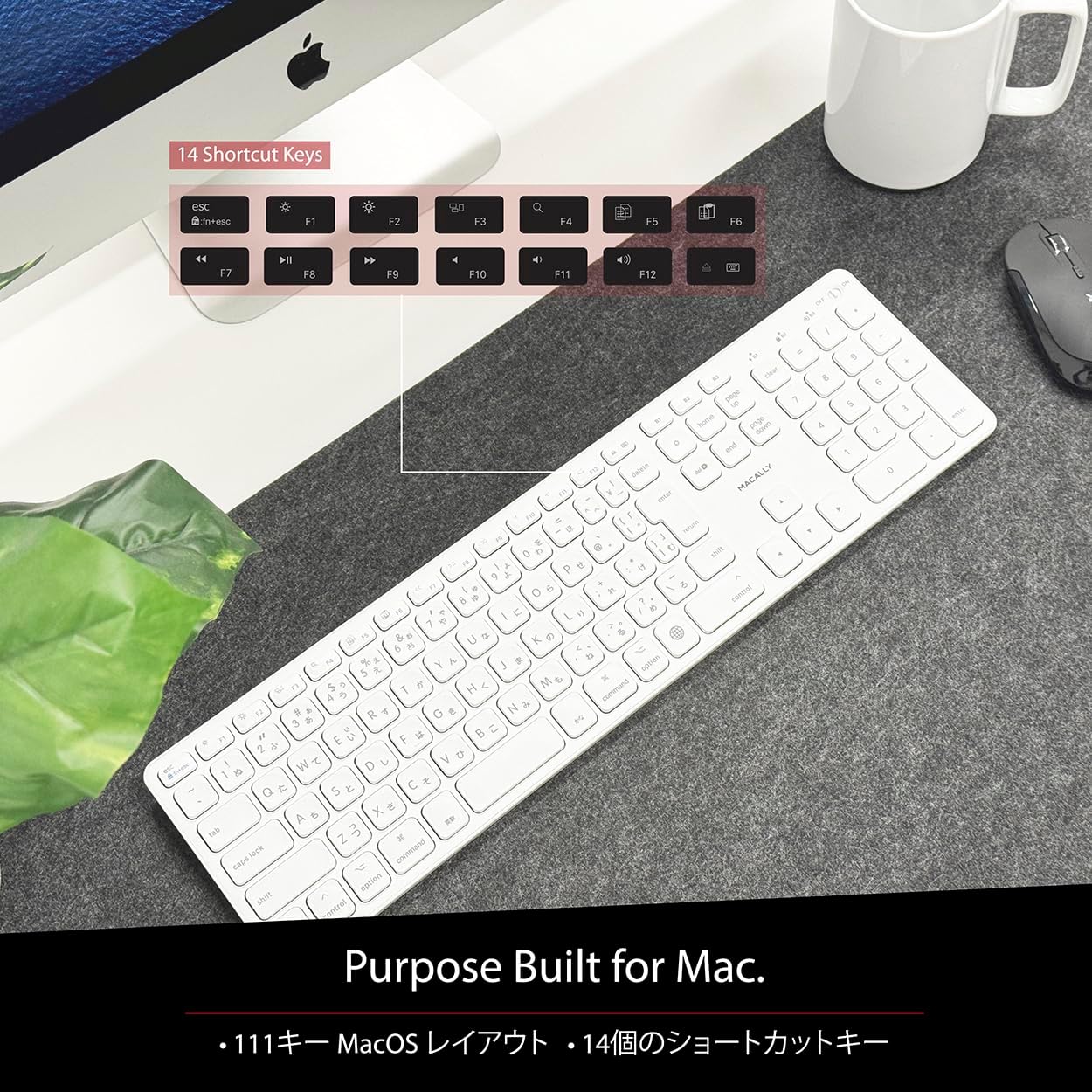
Figure 4: Mac-Specific Layout and Shortcut Keys
4.2 Scissor-Switch Keycaps
The keyboard utilizes quiet scissor-switch keys, offering a smooth, tactile, and quiet typing experience. This design ensures comfortable and efficient typing, whether for extended periods or quick tasks.
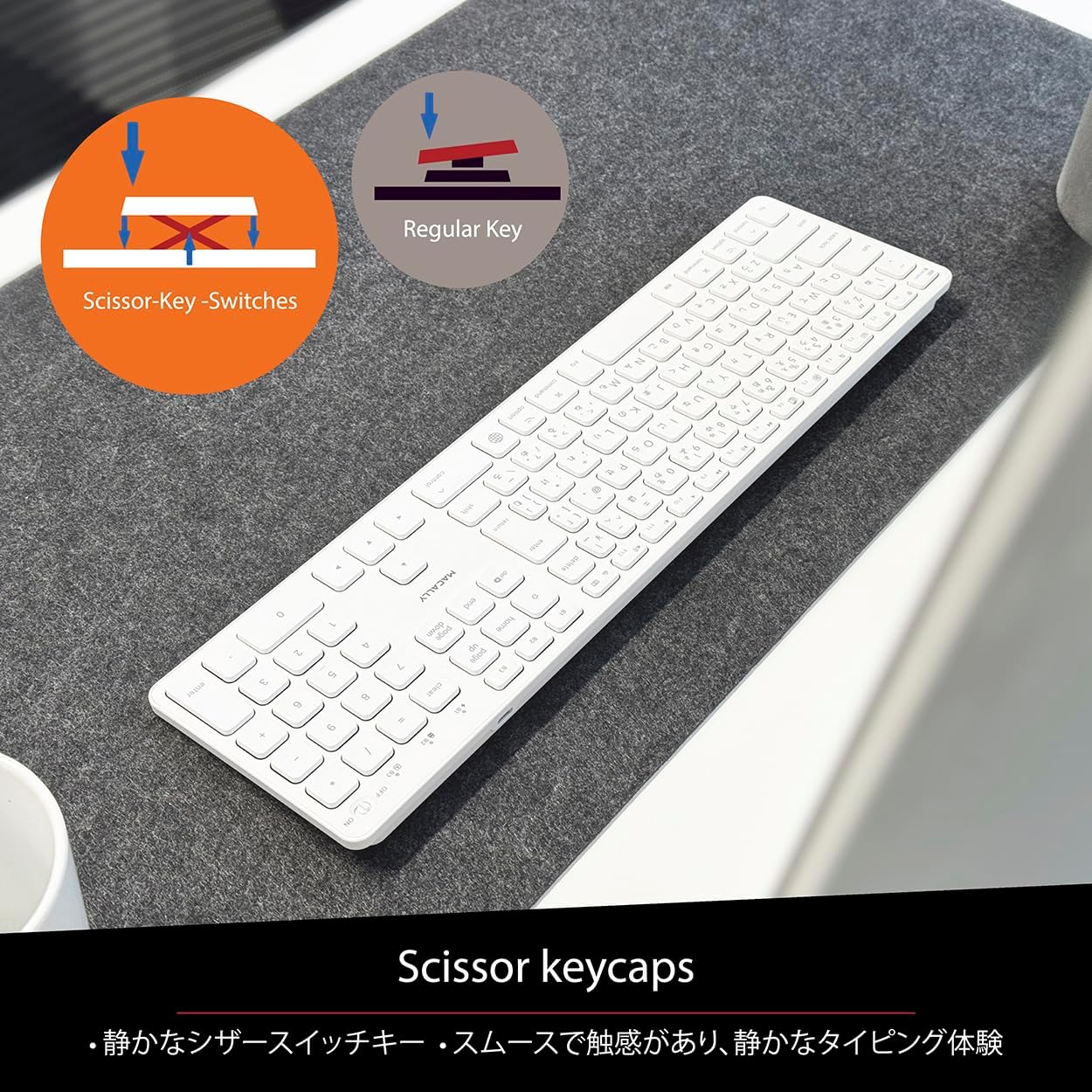
Figure 5: Scissor-Key-Switches Mechanism
4.3 Ergonomics and Design
The keyboard features an integrated kickstand for comfortable typing angles, reducing strain during use. Its slim profile, approximately 0.8 inches (2cm) thick, ensures portability and ergonomic use, complementing any workspace.
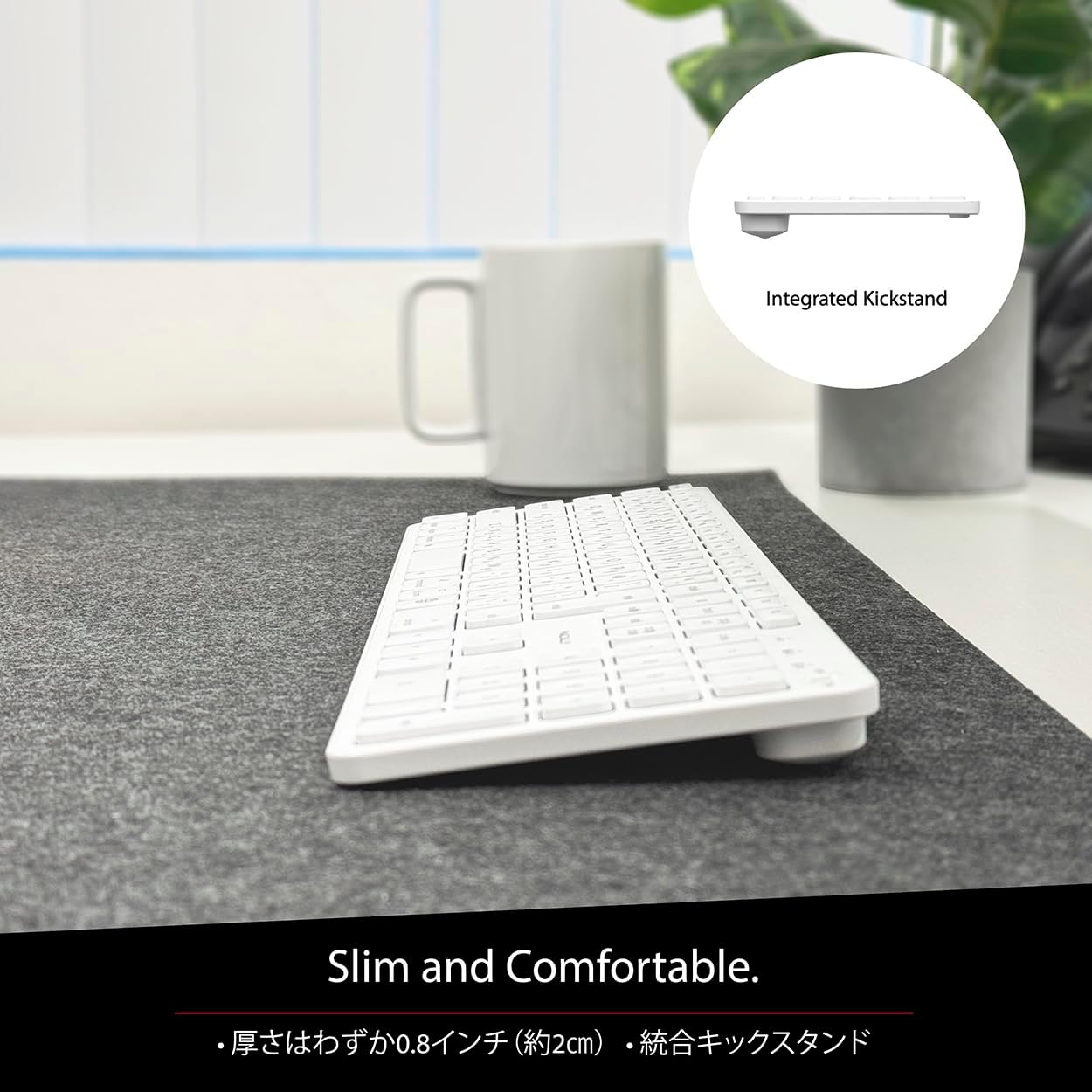
Figure 6: Slim Design with Integrated Kickstand
5. Isondlo
Ukuze uqinisekise ukuphila isikhathi eside nokusebenza okuphelele kwekhibhodi yakho, landela le mihlahlandlela yokulungisa:
- Ukuhlanza: Sebenzisa indwangu ethambile, engenalinti kancane dampefakwe ngamanzi noma isisombululo sokuhlanza esithambile sokusula ubuso bekhibhodi. Gwema amakhemikhali anokhahlo noma izinto ezilumayo.
- Ukususa Uthuli: Sebenzisa umoya ocindezelwe ukususa uthuli nemfucumfucu phakathi kwezikhiye.
- Ukunakekelwa kwebhethri: Avoid exposing the keyboard to extreme temperatures. Charge the keyboard regularly, even if not in frequent use, to maintain battery health.
- Isitoreji: When not in use for extended periods, store the keyboard in a cool, dry place away from direct sunlight.
6. Ukuxazulula izinkinga
If you encounter issues with your MACALLY BTZKEY keyboard, please refer to the following common problems and solutions:
| Inkinga | Imbangela Engenzeka | Isixazululo |
|---|---|---|
| Keyboard not connecting/pairing | Bluetooth off, low battery, pairing conflict | Ensure Bluetooth is enabled on device. Charge keyboard. Delete existing pairing records on device and re-pair. |
| Keys unresponsive or repeating characters | Low battery, software glitch, interference | Charge keyboard. Restart device. Re-pair keyboard. Minimize interference from other wireless devices. |
| Ayikwazi ukushintsha phakathi kwamadivayisi | Device not properly paired to channel | Ensure each device is paired to a unique channel (B1, B2, B3). Re-pair if necessary. |
| Impilo yebhethri emfushane | Frequent use, aging battery | Ensure full charge before use. Reduce backlight usage if applicable (not on this model). Battery life may decrease over time. |
Uma inkinga iqhubeka ngemva kokuzama lezi zixazululo, sicela uxhumane nokwesekwa kwamakhasimende.
7. Imininingwane
| Isici | Incazelo |
|---|---|
| Ibhrendi | Macally |
| Umkhiqizi | MACALLY |
| Uchungechunge | BTZKEY |
| Ubukhulu bomkhiqizo (L x W x H) | 42 x 14 x 2 cm |
| Inombolo Yemodeli Yomkhiqizo | BTZKEY |
| Umbala | Emhlophe |
| Amabhethri afakiwe | Yebo |
| Iphekhi yebhethri ye-Lithium | Amabhethri aqukethwe kumishini |
| Isisindo Sebhethri Lithium | 2 g |
| Isisindo sento | 610 g |
| Amadivayisi Ahambisanayo | Laptop (MacBook Pro/Air, iMac, Mac Mini, Mac Pro, iPad, iPhone) |
| Ubuchwepheshe bokuxhumana | I-Bluetooth |
| Incazelo Yekhibhodi | Ikhibhodi Yehhovisi |
| Ukusetshenziswa Okunconyiwe Komkhiqizo | Ibhizinisi |
| Isici Esikhethekile | Iyashajwa kabusha |
| Inombolo Yokhiye | 111 |
| Izingxenye Ezihlanganisiwe | Ikhebula le-USB |
8. Iwaranti kanye Nokusekela
For detailed warranty information, technical support, and customer service, please refer to the official MACALLY website or contact their support channels directly. It is recommended to keep your purchase receipt as proof of purchase for any warranty claims.
9. Amavidiyo Omkhiqizo Osemthethweni
Official product videos, if available and relevant, would be embedded here to provide visual guidance on setup, features, or troubleshooting. Please note that video content is subject to availability and may require an internet connection to view.
(No official seller videos were available in the provided product data to embed at this time.)
Ask a question about this manual
Ask about setup, troubleshooting, compatibility, parts, safety, or missing instructions. Manuals+ will review the question and use this page’s manual context to help answer it.