
1. Isingeniso kanye Phezuview
Thank you for choosing the SENGBIRCH Keyboard Case for your Lenovo Tab P12 12.7" tablet. This product combines a protective case with a detachable Bluetooth keyboard, enhancing your tablet's functionality for typing, work, and entertainment. This manual provides detailed instructions for setup, operation, maintenance, and troubleshooting to ensure optimal use of your new accessory.
Izici Eziyinhloko:
- Detachable Bluetooth 5.0 keyboard for stable and fast connection.
- Durable protective case with precise cutouts.
- Kuyalungiseka viewama-angles ukuze asetshenziswe ngokunethezeka.
- Integrated stylus holder.
- Ibhethri elishajekayo elihlala isikhathi eside.
Ukuhambisana: This keyboard case is specifically designed for the Lenovo Tab P12 12.7" (2023) model TB370FU. Please verify your tablet's model number before use to ensure proper fit and functionality.

Image 1.1: Compatibility guide for the keyboard case. Ensure your tablet is the Lenovo Tab P12 12.7" (TB370FU).
2. Sethaphu Imiyalelo
2.1 Ukushaja ikhibhodi
Before first use, fully charge the keyboard. Connect the provided USB-C charging cable to the keyboard's charging port and a USB power adapter (not included). The charging indicator light will illuminate during charging and turn off when fully charged.
- Isikhathi sokushaja: Cishe amahora angu-2-3.
- Continuous Use: Up to 48 hours.
- Standby Time: Over 2 months.

Image 2.1: Keyboard charging port (Type-C) and battery indicators.
2.2 Inserting the Tablet into the Case
- Gently align your Lenovo Tab P12 12.7" tablet with the case's frame.
- Press the tablet firmly into the soft inner shell, ensuring all edges are securely seated and cutouts align with ports and buttons.
2.3 Pairing the Bluetooth Keyboard
- Turn on the keyboard by sliding the 'ON/OFF' switch to the 'ON' position. The power indicator light will briefly illuminate.
- Press the 'Connect' button on the keyboard. The Bluetooth indicator light will start blinking, indicating it is in pairing mode.
- On your Lenovo Tab P12, go to Izilungiselelo > I-Bluetooth.
- Vula i-Bluetooth bese usesha amadivayisi atholakalayo.
- Select "Bluetooth Keyboard" (or a similar name) from the list of devices.
- Follow any on-screen prompts to complete the pairing process. The Bluetooth indicator light on the keyboard will stop blinking once successfully paired.
3. Iziqondiso Zokusebenza
3.1 Attaching and Detaching the Keyboard
The keyboard is magnetically attached to the case. To attach, simply place the keyboard onto the designated area within the case. To detach, gently pull the keyboard away from the magnetic surface.

Image 3.1: The keyboard can be magnetically detached from the case.
3.2 Ukulungisa Viewama-engeli
The case features an adjustable stand that supports three different viewing angles (130°, 125°, 120°). Simply fold the case cover to create a stable triangular stand and adjust it to your preferred angle for typing, viewing, or drawing.

Image 3.2: Adjustable stand angles for versatile use.
3.3 Imisebenzi yekhibhodi
- Ukushintsha Isistimu Esebenzayo: The keyboard supports different operating systems. Use Fn + Q ye-iOS, Fn + W for Android, and Fn + E okweWindows.
- Ukulungiswa Kokukhanya Kwasemuva: Cindezela Fn + Light Bulb icon to cycle through 3 backlight brightness levels. Press Fn + RGB icon to change between 7 backlight colors.
- Abalingiswa Abakhethekile: Sebenzisa i- Fn key in combination with other keys to access special characters, such as the Euro symbol (€) or accent marks (ñ).
- Imodi yokulala ezenzakalelayo: To conserve battery, the keyboard will automatically enter sleep mode after approximately 8 minutes of inactivity. Press any key to wake it up.
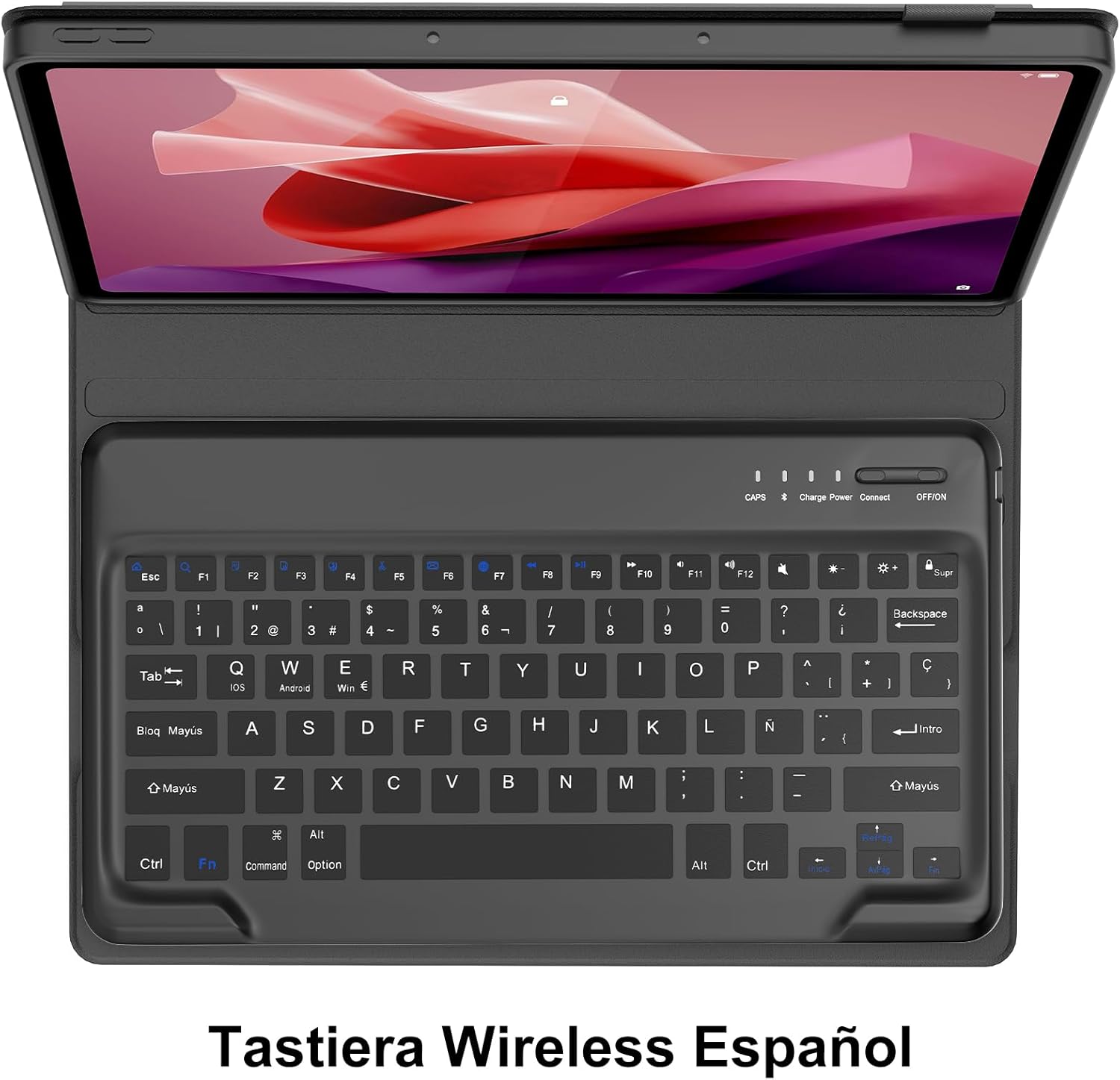
Image 3.3: Keyboard layout with function key combinations for various settings.
3.4 Stylus Holder
The case includes a dedicated slot for your stylus, ensuring it is securely stored and easily accessible.

Image 3.4: Integrated stylus holder for convenience.
4. Isondlo
4.1 Ukuhlanza Ikesi kanye nekhibhodi
- Sula ingaphandle lekesi ngomshini othambile, damp indwangu. Gwema amakhemikhali anokhahlo noma izihlanzi ezilumayo.
- For the keyboard, use a soft, dry cloth or a can of compressed air to remove dust and debris from between the keys.
- Ensure the keyboard is turned off before cleaning.
4.2 Ukunakekelwa Kwebhethri
- Recharge the keyboard when the low battery indicator appears or when performance degrades.
- Gwema ukushajwa ngokugcwele ibhethri njalo ukuze welule ubude bayo bempilo.
- Uma ugcina ikhibhodi isikhathi eside, yishaje cishe ku-50% bese uyigcina endaweni epholile, eyomile.
5. Ukuxazulula izinkinga
If you encounter issues with your SENGBIRCH Keyboard Case, please refer to the following troubleshooting steps:
5.1 Keyboard Not Connecting/Frequent Disconnections
- Hlola Ibhethri: Ensure the keyboard is sufficiently charged. Low battery can cause connection issues.
- Phinda ubhangqe ikhibhodi: Delete the "Bluetooth Keyboard" from your tablet's Bluetooth device list and repeat the pairing steps (Section 2.3).
- Qala kabusha Amadivayisi: Turn off and on both your tablet and the keyboard.
- Ukuphazamisa: Suka kwamanye amadivaysi angenawaya angase abangele ukuphazamiseka.
5.2 Izihluthulelo Ezingaphenduli Noma Izihluthulelo Ezinamathelayo
- Hlola Ibhethri: Ensure the keyboard has enough power.
- Clean Keyboard: Dust or debris under the keys can cause them to stick. Refer to Section 4.1 for cleaning instructions.
- Restart Keyboard: Cima ikhibhodi bese uyivula futhi.
5.3 Tablet Not Fitting Correctly
- Qinisekisa Imodeli: Double-check that your tablet is indeed the Lenovo Tab P12 12.7" (2023) model TB370FU. This case is not compatible with other models.
- Ukufaka Okufanelekile: Ensure the tablet is aligned correctly and gently pressed into all corners of the soft inner shell.
6. Imininingwane
| Ibhrendi | SENGBIRCH |
| Compatible Tablet Model | Lenovo Tab P12 12.7" (2023) TB370FU |
| Ubuchwepheshe bokuxhumana | I-Bluetooth 5.0 |
| Isakhiwo Sekhibhodi | Spanish (QWERTY) |
| Uhlobo Lwebhethri | I-Lithium Polymer ekhokhelwayo |
| Isikhathi sokushaja | 2-3 amahora |
| Isikhathi sokusebenzisa esiqhubekayo | Kufika emahoreni angu-48 |
| Isikhathi sokulinda | Ngaphezu kwezinyanga eziyi-2 |
| Okubalulekile | Plastic (keyboard), Faux Leather (case exterior) |
| Umbala | Mnyama |
| Ubukhulu (Iphakheji) | 31.2 x 25.1 x 4.1 cm |
| Isisindo (Umkhiqizo) | 970 g |
7. Iwaranti kanye Nokusekela
SENGBIRCH products are designed for reliability and performance. For any questions, technical support, or warranty claims, please contact SENGBIRCH customer service through the retailer where you purchased the product or visit the official SENGBIRCH webindawo yolwazi lokuxhumana.
Sicela ugcine ubufakazi bakho bokuthenga ngezinjongo zewaranti.