
Mediacom Azimut 4
Mediacom SmartPad 4 4G Azimut 4 Tablet User Manual
Model: Azimut 4
1. Isingeniso
This manual provides essential information for the safe and efficient use of your Mediacom SmartPad 4 4G Azimut 4 tablet. Please read this manual thoroughly before operating the device and retain it for future reference.
2. Ulwazi Lokuphepha
- Ukuphepha Kwebhethri: Do not attempt to replace the internal battery. Do not expose the device to extreme temperatures or direct sunlight.
- Ukumelana Namanzi: Lolu cingo alukwazi ukumelana namanzi. Gwema ukuchayeka oketshezini.
- Iyashaja: Sebenzisa kuphela ishaja yokuqala kanye nekhebula elinikezwe nedivayisi.
- Ukuvikelwa kokuzwa: Gwema ukulalela isikhathi eside emazingeni aphezulu ukuze uvimbele ukulimala kwezindlebe.
- Ukulahlwa: Dispose of the device and its battery according to local regulations. Do not dispose of with household waste.
3. Okuqukethwe Kwephakheji
Qinisekisa ukuthi zonke izinto zikhona kuphakheji:
- Mediacom SmartPad 4 4G Azimut 4 Tablet
- Ikhebuli yokushaja ye-USB-C
- I-adaptha yamandla
- Umhlahlandlela Wokuqalisa Ngokushesha (uma ufakiwe)
- SIM Ejector Tool (if included)
4. Isakhiwo Sedivayisi
Zijwayeze izingxenye zomzimba zethebhulethi yakho.
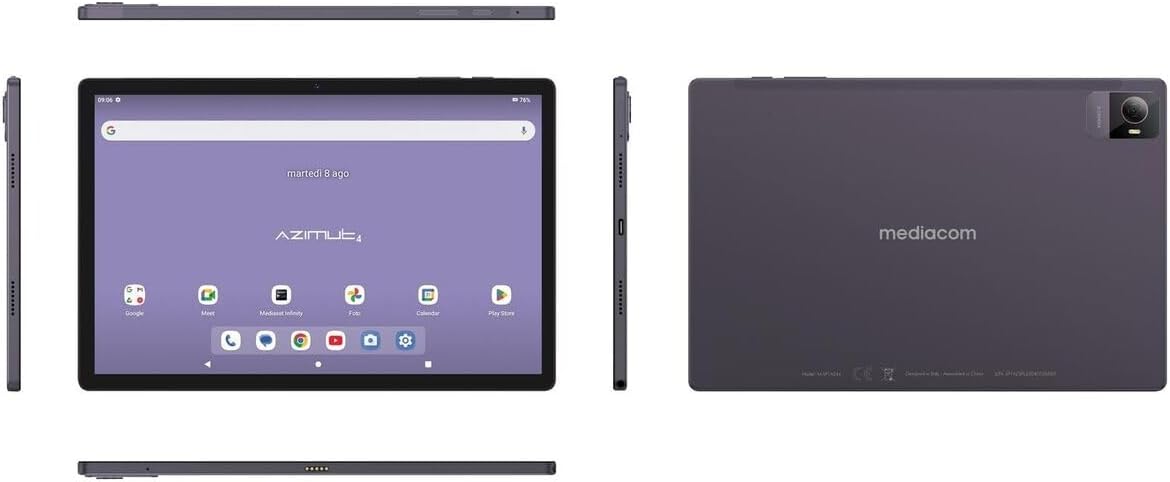
Isithombe 4.1: Okuningi views of the Mediacom SmartPad 4 4G Azimut 4 tablet, illustrating the front display, rear camera, and various side ports and buttons. This includes the power button, volume rocker, USB-C port, headphone jack, and SIM/microSD card slot.
- Ikhamera yangaphambili: Located at the top center of the display when held in landscape orientation.
- Bonisa: 10.51-inch IPS screen.
- Inkinobho yamandla: Typically located on the side, used to turn the device on/off or wake/sleep the screen.
- Izinkinobho zevolumu: Located near the power button, used to adjust audio volume.
- Imbobo ye-USB-C: Ukushaja nokudluliswa kwedatha.
- I-Headphone Jack: Umsindo ophumayo ojwayelekile ongu-3.5mm.
- Isikhala sekhadi le-SIM/microSD: Combined slot for Nano-SIM and microSD cards.
- Ikhamera yangemuva: Located on the back of the tablet, typically with a flash.
- Izipikha: Four speakers for immersive audio.
5. Setha
5.1 Ukushaja Idivayisi
Before first use, fully charge your tablet. Connect the USB-C cable to the tablet's USB-C port and the power adapter. Plug the adapter into a wall outlet. The battery indicator on the screen will show charging status.
5.2 Inserting SIM and MicroSD Cards
- Locate the SIM/microSD card slot on the side of the tablet.
- Sebenzisa ithuluzi elinikeziwe le-SIM ejector ukuze uvule ithreyi.
- Carefully place your Nano-SIM card and/or microSD card into the designated slots on the tray. Ensure correct orientation.
- Phusha kancane ithreyi uyibuyisele ku-slot ize ichofoze endaweni yayo.
5.3 Amandla Okuqala Avuliwe Nokusetha
- Press and hold the Power button until the Mediacom logo appears.
- Landela imiyalelo esesikrinini ukuze ukhethe ulimi lwakho, uxhumeke kunethiwekhi ye-Wi-Fi, usethe i-akhawunti yakho ye-Google, bese ulungiselela ezinye izilungiselelo zokuqala.
6. Iziqondiso Zokusebenza
6.1 Ukuhamba Okuyisisekelo
The Mediacom SmartPad 4 4G Azimut 4 uses a multi-touch capacitive touchscreen. Common gestures include:
- Thepha: Ukukhetha into noma ukuvula uhlelo lokusebenza.
- Thepha bese ubamba: Ukufinyelela amamenyu omongo noma ukuhambisa izithonjana.
- Swayipha: To scroll through pages or lists.
- Ncinza: To zoom in or out on images and web amakhasi.
6.2 Ukuxhuma ku-Wi-Fi
- Iya ku Izilungiselelo > Inethiwekhi ne-inthanethi > I-Wi-Fi.
- Guqula i-Wi-Fi On.
- Khetha inethiwekhi oyithandayo ohlwini bese ufaka iphasiwedi uma ucelwa.
6.3 Connecting to 4G Cellular Network
If a Nano-SIM card is inserted and activated, your tablet will automatically connect to the 4G network. Ensure mobile data is enabled in Izilungiselelo > Inethiwekhi ne-inthanethi > Inethiwekhi yeselula.
6.4 Ukusebenzisa amakhamera
Open the Camera app from your home screen or app drawer. You can switch between the 8 MP front camera and the 13 MP rear camera. Tap the shutter button to take photos or record videos.
6.5 Ukuphatha Isitoreji
Your tablet has 64 GB of internal storage. You can expand this by up to 128 GB using a microSD card. To view ukusetshenziswa kwesitoreji, yiya ku Izilungiselelo > Isitoreji.
6.6 Ukuxhumana kwe-Bluetooth
Ukuze uxhume amadivayisi e-Bluetooth:
- Iya ku Izilungiselelo > Amadivayisi axhunyiwe > I-Bluetooth.
- Guqula i-Bluetooth On.
- Khetha idivayisi yakho ohlwini lwamadivayisi atholakalayo bese ulandela imiyalelo yokubhanqa.
7. Isondlo
7.1 Ukuhlanza Idivayisi
Sebenzisa indwangu ethambile, engenalo uboya ukuze uhlanze isikrini nomzimba wethebhulethi. Gwema ukusebenzisa amakhemikhali anamandla noma izinto ezihudulayo.
7.2 Ukunakekelwa Kwebhethri
- Gwema ukukhipha ibhethri ngokugcwele njalo.
- Do not leave the tablet charging for extended periods after it is fully charged.
- Store the tablet in a cool, dry place when not in use for long periods.
7.3 Ukuvuselelwa Kwesoftware
Periodically check for software updates to ensure optimal performance and security. Go to Izilungiselelo > Uhlelo > Isibuyekezo sesistimu.
8. Ukuxazulula izinkinga
- Idivayisi ayivuli: Qinisekisa ukuthi ibhethri ishajiwe. Xhuma ishaja bese uzama futhi.
- Isikrini asiphenduli: Zama ukuqalisa kabusha idivayisi ngokubamba inkinobho yamandla cishe amasekhondi angu-10-15.
- Izinkinga zokuxhumeka kwe-Wi-Fi: Restart your tablet and your Wi-Fi router. Ensure you are within range and have entered the correct password.
- Izinhlelo zokusebenza ziyaphahlazeka: Clear the cache of the problematic app (Settings > Apps > [App Name] > Storage & cache > Clear cache). If the issue persists, try reinstalling the app.
- Ukusebenza kancane: Close unused apps, clear cache, or consider performing a factory reset (backup your data first).
9. Imininingwane
| Isici | Ukucaciswa |
|---|---|
| Igama Lemodeli | Azimut 4 |
| Isistimu esebenzayo | I-Android 13 |
| Bonisa | 10.51" IPS, 1920 x 1200 pixels, Multi-touch 5 points |
| Iphrosesa | Spreadtrum Tiger T606 (8-core, 1.6 GHz) |
| RAM | 4 GB |
| Isitoreji Sangaphakathi | 64 GB |
| Isitoreji Esinwebekayo | microSD kufika ku-128 GB |
| Ikhamera yangemuva | 13 Megapixels (with flash) |
| Ikhamera yangaphambili | 8 megapixels |
| Ubuchwepheshe Beselula | 4G (GSM, WCDMA, FDD-LTE) |
| Amabhendi Eselula | W-CDMA 900/2100, GSM 850/900/1800/1900, LTE B1/B20/B3/B7 |
| Ukuxhumana Okungenantambo | Wi-Fi (802.11n), Bluetooth 5.0 |
| Amachweba | 1 x Nano-SIM/microSD combo, 1 x Headphone (3.5mm), 1 x USB-C |
| Ibhethri | 6000 mAh Li-Po |
| Izici ezikhethekile | 4G Cellular Technology, Ergonomic and Contemporary Design |
10. Iwaranti kanye Nokusekela
For warranty information and technical support, please refer to the warranty card included in your product packaging or visit the official Mediacom webindawo. Gcina ubufakazi bakho bokuthenga ngezimangalo zewaranti.
11. Ukuhambisana Nomthetho
This device complies with relevant regulatory standards. For detailed compliance information, please refer to the product packaging or the official Mediacom webindawo.
Ask a question about this manual
Ask about setup, troubleshooting, compatibility, parts, safety, or missing instructions. Manuals+ will review the question and use this page’s manual context to help answer it.