
MAXHUB MaxHub Interactive Flat Panel 75" | OPS
Incwadi Yomsebenzisi ye-MAXHUB Interactive Flat Panel engu-75"
Model: MaxHub Interactive Flat Panel 75" | OPS
1. Isingeniso
This manual provides comprehensive instructions for the setup, operation, maintenance, and troubleshooting of your MAXHUB Interactive Flat Panel 75". Please read this manual thoroughly before using the product to ensure proper functionality and safety.

Umfanekiso 1.1: Ngaphambili view of the MAXHUB Interactive Flat Panel 75". This image shows the large display screen with a digital clock and icons for folders, settings, notes, and more, indicating its interactive capabilities.
2. Ulwazi Lokuphepha
Always adhere to the following safety guidelines to prevent damage to the product or injury to yourself and others:
- Do not expose the panel to water or excessive humidity.
- Ensure proper ventilation around the panel.
- Sebenzisa kuphela i-adaptha yamandla enikezwe nedivayisi.
- Avoid placing heavy objects on the panel.
- Nqamula ugesi ngaphambi kokuhlanza noma ukwenza ukulungiswa.
3. Izingxenye zomkhiqizo kanye nezici
The MAXHUB Interactive Flat Panel 75" is designed with several key features for enhanced usability and durability.
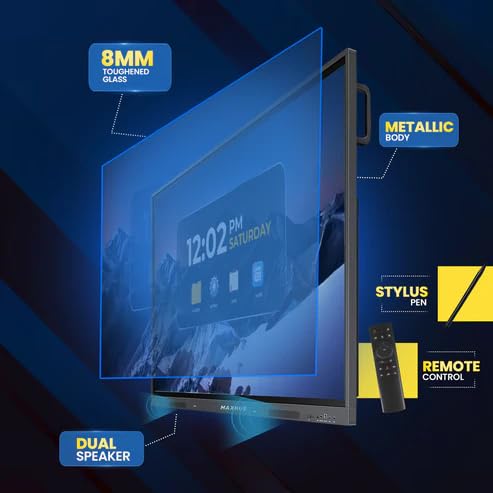
Umfanekiso 3.1: Kuqhume view diagram highlighting key components. This image illustrates the 8mm toughened glass, metallic body, dual speakers, stylus pen, and remote control that come with the interactive flat panel.
- 8mm Toughened Glass: Provides durability and protection for the display.
- Metallic Body: Ensures structural integrity and a premium finish.
- Izipikha Ezimbili: Delivers clear audio output.
- I-Stylus Pen: For precise interaction and writing on the screen.
- Isilawuli kude: Ukuze usebenze kahle ukusuka kude.
Umfanekiso 3.2: Uhlangothi view detailing connectivity options. This image shows the power supply input, VGA connection, OPS slot, connecting port, and front connectors for easy access.
- OPS Slot: For integrating an optional OPS (Open Pluggable Specification) module.
- Uxhumano lwe-VGA: For traditional video input.
- Ukunikezwa kwamandla kagesi: Ukufakwa kwamandla okuyinhloko.
- Front Connectors: Easily accessible ports for peripherals.
4. Ukusetha nokufakwa
Follow these steps for proper installation of your MAXHUB Interactive Flat Panel:
- Ukukhulula: Carefully remove the panel from its packaging. Retain all packaging materials for future transport or storage.
- Ukukhweza: Securely mount the panel using a compatible VESA wall mount or floor stand (sold separately). Ensure the mounting surface can support the weight of the panel.
- Amandla okuxhuma: Connect the power cable to the panel's power input and then to a grounded electrical outlet.
- Izixhumanisi zokuxhuma: Connect any necessary peripherals such as computers, cameras, or external storage devices to the appropriate ports (HDMI, USB, USB Type-C). The versatile USB Type-C integrates 65-watt power charge, video, audio, touch, and internet access features into one interface.
- Amandla Okuqala Avuliwe: Press the power button on the panel or remote control to turn on the device.
5. Iziqondiso Zokusebenza
The MAXHUB Interactive Flat Panel offers a user-friendly interface and advanced features for various applications.
5.1 Ukusebenza Okuyisisekelo
- Vula/Vala: Use the power button on the panel or remote.
- Ukukhethwa komthombo: Navigate through input sources (HDMI, VGA, OPS) using the input button on the remote or on-screen menu.
- Touch Interaction: Use your finger or the provided stylus for direct interaction with the screen. The panel features less than 40ms writing latency for a natural writing experience.
5.2 Izici Ezithuthukile
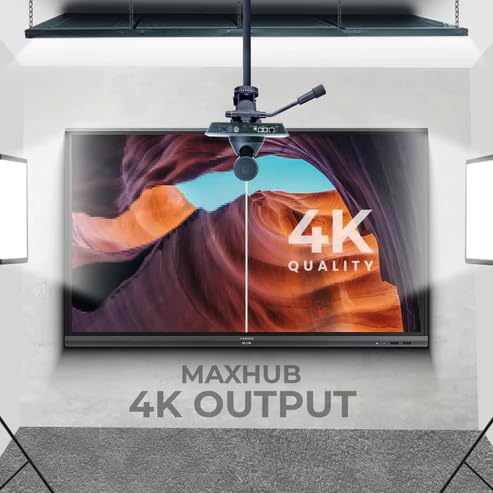
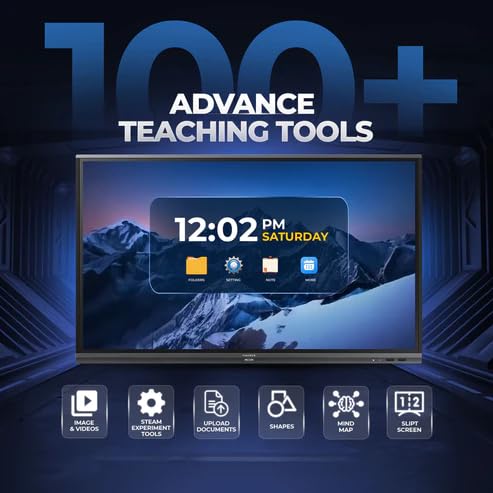
Figure 5.1: Display showing a variety of advanced teaching tools. This image highlights features like image and video integration, STEAM experiment tools, document upload, shapes, mind mapping, and split screen functionality.
- Professional 4K Display: Experience high color accuracy (AE≤2) and NTSC 72% wide color gamut for vivid visuals.
- Pre-installed Course Delivery Apps: Utilize built-in applications and widgets for productive teaching and presentations.
- Ubuchwepheshe Bokunakekela Amehlo: Features TUV Low Blue light and TUV Flicker-free with an ambient light sensor and anti-glare glass to reduce eye strain.
- Responsive Hardware: Equipped with a powerful built-in 2.0Ghz quad-core CPU and 4GB RAM, along with a high-speed 1000Base-T network adapter for smooth performance.
- Idizayini Yenhlanzeko: Incorporates SGS-certified antibacterial components for a cleaner environment.

Figure 5.2: The interactive flat panel being used in a hybrid teaching environment. This image demonstrates its suitability for both in-person and online educational settings.
6. Isondlo Nokunakekela
Regular maintenance ensures the longevity and optimal performance of your interactive flat panel.
- Ukuhlanza isikrini: Sebenzisa indwangu ethambile, engenalinti kancane dampihlanzwe ngesihlanzi esingagugi futhi esiphephile esikrinini. Ungasifuthi isihlanzi ngqo esikrinini.
- Ukuhlanza Umzimba: Wipe the exterior with a dry, soft cloth. Avoid harsh chemicals.
- Ukungenisa umoya: Ensure ventilation slots are clear of dust and debris to prevent overheating.
- Izibuyekezo zesofthiwe: Periodically check for and install software updates to ensure optimal performance and security.
7. Ukuxazulula izinkinga
This section addresses common issues you might encounter with your MAXHUB Interactive Flat Panel.
| Inkinga | Imbangela Engenzeka | Isixazululo |
|---|---|---|
| Awekho Amandla | Ikhebula lamandla linqanyuliwe; Inkinga yokuphuma kwamandla. | Check power cable connection; Try a different outlet. |
| Akukho Ukuboniswa | Incorrect input source selected; Cable connection issue. | Verify input source; Check HDMI/VGA/USB-C cable connections. |
| Isikrini esithintwayo Asiphenduli | Calibration needed; Software glitch. | Recalibrate touchscreen via settings; Restart the panel. |
| Ikhwalithi Yesithombe Engalungile | Resolution mismatch; Dirty screen. | Adjust display resolution on connected device; Clean the screen. |
8. Imininingwane Yezobuchwepheshe
| Isici | Ukucaciswa |
|---|---|
| Ibhrendi | MAXHUB |
| Inombolo Yemodeli | MaxHub Interactive Flat Panel 75" | OPS |
| Usayizi Wokubonisa | 75 amayintshi |
| Bonisa Ubuchwepheshe | I-LCD |
| Bonisa Ukulungiswa | 3840 x 2160 (4K UHD) |
| Isikhathi sokuphendula | 40 amasekhondi |
| CPU | 2.0Ghz Quad-core |
| RAM | 4GB |
| Ukuxhumana | Wi-Fi, USB Type-C, HDMI, USB 3.0 |
| Izici ezikhethekile | Ultrawide Screen, TUV Low Blue Light, TUV Flicker-free, Anti-glare glass, SGS-certified antibacterial components |
| Ubukhulu bephakheji | 180 x 114 x 20 cm |
9. Ulwazi Lwewaranti
The MAXHUB Interactive Flat Panel 75" comes with a standard manufacturer's warranty. Please refer to the warranty card included with your product for specific terms and conditions, including coverage duration and limitations.
An extended warranty option may be available. For details, please contact your retailer or visit the official MAXHUB webindawo.
10. Ukwesekwa Kwamakhasimende
For technical assistance, service, or further inquiries, please contact MAXHUB customer support through the following channels:
- Webindawo: Visit the official MAXHUB website for FAQs, drivers, and support resources.
- I-imeyili: Refer to your product documentation for the support email address.
- Ucingo: Contact the customer service hotline provided in your product's packaging.
When contacting support, please have your product model number (MaxHub Interactive Flat Panel 75" | OPS) and serial number ready.
Ask a question about this manual
Ask about setup, troubleshooting, compatibility, parts, safety, or missing instructions. Manuals+ will review the question and use this page’s manual context to help answer it.