
1. Isingeniso
Thank you for choosing the Cherry KW 7100 Mini Multi-Device Compact Keyboard. This manual provides essential information for setting up, operating, and maintaining your new keyboard. Designed for versatility and portability, this keyboard offers seamless connectivity across multiple devices.
2. Yini EseBhokisini
- Cherry KW 7100 Mini Multi-Device Compact Keyboard
- USB-C to USB-A Charging/Connection Cable
- 2x AAA Amabhethri
- 2.4 GHz Wireless Nano Receiver (stored magnetically in the keyboard)
- Ukuthwala Ikesi
- Incwadi Yeziqondiso

Umfanekiso 1: Phezulu-phansi view of the Cherry KW 7100 Mini Keyboard.
3. Setha
3.1. Ukufakwa kwebhethri
- Thola indawo yebhethri ngaphansi kwekhibhodi.
- Slayida vula ikhava yegumbi lebhethri.
- Faka amabhethri amabili e-AAA, uqinisekise ukuthi i-polarity (+/-) ilungile.
- Vala ikhava yengxenye yebhethri ngokuphephile.
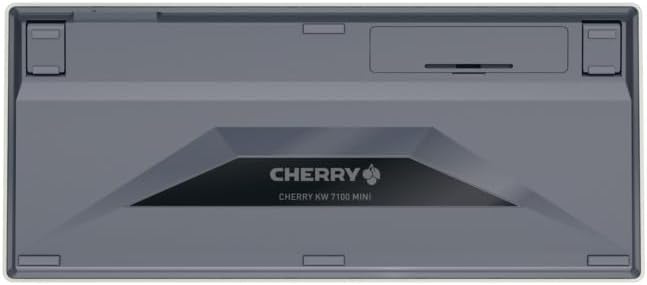
Figure 2: Underside of the keyboard with the battery compartment.
3.2. Ukuxhuma Ikhibhodi
The Cherry KW 7100 Mini supports three connection methods: Bluetooth, 2.4 GHz Wireless, and Wired USB-C.
3.2.1. Ukuxhumeka kwe-Bluetooth (Kufika kumadivayisi angu-3)
- Vula ikhibhodi usebenzisa iswishi yamandla etholakala eceleni.
- Press and hold one of the Bluetooth channel keys (F1, F2, or F3) for 3-5 seconds until the corresponding LED indicator blinks rapidly. This indicates pairing mode.
- On your device (laptop, smartphone, tablet), navigate to Bluetooth settings and search for available devices.
- Select "Cherry KW 7100" from the list to pair. The LED will stop blinking and remain solid for a few seconds upon successful connection.
- Repeat for up to two additional devices using the other Bluetooth channel keys (F1, F2, or F3).
Uxhumano Olungenantambo lwe-3.2.2. 2.4 GHz
- Locate the 2.4 GHz wireless nano receiver, typically stored magnetically in a slot on the underside of the keyboard.
- Insert the nano receiver into an available USB-A port on your computer.
- Vula ikhibhodi usebenzisa inkinobho yokuvula. Ikhibhodi kufanele ixhumeke ngokuzenzakalelayo ku-receiver.
3.2.3. Wired USB-C Connection
- Connect one end of the provided USB-C cable to the USB-C port on the keyboard.
- Connect the other end of the USB-C cable to an available USB-A port on your computer.
- The keyboard will function as a wired keyboard.
Video 1: Demonstrating the setup and typing experience of the Cherry KW 7100 Mini Keyboard.
4. Ukusebenzisa ikhibhodi
4.1. Ukushintsha Phakathi Kwamadivayisi Axhunyiwe
To switch between paired Bluetooth devices, simply press the corresponding Bluetooth channel key (F1, F2, or F3) that your device is paired to. The keyboard will automatically connect to the selected device.
4.2. Function Keys (FN)
The keyboard features a dedicated FN key, typically located near the right Shift key. This key, in combination with other keys, activates secondary functions such as media controls, screen brightness, and other system commands. Refer to the keycap legends for specific FN key combinations.
4.3. Izinkomba ze-LED
LED indicators on the keyboard provide information about its status:
- Bluetooth Channel LEDs (F1, F2, F3): Indicate the currently active Bluetooth connection or pairing mode.
- I-Caps Lock LED: Iyakhanyisa uma i-Caps Lock isebenza.
- I-LED Yesimo Sebhethri: Ikhombisa ileveli yebhethri ephansi.
4.4. Izinyawo Eziguquguqukayo
The keyboard is equipped with stable, fold-out feet on the underside. These allow you to adjust the typing angle for improved ergonomics and comfort.
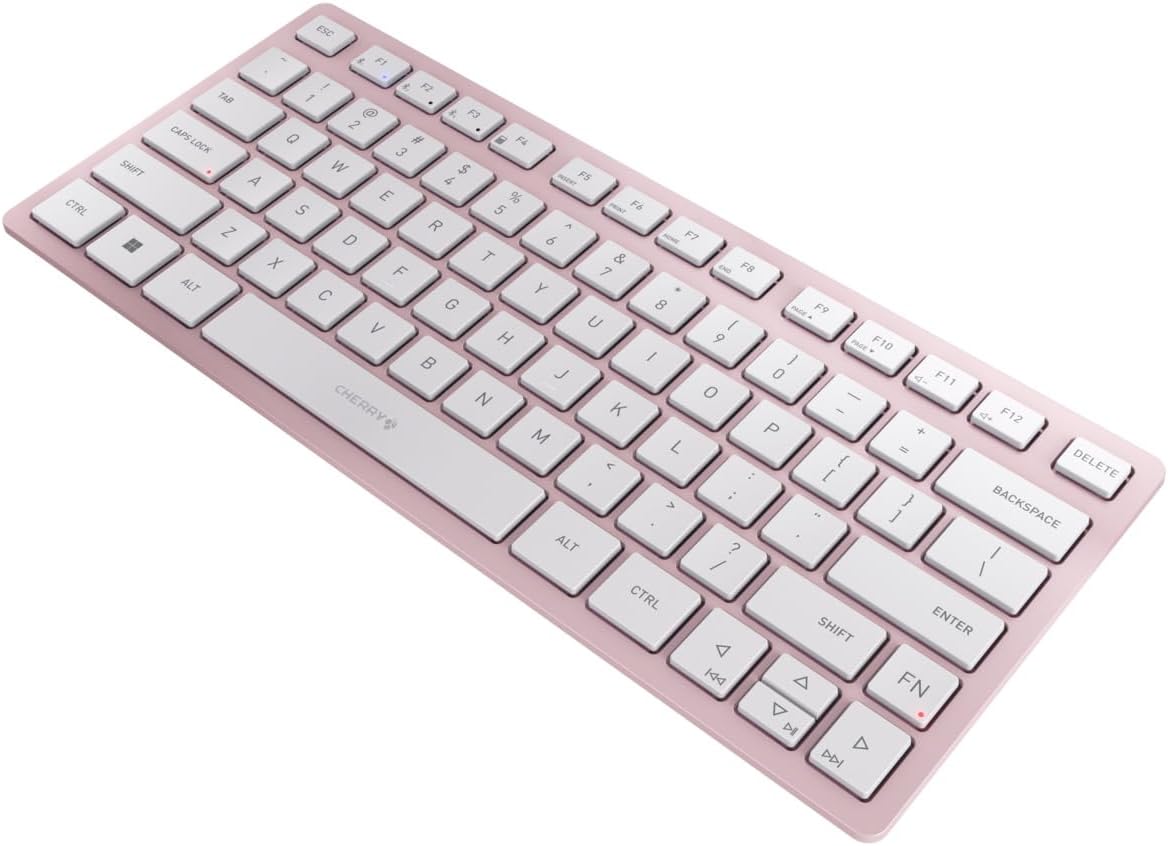
Umfanekiso 3: I-engeli view of the keyboard, highlighting its slim profile.

Umfanekiso 4: Uhlangothi view showing the adjustable feet extended for an ergonomic typing angle.
5. Isondlo
5.1. Ukuhlanza
To clean your keyboard, gently wipe the keycaps and surface with a soft, lint-free cloth. For stubborn dirt, slightly dampen the cloth with water or a mild, non-abrasive cleaning solution. Avoid excessive moisture and do not spray cleaners directly onto the keyboard.
5.2. Isitoreji
When not in use, especially during travel, store the keyboard in its included carrying case to protect it from dust, scratches, and minor impacts.

Figure 5: The keyboard stored in its protective carrying case.
6. Ukuxazulula izinkinga
6.1. Keyboard Not Connecting
- Qinisekisa ukuthi ikhibhodi ivuliwe.
- Bheka amabhethri bese uwashintsha uma kunesidingo.
- For Bluetooth, ensure the correct channel (F1, F2, or F3) is selected and the keyboard is in pairing mode (blinking LED).
- For 2.4 GHz wireless, ensure the nano receiver is securely plugged into a USB-A port.
- Try connecting via the USB-C cable to rule out wireless issues.
- Qala kabusha idivayisi yakho bese uzama ukubhanqa futhi.
6.2. Keys Not Responding
- Check the connection as described above.
- Qinisekisa ukuthi akukho mfucumfucu efakwe ngaphansi kwezihluthulelo.
- If using a wired connection, try a different USB port or cable.
6.3. Impilo Yebhethri Emfushane
- Ensure you are using fresh, high-quality AAA batteries.
- Turn off the keyboard when not in use to conserve battery power.
7. Imininingwane
| Isici | Ukucaciswa |
|---|---|
| Igama Lemodeli | KW7100 |
| Inombolo Yemodeli Yento | I-JK-7100US-19 |
| Ibhrendi | okusamathunduluka |
| Ubuchwepheshe bokuxhumana | Bluetooth 5.1 (3 channels), 2.4 GHz Wireless, USB-C Wired |
| Amadivayisi Ahambisanayo | I-laptop, i-smartphone, ithebhulethi |
| Incazelo Yekhibhodi | Compact, Multi-Device |
| Indlela Yokhiye | CHERRY SX Scissor Mechanism |
| Umthombo wamandla | 2x AAA Amabhethri |
| Ukubethela | I-AES-128 |
| Ubukhulu bomkhiqizo | 11.6 x 5.1 x 0.6 amayintshi |
| Isisindo sento | 1.4 amakhilogremu |
| Okubalulekile | Insimbi, Ipulasitiki |
| Umbala | I-cherry blossom |
8. Iwaranti kanye Nokusekela
This product is covered by Cherry's standard manufacturer warranty. For detailed warranty information, technical support, or service inquiries, please visit the official Cherry webisayithi noma uxhumane nokwesekwa kwamakhasimende abo ngokuqondile.
Umkhiqizi: okusamathunduluka
Webindawo: www.cherry.de