
1. Isingeniso
The Poly Studio Table Microphone is designed to enhance audio capture in conference environments, specifically for Poly Studio X50, X52, V52, X70, X72, and V72 video systems. It features superior 3-way audio pickup, automatically leveling voices and suppressing background noise and echo for clear, natural conversations. Its robust design includes an easily accessible mute button with an indicator light and offers a pick-up range of 2.5 meters (8.2 feet).
This manual provides instructions for setting up, operating, and maintaining your Poly Studio Table Microphone.
2. Yini EseBhokisini
Qinisekisa ukuthi zonke izingxenye zikhona ephaketheni:
- Poly Studio Table Microphone (Model 875M6AA)
- Ikhebula le-RJ-11
- Umhlahlandlela Wokufaka (le dokhumenti)
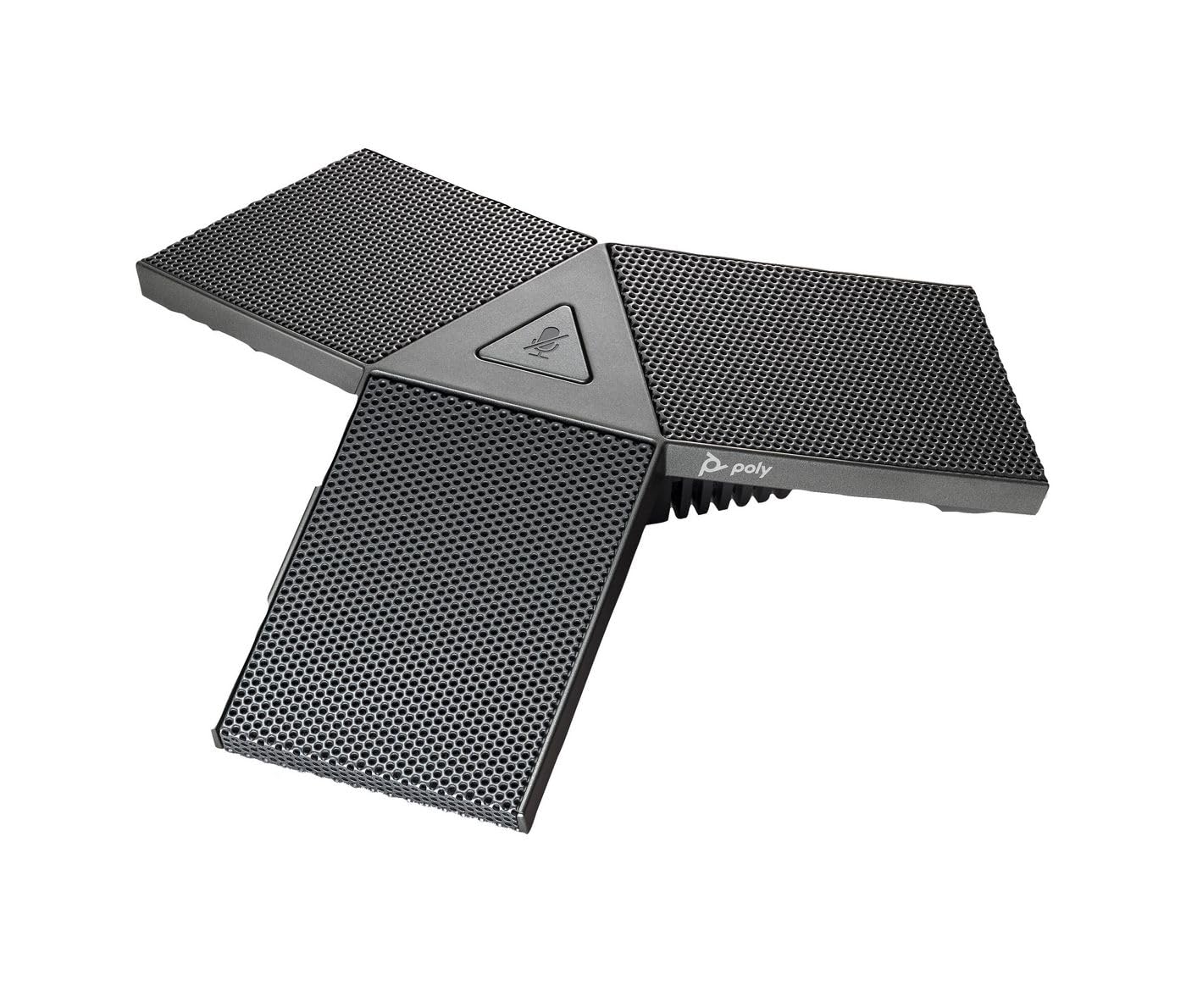
Image 1: Poly Studio Table Microphone with its RJ-11 connection cable.
3. Setha
The Poly Studio Table Microphone is designed for simplified setup. Follow these steps to connect the microphone to your Poly Studio video system:
- Ukubekwa: Position the Poly Studio Table Microphone on a flat surface in your conference room. Ensure it is centrally located to maximize its 2.5-meter (8.2 feet) audio pickup range.
- Uxhumano: Locate the RJ-11 port on the underside of the microphone and on your Poly Studio video system (X50, X52, V52, X70, X72, or V72).
- Cable Insertion: Connect one end of the provided RJ-11 cable into the microphone's RJ-11 port.
- Ukuxhuma Kwesistimu: Connect the other end of the RJ-11 cable into the corresponding RJ-11 port on your Poly Studio video system.
- Vula: Ensure your Poly Studio video system is powered on. The microphone will automatically be detected and configured.
Azikho izishayeli ezengeziwe noma isofthiwe edingekayo ekusebenzeni okuyisisekelo.
4. Iziqondiso Zokusebenza
The Poly Studio Table Microphone is designed for intuitive operation, integrating seamlessly with your Poly Studio video system.
4.1 Audio Pickup
- The microphone features three (3) directional microphones for 360-degree audio coverage, ensuring voices are captured from all directions within its 2.5-meter (8.2 feet) range.
- Advanced audio technology automatically levels voices and suppresses background noise and echo, providing clear audio for remote participants.
4.2 Thulisa Umsebenzi
- A convenient mute button is located on the microphone for quick control.
- Press the mute button to toggle the microphone's audio input on or off.
- An indicator light on the microphone will illuminate or change color to clearly show the mute status. Refer to your Poly Studio video system's documentation for specific indicator light behaviors.
5. Isondlo
To ensure optimal performance and longevity of your Poly Studio Table Microphone, follow these maintenance guidelines:
- Ukuhlanza: The microphone features integrated Microban® protection to help keep surfaces cleaner and fresher for longer. For general cleaning, gently wipe the exterior surfaces with a soft, dry, or slightly damp cloth. Avoid using harsh chemicals, abrasive cleaners, or solvents.
- Isitoreji: When not in use for extended periods, store the microphone in a clean, dry environment away from extreme temperatures and direct sunlight.
- Ukunakekelwa Kwekhebula: Avoid bending or crimping the RJ-11 cable excessively. Ensure it is not placed where it can be tripped over or damaged.
6. Ukuxazulula izinkinga
If you encounter issues with your Poly Studio Table Microphone, refer to the following common troubleshooting steps:
- Awukho Umsindo:
- Ensure the RJ-11 cable is securely connected to both the microphone and the Poly Studio video system.
- Verify that the microphone is not muted (check the indicator light).
- Check the audio settings on your Poly Studio video system to ensure the external microphone is selected and volume levels are appropriate.
- Restart the Poly Studio video system.
- Poor Audio Quality (Echo, Noise):
- Ensure the microphone is placed on a stable surface and not too close to speakers or other noise sources.
- Confirm that the room acoustics are suitable for conferencing.
- Verify that the microphone's surface is clean.
- Inkinobho Yokuthulisa Ayiphenduli:
- Qinisekisa ukuthi imakrofoni ixhunywe kahle futhi inikwe amandla.
- Restart the Poly Studio video system.
If problems persist, consult the comprehensive user manual for your specific Poly Studio video system or contact Poly technical support.
7. Imininingwane
| Isici | Imininingwane |
|---|---|
| Ibhrendi | IPOLY |
| Igama Lemodeli | Isitudiyo |
| Inombolo Yemodeli | 875M6AA |
| Ubuchwepheshe bokuxhumana | USB (via RJ-11 connection to Poly Studio system) |
| Uhlobo Lwesixhumi | RJ-11 |
| Iphethini ye-Polar | Unidirectional (3-way audio pickup for 360-degree coverage) |
| I-Microphone Form Factor | I-Table Mount |
| Isici Esikhethekile | Mute button with indicator light, Microban® protection |
| Amadivayisi Ahambisanayo | Poly Studio X50, X52, V52, X70, X72, V72 video systems |
| I-Pick-up Range | 2.5 amamitha (8.2 amafidi) |
| Impendulo Yemvamisa | 20 Hz - 20 kHz |
| Ukulinganisa-to-Noise Ratio | 78db |
| Isisindo sento | 0.2 Pound (cishe amagremu angu-90) |
| Ubukhulu bento (L x W x H) | 1.1 x 4.9 x 5.6 amayintshi (cishe. 2.8 x 12.4 x 14.2 cm) |
| Umbala | Isibhamu |
| Umkhiqizi | I-HP Inc. |
8. Iwaranti kanye Nokusekela
Ulwazi Lwesiqinisekiso: The warranty description for this product is not explicitly available in the provided details. Please refer to the official Poly (HP Inc.) webindawo noma imibhalo yakho yokuthenga yemigomo nemibandela ethile yewaranti.
Ukusekela kwezobuchwepheshe: For further assistance, technical support, or service inquiries, please contact Poly (HP Inc.) customer support through their official website or the contact information provided with your Poly Studio video system.
You can often find support resources, FAQs, and updated documentation on the I-Poly webindawo.


