
TESLA 65E635SUS
Tesla 65-inch 4K UHD Smart TV User Manual
Model: 65E635SUS
Isingeniso
This manual provides essential instructions for setting up, operating, maintaining, and troubleshooting your new Tesla 65-inch 4K UHD Smart TV (Model 65E635SUS). Please read this manual thoroughly before using the television to ensure proper operation and to maximize your viewisipiliyoni. Gcina leli bhukwana ukuze lisetshenziswe esikhathini esizayo.
Ulwazi Olubalulekile Lokuphepha: Always follow basic safety precautions when using this product to reduce the risk of fire, electric shock, and injury. Do not attempt to service this product yourself. Refer all servicing to qualified service personnel.
1. Setha
1.1 Unpacking and Contents Check
Susa ngokucophelela i-TV ephaketheni layo. Qinisekisa ukuthi zonke izingxenye zikhona:
- Tesla 65-inch 4K UHD Smart TV
- Isilawuli kude
- Amabhethri we-AAA wokulawula kude
- Isitendi se-TV (izingcezu ezi-2)
- Izikulufo ze-TV Stand
- Intambo Yamandla
- Incwadi Yomsebenzisi (le dokhumenti)

Isithombe 1.1: Ngaphambili view of the Tesla 65-inch Smart TV with its stand.
1.2 Ukunamathisela Isitendi se-TV
- Beka i-TV ibheke phansi endaweni ethambile, eyisicaba ukuze uvimbele ukulimala kwesikrini.
- Hlanganisa ingxenye ngayinye yokuma nezikhala ezifanele phansi kwe-TV.
- Vikela ingxenye ngayinye yokuma ngezikulufo ezinikeziwe. Qinisekisa ukuthi ziqiniswe kahle.

Isithombe 1.2: Emuva view ye-TV, ekhombisa izindawo zokunamathisela i-stand.
Qaphela: If you plan to wall-mount the TV, refer to the wall-mount kit instructions (sold separately) and skip this step. Ensure proper ventilation when wall-mounting.
1.3 Amandla okuxhuma
Xhuma intambo kagesi kokufakwayo kwamandla kwe-TV bese uyixhumanisa ne-othomathikhi yodonga. I-TV izongena kwimodi yokulinda.
1.4 Ukusetha kokuqala
Ekuvuleni kokuqala, i-TV izokuqondisa enqubweni yokusetha yokuqala:
- Ukukhetha Ulimi: Khetha ulimi oluthandayo.
- Uxhumano Lwenethiwekhi: Xhuma kunethiwekhi yakho ye-Wi-Fi noma sebenzisa intambo ye-Ethernet ukuze uthole uxhumano olunezintambo.
- Ngena ngemvume ku-Akhawunti ye-Google: Sign in with your Google account to access Google Play Store, Google Assistant, and other Android TV features.
- Ukuskena Isiteshi: Scan for available TV channels if you are using an antenna or cable connection.
- Izilungiselelo zobumfihlo: Review futhi ulungise izilungiselelo zobumfihlo njengoba uthanda.
2. Iziqondiso Zokusebenza
2.1 Isilawuli kude phezuview
The provided remote control allows you to navigate the TV's features. Insert the AAA batteries into the remote control before use.

Image 2.1: Bluetooth remote control for the Tesla Smart TV.
- Inkinobho yamandla: Ivula noma ivale i-TV (imodi yokulinda).
- Iphedi Yokuzulazula (Phezulu/Phansi/Kwesobunxele/Kwesokudla/Kulungile): Izulazula kumamenyu bese ikhetha izinto.
- Inkinobho Emuva: Ibuyela esikrinini sangaphambilini.
- Inkinobho Yasekhaya: Ifinyelela isikrini sasekhaya se-Android TV.
- Ivolumu phezulu/Phansi: Ilungisa izinga levolumu.
- Inkinobho yokuthulisa: Ithulisa noma ithulisa umsindo.
- Inkinobho Yomsizi we-Google: Yenza kusebenze isilawuli sezwi.
- Izinkinobho Ezinqamulelayo Zohlelo Lokusebenza: Ukufinyelela okuqondile kumasevisi okusakaza adumile (isb., i-Netflix, i-YouTube).
2.2 Android TV 11 Interface Navigation
The Android TV 11 interface provides access to apps, settings, and content. Use the navigation pad on your remote to move through the home screen.
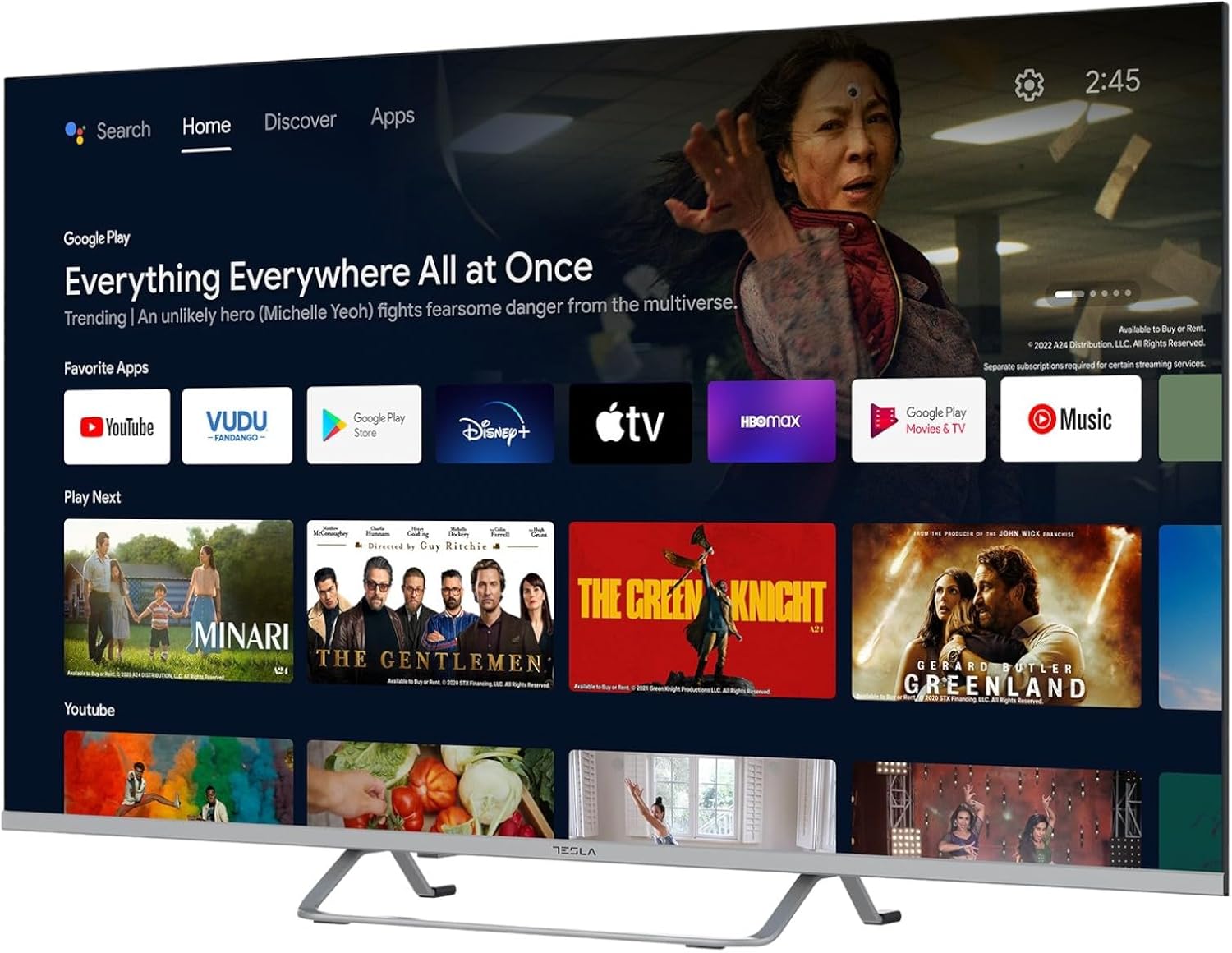
Image 2.2: The Android TV 11 home screen, displaying various applications and content suggestions.
- Isikrini Sasekhaya: Displays recommended content, installed apps, and input sources.
- Apps Section: Finyelela kuzo zonke izinhlelo zokusebenza ezifakiwe.
- Izilungiselelo: Configure TV settings, network, accounts, and device preferences.
2.3 Ukusebenzisa i-Google Assistant
Press the Google Assistant button on your remote and speak into the microphone to control your TV, search for content, get information, and more.
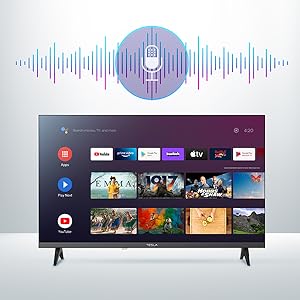
Image 2.3: Visual representation of Google Assistant activation on the TV screen.
Exampimiyalelo embalwa:
- "Vula i-Netflix"
- "Cinga amafilimu esenzo"
- "Sinjani isimo sezulu?"
- "Khuphula ivolumu"
2.4 I-Chromecast eyakhelwe ngaphakathi
Use Chromecast built-in to cast content from your compatible smartphone, tablet, or computer directly to your TV. Ensure your device is connected to the same Wi-Fi network as the TV.

Image 2.4: A smartphone casting content to the TV via Chromecast.
2.5 Ukuxhumanisa Amadivayisi Angaphandle
I-TV yakho inikeza izinketho eziningi zokuxhumana:
- Izimbobo ze-HDMI (x4): Xhuma abadlali be-Blu-ray, ama-game consoles, amabhokisi e-set-top, njll.
- Izimbobo ze-USB (x2): Connect USB drives for media playback or external keyboards/mice.
- I-Ethernet (LAN): Ukuze uthole uxhumano lwe-inthanethi olunezintambo.
- I-Wi-Fi: Ukuxhumeka kwe-inthanethi okungenantambo.
- I-Bluetooth: Xhuma ama-headphone angenantambo, izipikha, noma amanye amadivayisi e-Bluetooth.

Isithombe 2.5: I-Side profile of the TV, highlighting accessible ports.
2.6 Izithombe Nezilungiselelo Zomsindo
Access the TV's settings menu to customize picture and sound options.
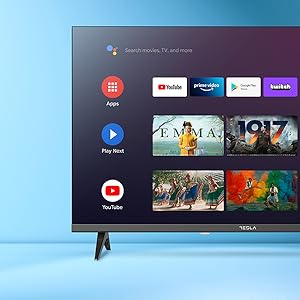
Isithombe 2.6: Eksample of the TV's settings menu for customization.
- Amamodi Esithombe: Select from Standard, Vivid, Sport, Movie, Game, or User (custom) modes. Adjust brightness, contrast, color, and sharpness.
- I-HDR10: The TV supports HDR10 for enhanced contrast and color with compatible content.
- Izindlela Zomsindo: Choose from Standard, Music, Movie, Sport, or User (custom) modes. Use the equalizer to fine-tune audio frequencies.
- Izipikha: The TV features 2 x 12W speakers.
3. Isondlo
3.1 Ukuhlanza i-TV
- Isikrini: Sula kahle isikrini ngendwangu ethambile, engenantambo. Ukuze uthole amamaki anenkani, kancane dampzu indwangu enamanzi noma isicoci sesikrini esikhethekile. Ungalokothi ufafaze isicoci ngqo esikrinini.
- Umzimba: Wipe the TV body with a soft, dry cloth. Avoid using abrasive cleaners or solvents.
- Ngaso sonke isikhathi khipha i-TV ekuxhumekeni kukagesi ngaphambi kokuhlanza.
3.2 Ukuvuselelwa Kwesoftware
Your Tesla Smart TV may receive software updates to improve performance and add new features. Ensure your TV is connected to the internet to receive these updates automatically or check for them manually in the settings menu.
4. Ukuxazulula izinkinga
Before contacting support, try the following solutions for common issues:
| Inkinga | Isixazululo Esingenzeka |
|---|---|
| Awekho amandla | Check if the power cord is securely connected to the TV and the wall outlet. Ensure the outlet is working. |
| Asikho isithombe, kodwa umsindo ukhona | Qinisekisa ukuthi umthombo wokufaka ofanele ukhethiwe. Hlola ukuxhumeka kwekhebula kumadivayisi angaphandle. Zama ukuqala kabusha i-TV. |
| Awukho umsindo, kodwa isithombe sikhona | Check the volume level and ensure the TV is not muted. Verify audio settings and external speaker connections if applicable. |
| Isilawuli kude asisebenzi | Replace the batteries. Ensure there are no obstructions between the remote and the TV. Re-pair the Bluetooth remote if necessary (refer to TV settings). |
| Izinkinga zokuxhumeka kwenethiwekhi | Restart your router and modem. Check Wi-Fi password. Try a wired Ethernet connection if possible. |
| Izinhlelo zokusebenza ziyanensa noma ziyaphahlazeka | Close unused apps. Clear app cache (Settings > Apps > [App Name] > Clear cache). Restart the TV. |
5. Imininingwane
| Isici | Imininingwane |
|---|---|
| Ibhrendi | I-TESLA |
| Inombolo Yemodeli | 65E635SUS |
| Usayizi Wesikrini | Amasentimitha amane (65 cm) |
| Bonisa Ubuchwepheshe | I-LED |
| Isixazululo | 4K (3840 x 2160) |
| Isilinganiso Sokuvuselela | 60 Hz |
| Isistimu esebenzayo | I-Android TV 11 |
| Izici ezikhethekile | High Dynamic Range (HDR10), Google Play, Chromecast Built-in, Google Assistant, Personalized Surround Sound |
| Ukuxhumana | Wi-Fi, Bluetooth, Ethernet (LAN) |
| Izimbobo ze-HDMI | 4 |
| Izimbobo ze-USB | 2 |
| Okukhipha umsindo | 2 x 12W Izipikha |
| Ubukhulu bomkhiqizo (enesitendi) | 25D x 25W x 144.5H cm (approximate) |
6. Iwaranti kanye Nokusekela
For warranty information, please refer to the warranty card included with your product or visit the official Tesla webindawo. Gcina ubufakazi bakho bokuthenga ngezimangalo zewaranti.
For technical support or service inquiries, please contact Tesla customer service through their official channels. Contact details can typically be found on the manufacturer's webindawo noma emaphaketheni omkhiqizo.
Ask a question about this manual
Ask about setup, troubleshooting, compatibility, parts, safety, or missing instructions. Manuals+ will review the question and use this page’s manual context to help answer it.