
1. Isingeniso
This manual provides essential instructions for setting up, operating, maintaining, and troubleshooting your Google Pixel 7 Pro GE2AE smartphone. Please read this guide thoroughly to ensure proper use and to maximize your device's capabilities.

Image: Google Pixel 7 Pro smartphone.
2. Yini EseBhokisini
Upon unboxing your Google Pixel 7 Pro, verify that the following items are included:
- Google Pixel 7 Pro Smartphone
- I-adaptha yamandla
- Ithuluzi le-SIM Tray Ejector
- USB Cable (USB-C to USB-C)
Note: As a renewed product, accessories may be generic but are fully functional.
3. Setha
3.1. Faka i-SIM Card
- Locate the SIM card tray on the side of your Pixel 7 Pro.
- Faka ithuluzi le-SIM ejector yethreyi embotsheni encane eduze kwethreyi bese ucindezela ngokuqinile kuze kuvele ithreyi.
- Place your nano-SIM card into the tray with the gold contacts facing down.
- Faka futhi ngokucophelela ithreyi le-SIM ocingweni.
3.2. Ukuvula amandla kanye nokusetha kokuqala
- Press and hold the Power button (located on the right side) until the Google logo appears.
- Follow the on-screen prompts to select your language, connect to a Wi-Fi network, and accept the terms and conditions.
- Sign in with your Google Account or create a new one. This is essential for accessing Google services and the Play Store.
- Transfer data from an old device (optional) or set up as a new device.
- Set up security features such as fingerprint unlock or face unlock.
4. Ukusebenzisa Idivayisi Yakho
4.1. Ukuhamba Okuyisisekelo
- Isikrini Sasekhaya: Swipe up from the bottom to access the app drawer. Swipe left or right to navigate between home screens.
- Izaziso nezilungiselelo ezisheshayo: Swayiphela phansi kusukela phezulu kwesikrini ukuya view izaziso nokufinyelela izinguquko ezisheshayo zezilungiselelo.
- Ukwenza izinto eziningi: Swayiphela phezulu kusukela phansi bese ubamba ku- view recent apps. Swipe left or right to switch between them, or swipe up on an app to close it.
- Back Gesture: Swipe inward from the left or right edge of the screen to go back.
4.2. Izici zekhamera
The Pixel 7 Pro features an advanced camera system with a telephoto lens and various modes:
- Ukugxila Okukhulu: Automatically engages when you get close to a subject, allowing for detailed close-up shots.
- Cinematic Blur: Adds a shallow depth of field effect to videos, blurring the background for a professional look.
- Ukubona Ebusuku: Kuthuthukisa izithombe ezithathwe ezimweni eziphansi.
- Photo Unblur: Improves blurry photos using Google Tensor G2 processing.
4.3. Ukuphathwa Kwebhethri
The Pixel 7 Pro is equipped with a 5000 mAh battery. To optimize battery life:
- Enable Adaptive Battery in Settings > Battery.
- Reduce screen brightness or enable Adaptive Brightness.
- Limit background app activity for less frequently used applications.
- Use Battery Saver mode when battery is low.
5. Isondlo
5.1. Ukuhlanza Idivayisi Yakho
- Sebenzisa indwangu ethambile, engenantambo ukuhlanza isikrini nomzimba.
- Gwema izinto ezilimazayo noma amakhemikhali anokhahlo.
- Kuma-smudge anenkani, kancane dampen indwangu ngamanzi.
5.2. Ukuvuselelwa Kwesoftware
Hlola njalo futhi ufake izibuyekezo zesofthiwe ukuze uqinisekise ukuthi idivayisi yakho inezici zakamuva, iziqephu zokuphepha, nokuthuthukiswa kokusebenza. Iya kokuthi Izilungiselelo > Isistimu > Isibuyekezo sesistimu.
5.3. Ukunakekelwa Kwebhethri
To prolong battery lifespan, avoid extreme temperatures and do not leave the device fully charged or fully discharged for extended periods.
6. Ukuxazulula izinkinga
6.1. Izinkinga Ezivamile
- Idivayisi Ayiphenduli: Cindezela bese ubamba inkinobho yamandla cishe imizuzwana eyi-30 ukuze uphoqe ukuqala kabusha.
- Connectivity Problems (Wi-Fi/5G): Try toggling Wi-Fi or cellular data off and on. Restart your device. For Wi-Fi, forget the network and reconnect.
- Ukuphahlazeka Kohlelo Lokusebenza: Clear the app's cache and data in Settings > Apps. If the issue persists, uninstall and reinstall the app.
- Ukukhipha Ibhethri Ngokushesha: Review battery usage in Settings > Battery to identify apps consuming excessive power. Adjust settings as needed.
6.2. Ukusetha kabusha kwasefekthri
If you encounter persistent issues, a factory reset may resolve them. Isexwayiso: This will erase all data on your device. Back up important information before proceeding. Go to Settings > System > Reset options > Erase all data (factory reset).
7. Imininingwane
| Isici | Imininingwane |
|---|---|
| Igama Lemodeli | I-Google Pixel 7 Pro |
| Isistimu esebenzayo | Android |
| Usayizi Wesikrini | 6.7 amayintshi |
| Isixazululo | 3120 x 1440 |
| Isilinganiso Sokuvuselela | 120 Hz |
| RAM | 8 GB |
| Isitoreji Sangaphakathi | 128 GB |
| Ubuchwepheshe Beselula | 5G |
| Isithwali Esingenantambo | I-T-Mobile (Ikhiyiwe) |
| Isilinganiso Samandla Ebhethri | 5000 millionamp Amahora |
| Isikhathi sokukhuluma ngefoni | Amahora angu-31 |
| Ukuxhumana Ubuchwepheshe | I-Wi-Fi, i-GPS |
| Ezinye Izici Zekhamera | Front, Rear (with Telephoto lens, Macro Focus, Cinematic Blur) |
| I-Audio Jack | Ayikho i-headphone jack |
| I-Form Factor | I-smartphone |
| Umbala | I-Obsidian |
8. Product Condition (Renewed)
This Google Pixel 7 Pro is an Amazon Renewed product. All Amazon Renewed products are fully functional and come with generic or original accessories and packaging. The condition of renewed products is categorized as follows:
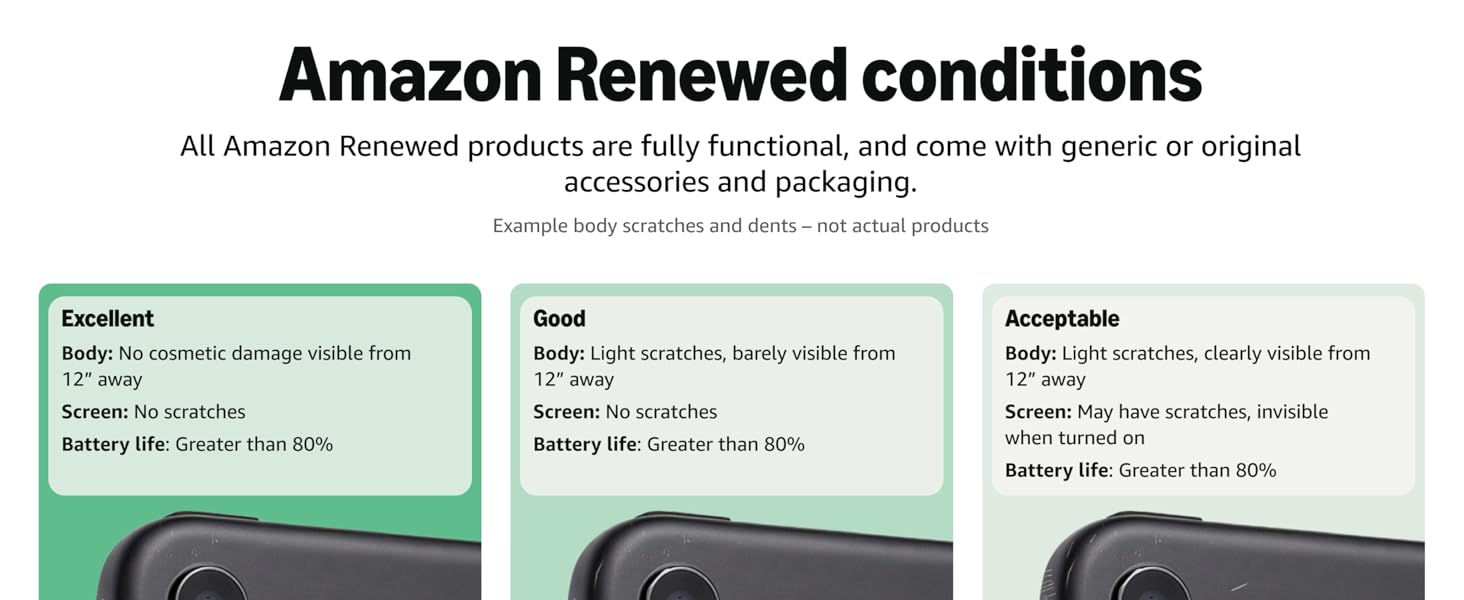
Image: Amazon Renewed conditions for electronic devices.
- Kuhle kakhulu: No cosmetic damage visible from 12 inches away. Screen has no scratches. Battery life is greater than 80%.
- Kuhle: Light scratches, barely visible from 12 inches away. Screen has no scratches. Battery life is greater than 80%.
- Kuyamukeleka: Light scratches, clearly visible from 12 inches away. Screen may have scratches, invisible when turned on. Battery life is greater than 80%.
9. Iwaranti kanye Nokusekela
For information regarding warranty coverage for your renewed Google Pixel 7 Pro, please refer to the documentation provided at the time of purchase or contact the seller directly. For technical support and further assistance with your Google Pixel device, visit the official Google Support webindawo.