
TECWARE TWKB-P87PZT-WBR
Incwadi Yomsebenzisi Yekhibhodi Yemidlalo Ye-TECWARE Phantom+ 87 Key Mechanical
Model: TWKB-P87PZT-WBR
Isingeniso
This manual provides detailed instructions for the setup, operation, maintenance, and troubleshooting of your TECWARE Phantom+ 87 Key Mechanical Gaming Keyboard. Designed for a premium typing experience, this keyboard features customizable RGB lighting, durable PBT keycaps, and hot-swappable switches.

Yini Okufakiwe
Verify that all the following items are present in your package:
- TECWARE Phantom+ 87 Key Mechanical Gaming Keyboard
- Detachable 1.8m Braided USB-C Cable
- Shintsha Ithuluzi Lokudonsa
- Ithuluzi lokudonsa ikhiphu
- 4 Spare Switches

Setha
Follow these steps to set up your TECWARE Phantom+ keyboard:
- Xhuma Ikhebula le-USB-C: Insert the USB-C end of the braided cable into the port located on the back of the keyboard.
- Xhuma Kukhompyutha: Xhuma isiphetho se-USB-A embobeni ye-USB etholakalayo kukhompuyutha yakho.
- Lungisa Izinyawo Zekhibhodi: Flip out the adjustable feet on the underside of the keyboard to achieve your preferred typing angle.
- Ukufakwa komshayeli: The keyboard is plug-and-play. Your operating system (Windows 10 or later recommended) will automatically detect and install the necessary drivers.

Imiyalelo yokusebenza
Ukusebenza Okuyisisekelo
The TECWARE Phantom+ functions as a standard 87-key keyboard for typing and gaming. It features N-Key Rollover, ensuring all keystrokes are registered accurately, even during rapid input.
Ukulawulwa Kokukhanyisa kwe-RGB
The keyboard features 16.8 million color RGB lighting with 18 pre-set lighting modes. These modes can be cycled through directly on the keyboard using function key combinations (refer to the keyboard's printed legends for specific shortcuts). You can also adjust brightness and speed.

Izici Zesoftware
For advanced customization, the Phantom+ supports dedicated software. This software allows for:
- Macro Recording and Assignment
- Up to 3 User Profiles
- Customizable Per-Key RGB Lighting
- Adjustable USB Report Rate (up to 1000Hz)

Izici Ezibalulekile Ziphelileview
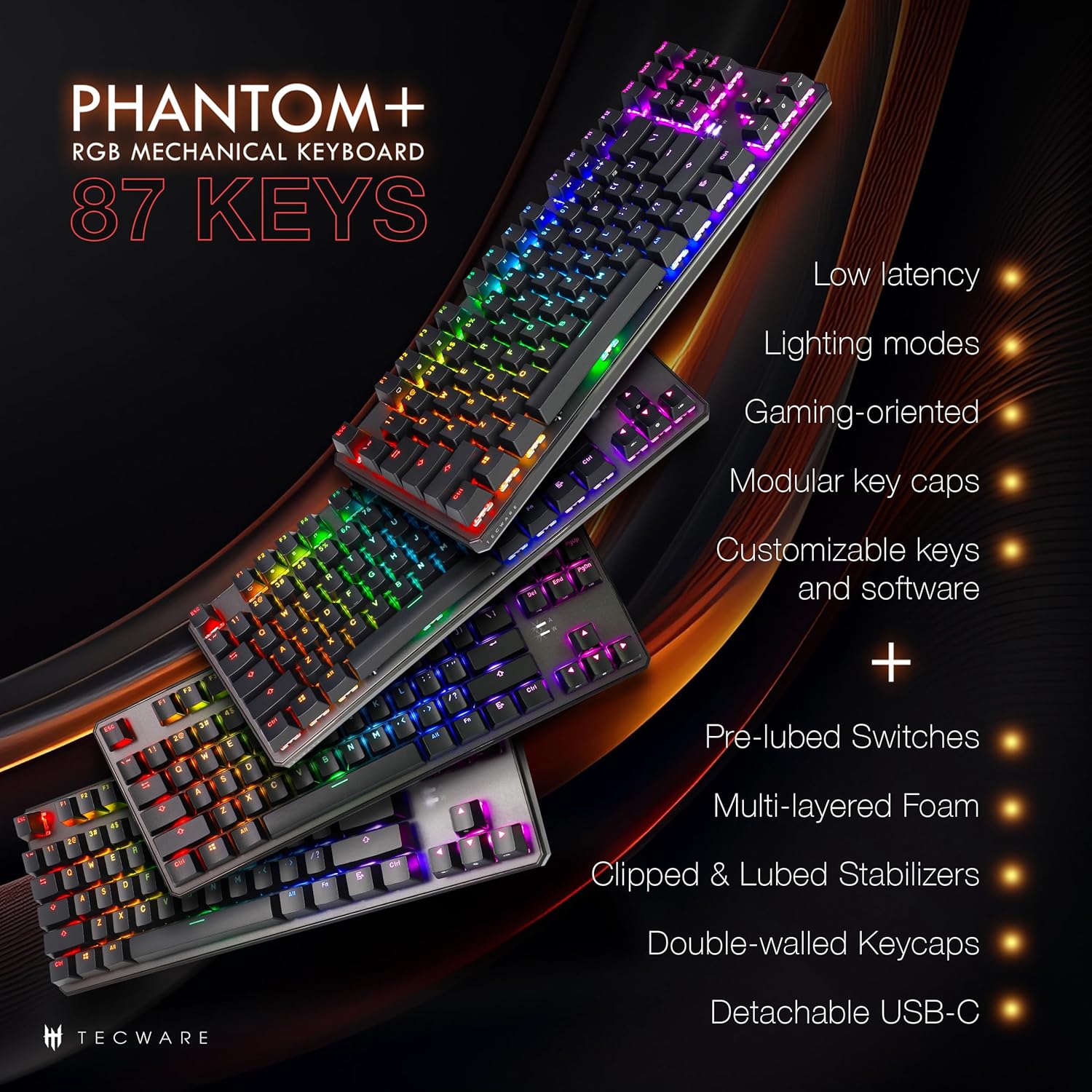
The Phantom+ keyboard incorporates several design and engineering features for enhanced performance and durability:
- Ama-keycap e-PBT Aphindwe Kabili: Resistant to wear and fading, providing long-lasting legends.
- Iziqinisi ze-V3: Clipped and lubed for enhanced stability and smoother keystrokes on larger keys.
- Umsindo Dampening Technology: Reduces keyboard noise for a more pleasant typing experience.
- Izinga Lokuvota le-1000Hz: Ensures rapid response times for gaming.
- Windows Lock Feature: Prevents accidental presses of the Windows key during gaming.

Isondlo
Ukuhlanza
To clean your keyboard, disconnect it from your computer. Use a soft, dry cloth to wipe down the keycaps and chassis. For deeper cleaning, you may carefully remove keycaps using the provided keycap puller and use compressed air to clear debris from underneath.
Switch Replacement (Hot-Swappable)
The TECWARE Phantom+ features hot-swappable switches, allowing you to replace individual switches without soldering. This is useful for customizing your typing feel or replacing a faulty switch.
- Susa i-keycap: Use the keycap puller to gently remove the keycap from the switch you wish to replace.
- Susa Iswishi: Use the switch puller tool to grasp the top and bottom clips of the switch. Apply gentle pressure and pull the switch straight up to remove it from the PCB.
- Faka Iswishi Entsha: Qondanisa izikhonkwane zeswishi entsha nezimbobo ku-PCB. Cindezela kancane iswishi phansi ize ichofoze endaweni. Qinisekisa ukuthi izikhonkwane azigobile.
- Shintshanisa amasheya Keycap: Press the keycap onto the new switch until it is firmly seated.

Ukuxazulula inkinga
If you encounter issues with your TECWARE Phantom+ keyboard, refer to the table below for common problems and solutions:
| Inkinga | Imbangela Engenzeka | Isixazululo |
|---|---|---|
| Ikhibhodi ayiphenduli | Loose USB connection, faulty cable, driver issue. | Ensure USB cable is securely connected. Try a different USB port or cable. Restart your computer. |
| RGB lighting not working or inconsistent | Lighting mode disabled, software conflict, power issue. | Check keyboard lighting controls (Fn + keys). Ensure software is running correctly. Try reconnecting the keyboard. |
| Okhiye abathile abasebenzi | Faulty switch, debris under keycap. | Remove keycap and check for debris. If hot-swappable, try replacing the switch with a spare. |
| Isoftware ayiboni ikhibhodi | Software not installed correctly, USB connection issue. | Reinstall the TECWARE software. Ensure the keyboard is directly connected to a USB port (avoiding hubs if possible). Run software as administrator. |
Imininingwane
| Isici | Imininingwane |
|---|---|
| Imodeli | TWKB-P87PZT-WBR |
| Okhiye | 87-Key (Tenkeyless) |
| Shintsha Uhlobo | Wraith Brown (Tactile) - Hot-swappable |
| Izikhiye | I-PBT Ephindwe Kabili |
| Ukukhanyisa | RGB (16.8 Million Colors, 18 Pre-set Modes) |
| Ukuxhumana | I-USB-C ekhishwayo |
| Izinga Lokuvota | Kufika ku-1000Hz |
| I-N-Key Rollover | Isekelwe |
| Izinza | V3 (Clipped & Lubed) |
| Ubukhulu (LxWxH) | 14.21 x 5.2 x 1.65 amayintshi |
| Isisindo | 2.71 amakhilogremu |
| I-OS ehambisanayo | Windows 10 (PC, Laptop, Tablet) |
Wraith Switch Specifications
The Phantom+ keyboard comes pre-installed with TECWARE Wraith switches. The specifications for various Wraith switch types are detailed below:

Iwaranti kanye Nokusekela
For warranty information, technical support, or to access the latest software and drivers for your TECWARE Phantom+ keyboard, please visit the official TECWARE webisayithi noma uxhumane nesevisi yabo yamakhasimende.
Ungathola ulwazi olwengeziwe kanye nezinsiza zokusekela ngokuvakashela i- Official TECWARE Store on Amazon.
Ask a question about this manual
Ask about setup, troubleshooting, compatibility, parts, safety, or missing instructions. Manuals+ will review the question and use this page’s manual context to help answer it.