Isingeniso
The MoesGo 2nd Generation WiFi Smart Light Switch provides intelligent control over your home lighting. This 4-gang smart switch integrates with your 2.4GHz WiFi network, allowing for remote control via the MOES or Smart Life app, and voice control through Amazon Alexa and Google Home. It features a unique Star Ring halo for soft illumination in the dark and is constructed from premium PC+ABS fireproof material for durability. This manual provides detailed instructions for installation, setup, and operation.
Ulwazi Lokuphepha
ISEXWAYISO: INGOZI YOKUSHAQEKA KAgesi. Electricity can cause personal injury and property damage. If handled improperly, you are not sure about any part of these instructions, please seek professional assistance from a qualified electrician. Ensure all work meets applicable local and national codes.
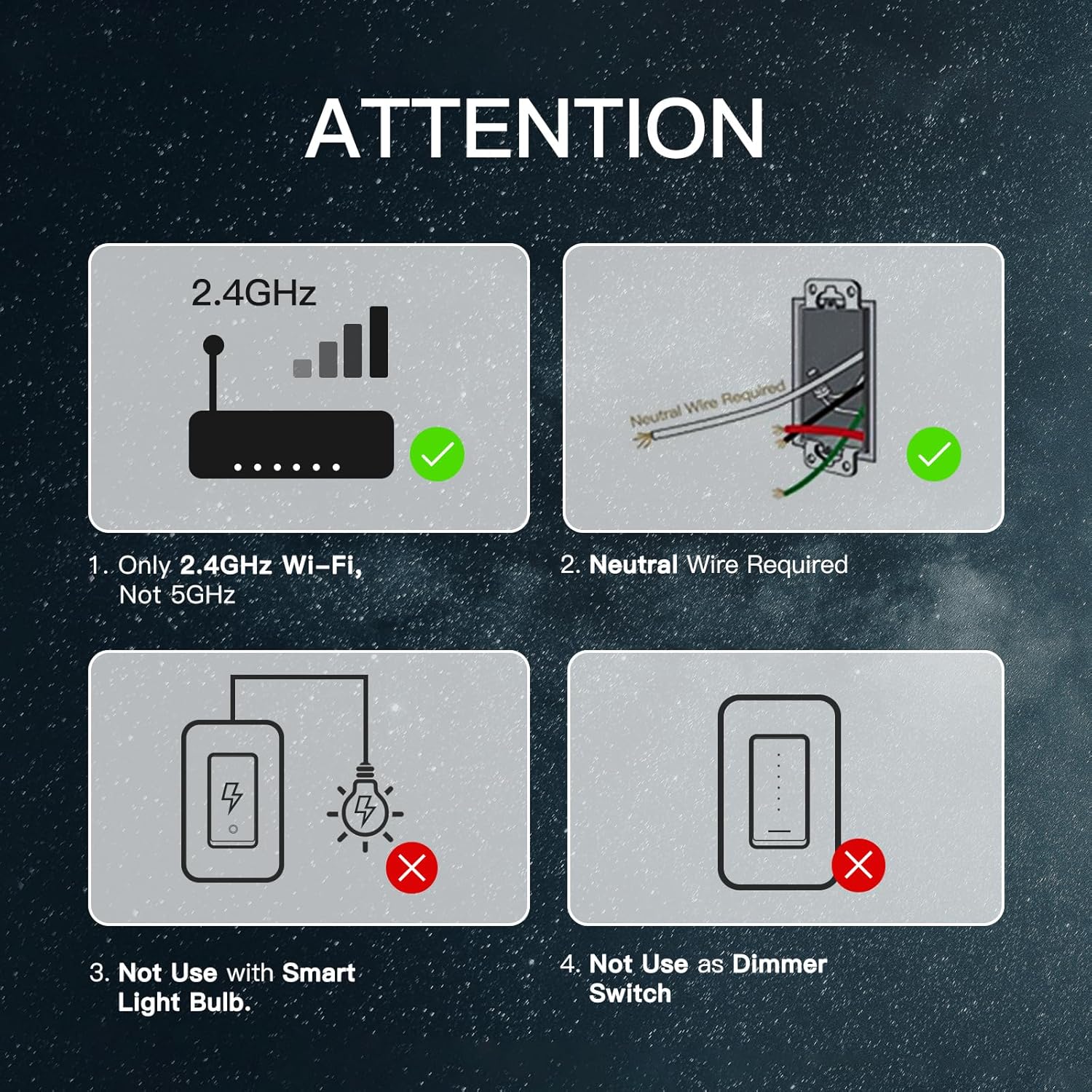
- NEUTRAL WIRE IS REQUIRED ukufakwa.
- This switch supports a 100-245V input and a maximum load of 10A.
- Ihambisana kuphela 2.4GHz amanethiwekhi e-WiFi (not 5GHz).
- Do not use with smart light bulbs.
- Do not use as a dimmer switch.
- Always turn off the power circuit at the circuit breaker before performing any installation or maintenance.
Yini EseBhokisini
Your MoesGo 4-Gang WiFi Smart Light Switch package includes:
- MoesGo 4-Gang Smart Light Switch (Model: XH-US4-MG)
- I-Wall Plate
- Amantongomane Wocingo
- Izikulufa zokukhwela
- Incwadi Yeziqondiso
Imininingwane
| Ukucaciswa | Inani |
|---|---|
| Imodeli | XH-US4-MG |
| Imodi yokusebenza | KUVULIWE |
| Isilinganiso samanje | 10 Amps |
| I-Operating Voltage | 100-245V AC, 120 Volts |
| Uhlobo Lokuxhumana | Kuvalwe Ngokujwayelekile |
| Iphrothokholi Yokuxhumana | I-Wi-Fi (2.4GHz kuphela) |
| Indlela Yokulawula | Uhlelo lokusebenza, Thinta, Izwi |
| Uhlobo lwesilawuli | Amazon Alexa, Android, Google Assistant |
| Inombolo Yezikhundla | 4 |
| Okubalulekile | Plastic (PC+ABS fireproof) |
| Ubukhulu bento (L x W x H) | 11.69 x 5.3 x 2.7 inches (Switch body: 118x209x35mm) |
| Wattage | 1200 watts |
| Isilinganiso sokuvikela samazwe ngamazwe | IP20 |

Ukufakwa
Okubalulekile: A neutral wire is required for this smart switch. If you are unsure about electrical wiring, consult a qualified electrician.
Isinyathelo 1: Vala Amandla
Locate your circuit breaker panel and turn off the power to the switch you are replacing. Verify power is off using an electrical tester.
Isinyathelo sesi-2: Susa i-Old switch
Carefully remove the faceplate from the old switch. Use an electrical tester to confirm no voltage in the circuit. Loosen the screw terminals and remove the old switch from the wall box. Take a photo of the existing wiring for reference before disconnecting any wires.
Step 3: Wire the New Smart Switch (Single Pole Installation)
Connect the wires from your wall box to the new smart switch using the provided wire nuts. Ensure each connection is secure.
- Xhuma i- Ulayini/Layisha wire (usually black) to the 'Line/Load' terminal on the smart switch.
- Xhuma i- Ukungathathi hlangothi wire (usually white) to the 'Neutral' terminal on the smart switch.
- Xhuma i- Ground wire (usually bare copper or green) to the 'Ground' terminal on the smart switch.
- For single pole setups, cap off any unused 'L2' terminals on the smart switch.
Step 4: Wire the New Smart Switch (3-Way Installation)
For 3-way control, use the 'Multi-Control Association' feature in the MOES App to link multiple switches wirelessly. This eliminates the need for complex traveler wires in a traditional setup. Refer to the app setup section for details on multi-control association.
Step 5: Secure the Switch and Faceplate
Carefully push the wired smart switch into the wall box. Secure it with the provided screws. Attach the new faceplate.
Isinyathelo sesi-6: Buyisela Amandla
Return to your circuit breaker panel and turn the power back on.
App Setup & Voice Control Integration
The MoesGo Smart Light Switch is compatible with the MOES App and Smart Life App. Ensure your phone is connected to a 2.4GHz WiFi network.
Step 1: Download and Register
Download the MOES App or Smart Life App from your app store. Register or log in to your account.
Isinyathelo 2: Faka Imodi Yokubhangqa
Press and hold the switch button for approximately 6 seconds until the white indicator light flashes rapidly. This indicates the switch is in pairing mode.
Isinyathelo sesi-3: Engeza idivayisi kuhlelo lokusebenza
Open the MOES/Smart Life App. Click on 'Add Device' or the '+' icon. The app should automatically discover the smart switch. If not, select 'Lighting' then 'Switch (Wi-Fi)' and follow the on-screen prompts.
Isinyathelo sesi-4: Xhuma ku-WiFi
Select your 2.4GHz WiFi network and enter the password. The app will connect the switch to your network. Once connected, you can rename the switch for easier identification.
Step 5: Integrate with Alexa/Google Home
To enable voice control:
- Okwe-Alexa: Open the Amazon Alexa app. Go to 'Skills & Games', search for 'Smart Life' (or 'MOES'), and enable the skill. Link your Smart Life/MOES account with your Amazon account. Discover devices.
- OkweKhaya le-Google: Open the Google Home app. Tap the '+' icon, then 'Set up device', then 'Works with Google'. Cinga 'Smart Life' (or 'MOES') and link your account.

Imiyalelo yokusebenza
Ukulawula ngesandla
Press the physical button on the smart switch to manually turn the connected lights on or off.
App Control (MOES/Smart Life App)
Uma usuxhumekile kuhlelo lokusebenza, unga:
- Isilawuli kude Vuliwe/Valiwe: Control lights from anywhere.
- Ukuhlela: Set specific times for lights to turn on or off (e.g., for kids' bedtime).
- Isikhathi sokubala: Set a timer for lights to automatically turn off after a set duration.
- Random Schedule: Simulate an occupied home for enhanced security by randomizing light activity.
- I-Inching: Automatically turn off devices after a set time.
- Isimo Samandla: Choose the default state (on, off, or last state memory) after a power outage.
- Ukulawula Kweqembu: Control multiple smart switches simultaneously.
- Ukuxhumana Kwesigcawu: Create custom scenes to activate multiple devices with a single command.
- Ukulawula ukwabelana: Share device control with family members.


Ukulawulwa Kwezwi
Use voice commands with your Amazon Alexa or Google Home device to control your lights. Exampkancane:
- "Alexa, turn on/off [switch name]."
- "Google, turn on/off [switch name]."

Wireless Multi-Control (3-Way/4-Way)
Utilize the "Multi-Control Association" feature in the MOES App to link multiple switches wirelessly. This allows for 3-way or 4-way control of lights without traditional traveler wires, ideal for hallways and large rooms.

Isondlo
To maintain optimal performance and appearance of your MoesGo Smart Light Switch:
- Clean the surface with a soft, dry cloth. Avoid abrasive cleaners or solvents.
- Ensure the switch is not exposed to excessive moisture or direct water spray.
- Periodically check for firmware updates in the MOES/Smart Life app to ensure the latest features and security patches.
Ukuthungatha inkinga (i-FAQ)
- If you cannot add your Smart Device:
- Ensure the Smart Device is powered on.
- Verify your phone is connected to a 2.4GHz Wi-Fi network (not 5GHz).
- Check your router settings. If it's dual-band, ensure 2.4GHz Wi-Fi is enabled and connect your phone to it.
- Confirm your Wi-Fi router's security setting is WPA2-PSK and authorization type is AES, or set both as auto. Wireless mode cannot be 11n only.
- Use English and numbers to name your Wi-Fi router. Otherwise, Smart Life may not recognize it.
- Maintain a strong Wi-Fi connection by keeping the smart device close to the router during setup.
- If the maximum number of router connections has been reached, turn off some connected devices and try again.
- Switch unresponsive or offline: Check power at the circuit breaker. Ensure Wi-Fi signal strength is adequate. Try restarting the switch by turning off and on the power at the breaker.
- Ukulawulwa kwezwi akusebenzi: Verify the Smart Life/MOES skill is enabled and linked in your Alexa/Google Home app. Ensure the device name is recognized by your voice assistant.
Iwaranti & Ukusekela
MoesGo provides a Iwaranti Yonyaka ongu-1 for this product. During the free warranty period, if the product breaks down during normal use, we offer free maintenance. This warranty does not cover natural disasters, man-made equipment failures, disassembly, or repair without permission.
For any questions or support, please contact the dedicated customer support team. Refer to the official webisayithi ukuze uthole izibuyekezo zakamuva nolwazi lokuxhumana.
Umkhiqizi: I-WENZHOU NOVA NEW ENERGY CO., LTD
I-imeyili: service@moeshouse.com