
1. Isingeniso
This manual provides instructions for the WIWU Detachable Wireless Keyboard Case with Trackpad, designed to enhance your iPad experience by transforming it into a versatile workstation. This accessory combines a protective case with a detachable keyboard and a precision trackpad, offering multiple modes for typing, viewing, sketching, and reading.

The WIWU keyboard case offers a laptop-like experience for your iPad.
2. Ukuhambisana
This keyboard case is compatible with the following Apple iPad models:
- Apple iPad Pro 11-inch (1st generation)
- Apple iPad Pro 11-inch (2nd generation)
- Apple iPad Pro 11-inch (3rd generation)
- Apple iPad Pro 11-inch (4th generation)
- Apple iPad Air (4th generation)
- Apple iPad Air (5th generation)
- Apple iPad (10th generation)
3. Okuqukethwe Kwephakheji
Iphakheji ihlanganisa:
- WIWU iPad Pro 11 Inch Keyboard Case
- Ikhebuli yokushaja ye-USB-C
- Imaniwali yosebenzisayo
4. Izici zomkhiqizo
- Detachable Wireless Keyboard: Easily attach or detach the keyboard from the case for flexible use.
- Integrated Trackpad: Supports multi-touch gestures for precise navigation.
- 7-Color Adjustable Backlight: Customize your typing experience with various backlight colors and brightness levels.
- Full Protection Case: Durable design provides comprehensive protection for your iPad.
- Built-in Apple Pencil Holder: Securely store and charge your Apple Pencil.
- I-Kickstand Elungisekayo: Inikeza okuningi viewing angles (90°-135°) for comfort.
- Ibhethri Elihlala Isikhathi Eside: Up to 150 days standby time and 90 days of typing on a single charge.
- I-Magnetic Adsorption: Strong magnets ensure secure attachment of the iPad and keyboard.
- Auto-sleep Mode: Conserves battery life by automatically putting the iPad to sleep when closed.

Key features of the WIWU keyboard case.

The keyboard features 7-color adjustable backlighting.
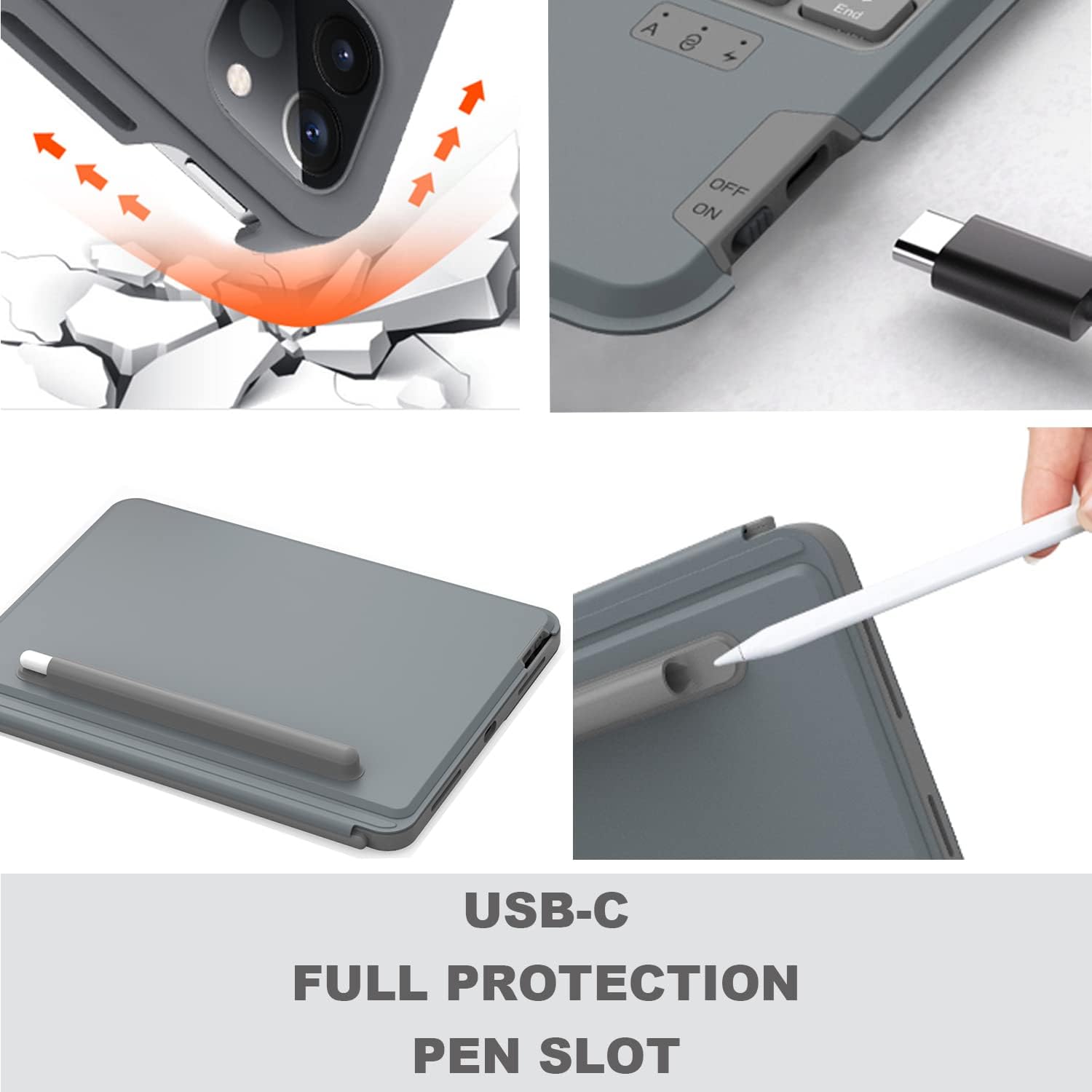
Details on USB-C charging, full protection, and the pen slot.

The keyboard offers extended battery life for prolonged use.
5. Sethaphu Imiyalelo
5.1 Ukushaja ikhibhodi
Before first use, fully charge the keyboard using the provided USB-C cable. Connect the USB-C end to the keyboard's charging port and the other end to a USB power adapter (not included).
5.2 Ukufaka i-iPad Yakho
- Carefully align your iPad with the protective case.
- Gently press the iPad into the case, ensuring all edges are securely fitted.
- Ensure the camera protection cover pieces are correctly placed if applicable for your iPad model.

The keyboard magnetically attaches to the iPad case.
5.3 Ukumatanisa kwe-Bluetooth
- Vula ikhibhodi usebenzisa iswishi yamandla etholakala eceleni.
- Cindezela inkinobho I-Fn + Del keys simultaneously on the keyboard to enter Bluetooth pairing mode. The Bluetooth indicator light will flash.
- Ku-iPad yakho, yiya ku Izilungiselelo > I-Bluetooth bese uvula i-Bluetooth.
- Select "WIWU Keyboard" (or similar name) from the list of available devices.
- Once connected, the Bluetooth indicator light on the keyboard will stop flashing.
6. Iziqondiso Zokusebenza
6.1 Ukusetshenziswa kwekhibhodi
The keyboard functions like a standard QWERTY keyboard. Use it for typing documents, emails, and navigating your iPad.
6.2 Trackpad Gestures
The integrated trackpad supports various multi-touch gestures for efficient navigation:
- Vula Isikhungo Sokulawula: Use one finger to move the pointer to select the status icons at the top right, then click. Alternatively, swipe up with one finger from the bottom right corner.
- View Slide Over: Sebenzisa umunwe owodwa ukuze uswayiphe iphoyinti udlule unqenqema olungakwesokudla lwesikrini. Ukuze ufihle i-Slide Over, swayiphela kwesokudla futhi.
- Skrolela kwesobunxele noma kwesokudla: Swayipha iminwe emibili kwesokunxele noma kwesokudla.

Common trackpad gestures for iPad navigation.
6.3 Ukulungisa Isibani Sangemuva
To adjust the keyboard backlight color and brightness:
- Cindezela inkinobho light bulb icon key to cycle through brightness levels.
- Cindezela Fn + PgUp or Fn + PgDn to change backlight colors.
6.4 Ukulungisa Viewama-engeli
The case features an adjustable kickstand that allows you to set your iPad at various angles between 90° and 135° for optimal viewing and typing comfort.

The kickstand provides flexible viewama-engeli.
6.5 Multiple Usage Modes
The detachable design and adjustable kickstand allow for various modes:
- Imodi Yokuthayipha: iPad attached to the keyboard, propped up for typing.
- ViewImodi yokufaka: Keyboard detached, iPad propped up for watching videos or video calls.
- Sketching/Reading Mode: Keyboard detached, iPad laid flat or held for drawing or reading.

The case supports multiple modes for different activities.

The case allows for both vertical and landscape orientations.
Official video demonstrating the WIWU Detachable Wireless Keyboard Case features and usage.
7. Isondlo
- Ukuhlanza: Sebenzisa okuthambile, damp cloth to clean the case and keyboard. Avoid harsh chemicals.
- Ukunakekelwa kwebhethri: To prolong battery life, avoid fully discharging the keyboard frequently. Charge it regularly.
- Isitoreji: Uma ingasetshenziswa isikhathi eside, gcina ibhokisi lekhibhodi endaweni epholile, eyomile.
8. Ukuxazulula izinkinga
- Ikhibhodi ayixhumi nge-Bluetooth:
- Qinisekisa ukuthi ikhibhodi ishajiwe futhi ivuliwe.
- Qinisekisa ukuthi i-Bluetooth ivuliwe ku-iPad yakho.
- Try re-pairing the keyboard by pressing I-Fn + Del.
- Qala kabusha i-iPad yakho kanye nekhibhodi.
- Trackpad not responding or erratic cursor:
- Ensure the keyboard is fully charged. Low battery can affect trackpad performance.
- Nqamula futhi uxhume kabusha uxhumano lwe-Bluetooth.
- Hlanza indawo ye-trackpad ukuze ususe noma yikuphi ukungcola.
- Check iPad settings for trackpad sensitivity.
- Okhiye abaphenduli:
- Ensure the keyboard is connected and charged.
- Test individual keys. If only some keys are affected, contact support.
9. Imininingwane
| Isici | Imininingwane |
|---|---|
| Ibhrendi | I-WIWU |
| Inombolo Yemodeli | 6936686404181 |
| Ubuchwepheshe bokuxhumana | I-Bluetooth, i-USB (yokushaja) |
| Incazelo Yekhibhodi | Ergonomic |
| Umthombo wamandla | Isebenza Ibhethri |
| Shintsha Uhlobo | I-Scissor-Switch |
| Isakhiwo Sekhibhodi | I-QWERTY |
| Inombolo Yokhiye | 78 |
| Isisindo sento | 400 amagremu |
10. Iwaranti kanye Nokusekela
For any product inquiries, technical assistance, or warranty information, please contact WIWU customer support. WIWU offers 7x24-hour online support to assist you with any issues or questions you may have regarding your keyboard case.
Please refer to your purchase documentation or the official WIWU webindawo yemigomo ethile yewaranti kanye nemininingwane yokuxhumana.