
1. Isingeniso
The OWON SDS1102 is a 2-channel digital storage oscilloscope designed for a wide range of electronic measurement and analysis tasks. It features a 100 MHz bandwidth, a 1 GSa/s real-time sampling rate, and a clear 7-inch TFT-LCD display. This manual provides essential information for setting up, operating, maintaining, and troubleshooting your device, ensuring optimal performance and longevity.

Figure 1: OWON SDS1102 Digital Oscilloscope
2. Ulwazi Lokuphepha
Sicela ufunde futhi uqonde yonke imiyalelo yokuphepha ngaphambi kokusebenzisa idivayisi. Ukwehluleka ukulandela le miyalelo kungabangela ukushaqeka kukagesi, umlilo, noma umonakalo kumkhiqizo.
- Use only the power cord supplied with the device.
- Qinisekisa ukuthi idivayisi isekelwe kahle ukuze kuvinjelwe ukushaqeka kukagesi.
- Ungalusebenzisi ucingo lumanzi noma damp izimo.
- Gwema ukubeka idivayisi endaweni eqondile noma emazingeni okushisa aphezulu.
- Ungaluvuli ucingo casing; dlulisela zonke izinsiza kubasebenzi abaqeqeshiwe.
- Verify probe attenuation settings match the oscilloscope's input settings.
3. Okuqukethwe Kwephakheji
Qinisekisa ukuthi zonke izinto ezibalwe ngezansi zifakiwe kuphakheji yakho:
- OWON SDS1102 Digital Oscilloscope
- Intambo Yamandla
- CD-ROM (containing software and documentation)
- Ikhebula le-USB
- Oscilloscope Probes (2 units)
- Probe Adjustment Tool (screwdriver)
- Incwadi Yomsebenzisi (le dokhumenti)
4. Umkhiqizo Uphelileview
The SDS1102 is designed for efficiency and accuracy in various applications, from electronic circuit debugging to automotive maintenance.
Izici Eziyinhloko:
- Isikrini se-HD LCD: A 7-inch color TFT-LCD with 65535 colors and 800 x 480 pixel resolution provides clear and concise waveform readings. It supports four automatic cursor modes for precise voltage and time difference measurements.
- Okuphakeme SampLing Ling: Equipped with a 1 GSa/s sampling rate, the device allows for detailed waveform capture and analysis. It includes single waveform recording and playback, and supports plug-and-play USB storage devices.
- Powerful System: Features an auto-range function and supports horizontal, vertical, single/multi-waveform tracking. Probe attenuation settings include 1x, 10x, 100x, and 1000x. It offers 30 types of automatic measurement functions and supports LABVIEW communication for secondary development.
- Ukuphatheka: With ultra-thin body design (301 x 152 x 70 mm) and a weight of 1.1 kg, the oscilloscope is highly portable, saving desktop space and operating quietly.

Figure 2: Key features of the SDS1102 Oscilloscope

Figure 3: Compact design and dimensions for portability

Figure 4: Diverse applications of the SDS1102 Oscilloscope
5. Setha
5.1 Ukwenyusa Amandla Okuqala
- Connect the power cord to the oscilloscope and a suitable power outlet.
- Cindezela inkinobho yamandla ukuze uvule idivayisi.
- The 7-inch TFT-LCD display will illuminate, showing the OWON logo and then the main waveform interface.
5.2 I-Probe Calibration
Before taking measurements, it is crucial to calibrate the oscilloscope probes for accurate readings. This process compensates for any slight variations in the probes as supplied.
- Connect a probe to one of the BNC input connectors (e.g., CH1).
- Ensure the probe's attenuation switch (usually on the probe body) is set to 10x.
- Connect the probe tip to the test point, which is a small metal loop located on the bottom right of the oscilloscope's front panel.
- Attach the black grounding alligator clip of the probe to the lower metal loop, which serves as the ground test point.
- Cindezela inkinobho Ukusetha okuzenzakalelayo button on the oscilloscope. The device will automatically adjust settings to display the test signal. The test point outputs a 1 kHz, 5V square wave.
- Observe the waveform on the screen. If it does not appear as a perfect square wave (e.g., rounded corners or overshoot), use the supplied probe adjustment tool (small screwdriver).
- Carefully insert the screwdriver into the compensation screw on the BNC connector of the probe and adjust it until the displayed square wave is clean and flat on top and bottom, with sharp corners. A slight turn (approximately 1/8th) may be sufficient.
- Repeat this process for all probes you intend to use.
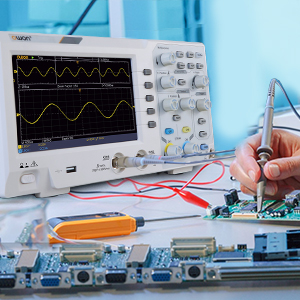
Figure 5: Oscilloscope probe connected to a circuit for testing
6. Iziqondiso Zokusebenza
6.1 Basic Waveform Display
- Xhuma i-probe kusekethe ehlolwayo.
- Lungisa i- Vertical Scale (VOLTS/DIV) futhi Horizontal Scale (SEC/DIV) knobs to get a stable and viewable waveform on the screen.
- Sebenzisa i- Isikhundla knobs to move the waveform vertically or horizontally.
- Cindezela inkinobho Ukusetha okuzenzakalelayo button for automatic waveform optimization.

Figure 6: Auto-range function in action
6.2 Cursor Measurements
The SDS1102 supports four automatic cursor modes for precise measurements.
- Cindezela inkinobho Ikhesa inkinobho.
- Select the desired cursor type (e.g., Voltage, Time) using the menu options.
- Adjust the cursor positions using the multipurpose knob to measure specific points on the waveform.
- The measured values (e.g., ◊V, ◊T) will be displayed on the screen.

Figure 7: Performing cursor measurements
6.3 Automatic Measurements
The oscilloscope offers 30 types of automatic measurements for quick analysis.
- Cindezela inkinobho Kala inkinobho.
- Navigate through the menu to select the desired automatic measurements (e.g., Frequency, Peak-to-Peak Voltage, RMS).
- The selected measurements will be displayed on the screen, updating in real-time.

Figure 8: Automatic measurement display
6.4 Waveform Recording and Playback
The device allows for recording and replaying single waveforms.
- Cindezela inkinobho Londoloza/Khumbula button (or similar function).
- Select the option to record a waveform.
- To replay, select the playback option and choose the desired stored waveform.
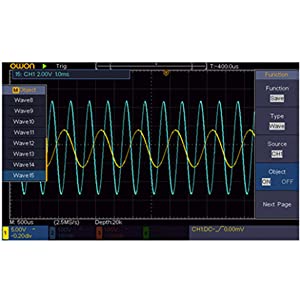
Figure 9: Waveform save and recall menu
6.5 USB Connectivity and PC Control
The SDS1102 supports plug-and-play USB storage devices for saving data and configurations. It also allows for remote communication and control via a computer using the USB interface, with support for LABVIEW and SCPI commands.

Figure 10: USB connection for PC communication and data transfer
7. Isondlo
The OWON SDS1102 is designed for continuous, maintenance-free use under normal operating conditions. However, proper care ensures its longevity and performance.
- Ukuhlanza: Use a soft, dry cloth to clean the exterior of the oscilloscope. For stubborn dirt, a slightly damp cloth with mild detergent can be used, ensuring no liquid enters the device. Do not use abrasive cleaners or solvents.
- Isitoreji: When not in use, store the oscilloscope in a clean, dry environment, away from extreme temperatures and humidity.
- I-Probe Care: Handle probes carefully. Avoid bending or stressing the cables. Keep probe tips clean.
- Ukunakekela Kwangaphakathi: The device does not require user-performed internal maintenance. Do not attempt to open the casing, as this may void the warranty and expose you to electrical hazards.
8. Ukuxazulula izinkinga
If you encounter issues with your OWON SDS1102, refer to the following common troubleshooting steps:
| Inkinga | Imbangela Engenzeka | Isixazululo |
|---|---|---|
| Idivayisi ayivuli. | Power cord not connected; power outlet faulty; device fault. | Check power cord connection. Test power outlet with another device. If problem persists, contact support. |
| Akukho kwakheka kwegagasi okubonisiwe. | Probe not connected; probe faulty; input signal too small/large; incorrect vertical/horizontal settings. | Ensure probes are securely connected. Check probe functionality. Adjust VOLTS/DIV and SEC/DIV. Use Autoset. |
| Waveform is distorted or noisy. | Uncalibrated probe; poor grounding; external interference. | Perform probe calibration (Section 5.2). Ensure proper grounding. Minimize external electromagnetic interference. |
| USB storage not recognized. | USB device format incompatible; faulty USB device/port. | Ensure USB device is formatted correctly (e.g., FAT32). Try a different USB device or port. |
For issues not covered here, please refer to the full manual on the provided CD-ROM or contact OWON customer support.
9. Imininingwane
| Isici | Ukucaciswa |
|---|---|
| Umkhiqizi | OWON |
| Inombolo Yemodeli | OWON-SDS1102 |
| Ubukhulu (L x W x H) | 30.1 x 15.2 x 7 cm |
| Isisindo | 1.67 kg |
| Bonisa | 7-inch Color TFT-LCD, 800 x 480 pixels |
| Iziteshi | 2 |
| Umkhawulokudonsa | 100 MHz |
| Sample Rate | 1 GSa/s |
| Ubude berekhodi | 10K points |
| Rise Isikhathi | ≤1.7 ns |
| I-Probe Attenuation | I-1x, 10x, 100x, 1000x |
| Automatic Measurements | 30 izinhlobo |
| Ukuxhumana | USB (for storage, PC communication) |
| Ukusekelwa Kwesoftware | I-LABVIEW, SCPI |
| Amabhethri afakiwe | Cha |
| Usuku Lokuqala Olutholakalayo | Juni 23, 2022 |

Figure 11: Summary of key technical specifications
10. Iwaranti kanye Nokusekela
OWON products are designed for reliability and performance. For warranty information, please refer to the documentation included on the CD-ROM or visit the official OWON website. Information regarding the availability of spare parts is currently unavailable.
For technical support, product inquiries, or service requests, please contact OWON customer service through their official channels. Keep your purchase receipt and product model number (OWON-SDS1102) handy when contacting support.