
1. Umkhiqizo Uphelileview
The AZZA CSAZ-280B Spectra Black is an ATX Mid Tower gaming case designed to house various computer components. It features a tempered glass side panel and a steel right panel. This manual provides instructions for the proper installation and maintenance of your computer components within this case.

Isithombe 1.1: Ngaphambili-kwesokunxele view of the AZZA CSAZ-280B Spectra Black case, showcasing the tempered glass side panel and the front panel design with integrated RGB lighting.
Izici Eziyinhloko:
- Left Panel: Tempered glass with rubber mounts for secure installation.
- Right Panel: Solid steel panel.
- Motherboard Compatibility: Supports ATX, Micro-ATX, and ITX motherboards.
- Drive Bays: Up to three 2.5" drive bays and up to two 3.5" drive bays.
- Maximum CPU Cooler Height: Up to 170 mm.
- Maximum Video Card Length: Up to 290 mm.
2. Ukusetha kanye nokufakwa kwezingxenye
Follow these steps for proper installation of your computer components into the AZZA CSAZ-280B case. Ensure the system is powered off and unplugged before beginning any installation.
2.1 Ukuxhumeka Kwephaneli Ye-I/O Yangaphambili
The top panel of the case features various input/output ports and controls for convenient access.

Isithombe 2.1: Phezulu phezulu view of the case's front I/O panel, indicating the Power button, LED control button, Audio jacks (Mic and Headphone), two USB 2.0 ports, and one USB 3.0 port.
- Inkinobho yamandla: Cindezela ukuze uvule noma uvale uhlelo.
- Inkinobho ye-LED: Controls the RGB lighting effects of the case.
- Ama-Audio Jacks: Separate ports for microphone and headphones.
- Izimbobo ze-USB 2.0: Two ports for connecting USB 2.0 devices.
- Imbobo ye-USB 3.0: One port for connecting USB 3.0 devices, offering faster data transfer speeds.
2.2 Ukufakwa Kwedrayivu
The case supports both 3.5" HDDs and 2.5" SSDs. Refer to the images below for drive bay locations.

Isithombe 2.2: Ngaphakathi view showing the lower drive cage, capable of holding one 3.5" HDD or one 2.5" SSD, and an additional dedicated 3.5" HDD bay.

Isithombe 2.3: Ngaphakathi view showing two dedicated 2.5" SSD mounting brackets located behind the motherboard tray.
- For 3.5" HDDs: Install drives into the designated 3.5" drive cage located at the bottom front of the case. Secure with screws.
- For 2.5" SSDs: Install drives into the dedicated 2.5" mounting brackets behind the motherboard tray or in the lower drive cage. Secure with screws.
2.3 Ukufakwa Kwamakhadi Ezithombe
Ikesi lisekela amakhadi ezithombe afinyelela ku-290mm ubude.

Isithombe 2.4: Ngaphakathi view illustrating the maximum supported length for a video card, which is 290mm.
- Susa amakhava we-PCI-E slot adingekayo ngemuva kwekesi.
- Carefully insert the graphics card into the PCI-E slot on your motherboard.
- Vikela ikhadi lehluzo ebhokisini ngezikulufo.
2.4 Fan Installation and Airflow
Proper fan placement ensures optimal cooling performance. The case supports various fan configurations:
- Ngaphambili: Supports 3 x 120mm fans or 2 x 140mm fans.
- Phezulu: Supports 2 x 120mm fans.
- Ngemuva: Supports 1 x 120mm fan.
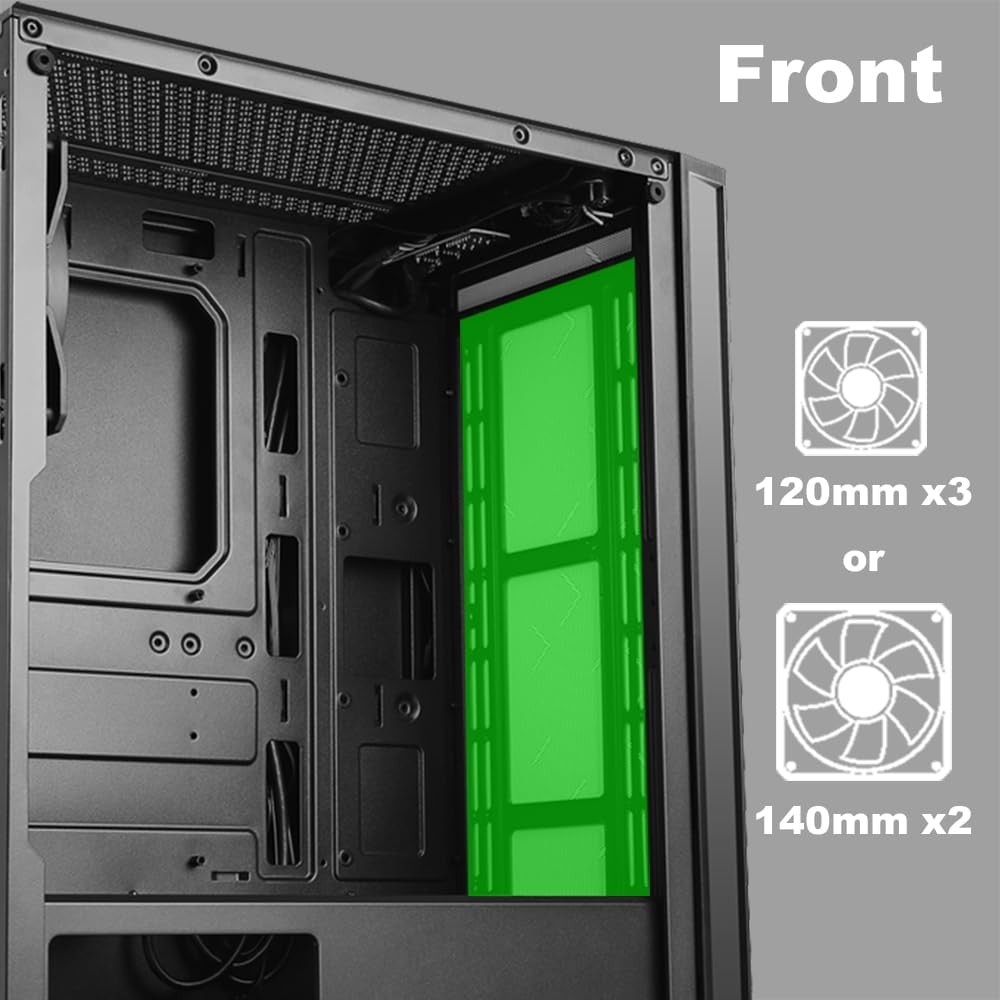
Isithombe 2.5: Ngaphakathi view of the front panel, highlighting the mounting locations for up to three 120mm fans or two 140mm fans.

Isithombe 2.6: Ngaphakathi view of the top panel, showing the mounting locations for up to two 120mm fans.

Isithombe 2.7: Ngaphakathi view of the rear panel, indicating the mounting location for one 120mm fan.
- Identify the desired fan mounting locations (front, top, rear).
- Secure fans to the case using appropriate fan screws.
- Connect fan power cables to the motherboard or a fan controller.
2.5 Ukufakwa Kokunikezwa Kwamandla
The power supply unit (PSU) mounts at the bottom of the case.
- Slide the PSU into the designated compartment at the bottom rear of the case.
- Secure the PSU to the case using screws from the rear.
- Route power cables through the cable management cutouts to reach your components.
3. Iziqondiso Zokusebenza
3.1 Vula/Vala amandla
To power on your system, press the power button located on the top I/O panel. To power off, either shut down through your operating system or press and hold the power button for several seconds.
3.2 Ukulawulwa kwe-LED
Use the dedicated LED button on the top I/O panel to cycle through various lighting modes and colors for the integrated RGB elements of the case.
4. Isondlo
Ukugcinwa njalo kusiza ukuqinisekisa ukusebenza kahle kanye nobude besikhathi sezingxenye ze-PC yakho.
- Ukuhlanza Uthuli: Hlanza izihlungi zothuli kanye nezingxenye zangaphakathi ngezikhathi ezithile usebenzisa umoya ocindezelwe. Qinisekisa ukuthi uhlelo luvuliwe futhi aluxhunyiwe ngaphambi kokuhlanza.
- Ukuphathwa Kwekhebula: Ensure cables are neatly routed to prevent obstruction of airflow and to maintain a clean interior.
- Panel Care: Clean the tempered glass panel with a soft, lint-free cloth and a mild glass cleaner. Avoid abrasive materials.
5. Ukuxazulula izinkinga
Lesi sigaba sikhuluma ngezinkinga ezivamile ongahlangabezana nazo.
- Isistimu Ayisebenzi:
- Verify all power cables (24-pin ATX, 8-pin CPU, GPU power) are securely connected to the motherboard and components.
- Qinisekisa ukuthi inkinobho yokunikezela ugesi isesimweni 'SOVULIWE'.
- Check that the front panel power button cable is correctly connected to the motherboard's front panel header.
- Fans Not Spinning / LEDs Not Lighting Up:
- Confirm fan power cables are properly connected to the motherboard or fan controller.
- Ensure LED cables are correctly connected to the motherboard's RGB header or the case's LED controller.
- Press the LED button on the top I/O panel to cycle through modes or turn on the lighting.
- Amachweba e-USB Angasebenzi:
- Check that the USB 2.0 and USB 3.0 headers from the front panel are correctly plugged into the corresponding ports on your motherboard.
- Audio Jacks Not Working:
- Ensure the HD Audio cable from the front panel is securely connected to the HD Audio header on your motherboard.
6. Imininingwane
Detailed technical specifications for the AZZA CSAZ-280B Spectra Black case.
| Isici | Ukucaciswa |
|---|---|
| Igama Lemodeli | CSAZ-280B SPECTRA BLACK |
| Uhlobo Lwekesi | Mid Mid |
| Ukuhambisana kwe-Motherboard | ATX, Micro-ATX, ITX |
| Okubalulekile | Ipulasitiki, Ingilazi Ethambile |
| Umbala | Mnyama |
| Ubukhulu (L x W x H) | 19.69 x 17.32 x 9.84 amayintshi |
| Isisindo sento | 11 amakhilogremu |
| Ama-Drive Bay angu-2.5" | Kufika ku-3 |
| Ama-Drive Bay angu-3.5" | Kufika ku-2 |
| I-Max CPU Cooler Height | 170 mm |
| Ubude Bekhadi Levidiyo Eliphezulu | 290 mm |
| Izimbobo zangaphambili ze-I / O | 2 x USB 2.0, 1 x USB 3.0, Audio, Mic, Power, LED Control |
| Ukuxhaswa Kwangaphambili Kwabalandeli | 3 x 120mm noma 2 x 140mm |
| Top Fan Support | 2 x 120mm |
| Rear Fan Support | 1 x 120mm |
| Ukufakwa Kwezinto Zamandla | Intaba Ephansi |
7. Iwaranti kanye Nokusekela
7.1 Inqubomgomo Yokubuyisela
This product is subject to a 30-day return policy for refund or replacement, as per the retailer's terms.
7.2 Ukwesekwa Kwezobuchwepheshe
For technical assistance or inquiries regarding your AZZA product, please visit the official AZZA website or contact their customer support channels. You can find more information and contact details by visiting the Isitolo se-AZZA ku-Amazon.