
1. Isingeniso
Thank you for choosing the YunLone 31MP 1080P FHD Kids Digital SLR Camera. This camera is designed to be user-friendly for children aged 5-12, encouraging creativity and exploration through photography. It features a 31MP Sony FHD lens, 1080P/30fps video recording, autofocus, and a durable, child-friendly design. Please read this manual carefully to ensure proper use and to maximize your child's enjoyment of the camera.
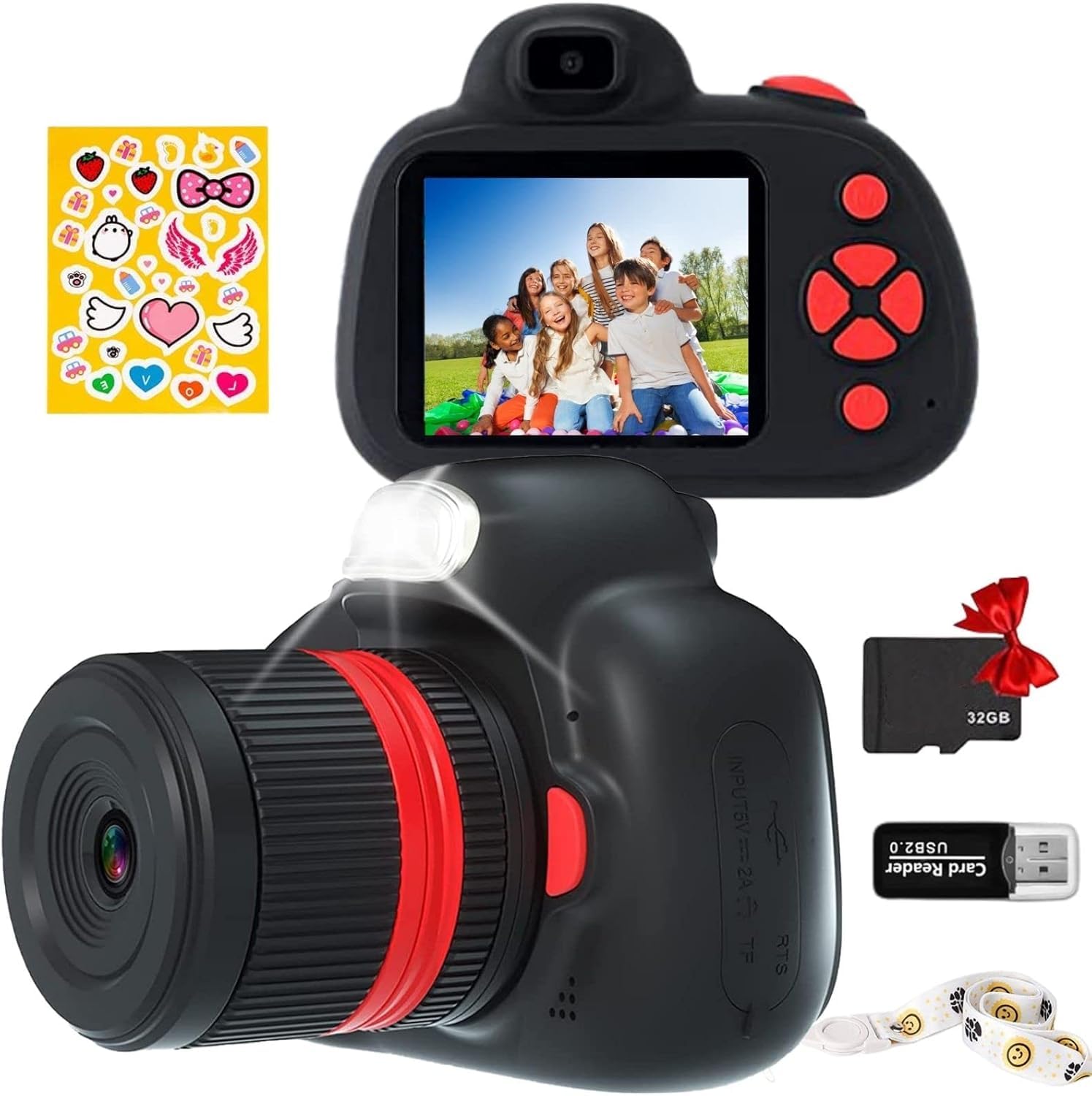
Image: The YunLone Kids Digital SLR Camera, available in black and pink, shown with children enjoying outdoor activities, highlighting its target audience and use case.
2. Izingxenye Zomkhiqizo
Familiarize yourself with the main components of your YunLone Kids Digital SLR Camera.

Isithombe: Kuphelileview of camera features including 1080P video, 28MP resolution, dual cameras, 20x digital zoom, time-lapse, burst shooting, 1200mAh battery, flash, and auto power-off.

Isithombe: Ngemininingwane view highlighting the rotatable digital zoom lens (1.0x-20.0x) and the AF (Autofocus) button on the camera body.
Okuqukethwe Kwephakheji:
- YunLone Kids Digital SLR Camera (Model RM)
- Ikhebula lokushaja le-USB
- 32GB Micro SD Card (pre-installed or included separately)
- Lanyard
- Incwadi Yomsebenzisi (le dokhumenti)
3. Setha
3.1 Ukushaja Ibhethri
The camera is equipped with a 1200mAh rechargeable Lithium-ion battery. Before first use, fully charge the camera.
- Connect the provided USB charging cable to the camera's USB port.
- Xhuma olunye uhlangothi lwekhebula le-USB ku-adaptha yamandla ye-USB ejwayelekile (engafakiwe) noma imbobo ye-USB yekhompyutha.
- Isibani sesikhombisi sokushaja sizokhanya. Uma sesishajwe ngokugcwele, isibani singashintsha umbala noma sicishe.
- A full charge typically provides up to 5 hours of continuous photo taking.
3.2 Ukufaka i-Micro SD Card
A 32GB Micro SD card is included to store photos and videos. Ensure it is correctly inserted before use.
- Locate the Micro SD card slot on the side or bottom of the camera.
- Gently insert the Micro SD card with the metal contacts facing the front of the camera until it clicks into place.
- To remove, gently press the card inward until it clicks, then release, and it will spring out.
3.3 Ukuhlanganisa iLanyard
Attach the lanyard to prevent accidental drops and for easy carrying.
- Thread the thin loop of the lanyard through the designated lanyard hole on the camera body.
- Pass the main strap of the lanyard through the loop and pull tight to secure.
4. Iziqondiso Zokusebenza
4.1 Vula/Vala amandla
- To power on: Press and hold the Power button (usually marked with a power symbol) for a few seconds.
- To power off: Press and hold the Power button again. The camera also features an auto-power-off function after 5 minutes of inactivity to conserve battery.
4.2 Ukuthatha izithombe
- Ukushintsha Amamodi: Use the mode button (if available) or navigation buttons to select photo mode.
- Ukwenza uzimele: Use the 2.4-inch IPS screen to frame your shot. The camera has both front and rear lenses for selfies.
- Ukugxila ngokuzenzakalela: Press the AF button (Autofocus) to ensure the subject is clear. The camera features 1-click autofocus.
- Sondeza: Rotate the zoom lens to adjust the focal length (1x to 20x digital zoom).
- Thwebula: Cindezela inkinobho yokuvala ukuze uthathe isithombe.
- Smile Capture: The camera supports smile capture for automatic photo taking when a smile is detected.
- Ukudubula Okuqothulayo: Activate burst mode for taking multiple photos in quick succession (3 seconds burst).
- Isikhathi: Use the timer function for delayed shots.

Image: Demonstrates the camera's selfie capability and face detection feature, showing a child and adult smiling while taking a photo.

Image: Illustrates the burst shooting function, showing three consecutive frames of children playing soccer, captured by the camera.
4.3 Ukuqopha amavidiyo
- Ukushintsha Amamodi: Select video recording mode.
- Qala Ukuqopha: Press the Shutter button to start recording. The camera records at 1080P/30fps.
- Misa Ukuqopha: Cindezela inkinobho Shutter futhi ukumisa ukurekhoda.
4.4 Using Filters and Frames
The camera includes 32 frames and 6 filters to add creative effects to photos and videos.
- Navigate to the filter/frame menu using the navigation buttons.
- Select your desired filter or frame before taking a photo or recording a video.

Image: The camera screen showing a photo of children with balloons, demonstrating the application of a creative frame or effect.

Isithombe: Examples of different color filters (e.g., sepia, black and white, pink tint) applied to a portrait, showcasing the camera's filter options.
4.5 Playback and Deleting Files
- Enter playback mode to view your captured photos and videos.
- Sebenzisa izinkinobho zokuzulazula ukuze uskrole files.
- To delete an unwanted image or video, select it and follow the on-screen prompts for deletion.
Ukuxhuma kwiKhompyutha
You can transfer photos and videos to a computer using the USB cable.
- Xhuma ikhamera kukhompyutha yakho usebenzisa ikhebula le-USB.
- The camera should appear as a removable disk drive on your computer.
- Open the drive to access and transfer your files.
5. Isondlo
5.1 Ukuhlanza Ikhamera
- Sebenzisa indwangu ethambile neyomile ukuhlanza umzimba wekhamera.
- For the lens and screen, use a specialized lens cleaning cloth. Do not use abrasive cleaners or solvents.
5.2 Isitoreji
- Gcina ikhamera endaweni epholile, eyomile kude nokukhanya kwelanga okuqondile kanye namazinga okushisa aphezulu.
- Ensure the camera is powered off before storing.
5.3 Ukunakekelwa Kwebhethri
- Gwema ukukhipha ibhethri ngokugcwele njalo.
- Uma ugcina isikhathi eside, shaja ibhethri lifike kumthamo ongaba ngu-50%.
6. Ukuxazulula izinkinga
| Inkinga | Imbangela Engenzeka | Isixazululo |
|---|---|---|
| Ikhamera ayivuli. | Low battery; faulty power button. | Charge the battery fully. Ensure the power button is pressed correctly. If issues persist, contact support. |
| Awukwazi ukuthatha izithombe/amavidiyo. | No Micro SD card; Micro SD card full or corrupted. | Insert a Micro SD card. Check available space on the card. Format the card (this will erase all data) or try a different card. |
| Photos are blurry. | Autofocus not engaged; camera movement; dirty lens. | Press the AF button to autofocus. Hold the camera steady. Clean the lens with a soft cloth. |
| Camera turns off automatically too quickly. | Auto-power-off setting. | Check camera settings for auto-power-off duration. The default is 5 minutes of inactivity. |
| Ayikwazi ukuxhuma kukhompuyutha. | Faulty USB cable; incorrect connection. | Try a different USB cable. Ensure the cable is securely connected to both the camera and the computer. Try a different USB port on the computer. |
7. Imininingwane
| Isici | Imininingwane |
|---|---|
| Ibhrendi | I-YunLone |
| Inombolo Yemodeli | RM |
| Isixazululo Esisebenzayo | 28 megapixels |
| Ukulungiswa kwevidiyo | 1080P at 30fps |
| Ilensi yekhamera | Sony FHD Lens |
| I-Autofocus Amaphuzu | 15 |
| Ukusondeza kwedijithali | 20x |
| Usayizi Wesikrini | 2.4 inches LCD (IPS) |
| Ukuzinzisa Isithombe | Idijithali |
| Uhlobo Lwebhethri | 1200mAh Lithium-ion (rechargeable) |
| Ubuchwepheshe bokuxhumana | I-USB |
| Isitoreji | Supports Micro SD card (32GB included) |
| Ubukhulu (L x W x H) | 4.5 x 9.3 x 6.8 cm |
| Isisindo sento | 120 amagremu |
| Izici ezikhethekile | Autofocus, Smile Capture, Burst Shooting, Time-lapse, Built-in Flash, 32 Frames, 6 Filters, Dual Camera (front/rear) |
| Izinga Lokumelana Namanzi | Ayingenwa amanzi |
8. Iwaranti & Ukusekela
8.1 Iwaranti Yomkhiqizo
The YunLone Kids Digital SLR Camera comes with a 12-month warranty from the date of purchase. This warranty covers manufacturing defects and malfunctions under normal use. It does not cover damage caused by misuse, accidents, unauthorized repairs, or normal wear and tear.
Sicela ugcine ubufakazi bakho bokuthenga izimangalo zewaranti.
8.2 Ukwesekwa Kwamakhasimende
For any questions, technical assistance, or warranty claims, please contact YunLone customer support through the retailer where the product was purchased or refer to the contact information provided in the product packaging.
When contacting support, please have your product model (RM) and purchase details ready.