
1. Isingeniso
This manual provides detailed instructions for the setup, operation, and maintenance of your CHERRY DW 9100 Slim Wireless Keyboard and Mouse Set. This rechargeable desktop set offers both 2.4 GHz wireless and Bluetooth connectivity, featuring a slim design and silent keystroke SX Scissor Mechanism for comfortable and efficient use in various environments.

Image 1.1: The CHERRY DW 9100 Slim Wireless Keyboard and Mouse Set, including the USB nano receiver.
2. Okuqukethwe Kwephakheji
Sicela uhlole okuqukethwe kwephakheji lapho ukhipha ibhokisi ukuze uqinisekise ukuthi zonke izingxenye zikhona:
- CHERRY DW 9100 Slim Wireless Keyboard
- CHERRY DW 9100 Slim Wireless Mouse
- I-USB Nano Receiver
- Ikhebuli yokushaja ye-USB-C
- Incwadi Yomsebenzisi (le dokhumenti)
3. Setha
3.1 Ukushaja Amadivayisi
Both the keyboard and mouse are equipped with rechargeable lithium batteries.
- Xhuma ikhebula lokushaja le-USB-C elinikeziwe echwebeni le-USB-C elisekhibhodini kanye negundane.
- Connect the other end of the cable to a powered USB port (e.g., computer, USB wall adapter).
- The status LED on each device will indicate the charging status. A full charge is indicated when the LED changes color or turns off (refer to Section 4.3 for LED indicators).
3.2 Ukuxhuma nge-2.4 GHz Wireless
For a stable and fast wireless connection, use the included USB nano receiver.
- Locate the USB nano receiver.
- Xhuma isamukeli se-USB nano embobeni ye-USB etholakalayo kukhompuyutha yakho.
- On both the keyboard and mouse, locate the connectivity switch. Set the switch to the 2.4 GHz position (often indicated by a receiver icon or "RF").
- Amadivayisi kufanele axhumeke ngokuzenzakalelayo kukhompyutha yakho.
3.3 Ukuxhuma nge-Bluetooth
The set supports Bluetooth connectivity for devices that have Bluetooth capabilities.
- On both the keyboard and mouse, locate the connectivity switch. Set the switch to the I-Bluetooth position (often indicated by a Bluetooth icon).
- On your computer or device, open the Bluetooth settings.
- Initiate the pairing process on your device. The keyboard and mouse should appear in the list of discoverable devices (e.g., "CHERRY DW 9100 Keyboard", "CHERRY DW 9100 Mouse").
- Select each device to pair them. Follow any on-screen prompts, such as entering a pairing code for the keyboard.
Qaphela: The keyboard and mouse can be paired with multiple Bluetooth devices. Use the connectivity switch to toggle between paired devices or 2.4 GHz mode.
4. Iziqondiso Zokusebenza
4.1 Imisebenzi yekhibhodi
The CHERRY DW 9100 Slim Keyboard features a full-size layout with an SX Scissor Mechanism for silent and precise keystrokes.
- Okhiye Abajwayelekile: All standard alphanumeric and symbol keys function as expected.
- Okhiye Bomsebenzi (F1-F12): These keys may have secondary functions (e.g., media control, volume, brightness) accessible by pressing the Fn key simultaneously. Refer to your operating system's settings for specific function key behavior.
- Ikhiphedi Yezinombolo: Provides dedicated number entry.

Isithombe 4.1: I-Side profile of the CHERRY DW 9100 Slim Keyboard, highlighting its thin design.

Image 4.2: Visual representation of the CHERRY SX Scissor Mechanism, responsible for silent and precise keystrokes.
4.2 Imisebenzi yegundane
The CHERRY DW 9100 Slim Mouse features 6 buttons and a scroll wheel for versatile navigation.
- Chofoza Kwesobunxele/Kwesokudla: Izinkinobho zegundane ezijwayelekile.
- Isondo Lokuskrola: For vertical scrolling and as a middle click button.
- Izinkinobho Eziseceleni: Typically used for forward/backward navigation in web iziphequluli.
- Ukushintsha kwe-DPI: A button, usually near the scroll wheel, allows adjustment of the mouse's sensitivity (DPI - Dots Per Inch). Pressing this button cycles through different DPI settings, indicated by the mouse's status LED.

Isithombe 4.3: Phezulu view of the CHERRY DW 9100 Slim Mouse, showing the left/right click buttons, scroll wheel, and DPI switch.
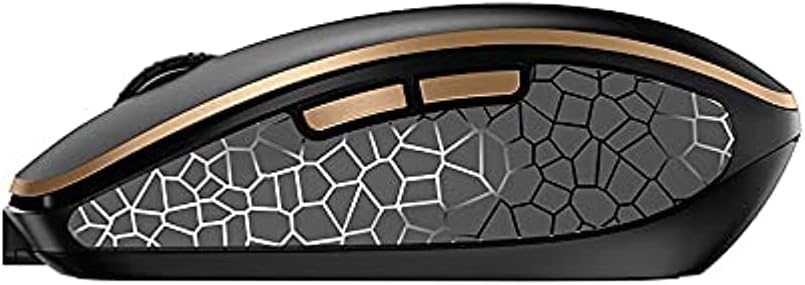
Isithombe 4.4: Uhlangothi view of the CHERRY DW 9100 Slim Mouse, illustrating the ergonomic design and side buttons.
4.3 Isimo se-LED
Both the keyboard and mouse feature status LEDs to provide information on battery level, charging status, and mouse resolution.
- Ibhethri Eliphansi: The LED will flash or illuminate in a specific color (e.g., red) when the battery level is low, indicating that charging is required.
- Iyashaja: The LED will illuminate while charging and typically change color or turn off when fully charged.
- Mouse Resolution (DPI): When adjusting the DPI, the mouse LED may briefly flash to indicate the current setting.
5. Isondlo
5.1 Ukuhlanza
To maintain the performance and appearance of your devices:
- Nqamula amadivayisi kukhompyutha yakho ngaphambi kokuhlanza.
- Sebenzisa indwangu ethambile, engenalinti kancane dampefakwe ngamanzi noma isixazululo esithambile sokuhlanza.
- Gwema ukusebenzisa amakhemikhali anamandla, izihlanzi ezihudulayo, noma izinyibilikisi, ngoba lokhu kungalimaza izindawo.
- Ngekhibhodi, sebenzisa umoya ocindezelwe ukuze ususe uthuli kanye nemfucumfucu phakathi kwezinkinobho.
5.2 Ukunakekelwa Kwebhethri
The integrated lithium batteries are designed for long-term use.
- Shaja kabusha amadivayisi uma kuvela isibonakaliso sebhethri eliphansi.
- Avoid fully discharging the batteries frequently to prolong their lifespan.
- If storing the devices for an extended period, charge them to approximately 50% before storage.
6. Ukuxazulula izinkinga
If you encounter issues with your CHERRY DW 9100 Slim set, refer to the following common solutions:
6.1 Izinkinga zokuxhuma
- No Connection (2.4 GHz):
- Ensure the USB nano receiver is securely plugged into a working USB port.
- Verify the keyboard and mouse connectivity switches are set to the 2.4 GHz isikhundla.
- Zama ukuxhuma umamukeli embobeni ehlukile ye-USB.
- Ensure the devices are sufficiently charged.
- Akukho Ukuxhumana (i-Bluetooth):
- Ensure the keyboard and mouse connectivity switches are set to the I-Bluetooth isikhundla.
- Confirm Bluetooth is enabled on your computer/device.
- Remove previous pairings from your device's Bluetooth settings and attempt to re-pair.
- Ensure the devices are sufficiently charged.
6.2 Power and Charging Issues
- Amadivayisi Angashaji:
- Check that the USB-C charging cable is properly connected to both the device and the power source.
- Try a different USB-C cable or a different USB power source.
- Qinisekisa ukuthi umthombo wamandla uyasebenza.
- Impilo yebhethri emfushane:
- Ensure devices are fully charged before use.
- Battery life can vary based on usage patterns.
6.3 Mouse Tracking Issues
- Inaccurate or No Tracking:
- Qinisekisa ukuthi inzwa yegundane ihlanzekile futhi ayinayo imfucumfucu.
- Use the mouse on a suitable surface (e.g., mouse pad). Highly reflective or transparent surfaces may cause issues.
- Adjust the DPI setting using the DPI switch on the mouse.
7. Imininingwane
| Isici | Imininingwane |
|---|---|
| Inombolo Yemodeli | JD-9100US-2 |
| Ubukhulu bomkhiqizo | 17.32 x 5.12 x 0.59 amayintshi |
| Isisindo sento | 2.35 amakhilogremu |
| Amabhethri | Rechargeable Lithium (USB-C) |
| Ubuchwepheshe bokuxhumana | Bluetooth, 2.4 GHz Radio Frequency (USB) |
| Isici Esikhethekile | Rechargeable, Silent Keystroke (SX Scissor Mechanism) |
| Amadivayisi Ahambisanayo | Ikhompyutha yomuntu siqu |
| Umkhiqizi | OKUSAMATHUNDULUKA |
Note on Batteries: The product description indicates USB-C rechargeable lithium batteries. The specification "1 AA batteries required. (included)" in the source data appears to be a discrepancy. Please rely on the USB-C rechargeable feature for this model.
8. Iwaranti kanye Nokusekela
CHERRY products are manufactured to high-quality standards. For detailed warranty information, including terms and conditions, please refer to the official CHERRY webindawo noma ikhadi lewaranti elifakwe nomkhiqizo wakho.
For technical support, troubleshooting assistance beyond this manual, or to inquire about replacement parts, please visit the official CHERRY support portal or contact their customer service directly.
- Official CHERRY Webindawo: www.cherry.de/zu/ (or regional equivalent)
- Ukwesekwa Kwamakhasimende: Bheka ku- website ngemininingwane yokuxhumana.