
Isingeniso
The Macally BTBLZKEYSG is a full-size backlit Bluetooth keyboard designed specifically for Mac and iOS devices. It features a MacOS-specific layout with 107 scissor-switch keys and 14 convenient shortcuts, enhancing workflow and productivity. This keyboard allows seamless pairing and switching between up to three Bluetooth-enabled devices, including MacBooks, iMacs, iPhones, and iPads. The integrated white LED backlighting offers three adjustable brightness levels for comfortable typing in various lighting conditions. Powered by a built-in 1500mAh rechargeable battery, it provides extended usage time between charges.
Okuqukethwe Kwephakheji
- Macally BTBLZKEYSG Backlit Bluetooth Keyboard
- Ikhebuli yokushaja ye-USB-C
- Incwadi Yeziqondiso
Izici Zomkhiqizo
- Okhiye Basemuva: Crisp white LEDs with 3 brightness levels for typing in low-light environments. Backlight can be turned off.
- MacOS Specific Layout: 107 scissor-switch keys with 14 macOS shortcuts for familiar and efficient use.
- Multi-Device Bluetooth: Easily pair and switch between up to 3 Bluetooth-enabled devices (Mac, iPhone, iPad) within a 30 ft wireless range.
- Ibhethri Elishajwa kabusha: Built-in 1500mAh battery provides 1 to 4 weeks of runtime with backlighting on. USB-C charging cable included.
- Slim and Comfortable Design: Only 0.87 inches thin with an integrated kickstand for ergonomic typing.
Setha
1. Ukushaja Ikhibhodi
Before initial use, fully charge the keyboard. Connect the supplied USB-C charging cable to the keyboard's USB-C port and the other end to a USB power source (e.g., computer USB port, USB wall adapter). The LED indicator will show charging status.
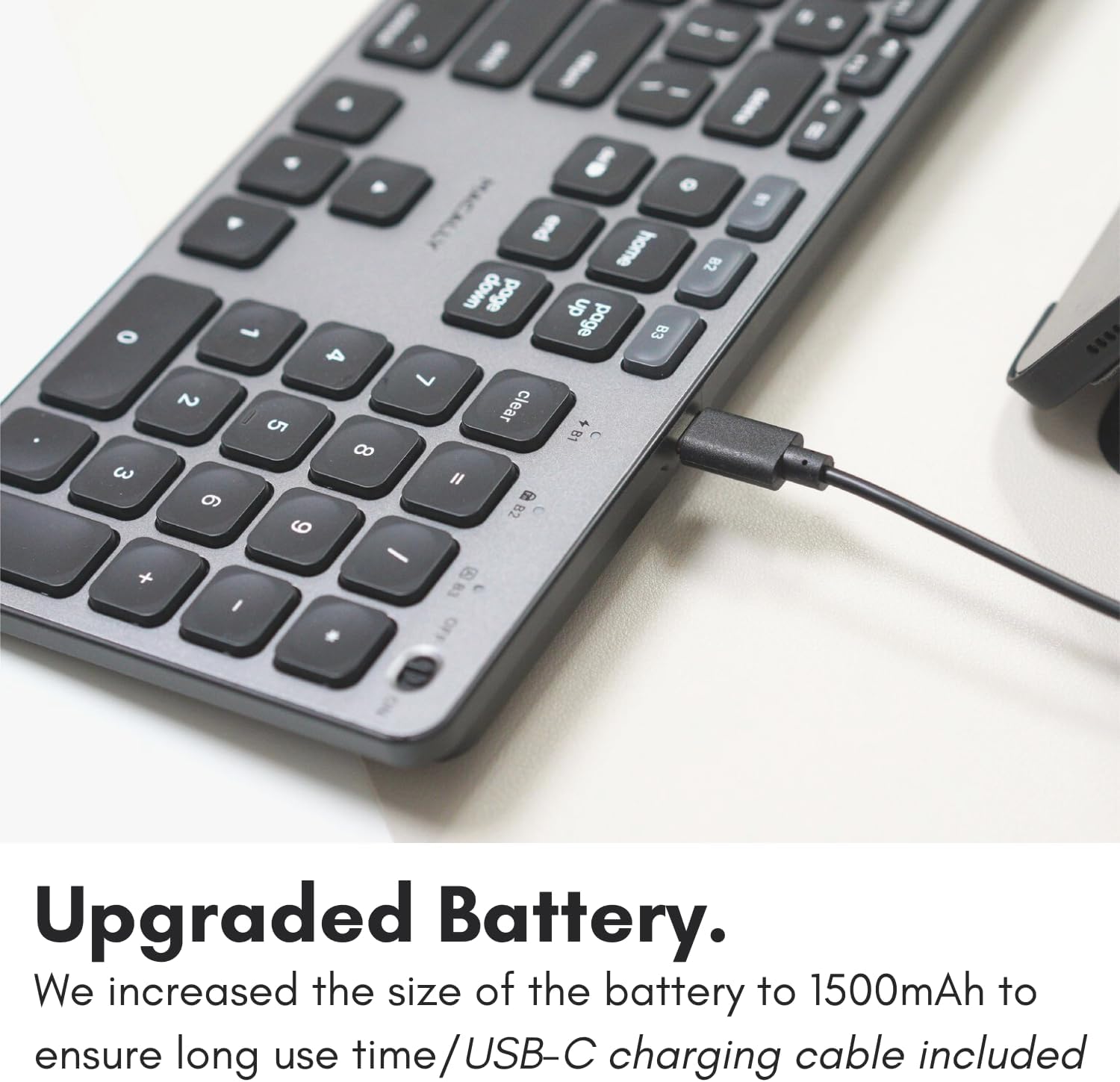
Image: The USB-C charging port on the side of the Macally BTBLZKEYSG keyboard, with the charging cable inserted.
2. Ivula amandla
Locate the power switch on the keyboard, usually on the top right edge. Slide the switch to the 'ON' position.
3. Ukumatanisa nedivayisi
- Qinisekisa ukuthi ikhibhodi ivuliwe.
- Press and hold one of the Bluetooth pairing keys (B1, B2, or B3) for 3-5 seconds until the corresponding LED indicator above the key starts blinking rapidly. This indicates the keyboard is in pairing mode.
- On your Mac or iOS device, go to Izilungiselelo Zesistimu (noma Izintandokazi Zesistimu) > I-Bluetooth.
- Look for "Macally BTBLZKEYSG" (or similar name) in the list of available devices and click/tap to connect.
- If prompted, enter the pairing code displayed on your screen using the keyboard and press Ngena.
- Once connected, the LED indicator for the selected Bluetooth channel will stop blinking and remain solid for a few seconds before turning off.

Image: The Macally BTBLZKEYSG keyboard shown with a MacBook and an iPad, illustrating its multi-device capability.
Imiyalelo yokusebenza
MacOS Specific Keys and Shortcuts
The keyboard features a standard MacOS layout, including function keys (F1-F12) that double as media and system control shortcuts. Use the Fn key in combination with these keys to access their secondary functions.
- Fn+F1: Nciphisa ukukhanya kwesibonisi
- Fn+F2: Khulisa ukukhanya kwesibonisi
- Fn+F3: Ukulawulwa Kwemishini
- Fn+F4: Iphedi yokuqalisa
- Fn+F7: Ithrekhi Edlule
- Fn+F8: Dlala/Misa kancane
- Fn+F9: Ithrekhi Elandelayo
- Fn+F10: Thulisa ivolumu
- Fn+F11: Yehlisa Ivolumu
- Fn+F12: Nyusa Ivolumu
Ukulawula Ukukhanya Kwasemuva
The keyboard's backlight can be adjusted to three brightness levels or turned off completely. Use the dedicated backlight control keys, typically located near the function keys or arrow keys, to cycle through the brightness settings.

Image: The Macally BTBLZKEYSG keyboard with its white LED backlighting illuminated at different intensity levels.
Ukushintsha Phakathi Kwamadivayisi Abhanqiwe
To switch between your paired Bluetooth devices, simply press the corresponding Bluetooth pairing key (B1, B2, or B3) that your device is connected to. The keyboard will automatically connect to the selected device.
Isondlo
Ukuze uqinisekise ukuphila isikhathi eside nokusebenza okuphelele kwekhibhodi yakho, landela le mihlahlandlela yokulungisa:
- Ukuhlanza: Sebenzisa indwangu ethambile, engenalinti kancane dampened with water or a mild cleaning solution to wipe the keyboard surface. Avoid harsh chemicals or abrasive materials.
- Ukususa Uthuli: Sebenzisa umoya ocindezelwe ukususa uthuli nemfucumfucu phakathi kwezikhiye.
- Isitoreji: When not in use for extended periods, store the keyboard in a dry, cool place.
- Gwema Uketshezi: Do not expose the keyboard to excessive moisture or spill liquids on it.
Ukuxazulula inkinga
| Inkinga | Isixazululo |
|---|---|
| Ikhibhodi ayivuli. | Ensure the power switch is in the 'ON' position. Charge the keyboard using the supplied USB-C cable. |
| Keyboard does not pair with device. | Ensure the keyboard is in pairing mode (LED blinking). Check your device's Bluetooth settings to ensure Bluetooth is enabled and the keyboard is visible. Try restarting both the keyboard and your device. |
| Ikhibhodi inqamuka njalo. | Ensure the keyboard is within the 30 ft wireless range of your device. Check for interference from other wireless devices. Ensure the keyboard battery is sufficiently charged. |
| Backlight is not working. | Press the backlight control keys to cycle through brightness levels. Ensure the keyboard battery is charged, as low battery may disable backlighting. |
| Okhiye abaphenduli. | Check the Bluetooth connection. If connected, try restarting the keyboard. Ensure no debris is lodged under the keys. |
Imininingwane
| Isici | Imininingwane |
|---|---|
| Inombolo Yemodeli | BTBLZKEYSG |
| Ukuxhumana | I-Bluetooth, engenantambo |
| Amadivayisi Ahambisanayo | Mac Mini / Pro Studio, iMac, Macbook Air, MacBook Pro, iPhone, iPad |
| Incazelo Yekhibhodi | Backlit Keyboard for Mac |
| Izici ezikhethekile | Backlit, Multi-Device Bluetooth, Rechargeable |
| Umbala | Okumpunga |
| Ukukhanyisa kwangemuva kwekhibhodi | Single Color (White), 3 Brightness Levels |
| Ubukhulu bomkhiqizo | 16.8"L x 4.6"W x 0.87"H |
| Inombolo Yokhiye | 107 |
| Umthombo wamandla | Battery Powered (1500mAh rechargeable) |
| Shintsha Uhlobo | Tactile Scissor Keys |
| Isakhiwo Sekhibhodi | QWERTY (MacOS) |
| Okubalulekile | I-Aluminium |
| I-UPC | 701107500362 |
Ividiyo Yomkhiqizo Esemthethweni
Ividiyo: Kuphelileview of the Macally Backlit Bluetooth Keyboard for Mac & iOS, highlighting its features and compatibility.
Iwaranti kanye Nokusekela
The Macally BTBLZKEYSG Backlit Bluetooth Keyboard comes with a warranty of up to two years. For technical support, warranty claims, or further assistance, please visit the official Macally webisayithi noma uxhumane nomnyango wabo wesevisi yamakhasimende.