
1. Isingeniso
This instruction manual provides detailed guidance for the installation, operation, and maintenance of your Beghelli Dom-e Wi-Fi Full HD Pan/Tilt Surveillance Camera. Please read this manual thoroughly before using the product to ensure proper functionality and safety. Keep this manual for future reference.

Figure 1: Beghelli Dom-e Wi-Fi Full HD Pan/Tilt Surveillance Camera.
2. Umkhiqizo Uphelileview
The Beghelli Dom-e Wi-Fi Camera is a versatile surveillance device designed for indoor use, offering Full HD 1080p resolution and comprehensive monitoring capabilities. It integrates seamlessly into your smart home system via the Dom-e Beghelli application.
Izici Eziyinhloko:
- Ukulungiswa Okugcwele kwe-HD 1080p: Inikeza i-foo yevidiyo ecacile neningilizayotage.
- Ukusebenza kwePan kanye ne-Tilt: Motorized rotation of 355° horizontally and 85° vertically, controllable via the app.
- Umbono Wasebusuku: Equipped with IR LEDs for clear visibility up to 10 meters in low-light conditions.
- Ukutholwa kokunyakaza: Sends real-time push notifications to your smartphone upon detecting movement, including specific person detection.
- Ukulandelela Okuzenzakalelayo: The "Tracking" function enables the camera to automatically follow moving subjects.
- Umsindo Wendlela Embili: Built-in microphone and speaker allow for hands-free communication.
- Izinketho Zokuqopha Eziguquguqukayo: Record directly to your smartphone, to a MicroSD card (up to 128GB, not included), or via optional cloud storage.
- Ukuxhumana kwe-Wi-Fi: Connects to your home Wi-Fi network (2.4 GHz).
- Ukubethelwa Kwedatha: Ensures the security of your video data.
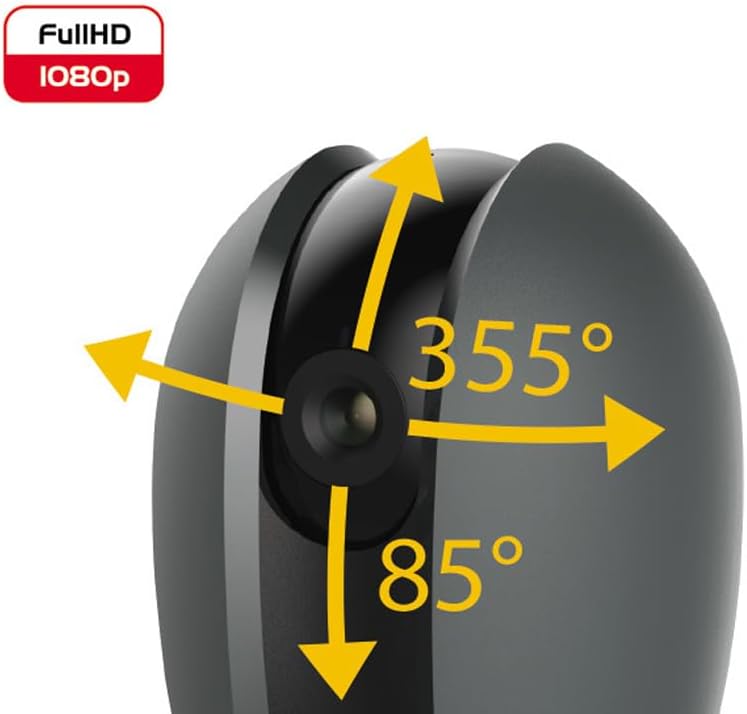
Figure 2: Camera's pan and tilt capabilities.
3. Okuqukethwe Kwephakheji
Qinisekisa ukuthi zonke izinto zikhona kuphakheji:
- Beghelli Dom-e Wi-Fi Full HD Pan/Tilt Surveillance Camera
- USB Power Adapter (230V – DC 5V/1A)
- Mounting accessories (if included, not explicitly listed but implied by "wall or ceiling installation")
- Incwadi Yokufundisa (le dokhumenti)

Figure 3: Product packaging for the Beghelli Dom-e Camera.
4. Setha
4.1 Ukunika Ikhamera Amandla
- Connect the provided USB power adapter to the camera's power input.
- Plug the adapter into a standard 230V power outlet. The camera will power on and initiate its startup sequence.
4.2 Ukufakwa Kwesicelo Seselula
The Beghelli Dom-e camera is controlled via the dedicated "Dom-e Beghelli" mobile application.
- Download the "Dom-e Beghelli" app from the Apple App Store (for iOS 8.0 or later) or Google Play Store (for Android 4.2 or later).
- Faka uhlelo lokusebenza ku-smartphone noma ithebhulethi yakho.
- Bhalisela i-akhawunti entsha noma ngena uma usunayo.
4.3 Connecting to Wi-Fi and Pairing
Ensure your Wi-Fi network is 2.4 GHz (IEEE802.11 b/g/n). The camera does not support 5 GHz networks.
- Open the Dom-e Beghelli app and follow the on-screen instructions to add a new device.
- Select the Beghelli Dom-e camera from the list of available devices.
- Enter your Wi-Fi network name (SSID) and password when prompted.
- The app will guide you through the pairing process, which typically involves scanning a QR code displayed on your phone with the camera, or listening for an audio prompt.
- Once successfully paired, the camera's status indicator will change, and you will see the live feed in the app.

Figure 4: Simplified setup steps via the Dom-e Beghelli app.
4.4 Ukufaka Ikhamera
The camera can be installed on a wall or ceiling. Choose a location that provides the desired viewi-engeli yokuxhuma futhi ingaphakathi kwenethiwekhi yakho ye-Wi-Fi kanye nendawo yokukhipha ugesi.
- Mark the drilling points on the desired surface using the mounting template (if provided).
- Bopha imigodi bese ufaka amapulagi odonga uma kudingeka.
- Secure the mounting bracket (if provided) to the surface.
- Namathisela ikhamera kubakaki bokukhweza.
- Adjust the camera's angle manually or via the app after installation.
5. Iziqondiso Zokusebenza
5.1 Bukhoma View kanye Nokulawula Kwe-Pan/Tilt
- Open the Dom-e Beghelli app and select your camera to view okuphakelayo bukhoma.
- Use the directional controls within the app to pan the camera horizontally (355°) and tilt it vertically (85°) to adjust the viewindawo.
5.2 Ukutholwa Kokunyakaza kanye Nezaziso
- Navigate to the camera settings in the app to enable motion detection.
- Configure sensitivity levels and detection zones as needed.
- Enable push notifications to receive alerts on your smartphone when motion is detected.
- The camera also features person detection for more accurate alerts.
5.3 Umsindo Wendlela Embili
- Ngenkathi viewing the live feed, tap the microphone icon in the app to speak through the camera's speaker.
- The camera's built-in microphone will capture audio from the monitored area, allowing you to listen in.
5.4 Ukuqopha kanye Nokugcina
- MicroSD Card Recording: Insert a MicroSD card (up to 128GB, not included) into the camera's slot for continuous recording or event-triggered recording.
- Smartphone Recording: You can manually record video clips directly to your smartphone while viewing the live feed.
- Isitoreji Samafu: An optional cloud storage service is available via subscription for off-site video backup. Refer to the app for details.
- Ukuqopha Okuhleliwe: Set up specific times for the camera to record automatically through the app settings.
5.5 Umbono Wasebusuku
The camera automatically switches to night vision mode in low-light conditions, utilizing its IR LEDs to provide clear black-and-white footagkuze kufike kumamitha ayi-10.
6. Mobile Application (Dom-e Beghelli App)
The Dom-e Beghelli app is the central control interface for your camera and other compatible smart home devices. It allows for:
- Remote control of camera pan and tilt.
- Access to live video feed and recorded footage.
- Configuration of motion detection, notifications, and recording schedules.
- Ukuxhumana okubili okulalelwayo.
- Integration with other Dom-e smart home devices (e.g., alarms, smart plugs, lighting).
- Voice control compatibility with Google Assistant and Amazon Alexa (if associated with a compatible smartphone).

Figure 5: The Dom-e Beghelli app interface for camera control.
7. Imininingwane
| Isici | Ukucaciswa |
|---|---|
| Inombolo Yemodeli | 60021 |
| Isixazululo | Full HD 1080p (2 Megapixels) |
| Inzwa | CMOS 1/2.9" |
| Ilensi | 3.6 mm / f2.0 / 105° |
| Isivinini seShutter | 1/25 - 1/100,000 sec |
| I-Pan Rotation | 355° Evundlile |
| Ukuphenduka kwe-Tilt | 85° Iqondile |
| Ibanga Lombono Wasebusuku | Up to 10 meters (IR LEDs) |
| Umsindo | Two-way, hands-free (in/out) |
| Isitoreji | MicroSD card up to 128GB (not included), Smartphone, Cloud (optional subscription) |
| I-Wi-Fi ejwayelekile | IEEE802.11 b/g/n (2.4 GHz) |
| I-Frequency Band | 2.4 GHz - 2.4835 GHz |
| Okokufaka Amandla | 230V – DC 5V/1A (USB adapter included) |
| Ukusetshenziswa Kwamandla Okukhulu | 4.5 W |
| Ubukhulu (L x W x H) | 63 x 58 x 96 mm (Product description) / 7 x 7 x 11 cm (Specifications) |
| Isisindo | awu 330g |
| Okubalulekile | Ipulasitiki |
| Ukuhambisana Kwesistimu Esebenzayo | Apple iPhone iOS 8.0 or later / Android 4.2 or later |
| Ukusetshenziswa Okunconyiwe | Ukuphepha Kwangaphakathi |
Note: Some dimensions may vary slightly between product description and specifications list.
8. Isondlo
8.1 Ukuhlanza
- Qinisekisa ukuthi ikhamera icishiwe futhi ayixhunyiwe ngaphambi kokuhlanza.
- Sebenzisa indwangu ethambile neyomile ukusula umzimba wekhamera.
- Ukuze uthole ilensi, sebenzisa indwangu yokuhlanza ilensi ekhethekile ukuze ugweme ukuklwebheka.
- Ungasebenzisi izihlanzi zoketshezi, ama-aerosol, noma izinyibilikisi ezihudulayo.
8.2 Ukuvuselelwa Kwesoftware
Periodically check the Dom-e Beghelli app for firmware updates. Keeping your camera's firmware updated ensures optimal performance, security, and access to new features.
9. Ukuxazulula izinkinga
| Inkinga | Isixazululo |
|---|---|
| Ikhamera ayivuliwe | Ensure the USB power adapter is securely connected to the camera and a working power outlet. Verify the outlet has power. |
| Ayikwazi ukuxhuma ku-Wi-Fi |
|
| Akukho okuphakelayo kwamavidiyo abukhoma |
|
| Ukutholwa kokunyakaza akusebenzi |
|
| Cannot reconnect after Wi-Fi password change | If your Wi-Fi password changes, you will likely need to reset the camera and re-pair it with the app using the new Wi-Fi credentials. Refer to the app for device reset instructions. |
10. Iwaranti kanye Nokusekela
For warranty information and technical support, please refer to the documentation provided with your purchase or contact Beghelli customer service directly. You can typically find contact details on the Beghelli official website or within the Dom-e Beghelli application.
Manufacturer: Beghelli
Imodeli: 60021