
MERCUSYS MR50G
Mercusys MR50G AC1900 Dual-Band Wi-Fi 5 Router User Manual
Model: MR50G
Isingeniso
This manual provides comprehensive instructions for setting up, operating, maintaining, and troubleshooting your Mercusys MR50G AC1900 Dual-Band Wi-Fi 5 Router. The MR50G is designed to deliver high-speed wireless connectivity with AC1900 speeds, Gigabit Ethernet ports, and advanced features like MU-MIMO and Beamforming.

Isithombe: Ngaphambili view of the Mercusys MR50G router, illustrating its dual-band capabilities with 5GHz (1300 Mbps) and 2.4GHz (600 Mbps) speeds.
Umhlahlandlela Wokusetha
1. Okuqukethwe Kwephakheji
Qinisekisa ukuthi iphakheji yakho iqukethe izinto ezilandelayo:
- Mercusys MR50G AC1900 Dual-Band Wi-Fi 5 Router
- I-adaptha yamandla
- Ikhebula le-Ethernet
- Quick Installation Guide (User Guide)
2. Ukuxhumana ngokomzimba
Landela lezi zinyathelo ukuze uxhume irutha yakho:
- Cisha ugesi: Disconnect the power from your modem and router (if applicable).
- Connect Modem to Router: Connect one end of the provided Ethernet cable to the WAN port (usually blue) on your MR50G router and the other end to your modem's Ethernet port.
- Xhuma Amadivayisi (Ngokuzithandela): For wired connections, connect your computer or other devices to the LAN ports (yellow) on the MR50G router using Ethernet cables.
- Vula: Connect the power adapter to the router's power port and plug it into a power outlet. Power on your modem, then power on the MR50G router.
- Wait for Indicators: Wait for the router's LED indicators to stabilize. The Power LED should be solid green.
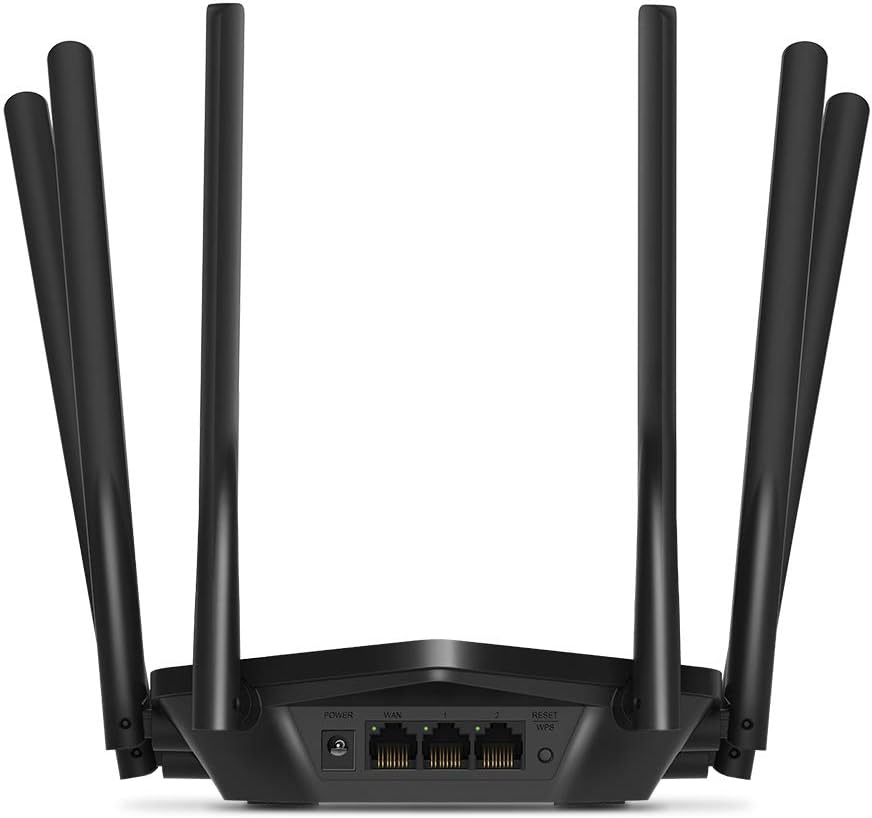
Isithombe: Emuva view of the Mercusys MR50G router, illustrating the power input, WAN port (blue), and three LAN ports (yellow) for wired connections, along with the Reset/WPS button.
3. Ukucushwa Kwasekuqaleni
Ukuze ulungiselele irutha yakho okokuqala ngqa:
- Xhuma ku-Wi-Fi: Connect your computer or mobile device to the router's default Wi-Fi network (SSID and password are typically printed on a label on the bottom of the router).
- Ukufinyelela Web Isixhumi esibonakalayo: Vula a web isiphequluli kanye nohlobo
mwlogin.netor192.168.1.1kubha yekheli. - Create Login Password: Follow the on-screen instructions to create a login password for the router's management page.
- Follow Quick Setup: The Quick Setup wizard will guide you through basic internet and wireless settings.
Imiyalelo yokusebenza
1. Basic Wi-Fi Settings
Ngemva kokungena ku- web isixhumi esibonakalayo:
- Igama lenethiwekhi (SSID): Navigate to the Wireless settings to change your Wi-Fi network names (SSIDs) for both 2.4 GHz and 5 GHz bands.
- Iphasiwedi: Set a strong, unique password for your Wi-Fi networks. The MR50G supports WPA3 for enhanced security.
- Uhlobo lokuphepha: It is recommended to use WPA2-PSK/WPA3-Personal for optimal security.
2. Dual-Band Operation
The MR50G operates on two frequency bands:
- 2.4 GHz: Inikeza ukumbozwa okubanzi kanye nokungena okungcono ngezindonga, kulungele ukusetshenziswa kwe-inthanethi okuvamile namadivayisi amadala.
- 5 GHz: Offers faster speeds and less interference, ideal for bandwidth-intensive activities like 4K streaming and online gaming, but with a shorter range.
You can configure separate SSIDs for each band or use Smart Connect to combine them into a single SSID, allowing the router to automatically assign devices to the optimal band.
3. Access Point Mode
To use the MR50G as an Access Point (AP) to extend an existing wired network:
- Xhuma: Connect an Ethernet cable from your existing router's LAN port to one of the MR50G's LAN ports (not the WAN port).
- Lungiselela: Log into the MR50G's web interface, navigate to the Operation Mode settings, and select "Access Point Mode". Follow the prompts to complete the setup.
4. Izici Ezithuthukile
- MU-MIMO: Multi-User, Multiple-Input, Multiple-Output technology allows the router to communicate with multiple devices simultaneously, improving network efficiency.
- I-Beamforming: Focuses Wi-Fi signals towards connected devices, enhancing signal strength and range.
- Ukusekelwa kwe-VPN: The router supports VPN functionality, allowing for secure remote access or connection to VPN services. Refer to the router's web interface for specific VPN client/server configurations.
- Izilawuli Zomzali: Manage and restrict internet access for specific devices or users.
- Inethiwekhi yezivakashi: Dala inethiwekhi ehlukile ye-Wi-Fi yezivakashi, ugcine inethiwekhi yakho eyinhloko ivikelekile.
Isondlo
1. I-Firmware Updates
Regularly check for and install firmware updates to ensure optimal performance, security, and access to new features. Firmware updates can typically be found in the router's web interface under System Tools or Advanced settings.
2. Resetting the Router
If you encounter persistent issues or forget your login password, you may need to reset the router to its factory default settings:
- With the router powered on, press and hold the Reset/WPS button on the back panel for approximately 5-10 seconds until the LED indicators flash.
- Release the button and wait for the router to restart. All settings will be restored to factory defaults.
3. Ukubekwa Okufanelekile
For the best Wi-Fi coverage and performance:
- Place the router in a central location in your home or office.
- Avoid placing it near obstructions like thick walls, metal objects, or large appliances (microwaves, refrigerators) that can interfere with Wi-Fi signals.
- Elevate the router if possible, as Wi-Fi signals tend to spread downwards.

Image: Mercusys MR50G router positioned on a table, demonstrating a typical placement for optimal signal distribution within a living space.
Ukuxazulula inkinga
1. Akukho Ukufinyelela i-inthanethi
- Hlola Ukuxhumana: Qinisekisa ukuthi zonke izintambo ze-Ethernet zixhunywe ngokuphephile kuma-port afanele (i-WAN kuya ku-modem, i-LAN kuya kumadivayisi).
- Qala kabusha Amadivayisi: Power cycle your modem, then the router, and then your connected devices.
- Check WAN LED: Verify that the WAN LED on the router is lit, indicating a connection to the modem.
- Isimo se-ISP: Xhumana Nomhlinzeki Wesevisi Ye-inthanethi (ISP) yakho ukuze uqinisekise ukuthi ayikho isevisi yakhotagendaweni yangakini.
2. Slow Wi-Fi Speeds
- Ukubekwa komzila: Ensure the router is placed optimally (refer to "Optimal Placement" section).
- Ukuphazamisa: Move the router away from other electronic devices that may cause interference.
- Ukukhethwa kwebhendi: For speed-critical applications, ensure your device is connected to the 5 GHz band.
- Ukuthuthukisa Isiteshi: Ku-router web interface, try changing the Wi-Fi channel for both 2.4 GHz and 5 GHz bands to a less congested one.
- I-Firmware: Qinisekisa ukuthi i-firmware yerutha yakho isesikhathini.
3. Cannot Access Router Management Page
- Ikheli le-IP: Ensure you are using the correct address (
mwlogin.netor192.168.1.1). - Uxhumano Lwezintambo: Try accessing the page from a computer connected directly to the router via an Ethernet cable.
- Sula Inqolobane Yesiphequluli: Sula eyakho web i-cache nama-cookies esiphequluli, noma zama isiphequluli esihlukile.
- I-Firewall/I-Antivirus: Khubaza okwesikhashana noma iyiphi i-firewall noma isofthiwe ye-antivirus kukhompyutha yakho engase ivimbele ukufinyelela.
- Setha kabusha Umzila: If all else fails, perform a factory reset (refer to "Resetting the Router" section).
Imininingwane
| Imodeli | MR50G (EU) |
| Amazinga Angenantambo | IEEE 802.11a / b / g / n / ac |
| Imvamisa | 2.4 GHz and 5 GHz (Dual-Band) |
| Isilinganiso Sedatha | I-AC1900 (600 Mbps ku-2.4 GHz, 1300 Mbps ku-5 GHz) |
| Izimbobo ze-Ethernet | Imbobo ye-WAN ye-Gigabit engu-1x, amambobo e-LAN e-Gigabit angu-3x |
| Izimpondo | 6x Fixed Omni-Directional Antennas |
| Ezokuphepha | WPA-PSK / WPA2-PSK / WPA3-Personal |
| Ubukhulu (W x D x H) | 15.72 x 17.56 x 4.5 cm |
| Isisindo | 450 g |
| Izici ezikhethekile | MU-MIMO, Beamforming, Access Point Mode, VPN Support, Parental Controls, Guest Network |
| Okokufaka Amandla | 100-240V ~ 50/60Hz |
Iwaranti kanye Nokusekela
Mercusys products come with a limited warranty. For detailed warranty information, please refer to the warranty card included with your product or visit the official Mercusys webindawo.
For technical support, firmware updates, and additional resources, please visit the Mercusys support website. You can typically find contact information and FAQs there.
Official Mercusys Webindawo: www.inolobi.com