
Isingeniso
This manual provides essential information for the proper setup, operation, and maintenance of your Philips 346B1C Curved Monitor. This 34-inch WQHD (3440 x 1440) display features a 100 Hz refresh rate, 5ms response time, and a curved VA panel for an immersive viewing experience. Key features include USB-C docking, MultiView functionality, FreeSync technology, LowBlue Mode, and FlickerFree technology for enhanced user comfort and productivity.

Isithombe: Ngaphambili view of the Philips 346B1C curved monitor, showcasing its ultrawide display and key features like WQHD, USB-C Docking, and MultiView.
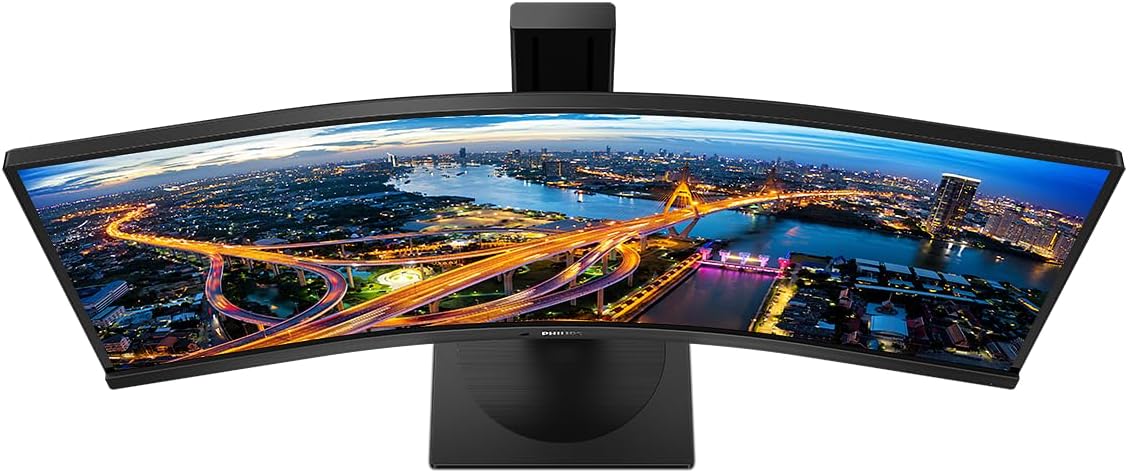
Isithombe: Phezulu phansi view of the Philips 346B1C curved monitor, emphasizing the curvature of the screen.
Yini EseBhokisini
Qinisekisa ukuthi zonke izingxenye zikhona ngaphambi kokuqhubeka nokusetha.
- Philips 346B1C Curved Monitor
- I-Monitor Stand (Isisekelo nentamo)
- Ikhebula Lamandla
- Ikhebula le-HDMI
- Ikhebula le-DisplayPort
- Ikhebula le-USB-C kuya ku-USB-C
- USB-A to USB-B Cable (Upstream)
- Documentation (Quick Start Guide, User Manual CD)
Setha Imiyalelo
1. Ukuhlanganisa Isitendi
- Beka i-monitor ibheke phansi endaweni ethambile, ehlanzekile ukuvimbela imihuzuko.
- Namathisela intamo yokuma kuphaneli yokuqapha. Qinisekisa ukuthi ichofoza ngokuvikelekile endaweni noma iboshelwe ngezikulufo uma ihlinzekiwe.
- Attach the stand base to the stand neck. Tighten the thumb screw or screws from the bottom of the base.

Isithombe: Emuva view of the Philips 346B1C monitor, showing the stand attachment point and VESA mounting holes.
2. Ixhuma kukhompyutha yakho
Xhuma imonitha kukhompyutha yakho usebenzisa enye yezindlela ezilandelayo:
- Uxhumano lwe-HDMI: Xhuma indawo eyodwa yekhebula ye-HDMI embobeni ye-HDMI yomqaphi bese enye ekugcineni kokuphumayo kwe-HDMI yekhompyutha yakho.
- I-DisplayPort Connection: Connect one end of the DisplayPort cable to the monitor's DisplayPort and the other end to your computer's DisplayPort output.
- Uxhumano lwe-USB-C: Connect one end of the USB-C cable to the monitor's USB-C port and the other end to your computer's USB-C port. This connection supports video, data, and power delivery (up to 90W) to your laptop.
For USB hub functionality, connect the USB-A to USB-B upstream cable from your computer to the monitor's USB-B upstream port.
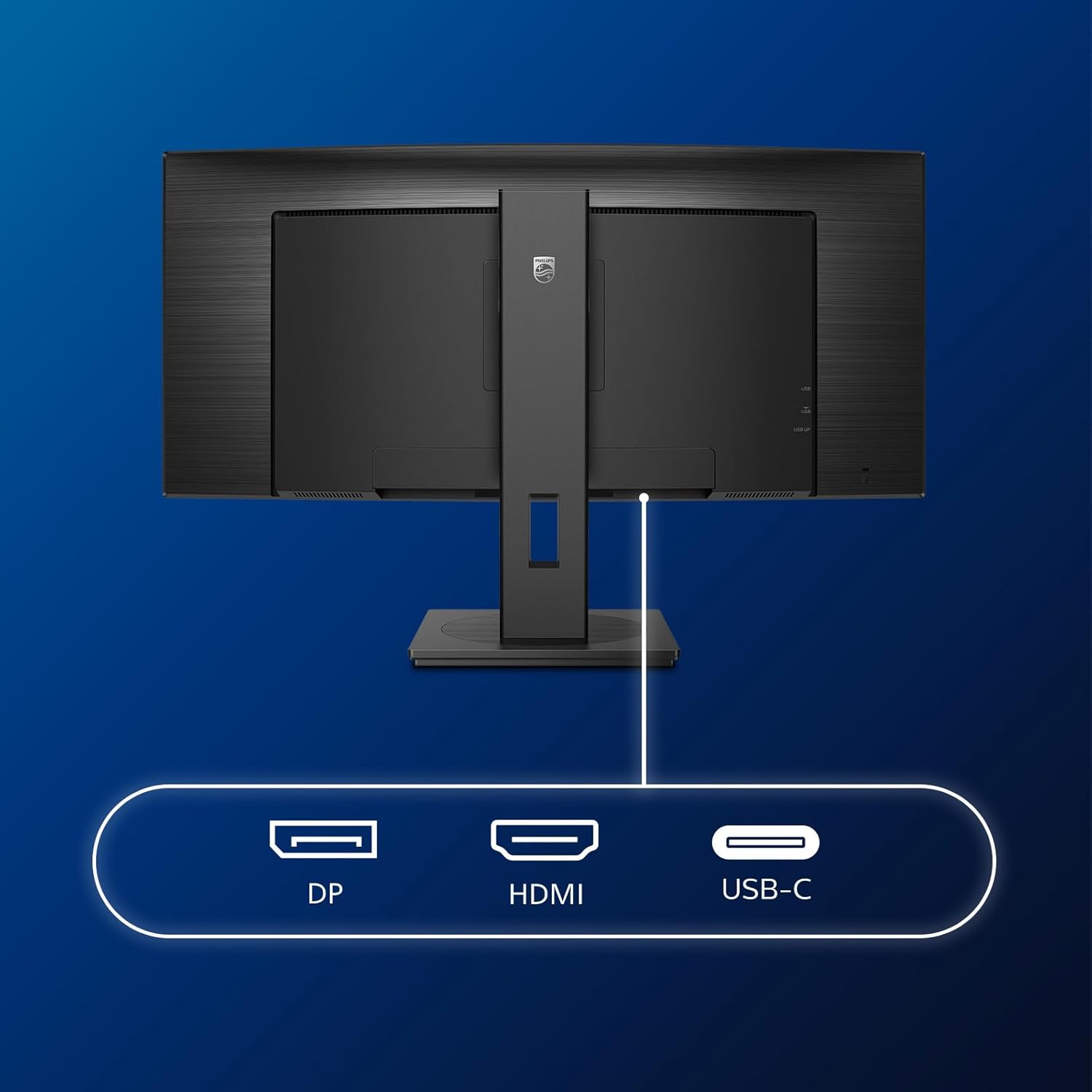
Isithombe: Ngemininingwane view of the monitor's input ports, including DisplayPort (DP), HDMI, and USB-C, for connecting to various devices.
3. Ukuxhunywa kwamandla
Xhuma ikhebula likagesi kokufakwayo kwamandla kwemonitha bese uxhuma endaweni yokukhipha ugesi engaphansi komhlaba.
4. Amandla Okuqala Avuliwe
Press the power button located on the monitor to turn it on. The monitor should automatically detect the input signal. If not, use the On-Screen Display (OSD) menu to select the correct input source.
Imiyalelo yokusebenza
Imenyu yokubonisa okusesikrinini (OSD).
The OSD menu allows you to adjust various monitor settings. Use the joystick control located on the back or bottom of the monitor to navigate the menu.
- Ukukhanya/Ukugqama: Lungisa ukukhanya okuphelele nokungafani kwesibonisi.
- Izilungiselelo zombala: Lungisa izinga lokushisa lombala, i-gamma, kanye nesikhala sombala.
- Okokufaka Khetha: Shintsha ngesandla phakathi kokufaka kwe-HDMI, i-DisplayPort, kanye ne-USB-C.
- Umsindo: Adjust volume or mute the built-in speakers.
- Imodi Yesithombe: Select from preset picture modes (e.g., Standard, Gaming, Text).
OkuningiView Ukusebenza
I-MultiView feature allows you to connect and view content from two different sources simultaneously on the screen. Access this feature through the OSD menu to select Picture-by-Picture (PbP) or Picture-in-Picture (PiP) modes and configure input sources.
I-USB-C Docking
When connected via USB-C, the monitor acts as a docking station, providing video, data transfer through its integrated USB hub, and power delivery to charge your connected laptop (up to 90W).
SmartErgoBase and Adjustability
The monitor's SmartErgoBase allows for ergonomic adjustments including height, swivel, and tilt to optimize your viewinduduzo.

Image: Illustrations demonstrating the monitor's adjustable features, including height adjustment, tilt, and swivel capabilities for ergonomic positioning.
Eye Comfort Izici
- Imodi e-LowBlue: Reduces harmful shortwave blue light emissions to prevent eye strain. Activate this mode via the OSD menu.
- FlickerFree Technology: Regulates brightness and reduces flicker for more comfortable viewing. This feature is always active.
- PowerSensor & LightSensor: These sensors automatically adjust monitor brightness based on ambient light conditions and user presence, saving energy and reducing eye strain.
Isondlo
Ukuhlanza iMonitha
- Njalo khipha i-monitor ngaphambi kokuhlanza.
- Sebenzisa indwangu ethambile, engenantambo kancane dampifakwe ngamanzi noma isicoci sesikrini esithambile esingaqhumi.
- Do not use alcohol, solvents, or ammonia-based cleaners, as these can damage the screen surface.
- Sula isikrini kahle ukuze ususe uthuli nama-smudges.
- Hlanza i-monitor casing ngendwangu ethambile, eyomile.
Ukunakekelwa Okujwayelekile
- Gwema ukubeka izinto ezisindayo kumonitha noma izintambo zayo.
- Ungalivezi imonitha elangeni eliqondile, ekushiseni okudlulele, noma kubanda kakhulu.
- Qinisekisa ukungena komoya ngendlela efanele eduze kwemonitha.
Ukuxazulula inkinga
Uma uhlangabezana nezinkinga ngemonitha yakho, bheka izinyathelo ezilandelayo zokuxazulula inkinga:
| Inkinga | Imbangela Engenzeka | Isixazululo |
|---|---|---|
| Akunasithombe esikrinini | Ikhebula lamandla linqanyuliwe; Ikhebuli yevidiyo inqanyuliwe; Umthombo wokufaka ongalungile ukhethiwe. | Ensure power cable is securely connected; Check video cable connections (HDMI, DP, USB-C); Select correct input source via OSD menu. |
| Isithombe sifiphele noma sihlanekezelwe | Isixazululo esingalungile; Inkinga yomshayeli wezithombe. | Set display resolution to 3440 x 1440; Update graphics card drivers. |
| Awukho umsindo ovela kuzipikha | Volume muted or too low; Incorrect audio output selected on computer. | Adjust monitor volume via OSD; Check computer's audio output settings. |
| Izimbobo ze-USB azisebenzi | Ikhebula le-USB elingaphezulu alixhunyiwe. | Ensure the USB-A to USB-B upstream cable is connected from the monitor to your computer. |
For further assistance, please refer to the support section or contact Philips customer service.
Imininingwane
| Isici | Imininingwane |
|---|---|
| Ibhrendi | Philips |
| Inombolo Yemodeli | 346B1C |
| Usayizi Wesikrini | Amasentimitha amane (34 cm) |
| Isixazululo | 3440 x 1440 (WQHD) |
| I-Aspect ratio | 21:9 |
| Indawo Yesikrini | Curved VA Panel |
| Isilinganiso Sokuvuselela | 100 Hz |
| Isikhathi sokuphendula | 5 Milliseconds (GtG) |
| Isilinganiso Sokuqhathanisa | 3000:1 (Okuvamile) |
| Ukukhanya | 300 cd/m² |
| Viewing engela | 178° (H) / 178° (V) |
| Ukuxhumana | 1x HDMI 2.0, 1x DisplayPort 1.2, 1x USB-C 3.2 Gen 1 (upstream, power up to 90W), 1x USB-B (upstream), 4x USB 3.2 (downstream), RJ45 (Ethernet) |
| Ukuvumelanisa Okuguquguqukayo | I-FreeSync |
| Izipikha ezakhelwe ngaphakathi | 2x 5w |
| Ukusetshenziswa kwamandla | 5 Watts (Eco mode) |
| Isisindo | 7.8 Kilograms (with stand) |
Iwaranti kanye Nokusekela
Ulwazi Lwewaranti
This Philips monitor comes with a Iwaranti yomkhiqizi yonyaka ongu-2. The specific terms and conditions of the warranty can be found in the detailed documentation provided with your product or on the official Philips support website. Your statutory rights as a consumer are not affected by this warranty.
Ukwesekwa Kwamakhasimende
For technical assistance, product inquiries, or warranty claims, please visit the official Philips support website or contact their customer service department. You may need your monitor's model number (346B1C) and serial number (found on the back of the monitor) when contacting support.
Ukusekelwa kwePhilips Webindawo: www.philips.com/support