
1. Isingeniso
Thank you for choosing the Targus W620 Wireless Optical Mouse. This manual provides detailed instructions for setting up, operating, and maintaining your mouse to ensure optimal performance and longevity. The Targus W620 offers reliable 2.4 GHz wireless connectivity, a precise 1600 DPI optical sensor, and a compact design suitable for both office and mobile use.
2. Okuqukethwe Kwephakheji
Sicela uhlole iphakheji ngezinto ezilandelayo:
- Targus W620 Wireless Optical Mouse
- I-USB Receiver
- 2 x AAA Amabhethri
3. Umkhiqizo Uphelileview
Familiarize yourself with the components of your Targus W620 Wireless Optical Mouse.
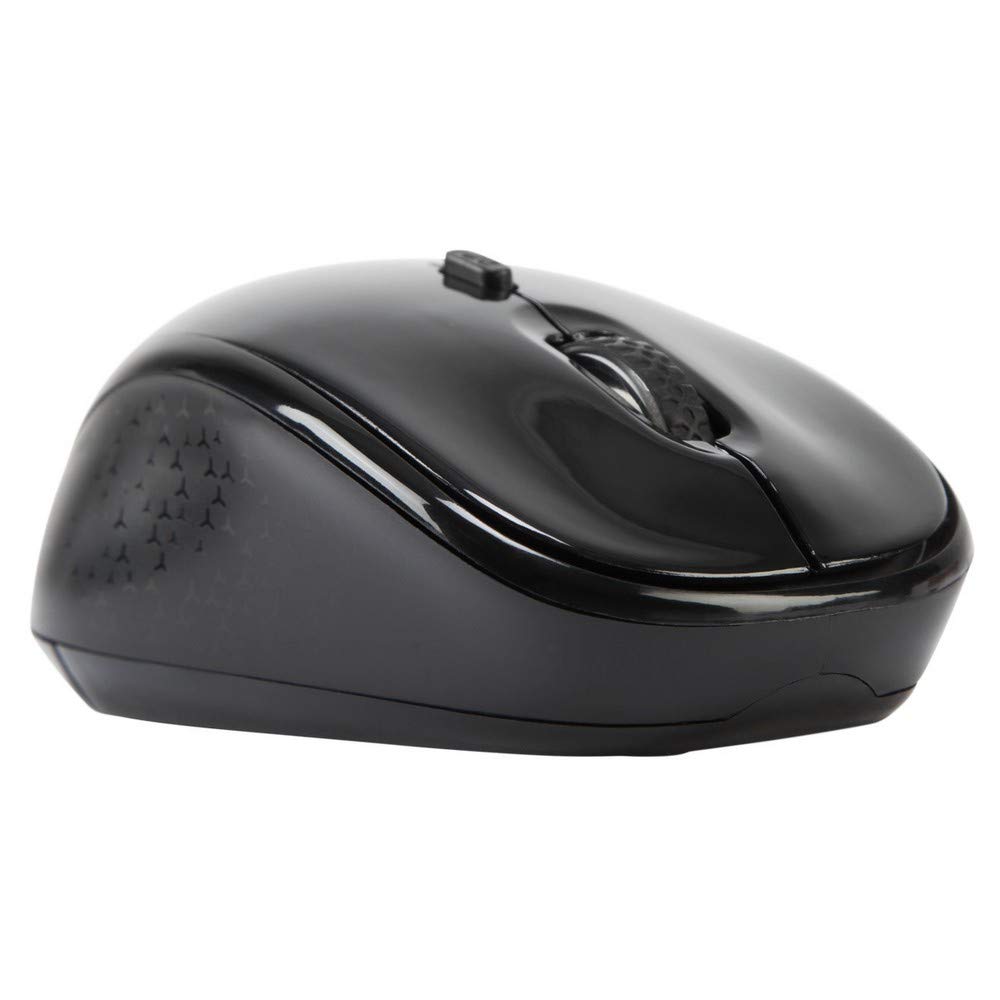
Isithombe 3.1: Phezulu view of the Targus W620 Wireless Optical Mouse. This image displays the primary buttons and scroll wheel.
- Inkinobho Yokuchofoza Kwesokunxele: Umsebenzi ojwayelekile wokuchofoza okuyinhloko.
- Inkinobho Yokuchofoza Kwesokudla: Umsebenzi wokuchofoza okwesibili ojwayelekile.
- Isondo Lokuskrola: Okokuskrola okuqondile kanye nomsebenzi wokuchofoza phakathi.
- Inkinobho ye-DPI: Ilungisa ukuzwela kwegundane (i-DPI).
- Inzwa Optical: Located on the bottom, detects mouse movement.
- Igumbi Lebhethri: Located on the bottom, holds two AAA batteries.
- Isitoreji se-USB Receiver: A dedicated slot on the bottom for storing the USB receiver when not in use.

Isithombe 3.2: Phansi view of the mouse, highlighting the battery compartment and optical sensor.
4. Sethaphu Imiyalelo
Follow these steps to set up your Targus W620 Wireless Optical Mouse:
- Faka amabhethri:
- Locate the battery compartment cover on the bottom of the mouse.
- Shelelezisa ikhava ivuleke.
- Faka amabhethri amabili e-AAA, uqinisekise ukuthi i-polarity (+/-) ilungile.
- Vala ikhava yengxenye yebhethri ngokuphephile.
- Xhuma Isamukeli se-USB:
- The USB receiver is typically stored in a slot on the bottom of the mouse for transport. Gently remove it.
- Xhuma isamukeli se-USB embotsheni ye-USB etholakalayo kukhompuyutha yakho.

Isithombe 4.1: The mouse with its USB receiver, ready for connection.
- Vula:
- There is no explicit power switch on this model; the mouse activates upon movement and connection.
- Ikhompyutha yakho kufanele izihlonze ngokuzenzakalelayo futhi ifake izishayeli ezidingekayo. Lokhu kungase kuthathe isikhashana.
- Once drivers are installed, the mouse is ready for use.
5. Iziqondiso Zokusebenza
The Targus W620 Wireless Optical Mouse is designed for intuitive use. Here are its primary functions:
- Ukuzulazula Okuyisisekelo: Hambisa igundane endaweni eyisicaba ukuze ulawule ikhesa esikrinini sakho.
- Chofoza kwesokunxele: Sebenzisa ekukhetheni izinto, ukuvula files, noma imisebenzi esebenzayo.
- Chofoza kwesokudla: Use for accessing context menus or secondary functions.
- Isondo Lokuskrola: Rotate the wheel to scroll vertically through documents and web pages. Press the scroll wheel for a middle-click function, often used for opening links in new tabs or auto-scrolling.
- Ukulungiswa kwe-DPI: Press the DPI button (located behind the scroll wheel) to cycle through the available DPI settings (800, 1200, 1600 DPI). This changes the sensitivity of the mouse cursor. A higher DPI means the cursor moves further with less physical mouse movement.
6. Isondlo
Proper maintenance ensures the longevity and performance of your mouse.
- Ukuhlanza: Use a soft, dry, lint-free cloth to clean the exterior of the mouse. For stubborn dirt, slightly dampen indwangu ngamanzi. Gwema ukusebenzisa amakhemikhali anokhahlo noma izihlanzi ezilumayo.
- Inzwa Optical: Keep the optical sensor area on the bottom of the mouse clean and free from dust or debris to ensure accurate tracking.
- Ukushintshwa Kwebhethri: When the mouse performance degrades or stops responding, it is likely time to replace the batteries. Follow the steps in Section 4.1 to replace the two AAA batteries.
- Isitoreji: When transporting or storing the mouse, always place the USB receiver back into its dedicated storage slot on the bottom of the mouse to prevent loss.
7. Ukuxazulula izinkinga
If you encounter issues with your Targus W620 mouse, try the following solutions:
| Inkinga | Isixazululo Esingenzeka |
|---|---|
| Mouse not responding or cursor not moving. |
|
| Ukunyakaza kwesikhombisi kuyashintshashintsha noma kuyagxumagxuma. |
|
| DPI button not changing sensitivity. |
|
| Izinkinga zokuxhumeka okungenantambo. |
|
8. Imininingwane
| Ibhrendi | ITargus |
| Inombolo Yemodeli | AMW620AP |
| Ubuchwepheshe bokuxhumana | 2.4 GHz Wireless (Radio Frequency) |
| Ubuchwepheshe bokutholwa kokunyakaza | Optical (BlueTrace Technology) |
| Amazinga we-DPI | 800 / 1200 / 1600 DPI (Iyalungiseka) |
| Inombolo yezinkinobho | 4 (Left, Right, Scroll Wheel, DPI) |
| Ukuma kwezandla | Right (Comfortable for ambidextrous use) |
| Umthombo wamandla | 2 x AAA Amabhethri (Afakiwe) |
| Isisindo sento | 26 amagremu |
| Ukuhambisana Kwesistimu Esebenzayo | Linux, Windows XP (Compatible with modern Windows and macOS) |
| I-Hardware Platform | Mac, PC |
| Umbala | Mnyama |
9. Iwaranti kanye Nokusekela
Ulwazi Lwesiqinisekiso: The Targus W620 Wireless Optical Mouse comes with a Iwaranti yomkhiqizi yonyaka ongu-3 kusukela ngedethi yokuthenga. Lesi siqinisekiso sihlanganisa amaphutha ezintweni zokwakha kanye nokusebenza ngaphansi kokusetshenziswa okuvamile. Sicela ugcine ubufakazi bakho bokuthenga izimangalo zewaranti.
Ukwesekwa Kwamakhasimende: For technical assistance, troubleshooting beyond this manual, or warranty inquiries, please visit the official Targus website or contact their customer support service. Refer to the contact information provided with your product packaging or on the Targus official webindawo.