
1. Isingeniso
Thank you for choosing the Gembird MUS-6B-01 Optical USB Mouse. This manual provides essential information for setting up, operating, maintaining, and troubleshooting your new mouse. Please read these instructions carefully to ensure optimal performance and longevity of your device.

Image: The official Gembird brand logo, featuring the company name in a stylized font with a geometric design.
2. Umkhiqizo Uphelileview
The Gembird MUS-6B-01 is a reliable 6-button optical USB mouse designed for comfortable and precise navigation. Its ambidextrous design makes it suitable for both left and right-handed users.
Izici Eziyinhloko:
- Ukulandelela kokubona: Provides smooth and accurate cursor control.
- 6 Izinkinobho: Includes standard left/right click, scroll wheel, DPI adjustment, and two side buttons for enhanced functionality.
- Ukuxhumana kwe-USB: Simple plug-and-play connection to your computer.
- Idizayini ye-Ambidextrous: Kukhululekile kokubili kubasebenzisi abasebenzisa isandla sesobunxele kanye nesokudla.
Izingxenye:
- Inkinobho Yokuchofoza Kwesokunxele
- Inkinobho Yokuchofoza Kwesokudla
- Scroll Wheel (also functions as a middle click button)
- Inkinobho Yokulungisa ye-DPI
- Inkinobho Yokudlulisela Phambili (Eceleni)
- Inkinobho Emuva (Eceleni)
- Optical Sensor (underside)
- USB Connector (at the end of the cable)
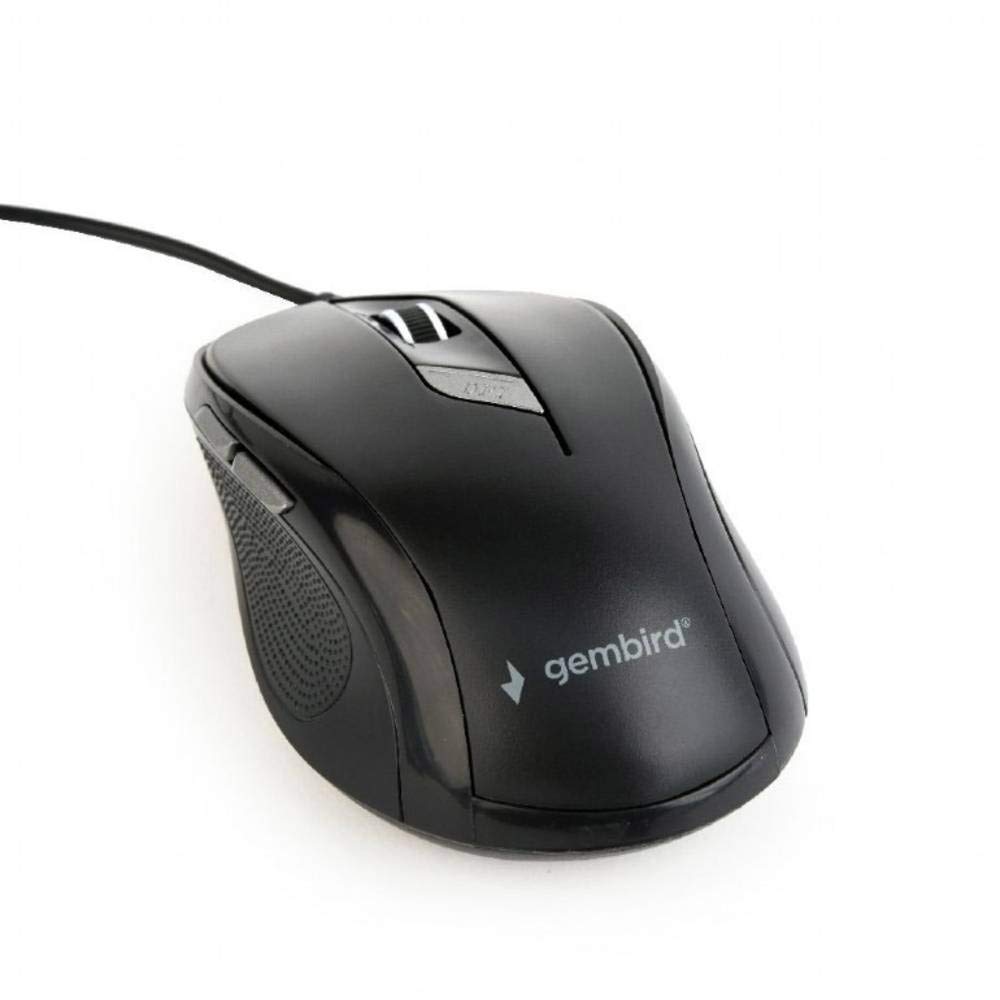
Isithombe: A phezulu phansi view of the Gembird MUS-6B-01 optical USB mouse. The mouse is black with a matte finish, featuring a scroll wheel, left and right click buttons, a DPI button, and two side buttons. A black USB cable extends from the front of the mouse.
3. Setha
Setting up your Gembird MUS-6B-01 mouse is a simple plug-and-play process.
Izinyathelo zokufaka:
- Thola imbobo ye-USB etholakalayo kukhompuyutha yakho.
- Plug the USB connector of the Gembird MUS-6B-01 mouse firmly into the USB port.
- Your operating system (Windows, Linux) will automatically detect and install the necessary drivers. This process may take a few moments.
- Once the drivers are installed, the mouse is ready for use.
No additional software installation is typically required for basic functionality.
4. Iziqondiso Zokusebenza
Familiarize yourself with the functions of each button on your Gembird MUS-6B-01 mouse.
Imisebenzi Eyisisekelo:
- Chofoza kwesokunxele: Primary action, selecting items, opening files.
- Chofoza kwesokudla: Ivula amamenyu womongo, inikeza izinketho ezengeziwe.
- Isondo Lokuskrola: Skrola phezulu noma phansi kumadokhumenti bese web amakhasi.
- Ukuchofoza Okuphakathi (Ukucindezelwa Kwesondo Lokuskrola): Often used to open links in new tabs or for specific application functions.
Imisebenzi Ethuthukisiwe:
- Inkinobho Yokulungisa ye-DPI: Located behind the scroll wheel, this button allows you to cycle through different sensitivity (DPI) settings. Press it to change the cursor speed to suit your preference.
- Inkinobho Yokudlulisela (Eceleni): Typically navigates forward in web iziphequluli noma file abahloli bamazwe.
- Inkinobho Ebuyela Emuva (Eceleni): Typically navigates backward in web iziphequluli noma file abahloli bamazwe.
The functionality of the side buttons may vary depending on the application or operating system settings. Some operating systems allow customization of these buttons.
5. Isondlo
Proper care will help extend the life of your Gembird MUS-6B-01 mouse.
Ukuhlanza:
- Nqamula igundane kukhompuyutha yakho ngaphambi kokuhlanza.
- Sebenzisa okuthambile, kancane damp, lint-free cloth to wipe the surface of the mouse.
- For stubborn dirt, a small amount of mild soap solution can be applied to the cloth (not directly to the mouse).
- Sebenzisa i-swab kakotini noma umoya ocindezelwe ukuze uhlanze isondo lokuskrola naphakathi kwezinkinobho.
- Ensure the optical sensor on the underside is clean and free of dust or debris.
- Ungasebenzisi amakhemikhali anokhahlo, izihlanzi ezinamaqabunga, noma cwilisa igundane emanzini.
Isitoreji:
When not in use for extended periods, store the mouse in a clean, dry environment away from extreme temperatures and direct sunlight.
6. Ukuxazulula izinkinga
If you encounter issues with your Gembird MUS-6B-01 mouse, try the following troubleshooting steps:
| Inkinga | Isixazululo Esingenzeka |
|---|---|
| Igundane aliphenduli |
|
| Erratic or jumpy cursor movement |
|
| Izinkinobho azisebenzi |
|
7. Imininingwane
Detailed technical specifications for the Gembird MUS-6B-01 Optical USB Mouse:
| Isici | Ukucaciswa |
|---|---|
| Ibhrendi | Gembird |
| Igama Lemodeli | I-MUS-6B-01 |
| Ubuchwepheshe bokuxhumana | Inentambo (i-USB) |
| Ubuchwepheshe bokutholwa kokunyakaza | I-Optical |
| Ubuningi Benkinobho | 6 |
| Ukuma kwezandla | Ambidextrous |
| Amasistimu Okusebenza Ahambisanayo | Linux, Windows 7, Windows XP (and newer versions) |
| I-Hardware Platform | Ikhompyutha yomuntu siqu |
| Ubude bekhebula | 5.0 amamitha |
| Isisindo sento | 74 amagremu |
| Okubalulekile | Ipulasitiki |
| Umbala | Mnyama |
| Kudingeka Amabhethri | Cha |
8. Ulwazi Lokuphepha
Sicela uqaphele imihlahlandlela yokuphepha elandelayo:
- Ungalivezi igundane emanzini noma emanzini amaningi.
- Gwema ukuwisa noma ukubeka igundane ngaphansi kwemithelela enamandla.
- Do not attempt to disassemble or repair the mouse yourself. Refer to qualified service personnel.
- Gcina idivayisi ikude namazinga okushisa aphezulu kanye nokukhanya kwelanga okuqondile.
- Lahla imfucuza kagesi ngendlela efanele ngokwemithetho yendawo.
9. Iwaranti kanye Nokusekela
Gembird products are designed for reliability and performance. For specific warranty terms and conditions, please refer to the warranty card included with your product or visit the official Gembird website. For technical support or further assistance, please contact your retailer or the Gembird customer service department.