
1. Isingeniso
This manual provides detailed instructions for the installation, operation, and maintenance of your TooQ TQE-2528B 2.5-inch SATA USB 3.1 Gen1 HDD Enclosure. This device allows you to convert a 2.5-inch SATA I/II/III hard disk drive or solid-state drive into an external storage solution, connecting via USB 3.1 Gen1 for high-speed data transfer.
2. Okuqukethwe Kwephakheji
Sicela uqinisekise ukuthi zonke izinto zikhona kuphakheji:
- TooQ TQE-2528B 2.5-inch SATA USB 3.1 Gen1 HDD Enclosure
- Ikhebula le-USB 3.0 Type-A kuya ku-Micro-B
- Incwadi Yomsebenzisi (le dokhumenti)

Image 2.1: The TooQ TQE-2528B enclosure shown with its included USB 3.0 cable.
3. Umkhiqizo Uphelileview
The TooQ TQE-2528B is designed for ease of use and portability. Key features include:
- Compatible with 2.5-inch SATA I/II/III HDDs and SSDs up to 9.5mm height.
- USB 3.1 Gen1 (USB 3.0) interface for data transfer speeds up to 5.0 Gbps.
- Tool-free installation for quick setup.
- LED indicator for connection status and data access.
- Powered directly via USB port.
3.1. Ukuhlonza Ingxenye
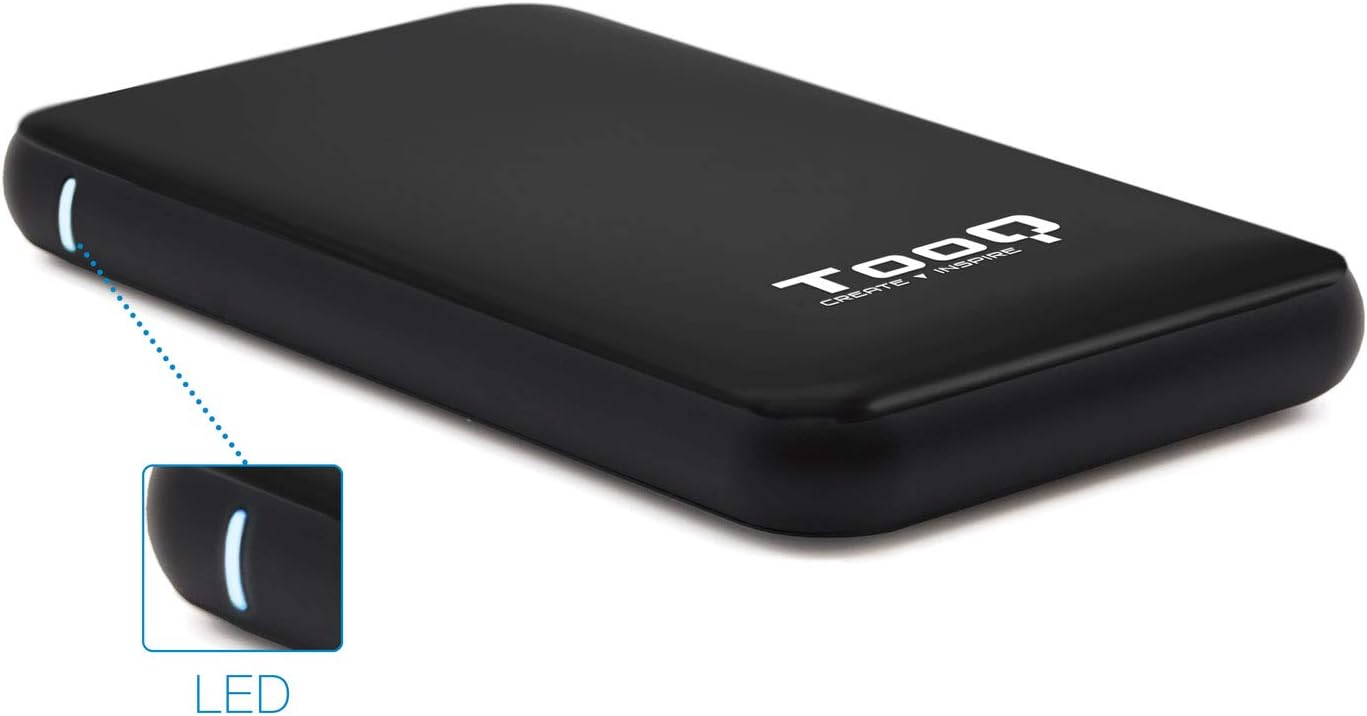
Image 3.1: The enclosure features an LED indicator on the side, which illuminates to show power and data activity.

Image 3.2: The rear of the enclosure includes a power button and a Micro-USB port for connection.
4. Setup: Hard Drive Installation
Follow these steps to install a 2.5-inch SATA HDD or SSD into the enclosure:
- Open the Enclosure: Gently slide the top cover of the enclosure to open it. The design allows for tool-free access.
- Xhuma Idrayivu: Align your 2.5-inch SATA HDD/SSD with the SATA connector inside the enclosure. Carefully push the drive into the connector until it is firmly seated. Ensure the drive is flush with the internal tray.
- Close the Enclosure: Slide the top cover back into place until it clicks securely.
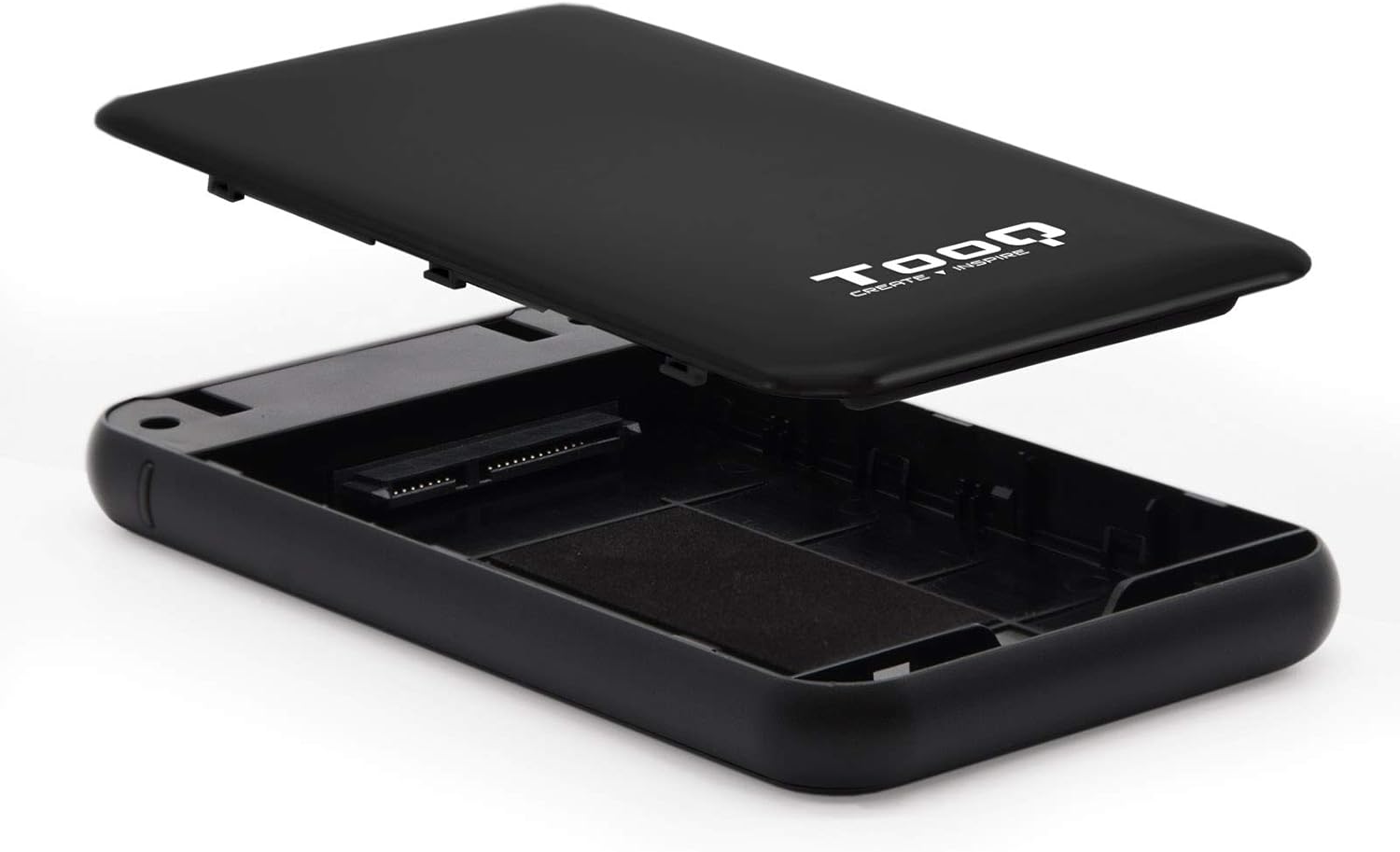
Image 4.1: The enclosure opened, revealing the internal SATA data and power connector for a 2.5-inch drive.
5. Iziqondiso Zokusebenza
After installing your hard drive, connect the enclosure to your computer:
- Xhuma Ikhebula le-USB: Plug the Micro-B end of the included USB 3.0 cable into the enclosure's Micro-USB port.
- Xhuma Kukhompyutha: Plug the Type-A end of the USB cable into an available USB port on your computer. For optimal performance, use a USB 3.0 or USB 3.1 Gen1 port.
- Vula: If the enclosure has a power button (refer to Image 3.2), press it to turn on the device. The LED indicator (Image 3.1) will illuminate, indicating power and connection status.
- Accessing the Drive: Your operating system should automatically detect the new storage device.
- New Drives: If you are using a brand new hard drive, it may need to be initialized and formatted before use. Refer to your operating system's disk management tools for this process.
- Existing Drives: If the drive contains data, it should appear as a removable drive in 'My Computer' (Windows) or on the desktop (macOS).

Image 5.1: The TooQ TQE-2528B enclosure connected to a laptop, demonstrating a typical usage scenario.
6. Isondlo
To ensure the longevity and optimal performance of your enclosure:
- Keep the enclosure clean and free from dust. Use a soft, dry cloth for cleaning.
- Gwema ukubeka idivayisi emazingeni okushisa aphezulu, umswakama, noma elangeni eliqondile.
- Do not drop or subject the enclosure to strong impacts.
- Always safely eject the drive from your operating system before disconnecting the USB cable to prevent data corruption.
7. Ukuxazulula izinkinga
If you encounter issues with your TooQ TQE-2528B enclosure, refer to the following common solutions:
- IDrayivu Ayitholakali:
- Ensure the USB cable is securely connected to both the enclosure and the computer.
- Zama ukuxhuma ethekwini le-USB elihlukile kukhompyutha yakho.
- Verify that the hard drive is correctly seated within the enclosure's SATA connector.
- Check your computer's Disk Management (Windows) or Disk Utility (macOS) to see if the drive is recognized but uninitialized or unformatted.
- Test the enclosure with a different 2.5-inch SATA drive, if available, to rule out a drive issue.
- Ukudlulisa Idatha Okuhamba Kancane:
- Ensure you are connected to a USB 3.0 or USB 3.1 Gen1 port on your computer. Connecting to a USB 2.0 port will result in slower speeds.
- Qinisekisa ukuthi uhlelo lwakho lokusebenza kanye nabashayeli kusesikhathini.
- Enclosure Does Not Power On:
- Ensure the USB cable is properly connected and providing power. The enclosure is bus-powered.
- Zama imbobo ye-USB ehlukile kukhompuyutha yakho.
8. Imininingwane
| Inombolo Yemodeli | I-TQE-2528B |
| AmaDrayivu Ahambisanayo | 2.5-inch SATA I/II/III HDD/SSD (up to 9.5mm height) |
| Isixhumi esibonakalayo | USB 3.1 Gen1 (USB 3.0) |
| Isilinganiso Sokudluliswa Kwedatha | Kufika ku-5.0 Gbps |
| Ukunikezwa kwamandla kagesi | USB Bus-powered (5 Volts) |
| Okubalulekile | Ipulasitiki ye-ABS |
| Ubukhulu (L x W x H) | 13.5 cm x 8 cm x 1.6 cm (cishe 5.3 x 3.1 x 0.6 amayintshi) |
| Isisindo | 50 g (cishe 0.11 lbs) |
| Ukuhambisana Kwesistimu Esebenzayo | Universal (Windows, macOS, Linux) |

Image 8.1: Technical drawing illustrating the dimensions of the TooQ TQE-2528B enclosure.
9. Iwaranti kanye Nokusekela
TooQ products are designed for reliability and performance. This product comes with a standard manufacturer's warranty. For specific warranty terms and conditions, please refer to the warranty card included with your product or visit the official TooQ webindawo.
For technical support, frequently asked questions, or to download the latest drivers (if applicable), please visit the official TooQ support webisayithi noma uxhumane nomnyango wabo wesevisi yamakhasimende. Ulwazi lokuxhumana lungatholakala ephaketheni lomkhiqizo noma kusikhulu webindawo.
Umkhiqizi: TOOQ
Global Trade Item Number (GTIN): 08433281008304