
1. Isingeniso
Thank you for choosing the Macally USB Type C Wired Mouse. This manual provides detailed instructions for setting up, operating, and maintaining your new mouse. Designed for simplicity and reliability, this plug-and-play mouse offers comfortable use with adjustable DPI settings for various computing needs.
2. Okuqukethwe Kwephakheji
- Macally USB Type C Wired Mouse
- Incwadi Yeziqondiso
3. Setha
The Macally USB Type C Wired Mouse is designed for easy plug-and-play functionality, requiring no additional drivers for most operating systems.
- Xhuma Igundane: Locate an available USB-C port on your computer (MacBook Pro, iMac, PC, Laptop, Tablet, etc.). Insert the USB-C connector of the mouse cable firmly into the USB-C port.
- Ukuqashelwa Okuzenzakalelayo: Your operating system should automatically detect and configure the mouse. No software installation is typically required.
- Qala Ukusebenzisa: Uma seliqashelwe, igundane lisuke selilungele ukusetshenziswa ngokushesha.

Image: The Macally USB-C mouse connected to a laptop via its USB-C cable, demonstrating the plug-and-play setup.
Video: A demonstration of connecting the wired USB-C mouse to a laptop, highlighting its plug-and-play functionality for Type-C computers.
4. Iziqondiso Zokusebenza
4.1 Ukusetshenziswa Okuyisisekelo
The mouse features a standard 3-button layout for intuitive control:
- Inkinobho Yokuchofoza Kwesokunxele: Isetshenziselwa ukukhetha izinto, ukuvula files, nokwenza imiyalo.
- Inkinobho Yokuchofoza Kwesokudla: Used for accessing contextual menus and additional options.
- Isondo Lokuskrola: Isetshenziselwa ukupheqa amadokhumenti kanye web pages. The scroll wheel can also be pressed as a middle click button for specific functions in some applications.

Isithombe: A phezulu phansi view of the Macally USB-C mouse, clearly showing the left-click, right-click, and scroll wheel buttons.
4.2 Ukulungiswa Kwe-DPI
The mouse features a dedicated DPI (Dots Per Inch) switch to adjust cursor sensitivity. This allows you to change the speed and responsiveness of the cursor to suit your preference or task.
- Cindezela inkinobho Inkinobho ye-DPI (located below the scroll wheel) to cycle through the available sensitivity settings: 800, 1200, 1600, and 2400 DPI.
- Select the DPI setting that provides the most comfortable and efficient cursor movement for your current activity.
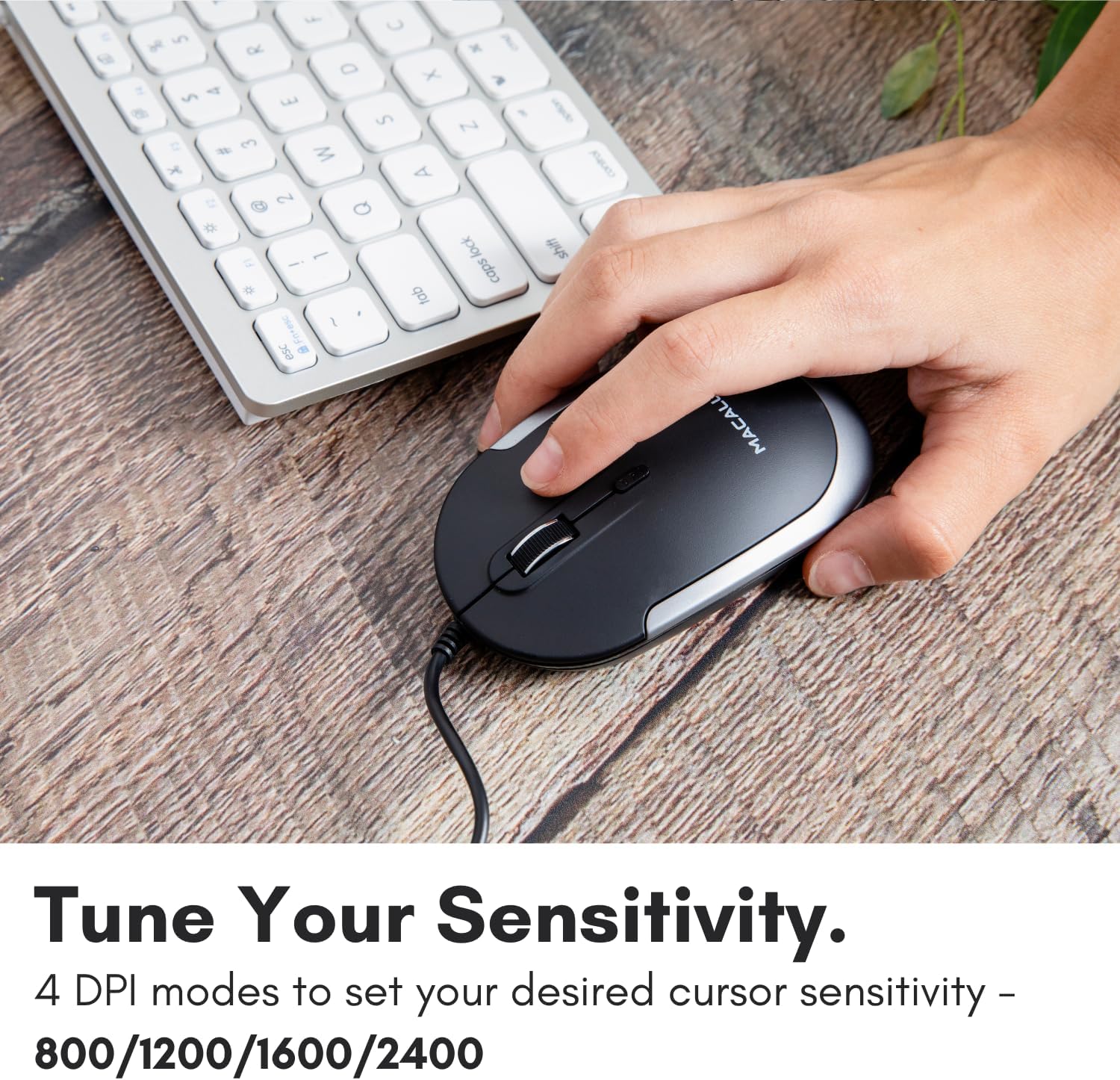
Image: A hand demonstrating how to press the DPI button on the Macally USB-C mouse to adjust sensitivity.
4.3 Ukuhambisana
The Macally USB Type C Wired Mouse is universally compatible with a wide range of devices and operating systems:
- I-Mac (macOS)
- I-PC (Windows)
- I-iPadOS
- Android devices with USB-C ports

Image: The Macally USB-C mouse displayed with compatibility logos for Mac, PC, iPadOS, and Android operating systems.
5. Izici Eziyinhloko
- Ukuxhumeka kwe-USB-C: Specifically designed for modern laptops and computers with USB-C ports, ensuring a reliable wired connection.
- Idizayini Encane & Ehlangene: With a height of only 1 inch, the mouse is slim, comfortable, and portable, fitting snugly in your hand.
- Quiet Click Buttons: Reduces clicking noise by 90% compared to traditional mice, providing a quieter work environment.
- I-DPI elungisekayo: Easily switch between 800, 1200, 1600, and 2400 DPI settings for precise cursor control.
- 5-Foot Cable: Ihlinzeka ample length for flexible setup and comfortable use, even with desktop computers.
- Idizayini ye-Ambidextrous: Ifanele abasebenzisi abasebenzisa isandla sokudla nabakwesokunxele.

Image: The Macally USB-C mouse highlighting its elegant and slim design with dimensions.
Video: A detailed look at the Macally USB-C Optical Mouse, emphasizing its quiet click buttons and compatibility with Mac and PC.
6. Isondlo
To ensure the longevity and optimal performance of your Macally USB Type C Wired Mouse, follow these simple maintenance guidelines:
- Ukuhlanza: Sebenzisa indwangu ethambile, eyomile, engena-lint ukuze usule ubuso begundane. Ngokungcola okunenkani, kancane dampfaka indwangu ngamanzi noma isisombululo sokuhlanza esincane. Gwema ukusebenzisa amakhemikhali anamandla noma izinto ezihudulayo.
- Inzwa Optical: Gcina inzwa yokubona engaphansi kwegundane ihlanzekile futhi ingenalo uthuli noma imfucumfucu. Sebenzisa i-cotton swab noma umoya ocindezelwe uma kunesidingo.
- Ukunakekelwa Kwekhebula: Avoid sharp bends or excessive pulling on the USB-C cable to prevent damage. Store the cable neatly when not in use.
- Isitoreji: Uma ingasetshenziswa, gcina igundane endaweni ehlanzekile, eyomile ekude nezinga lokushisa elidlulele.
7. Ukuxazulula izinkinga
If you encounter any issues with your Macally USB Type C Wired Mouse, please refer to the following common solutions:
| Inkinga | Isixazululo |
|---|---|
| Igundane aliphenduli. |
|
| Ukunyakaza kwesikhombisi kuyashintshashintsha noma kuyagxumagxuma. |
|
| Buttons or scroll wheel are not working. |
|
8. Imininingwane
| Ibhrendi | Macally |
| Inombolo Yemodeli | UCDYNAMOUSESG |
| Ubuchwepheshe bokuxhumana | Intambo ye-USB-C |
| Ubuchwepheshe bokutholwa kokunyakaza | I-Optical |
| Izilungiselelo ze-DPI | 800, 1200, 1600, 2400 |
| Ubude bekhebula | 5 izinyawo (cishe 1.5 amamitha) |
| Izinkinobho | 3 (Left, Right, Scroll Wheel/Middle Click) + DPI Switch |
| Isisindo sento | 2.56 ama-ounces (cishe amagremu angu-72.5) |
| Ubukhulu bomkhiqizo (LxWxH) | 2.8 x 4.21 x 1 amayintshi (cishe. 7.1 x 10.7 x 2.5 cm) |
| Ukuhambisana | Mac (macOS), PC (Windows), iPadOS, Android (with USB-C) |
9. Iwaranti kanye Nokusekela
Macally provides a Iwaranti yonyaka ongu-1 for this product. For technical support, troubleshooting assistance, or warranty claims, please contact Macally customer service. You can find contact information and additional resources on the official Macally webindawo:
Webindawo: www.macally.com
Macally also offers easy returns and lifetime support with your purchase.