
Bytech BYTECH Wireless Optical Mouse
BYTECH Wireless Optical Mouse User Manual
Model: BYTECH Wireless Optical Mouse
Isingeniso
This manual provides detailed instructions for the setup, operation, maintenance, and troubleshooting of your BYTECH Wireless Optical Mouse. Please read this manual thoroughly before using the device to ensure optimal performance and longevity.
Umkhiqizo Uphelileview
The BYTECH Wireless Optical Mouse is designed for comfortable and efficient navigation. It features a precise optical sensor, a scroll wheel, and a DPI adjustment button for customizable sensitivity. Its ergonomic design and wireless connectivity provide a clutter-free workspace.

Umfanekiso 1: Phezulu-phansi view of the BYTECH Wireless Optical Mouse. The mouse is black with a silver stripe along its sides. A scroll wheel and a DPI button are visible on the top surface.
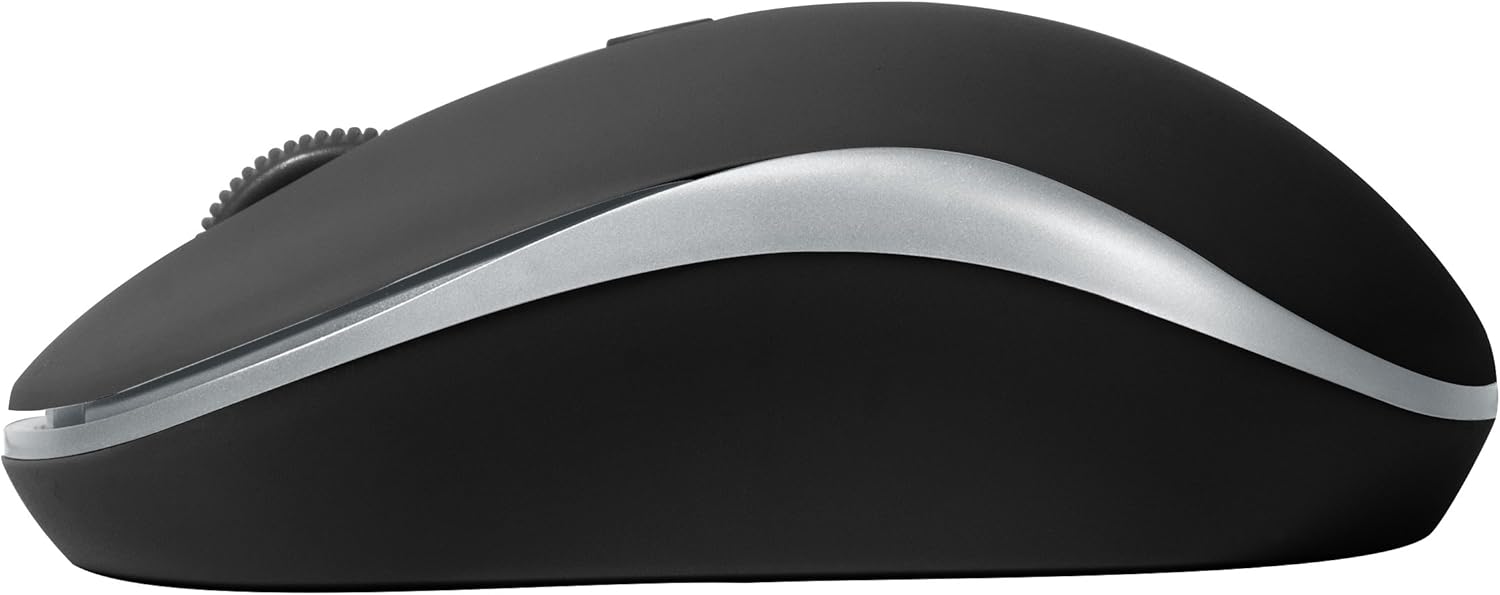
Umfanekiso 2: Uhlangothi view of the BYTECH Wireless Optical Mouse. This angle highlights the ergonomic curve and the silver accent line that runs along the side of the mouse.
Setha
1. Ukufakwa kwebhethri
- Bheka indawo yebhethri ngaphansi kwegundane.
- Vula ikhava yengxenye yebhethri.
- Insert one AA battery (not included) into the compartment, ensuring the correct polarity (+/-) as indicated inside.
- Vala ikhava yengxenye yebhethri ngokuphephile.
2. USB Receiver Connection
- Khipha isamukeli se-USB endaweni yaso yokugcina, ngokuvamile esitholakala ngaphakathi kwengxenye yebhethri noma eduze kwaso.
- Xhuma isamukeli se-USB embotsheni ye-USB etholakalayo kukhompuyutha yakho noma ikhompuyutha ephathekayo.
- Uhlelo lwakho lokusebenza kufanele luzitholele ngokuzenzakalelayo futhi lufake abashayeli abadingekayo. Lokhu kungase kuthathe isikhashana.
3. Ivula amandla
- Locate the On/Off switch on the underside of the mouse.
- Slide the switch to the "On" position. The mouse should now be ready for use.
Imiyalelo yokusebenza
Imisebenzi Eyisisekelo
- Chofoza kwesokunxele: Press the left button to select items, open links, or activate functions.
- Chofoza kwesokudla: Press the right button to open context menus or access additional options.
- Isondo Lokuskrola: Roll the wheel up or down to scroll through documents or web pages. Press the scroll wheel for middle-click functionality (e.g., opening links in new tabs).
Ukulungiswa kwe-DPI
The mouse features a DPI (Dots Per Inch) button, typically located behind the scroll wheel. Press this button to cycle through different sensitivity settings. Each press will change the cursor speed, allowing you to find the optimal setting for your task.
- Cindezela inkinobho Inkinobho ye-DPI once to switch to the next sensitivity level.
- Repeat until you find your preferred cursor speed.
Imodi Yokonga Amandla
To conserve battery life, the BYTECH Wireless Optical Mouse is designed to automatically enter a sleep mode after a period of inactivity. To wake the mouse, simply move it or click any button.
Isondlo
Ukuhlanza
- Ensure the mouse is turned off before cleaning.
- Sebenzisa indwangu ethambile, engenalinti kancane dampefakwe ngamanzi noma isixazululo esithambile sokuhlanza.
- Wipe the surface of the mouse gently. Avoid excessive moisture.
- Ukuze uthole inzwa yokukhanya, sebenzisa i-swab eyomile yekotini ukuze ususe ngokucophelela noma yiluphi uthuli noma imfucumfucu.
- Do not use abrasive cleaners, alcohol, or solvents, as these may damage the surface.
Ukushintshwa Kwebhethri
When the mouse performance degrades or the cursor becomes erratic, it may be time to replace the battery. Follow the battery installation steps outlined in the "Setup" section.
Isitoreji
When not in use for an extended period, it is recommended to turn off the mouse to conserve battery life. The USB receiver can be stored in its dedicated slot on the mouse's underside to prevent loss.
Ukuxazulula inkinga
- Igundane aliphenduli:
- Qinisekisa ukuthi igundane livuliwe.
- Hlola izinga lebhethri bese uyishintsha uma kunesidingo.
- Qinisekisa ukuthi isamukeli se-USB sixhunywe ngokuphephile echwebeni le-USB elisebenzayo. Zama ichweba le-USB elihlukile.
- Qala kabusha ikhompuyutha yakho.
- Cursor erratic or jumping:
- Hlanza inzwa yokubona ngaphansi kwegundane.
- Qinisekisa ukuthi usebenzisa igundane endaweni efanelekile (engabonisi, engabonisi ngale). Kunconywa iphedi yegundane.
- Check for strong electromagnetic interference from other devices.
- Izinkinga zokuxhumana:
- Reduce the distance between the mouse and the USB receiver.
- Remove any large metal objects or electronic devices that might be obstructing the wireless signal.
- If using a USB hub, try connecting the receiver directly to the computer.
Imininingwane
| Isici | Imininingwane |
|---|---|
| Ibhrendi | I-Bytech |
| Imodeli | BYTECH Wireless Optical Mouse |
| Ubuchwepheshe bokuxhumana | Okungenantambo (I-USB Receiver) |
| Ubuchwepheshe bokutholwa kokunyakaza | I-Optical |
| Umbala | Mnyama |
| Umthombo wamandla | Isebenza Ibhethri (1x AA, ayifakiwe) |
| Ukuhambisana Kwesistimu Esebenzayo | macOS, Android (and generally Windows) |
| Isisindo sento | 3.56 amakhilogremu |
| Ubukhulu bomkhiqizo (LxWxH) | 1 x 1 x 1 amayintshi (Cishe) |
Qaphela: Imininingwane ingashintsha ngaphandle kwesaziso.
Iwaranti kanye Nokusekela
Bytech products are manufactured to the highest quality standards. For information regarding warranty coverage, technical support, or service, please refer to the warranty card included with your product or visit the official Bytech webindawo. Gcina irisidi lakho lokuthenga njengobufakazi bokuthenga izimangalo zewaranti.
For further assistance, please contact Bytech customer support through their official channels.
Ask a question about this manual
Ask about setup, troubleshooting, compatibility, parts, safety, or missing instructions. Manuals+ will review the question and use this page’s manual context to help answer it.