
1. Isingeniso
This manual provides essential information for the safe and efficient operation of your Digi International WR21-L52A-DE1-TB Cellular Wireless Router. Please read this manual thoroughly before installation and use, and retain it for future reference. This device is designed to provide reliable cellular connectivity for various applications.
2. Ulwazi Lokuphepha
- Ukunikezwa kwamandla kagesi: Use only the power adapter supplied with the device. Using an incorrect adapter may damage the device and void the warranty.
- Ukungenisa umoya: Ensure adequate ventilation around the router. Do not block ventilation openings.
- Imvelo: Avoid exposing the device to extreme temperatures, humidity, direct sunlight, or corrosive environments.
- Ukusevisa: Ungazami ukuzivula noma ukulungisa idivayisi ngokwakho. Thumela zonke izinsiza kubasebenzi abaqeqeshiwe.
- I-Antennas: Ensure antennas are securely connected before powering on the device.
3. Okuqukethwe Kwephakheji
Qinisekisa ukuthi zonke izinto zikhona kuphakheji:
- Digi International WR21-L52A-DE1-TB Cellular Wireless Router
- I-adaptha yamandla
- Antennas (quantity may vary)
- Ikhebula le-Ethernet
- Umhlahlandlela Wokuqalisa Ngokushesha (uma ufakiwe)
If any items are missing or damaged, contact your vendor immediately.
4. Umkhiqizo Uphelileview
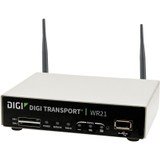
Isithombe: Ngaphambili view of the Digi International WR21-L52A-DE1-TB Cellular Wireless Router. This image displays the compact form factor of the device, likely showing ports for antennas, power, and network connections.
The Digi International WR21-L52A-DE1-TB is a robust cellular wireless router designed for reliable and secure connectivity. It features multiple connectivity options and is suitable for various industrial and enterprise applications requiring remote access and data transfer over cellular networks.
5. Setha
5.1. Ukufakwa kweSIM khadi
- Qinisekisa ukuthi irutha ivaliwe futhi inqanyuliwe emthonjeni wamandla.
- Locate the SIM card slot(s) on the device. Refer to the device's physical markings for exact location.
- Insert the activated cellular SIM card into the slot with the gold contacts facing down and the notched corner oriented correctly. Push until it clicks into place.
- If applicable, secure the SIM card tray or cover.
5.2. Ukuxhuma kwe-Antenna
- Identify the cellular antenna ports (typically labeled 'MAIN' and 'DIV' or similar).
- Screw the provided cellular antennas onto the corresponding ports until finger-tight. Do not overtighten.
- Misa ama-antenna ukuze uthole isignali efanele.
5.3. Ukuxhunywa kwamandla
- Connect the power adapter to the router's power input port.
- Xhuma i-adaptha yamandla endaweni kagesi efanelekile.
- The router will power on automatically or may require pressing a power button. Observe the LED indicators for power status.
5.4. Uxhumano Lwenethiwekhi (Ongakukhetha)
- To connect a device via Ethernet, plug one end of an Ethernet cable into an available LAN port on the router.
- Plug the other end of the Ethernet cable into the network port of your computer or other network device.
6. Iziqondiso Zokusebenza
6.1. Ukuvula/Ukucisha
- Vula: Connect the power adapter. The device will typically power on automatically. Observe the power LED.
- Cisha ugesi: Disconnect the power adapter from the electrical outlet. For controlled shutdown, refer to the device's web interface or specific documentation for a software shutdown procedure if available.
6.2. Ukufinyelela ku- Web Isixhumi esibonakalayo
- Ensure your computer is connected to the router via Ethernet or Wi-Fi (if enabled).
- Vula a web isiphequluli (isb, Chrome, Firefox, Edge).
- Enter the router's default IP address (e.g., 192.168.1.1 or 192.168.0.1) into the address bar and press Enter. Refer to the Quick Start Guide or device label for the exact default IP address.
- Enter the default username and password when prompted. These are typically found on a label on the device or in the Quick Start Guide.
- Upon successful login, you will access the router's configuration interface.
6.3. Ukucushwa Okuyisisekelo
Ngaphakathi kwe web interface, you can configure various settings:
- Cellular Settings: Verify APN settings, signal strength, and connection status.
- Izilungiselelo Zenethiwekhi: Configure LAN IP address, DHCP server, and port forwarding.
- Ukuphepha: Change default login credentials, configure firewall rules, and VPN settings.
- Ukuvuselelwa kwe-Firmware: Check for and apply firmware updates to ensure optimal performance and security.
7. Isondlo
- Ukuhlanza: Sebenzisa indwangu ethambile, eyomile ukuhlanza ingaphandle lerutha. Ungasebenzisi izinto zokuhlanza uketshezi noma ama-aerosol.
- Ukuvuselelwa kwe-Firmware: Hlola njalo abakhiqizi website for firmware updates. Keeping the firmware updated ensures the latest features, security patches, and performance improvements.
- Izimo Zemvelo: Ensure the router is operating within its specified temperature and humidity ranges to prevent overheating or damage.
8. Ukuxazulula izinkinga
8.1. No Cellular Connection
- Verify the SIM card is correctly inserted and activated with your cellular provider.
- Check antenna connections and ensure they are positioned for optimal signal.
- Ngena ku web interface to check cellular signal strength and connection status.
- Qala kabusha irutha.
8.2. Ayikwazi Ukufinyelela Web Isixhumi esibonakalayo
- Ensure your computer is directly connected to the router via Ethernet.
- Verify your computer's IP address is in the same subnet as the router (e.g., if router is 192.168.1.1, computer should be 192.168.1.x).
- Zama ukusula inqolobane yesiphequluli sakho noma usebenzise isiphequluli esihlukile.
- If you forgot the password, a factory reset might be necessary (refer to specific device documentation for this procedure, as it will erase all configurations).
8.3. Isivinini Sokuxhumana Esihamba Kancane
- Check cellular signal strength in the web interface. Weak signal can lead to slow speeds.
- Ensure antennas are properly positioned and unobstructed.
- Verify your cellular data plan has not reached its data cap or is being throttled.
- Qala kabusha i-router namadivayisi axhunyiwe.
9. Imininingwane
| Isici | Incazelo |
|---|---|
| Imodeli | WR21-L52A-DE1-TB |
| Ibhrendi | I-Digi International |
| Iphrothokholi Yokuxhumana | Iselula |
| Ubuchwepheshe bokuxhumana | I-USB |
| Indlela Yokulawula | Isilawuli kude |
| Isici Esikhethekile | I-WPS |
| Amadivayisi Ahambisanayo | Ikhompyutha yomuntu siqu |
| Ukusetshenziswa Okunconyiwe | Ikhaya |
| I-UPC | 747356312219 |
10. Iwaranti kanye Nokusekela
For detailed warranty information, please refer to the warranty card included with your product or visit the official Digi International website. Technical support is available through the manufacturer's support channels. Please have your product model number (WR21-L52A-DE1-TB) and serial number ready when contacting support.