
1. Isingeniso
Siyabonga ngokuthengaasing the Zebronics ZEB-A18 Plus 17.3-inch LED Monitor. This manual provides essential information for setting up, operating, and maintaining your monitor. Please read it thoroughly before use and retain it for future reference.
1.1 Yini EseBhokisini
- Gada
- I-adaptha yamandla
- Qapha ukuma
- Imaniwali yosebenzisayo
- Ikhebula le-VGA
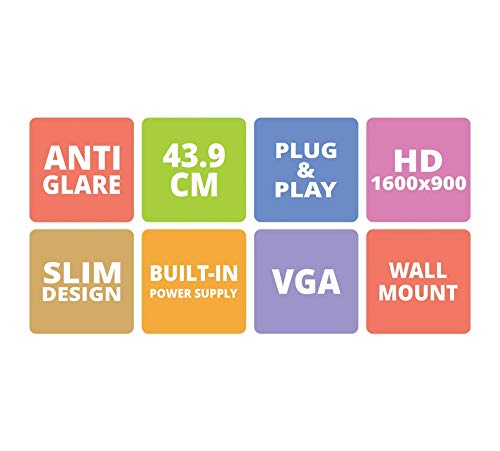
Figure 1: Key features of the Zebronics ZEB-A18 Plus monitor, including Anti Glare, 43.9 CM screen size, Plug & Play functionality, HD 1600x900 resolution, Slim Design, Built-in Power Supply, VGA connectivity, and Wall Mount compatibility.
2. Ulwazi Lokuphepha
Ukuze uqinisekise ukusebenza okuphephile futhi uvimbele umonakalo, sicela uqaphele lezi zinyathelo zokuphepha ezilandelayo:
- Ungayibeki imonitha emvuleni noma emswakama.
- Ungayivuli imonitha casing; dlulisela zonke izinsiza kubasebenzi abaqeqeshiwe.
- Beka imonitha endaweni ezinzile, eyisicaba.
- Qinisekisa ukungena komoya ngendlela efanele eduze kwemonitha.
- Sebenzisa kuphela i-adaptha yamandla enikeziwe.
- Disconnect the power cable during lightning storms or when unused for long periods.
3. Setha
3.1 Ukuhlanganisa Isitendi
- Khipha ngokucophelela i-monitor ne-stand components ephaketheni.
- Namathisela isisekelo sokuma entanyeni.
- Secure the assembled stand to the back of the monitor using the provided screws. Ensure it is firmly attached.
3.2 Ukuxhuma i-Monitor
- Ukuxhuma kwamandla: Connect the power adapter to the monitor's power input and then plug the adapter into a power outlet.
- Ukuxhumeka kwevidiyo: Connect one end of the VGA cable to the VGA port on your computer's graphics card and the other end to the VGA input port on the monitor.
- Uxhumano Lomsindo (uma lukhona): The monitor has built-in speakers. No separate audio cable is typically needed for VGA connections as audio is not transmitted via VGA. Ensure your computer's audio output is configured correctly.
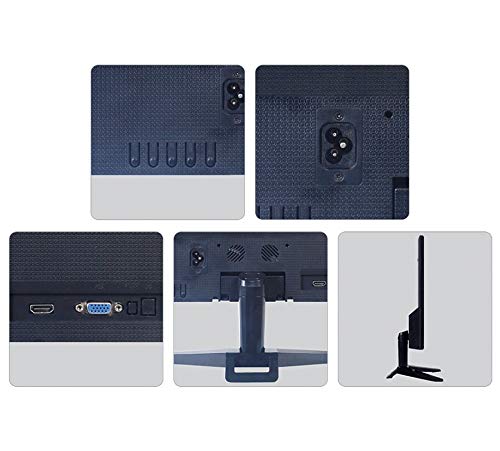
Umfanekiso 2: Ngemuva view of the Zebronics ZEB-A18 Plus monitor showing the power input, VGA port, and side profile. This image illustrates the available connection points for power and video input.
4. Iziqondiso Zokusebenza
4.1 Ukuvula / Ukuvula
Cindezela inkinobho yamandla etholakala kumonitha ukuze uyivule noma uyivale. Isibani senkomba yamandla sizokhanyisa uma isiqapha sisebenza.
4.2 Basic Display Adjustments
The monitor features an On-Screen Display (OSD) menu for adjusting various settings. Use the control buttons (usually located on the bottom or back of the monitor) to navigate the OSD menu. Common adjustments include:
- Ukukhanya: Ilungisa ukukhanya okuphelele kwesikrini.
- Qhathanisa: Ilungisa umehluko phakathi kwezindawo ezikhanyayo nezimnyama.
- Izilungiselelo zombala: Lungisa izinga lokushisa lombala noma amazinga e-RGB ngamanye.
- Okokufaka Khetha: Manually select the video input source (e.g., VGA).
4.3 Izipikha ezakhelwe ngaphakathi
The ZEB-A18 Plus monitor includes built-in speakers. Ensure your computer's audio output is directed to the monitor if you wish to use them. Volume can typically be controlled via your computer's operating system.
5. Isondlo
5.1 Ukuhlanza Imonitha
- Ngaso sonke isikhathi khipha imonitha endaweni kagesi ngaphambi kokuhlanza.
- Sebenzisa indwangu ethambile, engenantambo kancane dampefakwe ngamanzi noma isicoci sesikrini esingaqhumi.
- Ungafafazi isicoci ngqo esikrinini.
- Gwema ukusebenzisa amakhemikhali anokhahlo, izincibilikisi, noma izinto ezihuquzelayo.
- Sula i-casing ngendwangu ethambile, eyomile.
6. Ukuxazulula izinkinga
Uma uhlangabezana nezinkinga ngemonitha yakho, bheka izinkinga ezilandelayo nezisombululo:
- No Display / "No Signal" Message:
- Ensure the monitor is powered on and the power indicator is lit.
- Check that the VGA cable is securely connected to both the monitor and the computer.
- Qinisekisa ukuthi ikhompyutha yakho ivuliwe futhi ayikho kwimodi yokulala.
- Zama ukuqala kabusha ikhompuyutha yakho.
- If using multiple monitors, ensure the correct display output is selected on your computer.
- Poor Image Quality (Blurry, Distorted, Incorrect Colors):
- Check the VGA cable for damage or loose connections.
- Lungisa izilungiselelo zokuxazulula kukhompuyutha yakho ukuze zifane nokulungiswa komdabu komqaphi (1600 x 900).
- Use the OSD menu to adjust brightness, contrast, and color settings.
- Awukho Umsindo Ovela Kuzipikha Ezakhelwe Ngaphakathi:
- Ensure the monitor's volume is not muted or set too low via the OSD (if available) or your computer's audio settings.
- Verify that your computer's audio output is correctly configured to send sound to the monitor.
7. Imininingwane
| Ibhrendi | AMAZEBRONIKE |
| Igama Lemodeli | ZEB A18 Plus |
| Inombolo Yemodeli | ZEB-A18 |
| Usayizi Wesikrini | 17.2 amayintshi |
| Uhlobo lokubonisa | I-LED |
| Ubukhulu Bokubonisa Ukulungiswa | 1600 x 900 (HD+) |
| I-Aspect ratio | 16:9 |
| Isilinganiso Sokuvuselela | 60 Hz |
| Isikhathi sokuphendula | 8 amasekhondi |
| Ukugqama Kwesithombe | 220 cd/m² |
| Isilinganiso Sokuqhathanisa | 400:1 |
| Viewing engela | 178 degrees |
| Ukuxhumana | VGA |
| Izipikha ezakhelwe ngaphakathi | Yebo |
| Uhlobo Lokukhweza | I-Wall Mount |
| Umbala | Mnyama |
| Ukusetshenziswa kwamandla | 15W |
| Isisindo | 1.1 Kgs |
| Dimensions with Stand (W x D x H) | 415 x 13 x 340mm |
8. Iwaranti kanye Nokusekela
8.1 Ulwazi Lwewaranti
Your Zebronics ZEB-A18 Plus monitor is covered by a limited warranty. Please refer to the warranty card included with your product for specific terms and conditions. Keep your purchase receipt as proof of purchase for warranty claims.
8.2 Ukwesekwa Kwamakhasimende
For technical assistance, troubleshooting, or warranty inquiries, please contact Zebronics customer support. Contact details can typically be found on the official Zebronics webindawo noma emaphaketheni omkhiqizo.