
1. Isingeniso
Siyabonga ngokuthengaasing the DEPSTECH WiFi Endoscope. This device is designed for visual inspection in hard-to-reach areas, offering high-definition imaging capabilities via a wireless connection to your smartphone or tablet. Please read this manual thoroughly before use to ensure proper operation and to maximize the lifespan of your device.
2. Ulwazi Lokuphepha
Sicela uqaphele lezi zinyathelo zokuphepha ezilandelayo:
- Do not use this device for medical purposes or personal examination.
- Gcina idivayisi ikude nezingane.
- Do not expose the device to extreme temperatures or corrosive liquids.
- Ensure the camera probe is clean and dry before and after each use, especially if used in wet environments. The camera probe is water repellent, but the main control unit is not.
- Avoid disassembling the device, as this will void the warranty and may cause damage.
- Sebenzisa kuphela ikhebuli yokushaja enikeziwe noma okulinganayo okuqinisekisiwe.
3. Okuqukethwe Kwephakheji
Qinisekisa ukuthi zonke izinto zikhona kuphakheji yakho:
- DEPSTECH WiFi Endoscope (Control Unit with Camera Cable)
- Ikhebula lokushaja le-USB
- Accessory Set (Hook, Magnet, Mirror)
- Imaniwali yosebenzisayo
4. Umkhiqizo Uphelileview
Familiarize yourself with the components of your DEPSTECH WiFi Endoscope.
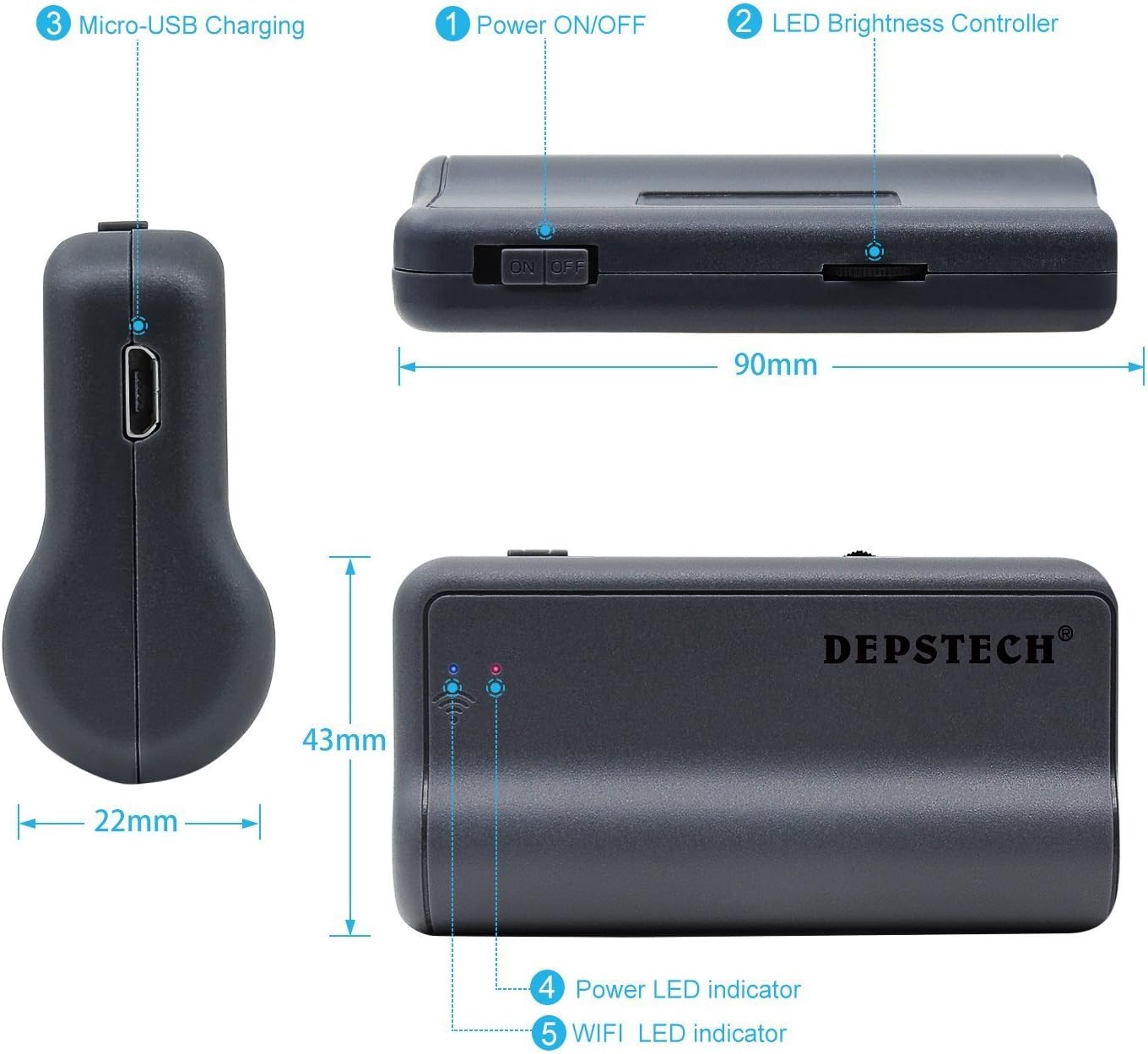
Isithombe: Diagram of the DEPSTECH WiFi Endoscope control unit, showing Micro-USB Charging port, Power ON/OFF switch, LED Brightness Controller, Power LED indicator, and WiFi LED indicator. Dimensions are also indicated: 90mm length, 43mm width, and 22mm for the car charger adapter.
- Shintsha Amandla / VULA: Toggles the device on or off.
- LED Brightness Controller: Adjusts the intensity of the camera's LED lights.
- Imbobo yokushaja ye-Micro-USB: Eyokushaja ibhethri langaphakathi.
- Inkomba ye-Power LED: Shows the power status.
- WiFi LED Indicator: Shows the WiFi connection status.

Isithombe: Eduze view of the endoscope camera attachments: Magnet, Hook, and Mirror. A note advises to peel off the protective film from the mirror before use.
- Uzibuthe: Useful for retrieving small metallic objects from inaccessible areas.
- Ihuku: Can be used to retrieve small non-metallic items or to maneuver objects.
- Isibuko: Inikeza uhlangothi view, allowing inspection of areas at a 90-degree angle to the camera. Remember to remove the protective film before use.
5. Umhlahlandlela wokusetha
5.1. Ukushaja Idivayisi
Before first use, fully charge the endoscope's control unit. Connect the provided USB charging cable to the Micro-USB port (3) on the control unit and to a standard USB power adapter (not included) or computer USB port. The Power LED indicator (4) will show charging status.

Isithombe: Ngaphakathi view of the DEPSTECH endoscope control unit showing the high-capacity lithium battery. The image indicates 3-4 hours of working time and an 1800mAh battery capacity.
5.2. Ukulanda uhlelo lokusebenza
Cinga and download the "DEPSTECH-View" or "DEPSTECH" app from the Apple App Store (for iOS devices) or Google Play Store (for Android devices). Alternatively, scan the QR code provided in the quick start guide or on the product packaging.
5.3. Connecting via Wi-Fi
- Turn on the DEPSTECH WiFi Endoscope by sliding the Power ON/OFF switch (1) to the "ON" position. The Power LED indicator (4) will light up.
- Wait for the WiFi LED indicator (5) to start blinking, indicating the device is broadcasting its Wi-Fi signal.
- On your smartphone or tablet, go to your Wi-Fi settings.
- Locate and select the Wi-Fi network named "DEPSTECH_XXXX" (where XXXX is a series of characters).
- Enter the default password, usually "12345678".
- Once connected, open the "DEPSTECH-View" app. The live video feed from the endoscope camera should appear.
- Qaphela: If your phone automatically switches to cellular data because the endoscope's Wi-Fi does not provide internet, you may need to temporarily disable cellular data in your phone's settings to maintain the connection to the endoscope.
6. Iziqondiso Zokusebenza
6.1. Ukulungisa Ukukhanya kwe-LED
Use the LED Brightness Controller (2) on the control unit to adjust the intensity of the LED lights around the camera lens. This helps illuminate dark inspection areas and can improve image clarity by reducing glare.

Isithombe: Illustration of the endoscope camera head with 6 circled blue tempered LED lights. The image compares the effect of DEPSTECH's blue LED technology versus standard white light, showing reduced image over-exposure and improved color temperature in dark environments.
6.2. Ukusebenzisa Izinamathiseli
The included hook, magnet, and mirror attachments can be screwed onto the tip of the camera probe for various applications. Ensure they are securely fastened before use.
6.3. Ukuthwebula Izithombe Namavidiyo
Within the "DEPSTECH-View" app, you will find buttons to capture still images and record videos. These files will be saved directly to your connected smartphone or tablet's gallery.
6.4. Okufanelekile Viewibanga
The endoscope camera has a fixed focus. For the clearest images, position the camera approximately 1.2 to 3.9 inches (3 to 10 cm) from the object you are inspecting. Objects outside this range may appear blurry.

Isithombe: Diagram illustrating the performance of the 2nd generation chip, showing an improvement from 10fps (first generation) to 30fps (second generation), indicating up to 200% faster capture for clearer and closer views.
6.5. Izimo Ezisebenzayo
The DEPSTECH WiFi Endoscope is suitable for various inspection tasks, including:
- Automotive inspection (engine, exhaust, chassis)
- Plumbing inspection (pipes, drains)
- HVAC inspection (ducts, vents)
- Home inspection (walls, ceilings, behind appliances)

Isithombe: Four panels showing different application scenarios for the endoscope: inspecting under a car, checking inside a wall, examining plumbing under a sink, and looking behind a washing machine.

Isithombe: Comparison illustrating the semi-rigid cable of the DEPSTECH endoscope (yellow, labeled "flexible") versus a soft cable from "Other brands" (black, labeled "soft"). This highlights the improved maneuverability of the DEPSTECH cable.
7. Isondlo
- Cleaning the Camera Lens: Gently wipe the camera lens with a soft, dry cloth. For stubborn dirt, use a small amount of lens cleaner on the cloth. Do not use abrasive materials or harsh chemicals.
- Cleaning the Cable: The semi-rigid cable can be wiped clean with a damp Indwangu. Qinisekisa ukuthi yomile ngokuphelele ngaphambi kokugcina.
- Isitoreji: Store the endoscope and its accessories in a cool, dry place, away from direct sunlight and extreme temperatures. Keep it in its original packaging or a protective case to prevent damage.
- Ukunakekelwa kwebhethri: To prolong battery life, avoid fully discharging the battery frequently. If storing for an extended period, charge the device to approximately 50% every three months.
8. Ukuxazulula izinkinga
| Inkinga | Imbangela Engenzeka | Isixazululo |
|---|---|---|
| No image on app / Wi-Fi connection fails. |
|
|
| Isithombe asicacile. |
|
|
| Device won't charge or turn on. |
|
|
| Uhlelo lokusebenza luyaphahlazeka noma luba yiqhwa. |
|
|
9. Imininingwane
| Isici | Imininingwane |
|---|---|
| Ibhrendi | I-DEPSTECH |
| Imodeli | B06XS8MYVL |
| Ubuchwepheshe bokuxhumana | I-Wi-Fi |
| Ukulungiswa kokuthwebula ividiyo | 1080p |
| Uhlobo lwenzwa | I-CMOS |
| Uhlobo lokugxila | I-Fixed Focus |
| Optimal Focus Distance | 1.2 - 3.9 amayintshi (3 - 10 cm) |
| Izinga Lokumelana Namanzi | Water Repellent (camera probe) |
| File Format (Image) | I-JPEG |
| File Format (Video) | MP4 |
| Amandla ebhethri | 1800mAh |
| Isikhathi sokusebenza | 3-4 amahora |
| I-Flash yekhamera | Built-In LED (adjustable brightness) |
| Uhlobo Lwekhebula | I-Semi-Rigid |
10. Iwaranti & Ukusekela
DEPSTECH products come with a standard manufacturer's warranty. For detailed warranty terms and conditions, please refer to the warranty card included in your package or visit the official DEPSTECH website. If you encounter any issues or have questions regarding your product, please contact DEPSTECH customer support:
- Webindawo: www.izama.com
- I-imeyili: Refer to the contact information on the official webisayithi noma ukupakishwa komkhiqizo wakho.
Please have your model number (B06XS8MYVL) and purchase date ready when contacting support.