
FIBARO FGWPE-102 ZW5 EU
Incwadi Yomsebenzisi Ye-FIBARO Wall Plug
Model: FGWPE-102 ZW5 EU
1. Isingeniso
The FIBARO Wall Plug is a compact, intelligent plug-in module designed to control lighting or other electrical devices via Z-Wave commands. It is engineered to work with any type of load up to a maximum power of 2500W. This device also features energy consumption measurement, providing instant and total consumption values to your Z-Wave controller.
A visual indicator ring on the plug provides an immediate overview of energy consumption: a green ring indicates low consumption, while a red ring signifies very high consumption. Additionally, the FIBARO Wall Plug offers a unique Z-Wave network range test function.

Image 1.1: The FIBARO Wall Plug (Type E) and its retail packaging.
2. Ulwazi Lokuphepha
- Ensure the Wall Plug is connected to a properly grounded electrical outlet.
- Do not exceed the maximum load capacity of 2500W.
- Ungawuqeqeshi noma ulungise idivayisi.
- Gcina kude namanzi kanye nezindawo ezinomswakama ophezulu.
- Le divayisi ngeyokusetshenziswa endlini kuphela.
- Khipha idivayisi ku-outlet yamandla ngaphambi kokuhlanza.
3. Setha
3.1. Ukufakwa ngokomzimba
- Plug the FIBARO Wall Plug into a standard Type E electrical outlet.
- Connect the appliance you wish to control into the FIBARO Wall Plug.

Image 3.1: The FIBARO Wall Plug supports Type E and Type F outlets.
3.2. Adding to Z-Wave Network (Inclusion)
- Place the FIBARO Wall Plug within direct range of your Z-Wave controller.
- Set your Z-Wave controller into inclusion mode (refer to your controller's manual for specific instructions).
- Press the button on the FIBARO Wall Plug three times quickly. The LED ring will flash blue to indicate inclusion mode.
- Once successfully added, the LED ring will change to a steady color, indicating its current power consumption.
3.3. Z-Wave Network Range Test
The Wall Plug can test the Z-Wave network coverage. To activate this function:
- Press and hold the button on the Wall Plug for a few seconds until the LED ring turns light violet.
- Release the button. The LED will then display a color indicating the current network coverage:
- Okuluhlaza: Excellent range
- Okuphuzi: Ibanga elihle
- Iwolintshi: Moderate range
- Okubomvu: Ibanga eliphansi
- Okubomvu Okukhanyayo: Alukho uxhumano
- To exit the test mode, press the button briefly.
4. Operating the Wall Plug
4.1. Basic ON/OFF Control
- Ukulawulwa Kwezandla: Press the button on the Wall Plug once to toggle the connected appliance ON or OFF.
- Isilawuli kude: Use your Z-Wave controller or associated mobile application to remotely switch the connected appliance ON or OFF.
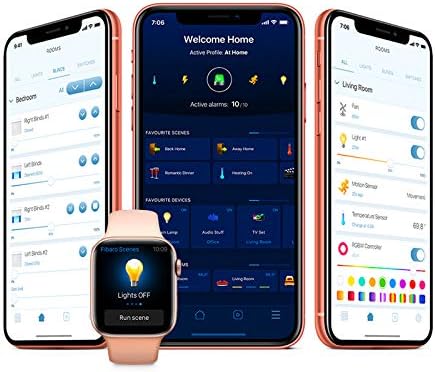
Isithombe 4.1: Eksample of the FIBARO mobile application interface for controlling devices.
4.2. Ukuqapha Amandla
The FIBARO Wall Plug continuously monitors the energy consumption of the connected device. The LED ring changes color to visually represent the current power draw:
- Okuluhlaza: Ukusetshenziswa kwamandla okuphansi
- Okuluhlaza okwesibhakabhaka: Moderate power consumption
- Okuphuzi: Higher power consumption
- Okubomvu: Very high power consumption
- Okubomvu Okukhanyayo: Overload warning (disconnect appliance immediately if this occurs).
Detailed energy consumption data (instantaneous power and total accumulated energy) can be viewed through your Z-Wave controller's interface or associated applications.
5. Isondlo
- Ukuhlanza: Use a soft, dry cloth to clean the surface of the Wall Plug. Do not use abrasive cleaners or solvents.
- Ukuvuselelwa kwe-Firmware: The FIBARO Wall Plug supports wireless firmware updates when used with a FIBARO Home Center 2 or newer controller. Refer to your controller's manual for instructions on performing firmware updates.
6. Ukuxazulula izinkinga
6.1. Izinkinga Ezivamile
- Idivayisi ayiphenduli:
- Ensure the Wall Plug is properly plugged into a live outlet.
- Check the Z-Wave network range using the built-in test function (Section 3.3).
- Verify that the Wall Plug is correctly included in your Z-Wave network. If not, try re-including it.
- Incorrect energy readings:
- Ensure the connected appliance is within the specified power limits.
- Check for any firmware updates for the Wall Plug or your Z-Wave controller.
- LED ring not illuminating:
- Verify power supply to the outlet.
- If the device is unresponsive, try unplugging it for 30 seconds and plugging it back in.
6.2. Exclusion from Z-Wave Network
If you need to remove the Wall Plug from your Z-Wave network:
- Place the FIBARO Wall Plug within direct range of your Z-Wave controller.
- Set your Z-Wave controller into exclusion mode (refer to your controller's manual).
- Press the button on the FIBARO Wall Plug three times quickly. The LED ring will flash blue to indicate exclusion mode.
- Once successfully excluded, the LED ring will stop flashing and the device will no longer be controlled by the network.
7. Imininingwane
| Isici | Imininingwane |
|---|---|
| Inombolo Yemodeli | FGWPE-102 ZW5 EU |
| Umkhiqizi | I-FIBARO |
| Ubukhulu (L x W x H) | 5 x 5 x 5 cm |
| Isisindo | awu 90g |
| Umbala | No Color (Transparent/White) |
| Okubalulekile | Ipulasitiki |
| Uhlobo lwamandla | Ama-Main Powered |
| Voltage | 230 volts |
| Umthwalo Omkhulu | 2500W |
| Ubuchwepheshe obungenantambo | I-Z-Wave Plus |
| Ukusetshenziswa | Ukusetshenziswa Komuntu Siqu Nokwezentengiselwano |
| Izwe azalelwe kulo | China |
8. Ulwazi Lwewaranti
Specific warranty details for the FIBARO Wall Plug FGWPE-102 ZW5 EU are not provided in this manual. Please refer to the official FIBARO website or your point of purchase for comprehensive warranty terms and conditions.
9. Ukusekela
For further assistance, technical support, or detailed product documentation, please visit the official FIBARO support website or contact their customer service department. Contact information can typically be found on the FIBARO webindawo noma ukupakishwa komkhiqizo.
Ask a question about this manual
Ask about setup, troubleshooting, compatibility, parts, safety, or missing instructions. Manuals+ will review the question and use this page’s manual context to help answer it.