
1. Isingeniso
This manual provides essential information for the safe and efficient use of your InFocus IF195a Touch Pad. Please read this manual thoroughly before operating the device and retain it for future reference.
2. Ulwazi Lokuphepha
- Ungalibeki idivayisi emazingeni okushisa aphezulu, elangeni eliqondile, noma umswakama ophezulu.
- Gwema ukuwisa noma ukubeka idivayisi emithonyeni enamandla.
- Use only the charger provided or approved by InFocus.
- Ungazami ukuqaqa noma ukulungisa idivayisi ngokwakho. Thumela zonke izinsiza kubasebenzi abaqeqeshiwe.
- Gcina idivayisi ikude namanzi nolunye uketshezi.
- Lahla ucingo kanye nebhethri lakho ngokuzibophezela ngokwemithetho yendawo.
3. Umkhiqizo Uphelileview
The InFocus IF195a is a 20-inch Android-powered touch pad designed for interactive use. Familiarize yourself with its components.
3.1 Ngaphambili View

Umfanekiso 1: Ngaphambili view of the InFocus IF195a Touch Pad. This image shows the large 20-inch display with the Android operating system interface, including various app icons and the Google search bar. The device features a sleek bezel around the screen.
- Bonisa: 20-inch multi-touch screen.
- Ikhamera yangaphambili: Located at the top center bezel.
- Imakrofoni: Integrated for voice input.
3.2 Uhlangothi View kanye namachweba
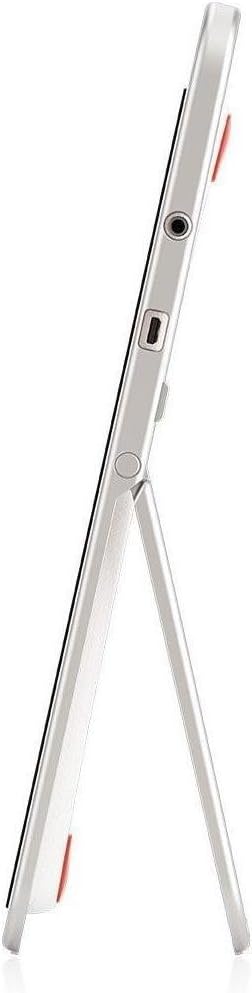
Umfanekiso 2: Side view of the InFocus IF195a Touch Pad. This image highlights the device's slim profile and the integrated kickstand, which allows for upright positioning. Visible ports include a headphone jack and a USB port.
- Inkinobho yamandla: Used to turn the device on/off or put it to sleep.
- Izinkinobho zevolumu: Adjust the device's audio output.
- I-Headphone Jack (3.5mm): Okokuxhuma amadivaysi omsindo angaphandle.
- Imbobo ye-Micro-USB: Ukushaja nokudluliswa kwedatha.
- I-Kickstand Ehlanganisiwe: Allows the device to stand upright.
4. Setha
4.1 I-Unboxing kanye Nenkokhelo Yokuqala
- Carefully remove the InFocus IF195a Touch Pad and all accessories from the packaging.
- Connect the provided power adapter to the Micro-USB port on the device and plug it into a power outlet. Allow the device to charge fully before first use. The charging indicator will typically show a full battery when complete.
4.2 Ukuvula / Ukuvula
- Ukuvula: Press and hold the Power button until the InFocus logo appears on the screen.
- Ukucisha: Cindezela bese ubamba inkinobho ethi Vula kuze kuvele imenyu yokuvala. Khetha okuthi "Vala" bese uqinisekisa.
- Ukulala/Ukuvuka: Briefly press the Power button to put the device into sleep mode or wake it up.
4.3 Iseluleki Sokuqala Sokusetha
Uma uyivula okokuqala, idivayisi izokuqondisa ngenqubo yokuqala yokusetha:
- Ukukhetha Ulimi: Khetha ulimi oluthandayo.
- Uxhumano lwe-Wi-Fi: Select your Wi-Fi network from the list and enter the password. A stable internet connection is required for many features.
- I-akhawunti ye-Google: Sign in with an existing Google account or create a new one. This is necessary to download apps from the Google Play Store and access Google services.
- Idethi nesikhathi: Set the correct date and time or allow the device to set it automatically via the network.
- Izilungiselelo zobumfihlo: Review futhi ulungise izilungiselelo zobumfihlo njengoba uthanda.
5. Ukusebenzisa Idivayisi
5.1 Ukuthinta Ukuthinta
- Thepha: Thinta isikrini kanye ukuze ukhethe into noma uvule uhlelo lokusebenza.
- Thinta futhi Ubambe: Press and hold an item to access contextual menus or drag items.
- Swayipha: Hudula umunwe wakho esikrinini ukuze uskrole ohlwini noma ushintshe phakathi kwezikrini zasekhaya.
- Ncinza ukuze usondeze: Use two fingers to zoom in or out on images, maps, or web amakhasi.
5.2 Home Screen and Navigation
- Inkinobho Yasekhaya: Returns you to the main home screen.
- Inkinobho Emuva: Returns to the previous screen or closes the current application.
- Inkinobho Yezinhlelo Zokusebenza Zakamuva: Displays a list of recently used applications for quick switching.
- Iphaneli Yezaziso: Swayiphela phansi kusukela phezulu kwesikrini ukuze ufinyelele izaziso nezilungiselelo ezisheshayo.
5.3 Installing and Managing Applications
- I-Google Play Isitolo: Open the "Play Store" app to browse and download applications. A Google account is required.
- Ifaka izinhlelo zokusebenza: Select an app and tap "Install." Follow on-screen prompts for permissions.
- Ikhipha izinhlelo zokusebenza: Iya ku Izilungiselelo > Izinhlelo zokusebenza, select the desired app, and tap "Uninstall." Alternatively, touch and hold an app icon on the home screen and drag it to the "Uninstall" option (if available).
5.4 Ukuxhuma kumadivayisi angaphandle
- Ama-headphone: Xhuma ama-headphone angu-3.5mm kujekhi yama-headphone.
- Amadivayisi e-USB: Connect compatible USB devices (e.g., flash drives, keyboards) to the Micro-USB port using an appropriate adapter if necessary. The device supports USB On-The-Go (OTG).
6. Isondlo
6.1 Ukuhlanza Idivayisi
- Sebenzisa indwangu ethambile, engenantambo ukuhlanza isikrini nomzimba wedivayisi.
- Ukuze uthole amamaki anenkani, kancane dampzu indwangu enamanzi noma isicoci sesikrini esiklanyelwe ngokukhethekile izinto zikagesi.
- Gwema ukusebenzisa amakhemikhali anokhahlo, izihlanzi ezilumayo, noma izifutho ze-aerosol.
6.2 Ukunakekelwa Kwebhethri
- Ukwelula impilo yebhethri, gwema ukukhipha ibhethri ngokugcwele njalo.
- Ungalushiyi ucingo luxhumeke eshajani isikhathi eside ngemva kokuthi isishajwe ngokugcwele.
- Store the device in a cool, dry place if not used for a long time, with the battery charged to about 50%.
6.3 Ukuvuselelwa Kwesoftware
Periodically check for software updates to ensure optimal performance and security. Go to Settings > About tablet > System updates to check for and install available updates. Ensure your device is connected to Wi-Fi and has sufficient battery charge before starting an update.
7. Ukuxazulula izinkinga
| Inkinga | Isixazululo Esingenzeka |
|---|---|
| Idivayisi ngeke ivuleke. | Ensure the device is charged. Connect the charger and wait a few minutes before attempting to power on again. If unresponsive, perform a hard reset by holding the power button for 10-15 seconds. |
| Izinkinga zokuxhumeka kwe-Wi-Fi. | Check if Wi-Fi is enabled in settings. Restart your Wi-Fi router. Forget the network and reconnect. Ensure you are within range of the Wi-Fi signal. |
| Applications are crashing or freezing. | Close and restart the application. Clear the app's cache (Izilungiselelo > Izinhlelo zokusebenza > [Igama Lohlelo Lokusebenza] > Isitoreji > Sula inqolobane). If the problem persists, uninstall and reinstall the app. |
| Isikrini asiphenduli. | Restart the device. Ensure the screen is clean and free of debris. If the issue continues, contact support. |
| Ukusebenza okunensayo. | Close unnecessary background applications. Clear cache for frequently used apps. Check available storage (Izilungiselelo > Isitoreji) and free up space if needed. Consider a factory reset as a last resort. |
7.1 Ukusetha kabusha kwasefekthri
Ukusetha kabusha kwefekthri kuzosula yonke idatha kudivayisi yakho bese kuyibuyisela kuzilungiselelo zayo zasekuqaleni zefekthri. Yenza ikhophi yasenqolobaneni yonke idatha ebalulekile ngaphambi kokuqhubeka.
- Iya ku Settings > Backup & reset > Factory data reset.
- Read the warning message carefully.
- Tap "Reset tablet" and then "Erase everything" to confirm.
- The device will restart and begin the reset process.
8. Imininingwane Yezobuchwepheshe
| Isici | Ukucaciswa |
|---|---|
| Imodeli | IF195a |
| Ibhrendi | I-InFocus |
| Usayizi Wokubonisa | 20 amayintshi |
| Ukulungiswa Okukhulu | 1600 x 900 |
| Iphrosesa | ARM Cortex-A15 Quad-Core 1.8 GHz |
| Umthamo we-RAM | 2 GB |
| Umthamo Wesitoreji | 16 GB |
| Isistimu esebenzayo | Android 4.4 KitKat |
| Ukulungiswa Kwekhamera Yangemuva | 5 MP |
| Ubukhulu (L x W x H) | 61.6 x 47 x 8.6 cm |
| Isisindo | 3.7 kg |
| Umbala | Okumpunga |
9. Iwaranti kanye Nokusekela
For warranty information, please refer to the warranty card included with your product or visit the official InFocus website. For technical support, product registration, or service inquiries, please contact InFocus customer service through their official channels.
Please note that warranty terms may vary by region and retailer. Keep your proof of purchase for warranty claims.