
1. Isingeniso
The COUGAR Evolution Galaxy is a full tower computer case designed for enthusiasts, offering a spacious interior and advanced cooling capabilities. This manual provides detailed instructions for the assembly, operation, and maintenance of your computer case, ensuring optimal performance and longevity.
2. Izici Eziyinhloko
- Ingaphakathi Elibanzi: Accommodates up to 8 PCI cards, providing flexibility for multiple graphics solutions.
- Ukupholisa Okuthuthukisiwe: Supports up to 7 fans, including dual 12cm COUGAR TURBINE HYPER-SPIN Bearing Silent Fans, with a unique dual-fan-set management system for excellent ventilation.
- Ukuhambisana kwe-Motherboard: Supports Extended ATX and ATX motherboards.
- Ukwakhiwa Okuqinile: Made from SECC Alloy Steel for robust protection.
- Front Panel Connectivity: Features 4 USB 3.0 ports for high-speed data transfer.
- Bottom Mount PSU: Power supply mounts at the bottom for improved thermal management.
3. Ukusetha nokufakwa
3.1 Ukuqaqa kanye Nokuhlola
Carefully remove the computer case from its packaging. Inspect for any signs of damage during transit. Retain all packaging materials for future transport or warranty claims.
3.2 Ukufakwa Kwebhodi Yomama
- Remove the side panel by unscrewing the thumbscrews at the rear of the case.
- Install the I/O shield provided with your motherboard into the rear opening of the case.
- Align the motherboard with the pre-installed standoffs. If necessary, install additional standoffs according to your motherboard's form factor.
- Gently place the motherboard onto the standoffs and secure it with screws.
Umfanekiso 1: Ingaphakathi view of the COUGAR Evolution Galaxy case, highlighting the motherboard tray and tool-less drive bays.
3.3 Ukufakwa Kwedrayivu
The COUGAR Evolution Galaxy features tool-less drive bays for easy installation.
- 5.25" Devices (Optical Drives): Remove the front panel bay cover. Slide the 5.25" device into the bay until it clicks into place.
- Ama-HDD angu-3.5": Slide the hard drive into the designated 3.5" drive tray until it secures.
- 2.5" SSDs/HDDs: These can be mounted in the 3.5" trays using adapter screws or dedicated 2.5" mounts if available.

Figure 2: Detailed interior view showing the orange tool-less drive bay mechanisms for easy installation of storage devices.
3.4 Ukufakwa Kokunikezwa Kwamandla
The power supply unit (PSU) mounts at the bottom rear of the case.
- Position the PSU into the designated compartment at the bottom rear.
- Secure the PSU to the case using screws from the rear.
Umfanekiso 3: Ngemuva view of the COUGAR Evolution Galaxy case, illustrating the bottom-mounted power supply area, multiple PCI expansion slots, and the rear exhaust fan.
3.5 Ukuphathwa Kwekhebula
Utilize the cutouts and tie-down points behind the motherboard tray to route cables. This improves airflow and maintains a clean interior aesthetic.
3.6 Fan and Front Panel Connections
Connect all case fans to the motherboard or the integrated fan controller. Connect the front panel headers (USB 3.0, audio, power switch, reset switch, HDD LED, Power LED) to the corresponding pins on your motherboard. Refer to your motherboard manual for pin assignments.
4. Iziqondiso Zokusebenza
4.1 Iyavula
Once all components are installed and connected, ensure the power supply switch is in the 'ON' position. Press the power button on the front panel of the case to start your system.
4.2 Isilawuli sabalandeli
The COUGAR Evolution Galaxy includes an integrated fan controller. Use the controls on the top panel to adjust fan speeds for optimal balance between cooling performance and noise levels. Connect your case fans to this controller for centralized management.
4.3 Amachweba Ephaneli Engaphambili
The front panel provides convenient access to USB 3.0 ports and audio jacks for headphones and microphones. Ensure these are correctly connected to your motherboard's internal headers during setup.

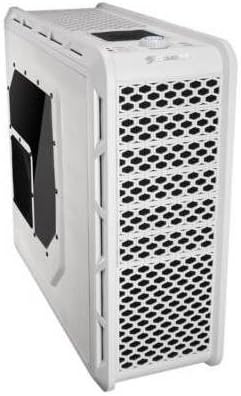
Figure 4: Angled front-side view of the COUGAR Evolution Galaxy case, showcasing the mesh front panel for airflow and the top-mounted controls and ports.
5. Isondlo
5.1 Ukuhlanza Isihlungi Sothuli
The case is equipped with dust filters to prevent dust accumulation inside. Regularly clean these filters (e.g., monthly) by removing them and washing with water or using a vacuum cleaner. Ensure filters are completely dry before reinstallation.
5.2 Ukuhlanza Okujwayelekile
Sebenzisa okuthambile, damp cloth to clean the exterior surfaces of the case. Avoid abrasive cleaners or solvents that may damage the finish. For interior cleaning, use compressed air to remove dust from components and fans.
5.3 Fan Inspection
Periodically check all fans for proper operation. Ensure they are spinning freely and quietly. Replace any fans that are noisy or not functioning correctly to maintain optimal cooling.

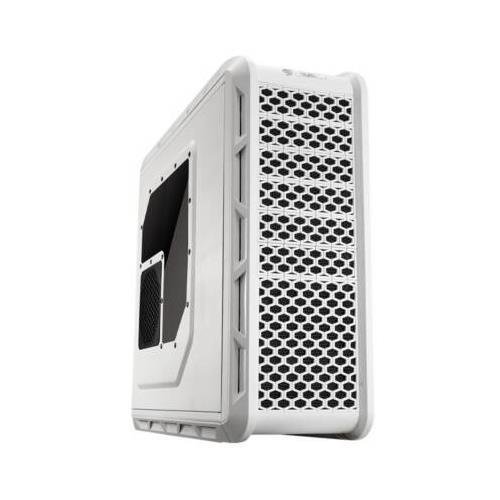
Umfanekiso 5: Uhlangothi view of the COUGAR Evolution Galaxy case, featuring a clear side panel window and a dedicated fan mount for additional cooling.
6. Ukuxazulula izinkinga
- Isistimu Ayivuli:
- Check all power connections, including the PSU to the wall outlet, PSU to motherboard, and front panel power switch header.
- Qinisekisa ukuthi iswishi ye-PSU isesimweni 'SOKUBANISWA'.
- Abalandeli Abaphenduki:
- Verify fan cables are securely connected to the motherboard or fan controller.
- Check fan controller settings if applicable.
- Front Panel USB Ports Not Working:
- Ensure the USB 3.0 header cable from the case is correctly connected to the motherboard.
- Check motherboard BIOS settings for USB port enablement.
7. Imininingwane
| Isici | Ukucaciswa |
|---|---|
| Uhlobo Lwekesi | Umbhoshongo ogcwele |
| Ukuhambisana kwe-Motherboard | Extended ATX, ATX |
| Okubalulekile | Alloy Steel (SECC) |
| Umbala | Emhlophe |
| Isisindo sento | 29.8 amakhilogremu |
| Usayizi Wabalandeli | 12 Centimeters (Dual COUGAR TURBINE HYPER-SPIN Bearing Silent Fans included) |
| Indlela Yokupholisa | Umoya |
| Uhlobo Lokufaka Ukunikezwa Kwamandla | Intaba Ephansi |
| Inombolo yezimbobo ze-USB 3.0 | 4 |
8. Iwaranti kanye Nokusekela
For warranty information and technical support, please refer to the official COUGAR webisayithi noma thintana nomthengisi wangakini. Gcina ubufakazi bakho bokuthenga ngezimangalo zewaranti.