
1. Isingeniso
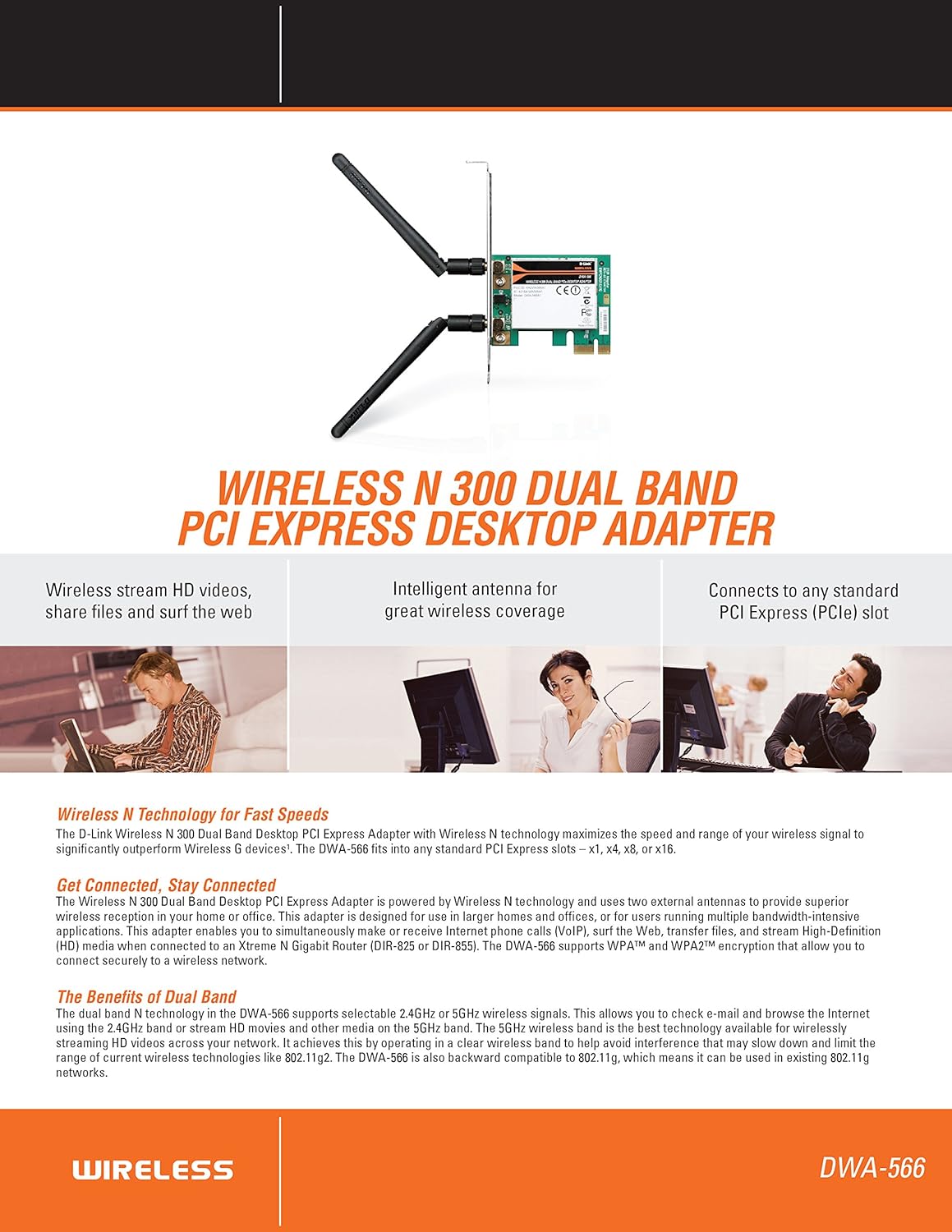
The D-Link Wireless N300 Dual Band PCI Express Desktop Adapter (DWA-566) provides high-speed wireless connectivity for your desktop computer. Utilizing Wireless N technology, it maximizes the speed and range of your wireless signal, offering superior performance compared to Wireless G devices. The dual-band capability supports both 2.4GHz and 5GHz wireless signals, allowing for flexible network usage, such as browsing on 2.4GHz and HD streaming or gaming on the clearer 5GHz band.
This adapter is designed to fit into any standard PCI Express slot, offering a higher performance interface than legacy PCI. It supports secure wireless networks with WPA or WPA2 encryption.

Figure 1.1: D-Link DWA-566 Wireless N300 Dual Band PCI Express Desktop Adapter with antennas.
2. Izici
The DWA-566 adapter includes the following key features:
- IEEE 802.11n, 802.11g, and 802.11a Compliant
- Dual Band Technology for Superior Wireless Performance (2.4GHz or 5GHz)
- Access secure wireless networks using advanced WPA or WPA2 encryption
- Fits into any standard PCI Express slot
- PCI Express Interface provides higher performance than a legacy PCI interface
Umdwebo 2.1: Ngaphezuluview of DWA-566 features and benefits.
3. Okuqukethwe Kwephakheji
Qinisekisa ukuthi iphakheji yakho iqukethe izinto ezilandelayo:
- Wireless N 300 Dual Band PCI Express Adapter (DWA-566)
- Two detachable antennas
- Ophansi-profile ubakaki okhuphukayo
- Umhlahlandlela Wokufaka Ngokushesha
- CD-ROM with:
- I-D-Link Wireless Connection Manager
- Abashayeli
- Umbhalo Womkhiqizo
4. Izidingo zesistimu
Before installing the DWA-566, ensure your system meets the following minimum requirements:
- Computer with an available PCI Express slot
- Windows operating system (Windows XP, Vista, 7, 8, 10)
- CD-ROM drive (for driver installation from included CD)
- Internet Explorer 7 or Firefox 3.0 and above (for viewing documentation)
- Ukubhalisa Ngomhlinzeki Wesevisi Ye-inthanethi (ISP)
For optimal performance, a D-Link Wireless N router (DIR-655 or DIR-825) is recommended.

Figure 4.1: Detailed technical specifications, minimum requirements, and network diagram.
5. Ukusetha nokufakwa
5.1 Ukufakwa kwe-Hardware
- Cisha Ikhompyutha: Vala ikhompuyutha yakho bese ukhipha intambo yamandla.
- Vula Ikesi Lekhompyutha: Remove the computer case cover.
- Thola i-PCI Express Slot: Find an available PCI Express slot on your motherboard.
- Faka i-adaptha: Carefully insert the DWA-566 adapter into the PCI Express slot, ensuring it is seated firmly.
- I-adaptha evikelekile: Secure the adapter with a screw to the computer chassis.
- Namathisela ama-Antenna: Screw the two included antennas onto the connectors on the adapter.
- Vala Ikesi bese Uvula: Replace the computer case cover, plug in the power cord, and power on your computer.

Figure 5.1: DWA-566 adapter with antennas attached, ready for installation.
5.2 Ukufakwa Kwesofthiwe
After hardware installation, proceed with driver and utility installation:
- Insert Installation CD: Insert the DWA-566 installation CD into your computer's CD-ROM drive. The setup wizard should launch automatically. If not, navigate to the CD drive and run the 'Setup.exe' file.
- Landela imiyalelo ekusikrini: Follow the prompts of the D-Link setup wizard to install the drivers and the D-Link Wireless Connection Manager utility.
- Qala kabusha Ikhompyutha: After the installation is complete, restart your computer when prompted.
Qaphela: For Windows 7/8 64-bit systems, ensure you are using the latest drivers available from the official D-Link support website to avoid potential compatibility issues.
6. Iziqondiso Zokusebenza
Once the drivers are installed, you can connect to a wireless network:
- Launch Connection Manager: Open the D-Link Wireless Connection Manager utility or use the built-in Windows wireless network utility.
- Skena Amanethiwekhi: The utility will scan for available wireless networks in your area.
- Khetha Inethiwekhi: Choose your desired wireless network (SSID) from the list.
- Enter Security Key: If the network is secured, enter the correct WPA/WPA2 security key or passphrase.
- Xhuma: Click 'Connect' to establish a wireless connection.
A successful connection will be indicated by a strong signal strength and internet access.
7. Isondlo
To ensure optimal performance and longevity of your DWA-566 adapter:
- Gcina Abashayeli Benolwazi: Hlola njalo ukwesekwa kwe-D-Link webiwebhusayithi yabashayeli bakamuva kanye nezibuyekezo ze-firmware.
- Qinisekisa ukuthi Ungenisa umoya Ofanele: Make sure your computer case has adequate airflow to prevent overheating of internal components, including the wireless adapter.
- Ukuma kwe-Antenna: Adjust the antennas for the best possible signal reception.
- Izici Zemvelo: Avoid placing your computer near large metal objects or other devices that may cause wireless interference.
8. Ukuxazulula izinkinga
If you encounter issues with your DWA-566 adapter, consider the following:
8.1 No Wireless Connection
- Verify Hardware Installation: Ensure the adapter is correctly seated in the PCI Express slot and antennas are securely attached.
- Check Drivers: Confirm that the drivers are installed correctly. Check Device Manager for any error symbols next to the network adapter. Reinstall drivers if necessary.
- Isimo se-Router: Ensure your wireless router is powered on and broadcasting a signal.
- Ukhiye Wokuvikela: Double-check that the correct wireless security key (WPA/WPA2 passphrase) is entered.
- Izilungiselelo ze-Firewall: Temporarily disable your computer's firewall to see if it is blocking the connection. If it resolves the issue, configure your firewall to allow the D-Link utility.
8.2 Slow Connection Speed or Frequent Disconnections
- Ukulungiswa kwe-Antenna: Try repositioning the antennas for better signal reception.
- Ukuphazamisa: Move the computer away from potential sources of interference (e.g., cordless phones, microwaves, Bluetooth devices).
- Ukusondela Komzila: Ensure the computer is within the effective range of your wireless router.
- Dual Band Usage: If your router supports it, try connecting to the 5GHz band for less interference and potentially higher speeds, especially for streaming or gaming.
- Isibuyekezo Somshayeli: Update the adapter drivers to the latest version from the D-Link webindawo.
9. Imininingwane
| Isici | Ukucaciswa |
|---|---|
| Ibhrendi | I-D-Link |
| Inombolo Yemodeli | DWA-566 |
| Isikhombimsebenzisi se-Hardware | I-PCI Express |
| Iphrothokholi Yesixhumanisi Sedatha | IEEE 802.11n, 802.11g, 802.11a |
| Isilinganiso Sokudluliswa Kwedatha | Up to 300 Megabits Per Second |
| I-Frequency Band | 2.4 GHz / 5 GHz (Dual Band) |
| Ezokuphepha | I-WPA, WPA2 |
| Amadivayisi Ahambisanayo | Amakhompyutha edeskithophu |
| Isisindo sento | 0.4 Pound (cishe amagremu angu-181) |
| Isitifiketi Sokuhlola Kwangaphandle | FCC B, IC B, CE, C-Tick |
10. Iwaranti kanye Nokusekela
The D-Link Wireless N300 Dual Band PCI Express Desktop Adapter (DWA-566) comes with a Iwaranti ekhawulelwe yeminyaka engu-1. For specific terms and conditions, please refer to the warranty documentation included with your product or visit the official D-Link webindawo.
D-Link provides 24/7 Basic Installation Support to assist with initial setup and configuration. For technical assistance, driver downloads, and further product information, please visit the D-Link support webisayithi noma uxhumane nesevisi yabo yamakhasimende.
Ukusekelwa kwe-D-Link Webindawo: https://support.dlink.com/