
1. Isingeniso
Thank you for choosing the LiteOn eSAU108-97 External Recording DVD Drive. This portable optical drive offers reliable DVD and CD reading and writing capabilities, powered conveniently via a single USB connection. It is designed for use with laptops and other compatible devices, providing a compact and efficient solution for your optical media needs.
Sicela ufunde leli bhukwana ngokucophelela ngaphambi kokusebenzisa idivayisi ukuze uqinisekise ukuthi isebenza kahle futhi wandise ubude bayo bempilo.
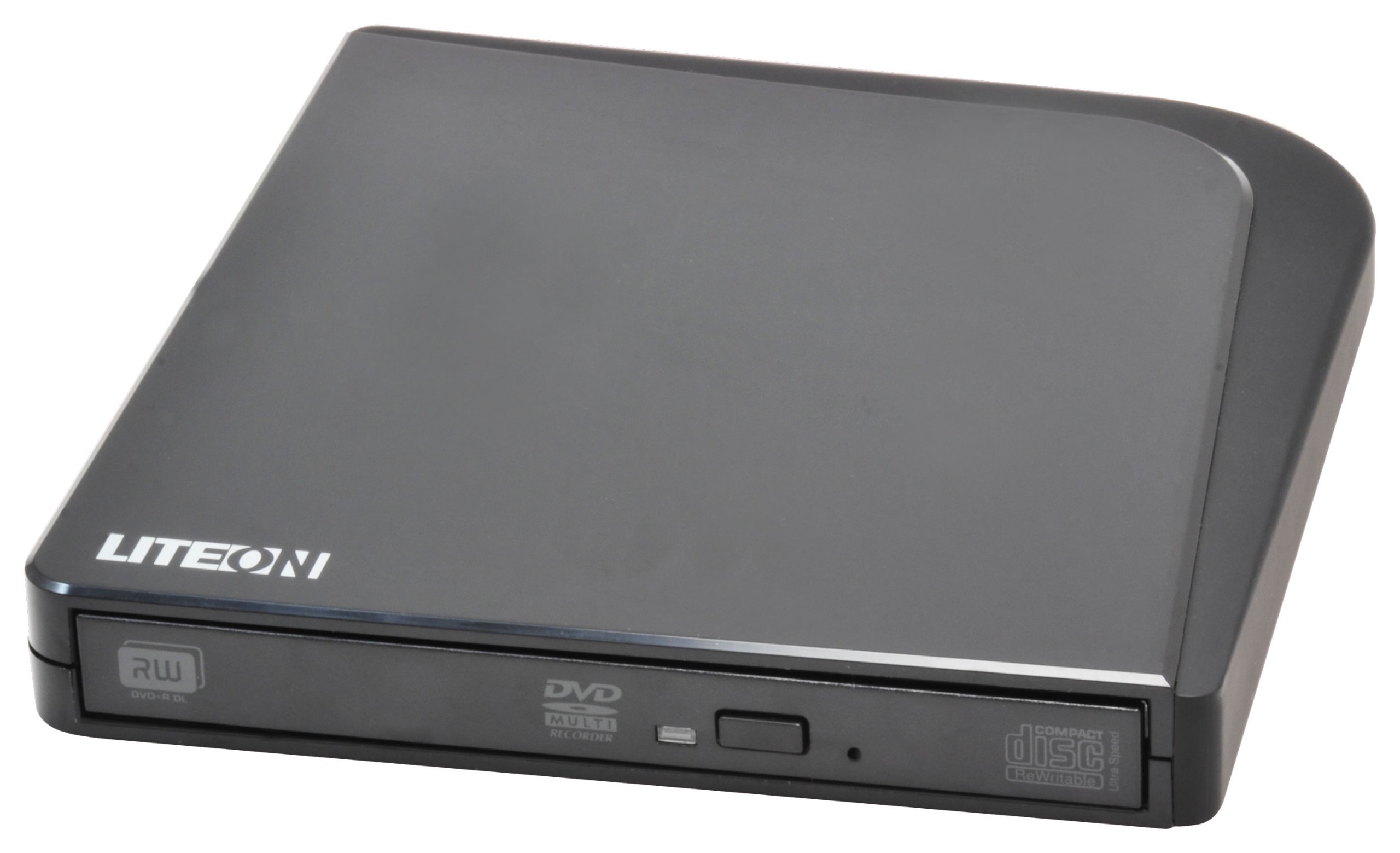
Umfanekiso 1: LiteOn eSAU108-97 External Recording DVD Drive. This image displays the compact, black external DVD drive, highlighting its sleek design and the USB port for connectivity.
2. Okuqukethwe Kwephakheji
Sicela uhlole okuqukethwe yiphakheji ngokucophelela. Uma kukhona izinto ezingekho noma ezonakele, xhumana nomthengisi wakho ngokushesha.
- LiteOn eSAU108-97 External Recording DVD Drive
- USB Data/Power Cable
- Umhlahlandlela Wokuqala Ngokushesha (le manuwali)
3. Setha
3.1 Izidingo Zohlelo
- Operating System: Windows XP/Vista/7/8/10/11, macOS 10.x or later, Linux (kernel 2.6 or later)
- Available USB 2.0 or 3.0 port
- Ubuncane be-RAM engu-512MB
- Minimum 10GB free hard disk space (for disc burning software and temporary files)
3.2 Ukuxhuma Idrayivu
- Locate an available USB port on your laptop or computer.
- Connect the smaller end of the provided USB cable to the USB port on the LiteOn eSAU108-97 drive.
- Connect the larger end of the USB cable to the USB port on your computer.
- The drive is bus-powered, meaning it draws power directly from the USB port. No external power adapter is required.
- Uhlelo lwakho lokusebenza kufanele luzitholele ngokuzenzakalelayo futhi lufake abashayeli abadingekayo. Le nqubo ingase ithathe isikhashana.
3.3 Ukufakwa komshayeli
The LiteOn eSAU108-97 is a plug-and-play device. Most modern operating systems will automatically install the required drivers upon connection. No manual driver installation is typically needed. If the drive is not recognized, try connecting it to a different USB port or restarting your computer.
4. Ukusebenzisa IDrayivu
4.1 Ukulayisha iDiski
- Press the eject button on the front of the drive to open the disc tray.
- Carefully place a CD or DVD onto the tray with the label side facing up. Ensure the disc is centered on the spindle.
- Cindezela ithreyi yediski kancane uyibuyisele kudrayivu ize icishe. Ungaphoqi ithreyi.
4.2 Playing/Reading Discs
Once a disc is loaded, your operating system may automatically prompt you to choose an action (e.g., play a movie, open files). If not, navigate to 'My Computer' or 'This PC' (Windows) or 'Finder' (macOS), locate the optical drive icon, and double-click it to access the disc's contents.
4.3 Recording/Burning Discs
To record data, music, or video onto a blank CD-R/RW or DVD-R/RW disc, you will need compatible disc burning software (e.g., Windows Media Player, Nero, Roxio, or built-in macOS utilities). Follow the instructions provided with your chosen software to perform burning operations.
4.4 Ukukhipha iDiski
- Software Eject: Right-click on the drive icon in 'My Computer'/'This PC' or 'Finder' and select 'Eject'.
- Manual Eject: Cindezela inkinobho yokukhipha ngaphambili kwedrayivu.
- Ukukhipha Okuphuthumayo: In case of power failure or if the eject button does not work, locate the small pinhole on the front of the drive. Insert a straightened paperclip into the pinhole and push gently until the tray partially opens. Then, pull the tray out manually.
5. Isondlo
5.1 Cleaning the Drive
Keep the drive clean and free from dust. Use a soft, dry, lint-free cloth to wipe the exterior. Do not use liquid cleaners or abrasive materials. Avoid opening the drive casing, as this can damage internal components and void your warranty.
5.2 Ukuhlanza Amadiski
Always handle discs by their edges. If a disc is dirty, gently wipe it from the center outwards with a soft, lint-free cloth. Do not use circular motions, as this can cause scratches. For stubborn smudges, use a specialized disc cleaning solution.
5.3 Isitoreji
When not in use, store the drive in a cool, dry place, away from direct sunlight, extreme temperatures, and high humidity. Keep it protected from dust and physical impact.
6. Ukuxazulula izinkinga
| Inkinga | Imbangela Engenzeka | Isixazululo |
|---|---|---|
| IDrayivu ayibonwa ikhompuyutha | Loose USB connection, insufficient power, driver issue, faulty USB port. | Ensure USB cable is securely connected. Try a different USB port. Restart your computer. Check Device Manager (Windows) or System Information (macOS) for the drive. |
| Disc not reading/writing | Dirty or scratched disc, incorrect disc type, faulty disc, drive lens dirty, incompatible software. | Clean the disc. Try a different disc. Ensure the disc type is compatible (CD-R/RW, DVD-R/RW). Use appropriate burning software. |
| Disc tray not opening/closing | Obstruction, mechanical issue, power issue. | Check for obstructions. Ensure the drive is powered (connected via USB). Use the emergency eject hole if necessary. |
| Ukusebenza okunensayo | USB 1.1 port, background processes, fragmented hard drive. | Connect to a USB 2.0 or 3.0 port. Close unnecessary applications. Ensure your computer meets system requirements. |
7. Imininingwane
- Imodeli: eSAU108-97
- Isixhumi esibonakalayo: I-USB 2.0 (ihambisana ne-USB 3.0)
- Uhlobo: External Portable DVD Drive
- I-Hardware Platform: Ikhompyutha ephathekayo
- Isisindo Sento: Cishe amaphawundi angama-1.2 (0.54 kg)
- Ubukhulu bephakheji: 8.27 x 7.72 x 2.87 amayintshi (21 x 19.6 x 7.3 cm)
- Umbala: Mnyama
- Usayizi wenqolobane: 2 MB
- Amandla: I-USB Bus Powered
- Amafomethi Ediski Asekelwe: DVD-ROM, DVD-R, DVD-RW, DVD+R, DVD+RW, CD-ROM, CD-R, CD-RW
8. Iwaranti kanye Nokusekela
LiteOn products are designed and manufactured to the highest quality standards. This product is covered by a limited warranty from the date of purchase. Please refer to the warranty card included in your package or visit the official LiteOn webindawo ngemigomo nemibandela yewaranti enemininingwane.
For technical support, troubleshooting assistance, or service inquiries, please visit the LiteOn support website or contact their customer service department. Contact information can typically be found on the official LiteOn webindawo noma emaphaketheni omkhiqizo wakho.